
1. The Adjustment Lifecycle
The adjustment process ensures that every change is captured and recalculated correctly through the Pricing Context’s Pricing Modules.2. Step-by-Step Instructions
Step 1: Access the Term Records
Navigate to BillSpree > Billing Ops > Terms. Find the active term and click on it to view the list of draft bills.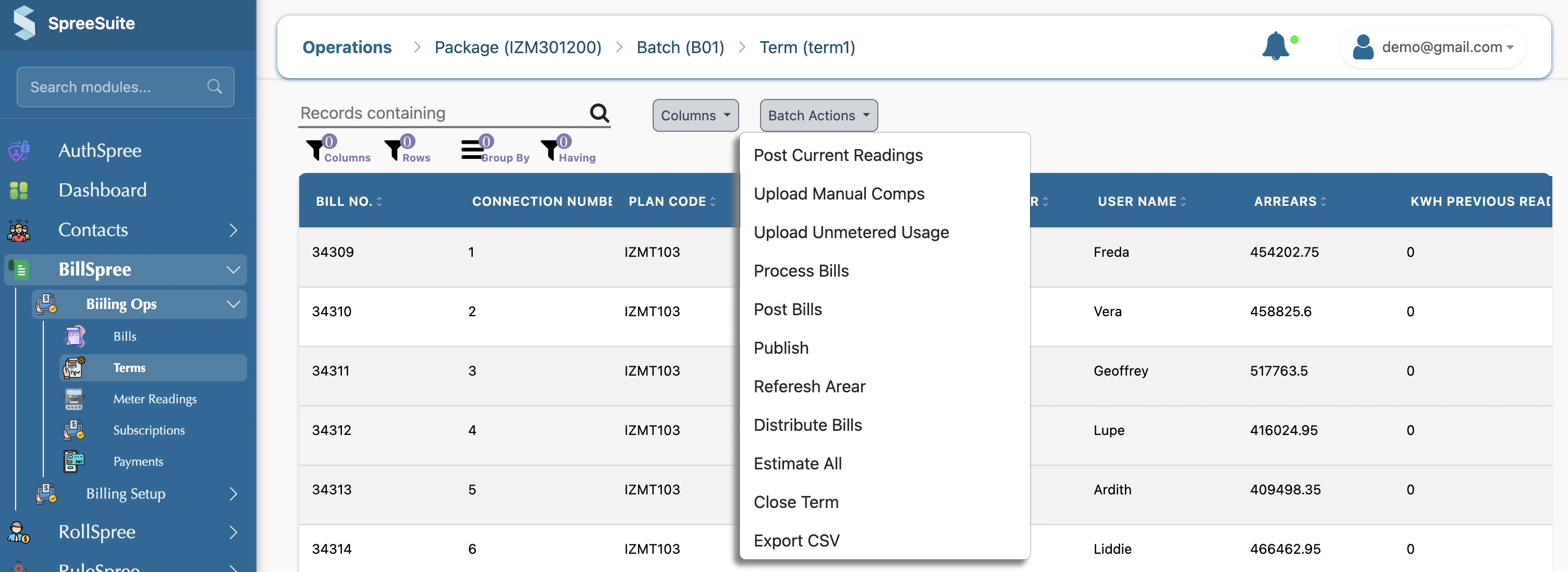
Step 2: Open the Adjustment Modal
For any bill in Draft status, click the three dots (⋮) in the rightmost column. Select Make Adjustment from the menu.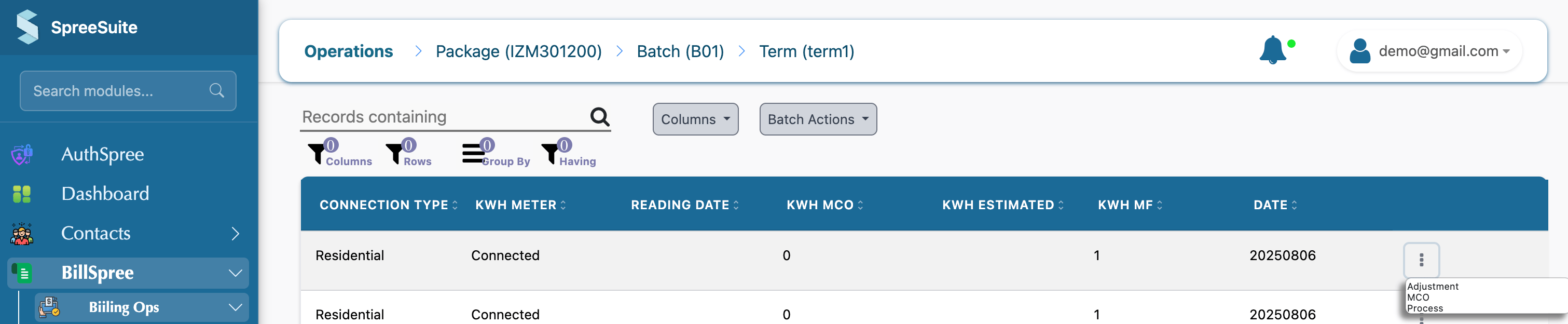
Step 3: Entering Data in the Adjustment Modal
The adjustment modal allows you to modify specific components tied to the subscription:- Manual Components: Enter positive or negative values to add fees or apply credits (e.g., Support Credit, Special Discount).
- Metered Readings: Override the current meter reading if the automated upload was incorrect.

[!TIP] Always provide a reason in the Remarks field (if available) for audit tracking.
Step 4: Saving and Recalculating (Process)
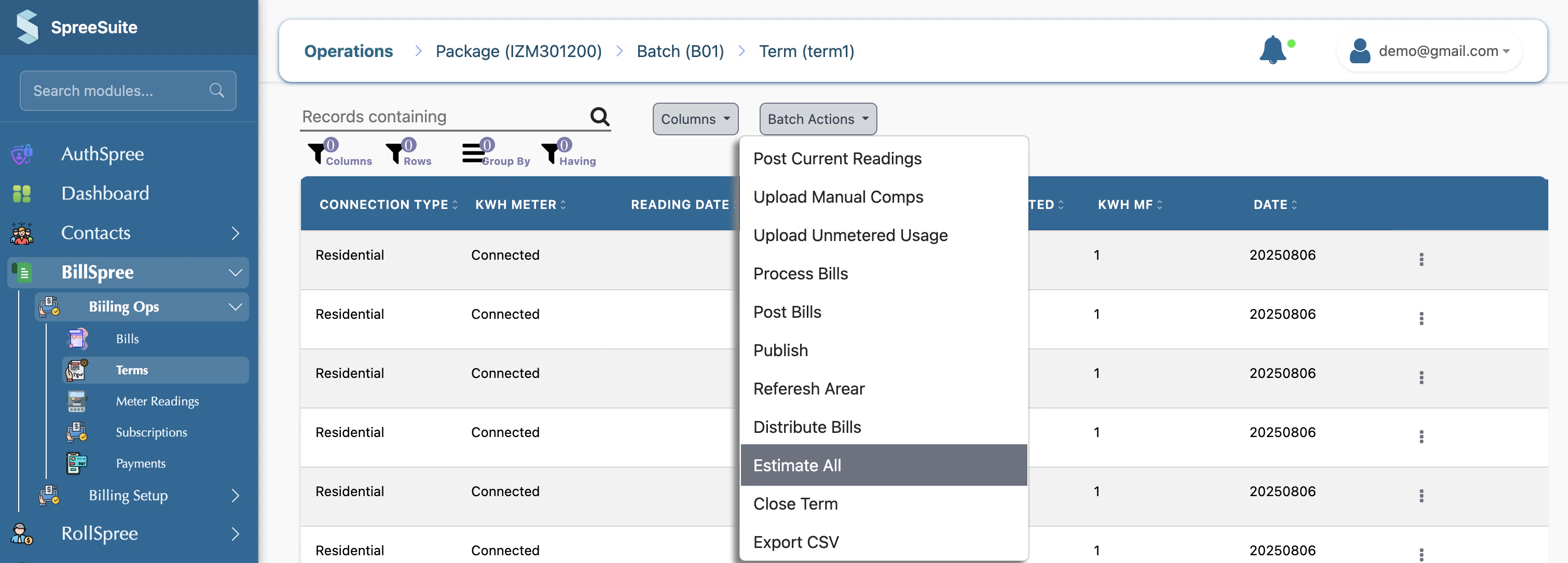
After clicking Save, the values are updated in the database, but the bill’s total amount remains unchanged. This is the most important step: You must Process the bill to recalculate charges from the pricing modules and update the final total.- Select the bill(s) you have adjusted.
- Open the Batch Actions menu.
- Select Process Bills.
Step 5: Verification and Posting
Verify that the Total Amount now reflects your adjustments. Once satisfied, select the bills and choose Post Bills from the batch actions to finalize them.3. Comparison of Actions
4. Common Troubleshooting
- Adjustment button is missing: The bill is likely already ‘Posted’ or ‘Paid’. Adjustments are only allowed on ‘Draft’ or ‘Processed’ records, not on ‘Posted’.
- Amounts didn’t update after Save: You missed the Process step. Run Process Bills to see the new totals.
- Negative values not saving: Check if the component configuration allows negative values in Billing Setup > Pricing Contexts.
1. The Workflow Overview
The adjustment process is a bridge between automated data collection and final invoice generation. It allows administrators to “override” or “add” values before they are finalized.3. Summary of Terms
For Example:
BillSpree Adjustment & Billing Workflow
This guide provides a practical walkthrough of how Pricing Contexts, Pricing Modules, and Adjustments work together using a real-world example.1. Concept Definitions
2. Example Scenario: Fiber Internet Service
Setup Configuration
- Pricing Context:
Fiber Home Plus - Pricing Module: Monthly Rent = 5.
- Adjustment Points: We added a component called “Support Credit” and set its type to Manual.