
What are Projects?
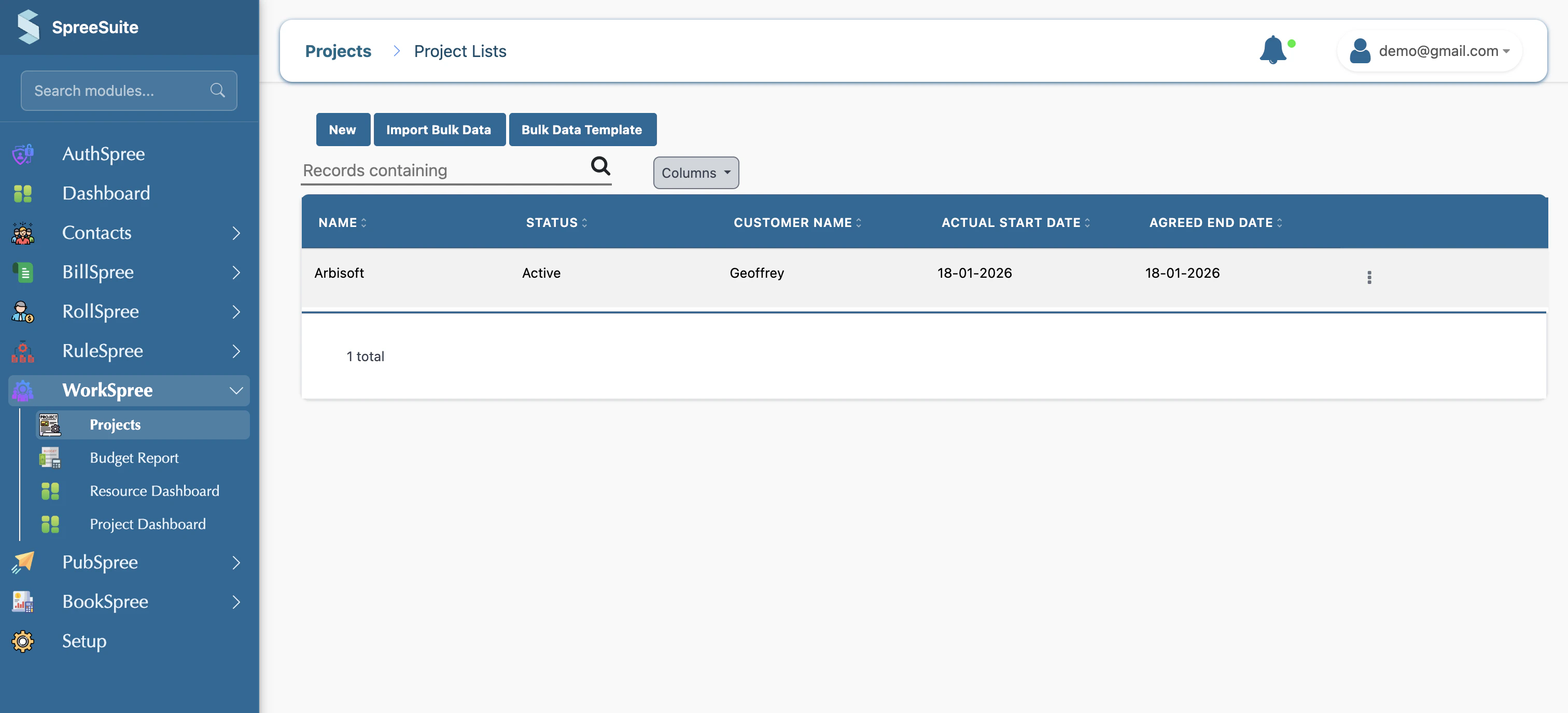
The Projects area is your central project register. It allows you to track project statuses, assign team members, define milestones, and handle project-specific billing.Project List View
From the main Projects page, you can see all your projects in a comprehensive table.- Create Projects: Start a new project from scratch.
- Edit Projects: Open existing projects to update details or configurations.
-
Bulk Upload: Upload project data from a file to create or update multiple projects simultaneously.
Create Project
When you create or edit a project, the interface is organized into logical tabs, each covering a specific aspect of the project lifecycle.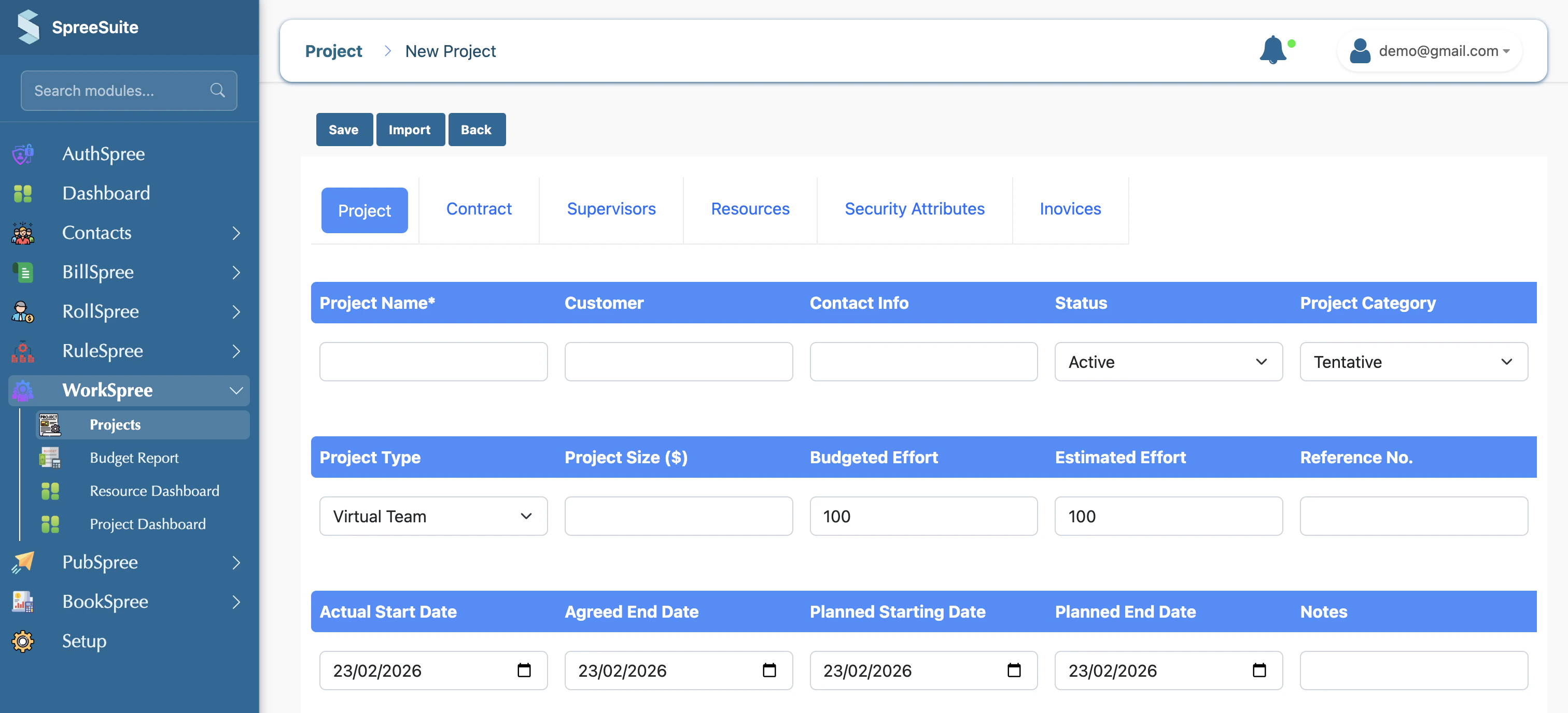
Project Info
This tab defines the basic identity and state of the project.- Project Name: The unique identifier for the project.
- Customer: Select the client from your registered customer list.
- Contact Info: Specific client contact details for this project.
- Status: Current project state (e.g., Active, On Hold, Completed).
- Project Category: Classification used by your organization (e.g., Tentative).
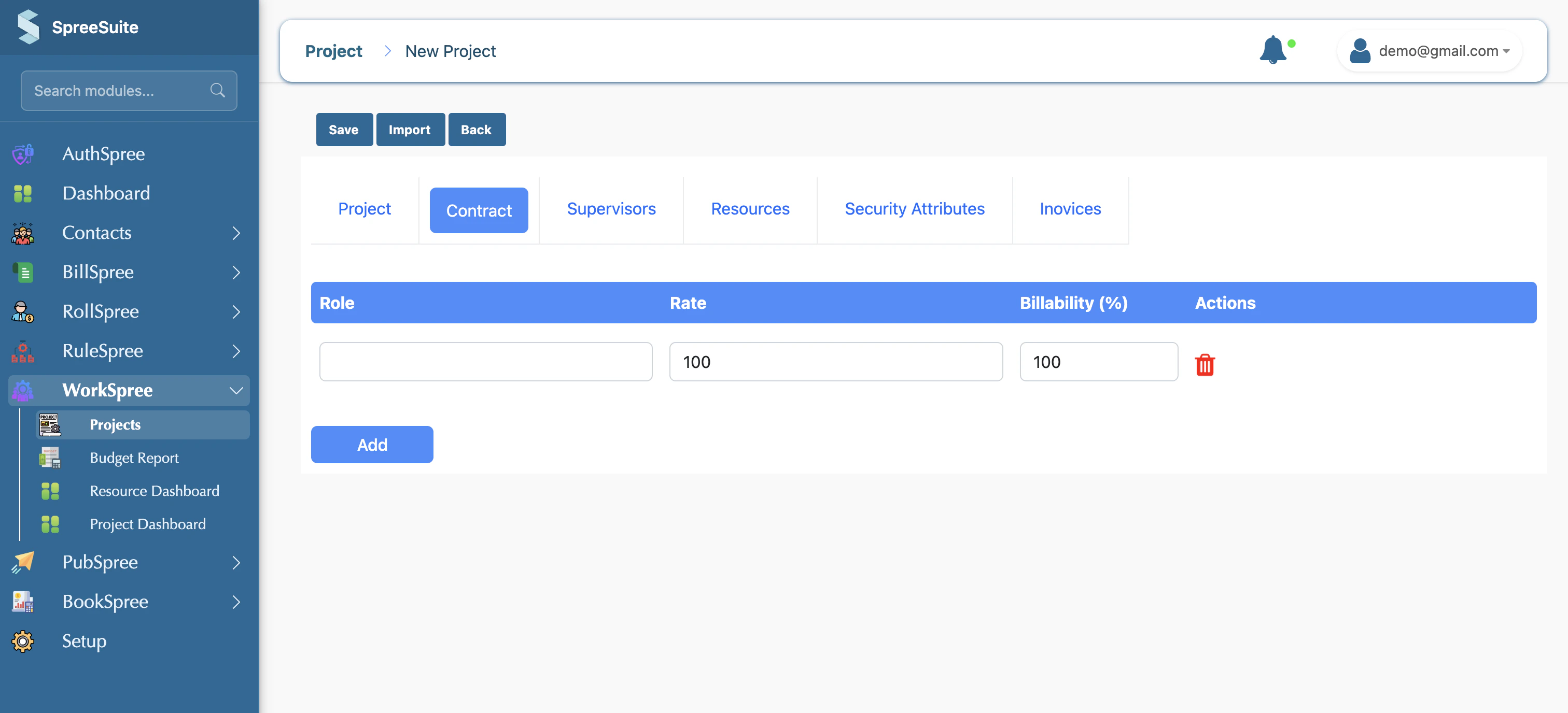
Contract
Define the delivery and billing structure.- Non-Billable Resources: People on the project whose time is not charged to the client (e.g., internal support, PMs).
- Billable Resources: Team members whose time is charged, including their specific rates and competencies.
- Milestones: Define key delivery phases, dates, and amounts for invoicing.
Supervisors
Assign oversight to the project by selecting supervisors and their respective roles, such as Project Manager or Technical Lead.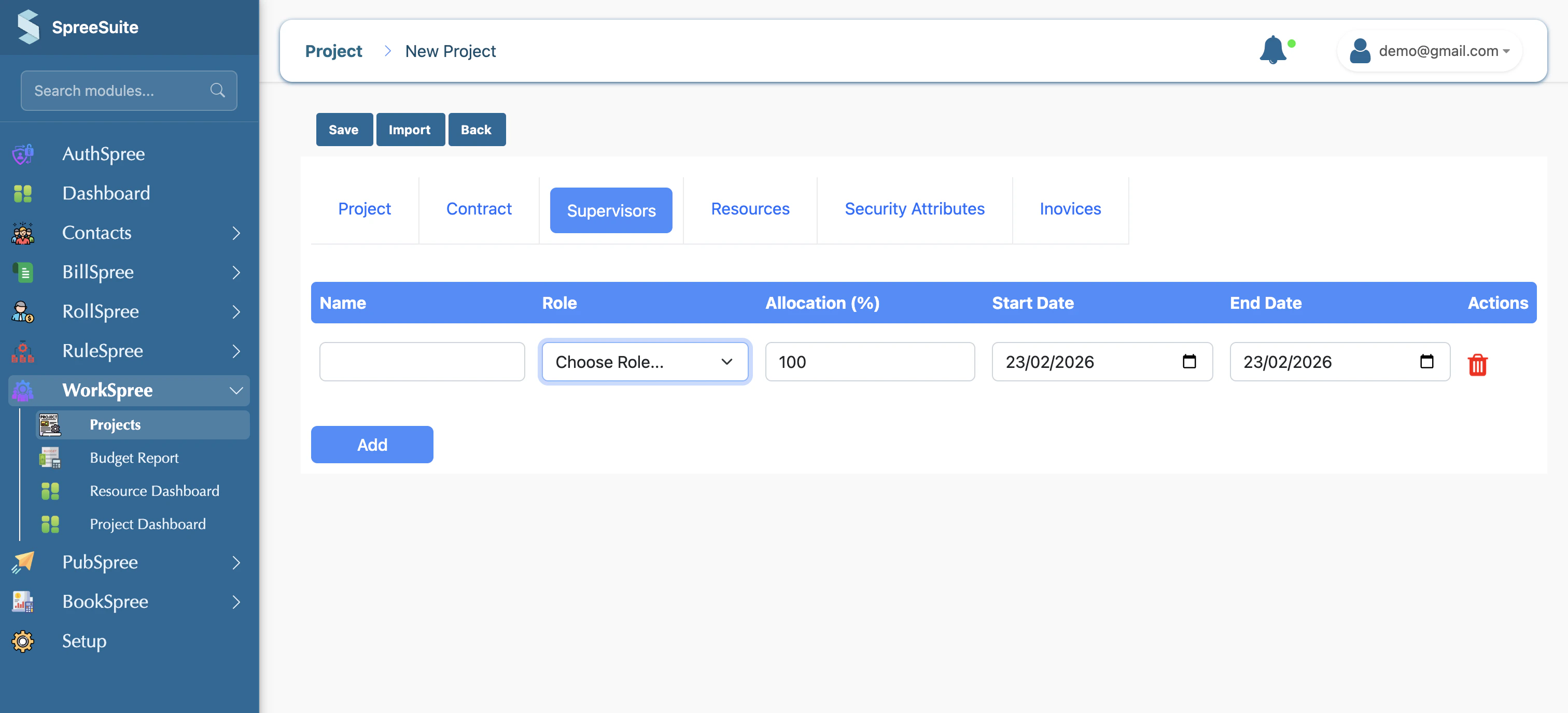
Resources
A dedicated view for managing project staffing in detail. Here you can add or remove rows, set specific roles and rates, and archive resources that are no longer active on the project.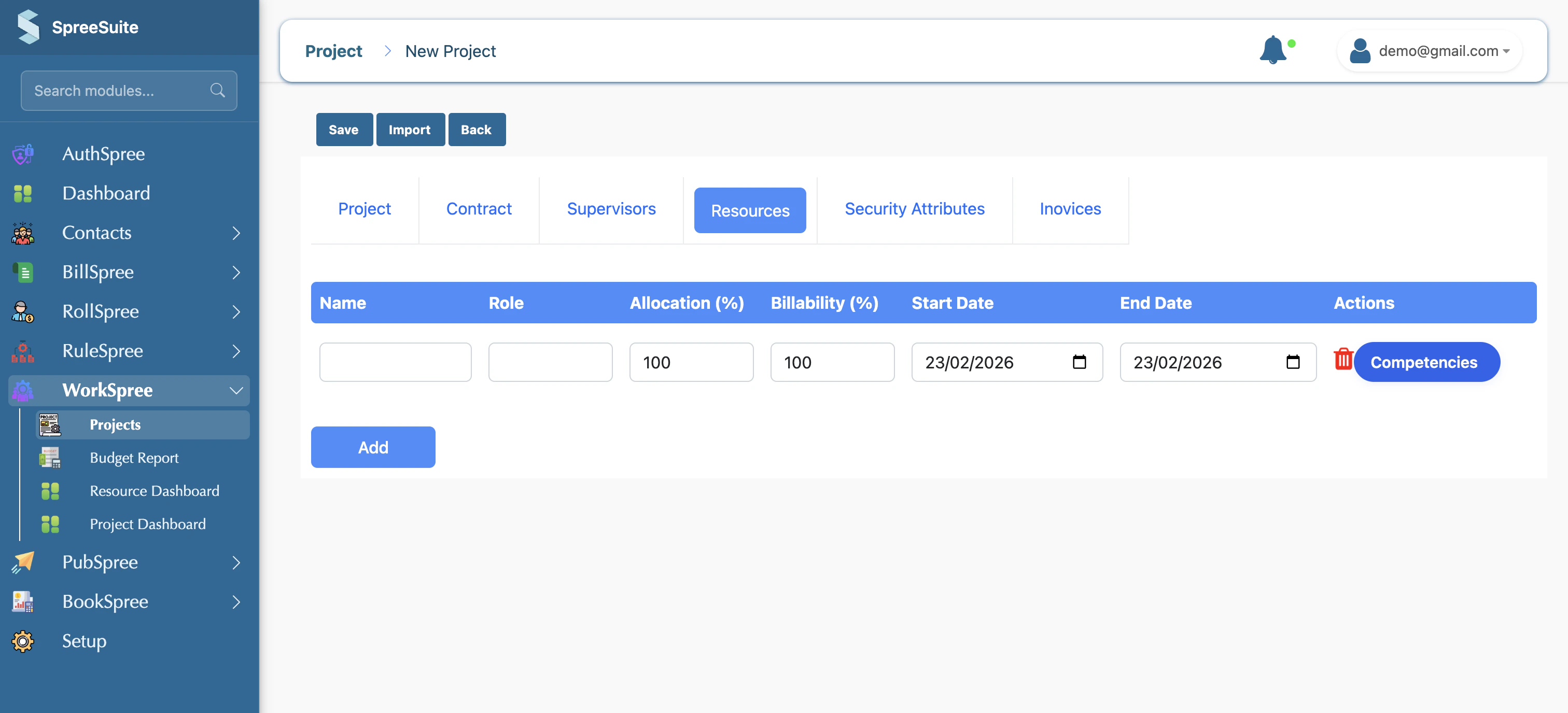
Security Attributes
Control access and visibility by attaching security attributes (e.g., “Confidential”, “Region: US”). This ensures that only authorized personnel can see or work on the project.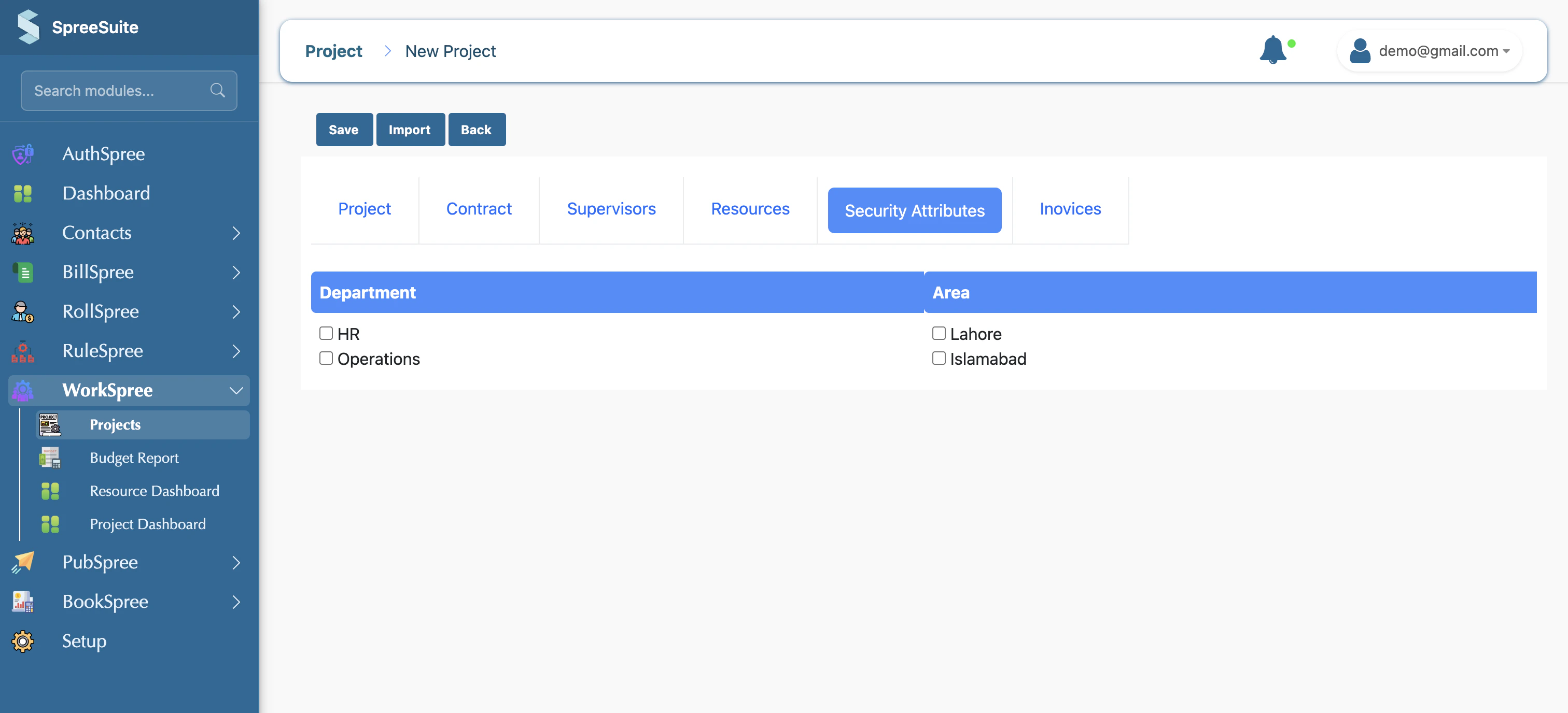
Invoices (Billing)
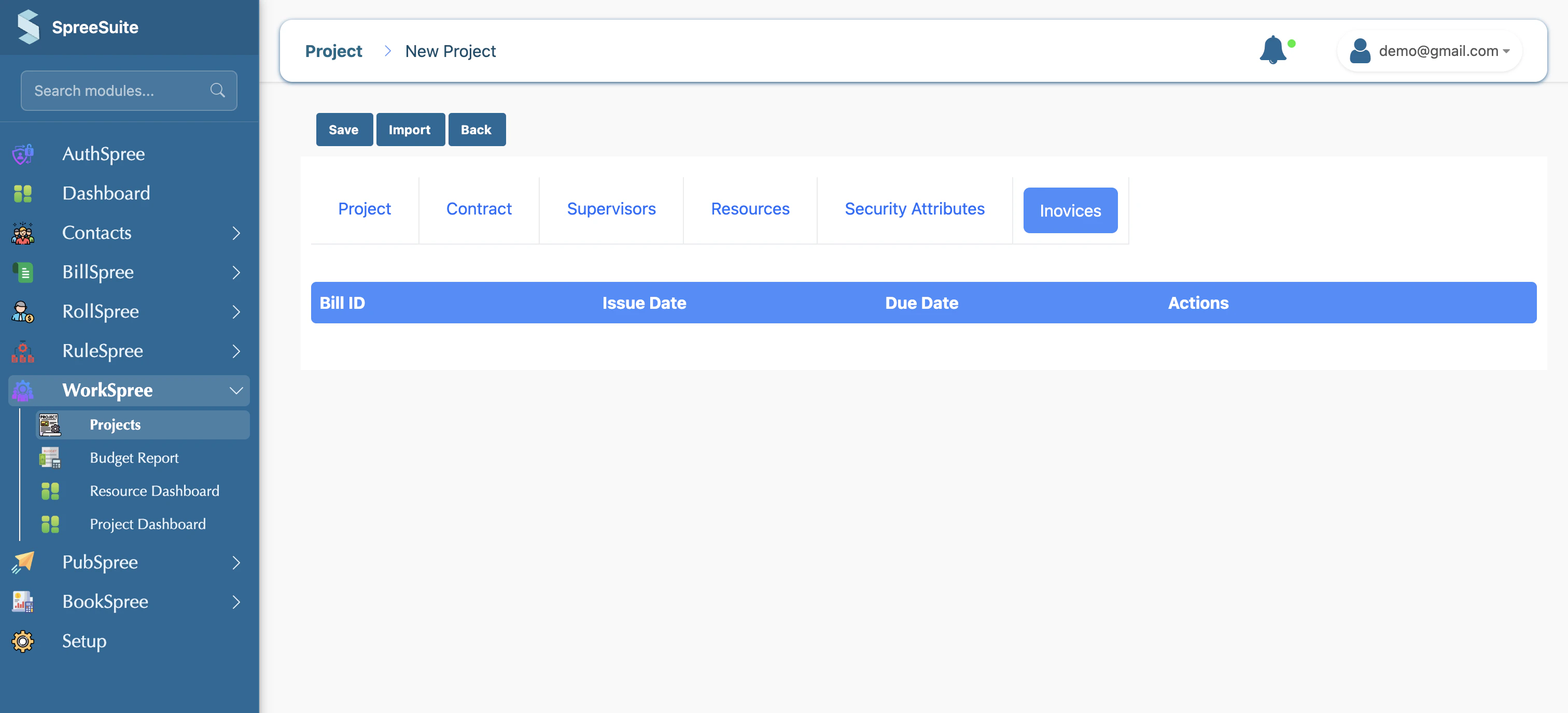
Link your project work directly to the billing system.- View Linked Invoices: See all invoices associated with the project.
- Generate Drafts: Directly create invoice drafts from defined milestones or virtual team setups. These drafts can then be finalized and sent from the main billing area.
Project Data Summary
A project in WorkSpree is a comprehensive profile that includes:- Timelines: Planned vs. Actual start and end dates.
- Budgets: Financial and effort estimates.
- Organizational alignment: Division, Department, and Project Type.
- Assignments: Detailed roles and resource allocation over time.