
List View Employees
Managing employees is a straightforward process. You can view all staff members in a list or grid format and filter them based on their current status (e.g., only “active”).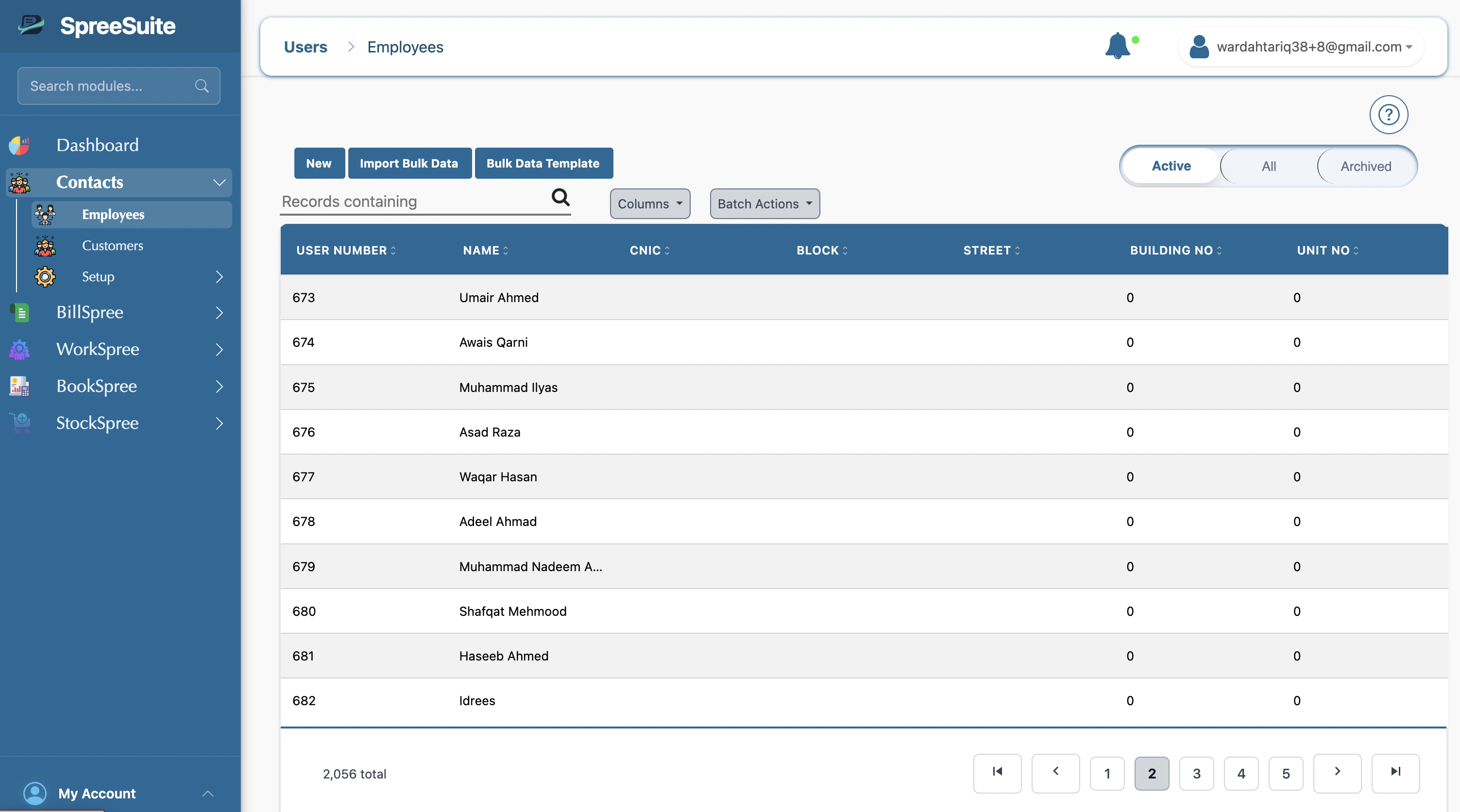
1. Navigate to Employees
To access your employee list, navigate to Users → Employees in the main menu. This page provides a high-level overview of all staff members registered in your system.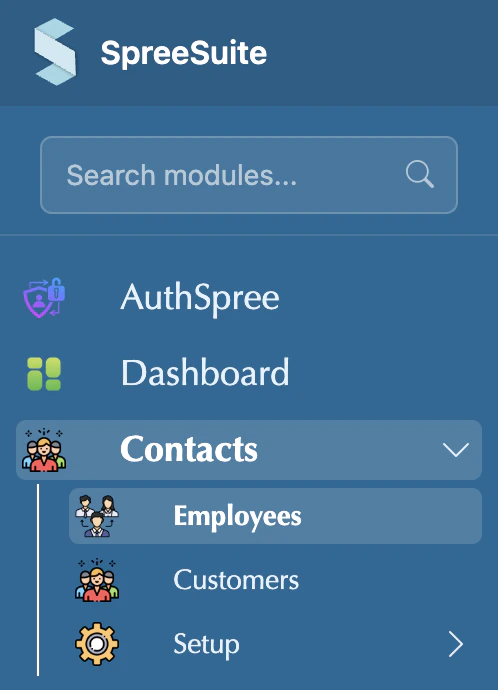
2. Add a New Employee
To add a new employee, follow these steps:1
Open Creation Form
Click the + New button (or “Add new”) usually located in the top right corner of the Employees page.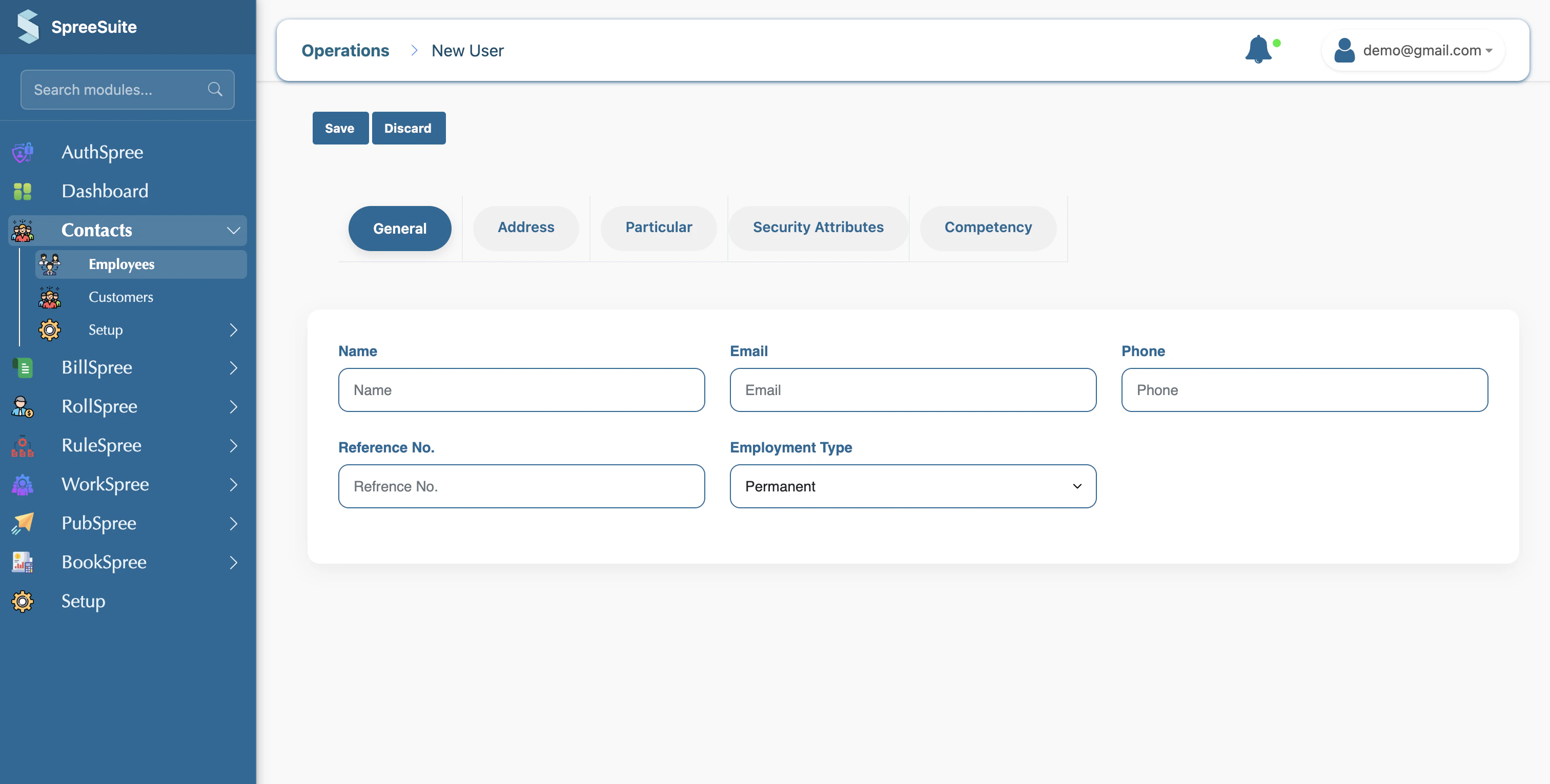
2
Enter General Information
Fill in the basic contact details for the employee.
- Name: The full name of the person (Required).
- Email: Their professional email address, often used for system login.
- Phone: A contact number for the employee.
- Employee Number: A unique internal ID for the person in the system.
3
Assign Role and Status
Define the employee’s position and access level.
- Role: Their job role or type of access in the app.
- Status: Whether they are active or not (e.g., still with the company).
- Address: Detailed location information if used (Building, street, city, etc.).
4
Save and Confirm
Once all details are filled, click the Save button. The employee will now appear in your list and can be assigned to projects.
Detailed Field Guide
1. Professional Profile
2. Advanced Information
The application also stores additional attributes to help manage your workforce:Importing Employees in Bulk
For large-scale onboarding, you can add many employees at once by uploading a data file. This process allows you to populate your entire staff list efficiently.1. The Bulk Import Workflow
Follow these steps to successfully import your employee data:1
Prepare the File
Ensure your data is organized in a supported format (like CSV). Include mandatory headers like Name, Email, and Employee Number.
2
Upload the Data
Click the Import button on the Employees page and select your file to process the records.
3
Export for External Use
You can also export the list (e.g., as a CSV) if you need to use the data outside the application.
Where do Employees show up?
Employees are integrated throughout the BillSpree ecosystem to streamline operations:- Projects (Workspree): Assigning team members to specific projects and tasks.
- Connections: Linking employees to specific services or accounts where relevant.