
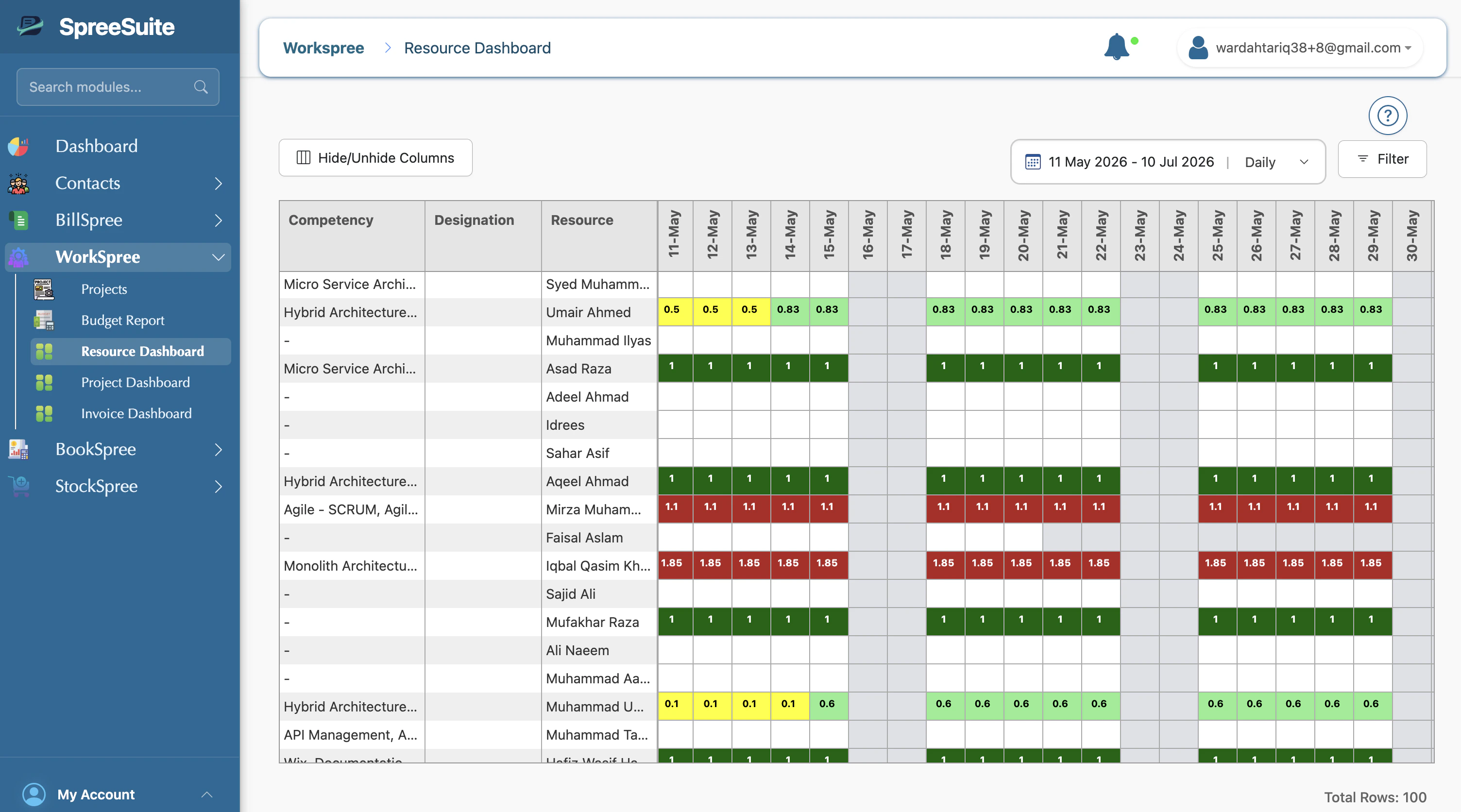
Dashboard Layout
- Rows: Represent individual people (resources). Each row displays the resource’s name, skillset, and total experience.
- Columns: Represent time periods. You can toggle the view between Daily, Weekly, or Monthly increments.
- Cells: Indicate the amount of effort or allocation for a person in that specific period.
Visual Indicators
The dashboard uses color-coding to help you quickly identify allocation status:- Green: Indicates active allocation during the period.
- White: Indicates no allocation (availability).
- Weekends: Highlighted differently to distinguish between working and non-working days.
Key Interactions
1. Time Navigation
Select a specific date range (e.g., this month, next quarter) to visualize capacity planning for that timeframe.2. Dynamic Filtering
Find the right people for your projects using powerful filters:- Status: Filter by Active or Inactive resources.
- Particulars: Narrow down by Experience, Designation, Date of Joining (DOJ), or Contact details.
- Competencies: Filter by Category, Level, or Type of skill.
- Security Attributes: Match resources to projects based on required security clearances.