Documentation Index
Fetch the complete documentation index at: https://spreesuite.mintlify.app/llms.txt
Use this file to discover all available pages before exploring further.
What is Subscription Group
A subscription group is used to organize a customer’s subscriptions for billing.
In Spreesuite, subscription groups are created and managed from the customer profile. A customer can have one or more subscription groups, and each subscription can be linked to a subscription group when the subscription is created.
If multiple subscriptions belong to the same subscription group, they can be treated together for billing. If subscriptions need to be billed separately, create separate subscription groups and assign each subscription to the required group.
Real-world example
A customer may have multiple services:
- Electricity subscription
- Water subscription
- Gas subscription
If these subscriptions are assigned to the same subscription group, they can be billed as one group.
If each service needs its own bill, create a separate subscription group for each service.
Subscription Group Setup
Subscription groups are created from the customer details screen.
1. Open Customer Details
Go to the customer record and open the customer details page.
From the customer details page, click the Subscription Groups tab.
2. View Subscription Groups
The Subscription Groups tab shows all subscription groups linked with the selected customer.
The table displays:
| Column | Description |
|---|
| Group ID | Unique ID of the subscription group |
| Group Label | Name or label of the group |
| Plan | Plan assigned to the group |
| Batch Code | Billing batch connected with the group |
| Billing Period ID | Billing period linked with the group |
Click any subscription group row to view the subscriptions inside that group.
3. View Subscriptions Inside a Group
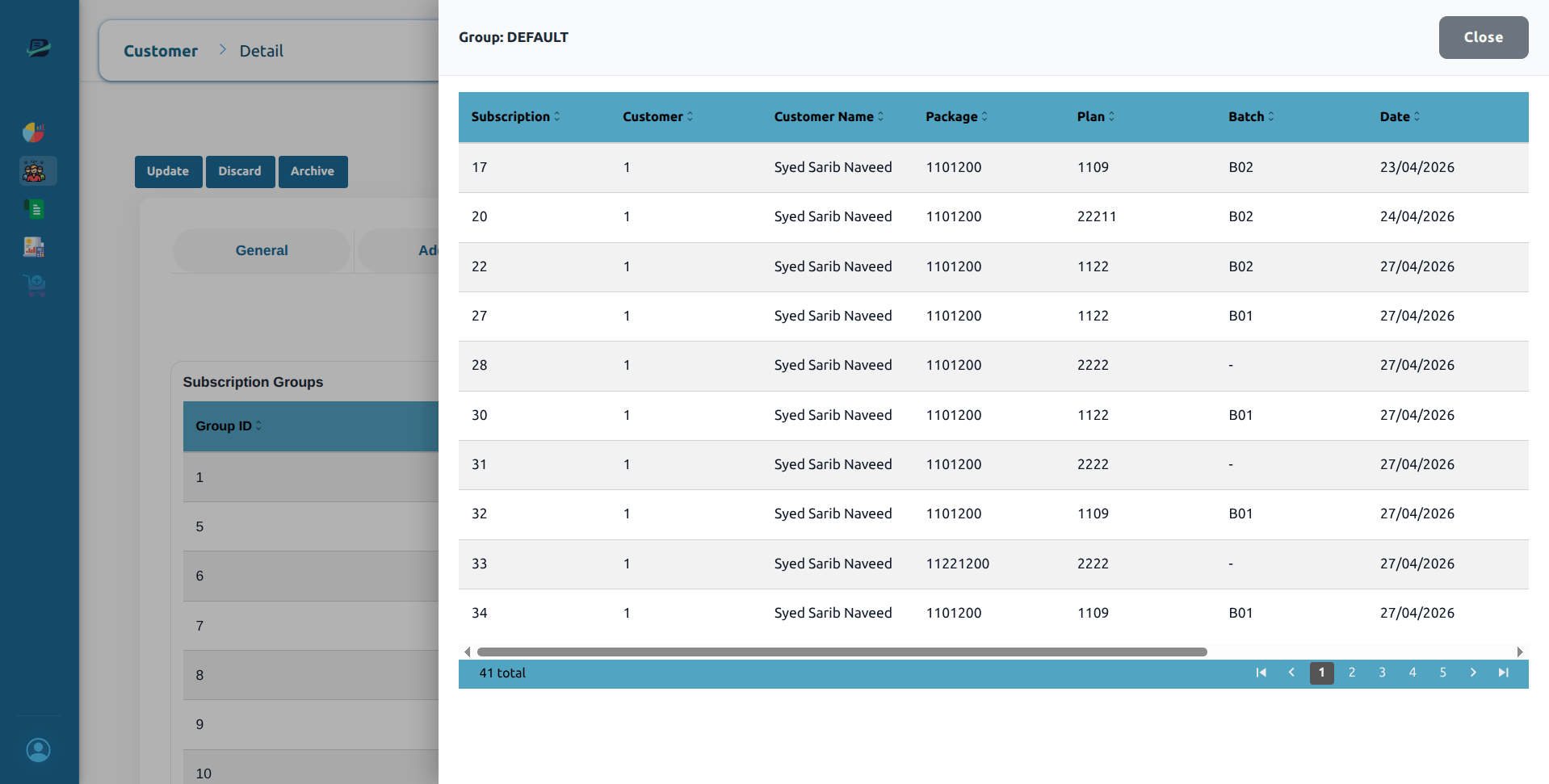
When you click a subscription group row, a drawer opens from the side.
This drawer shows all subscriptions linked with the selected group.
The subscription list includes:
| Column | Description |
|---|
| Subscription | Subscription number |
| Customer | Customer number |
| Customer Name | Customer name |
| Package | Service package |
| Plan | Plan code |
| Batch | Batch code |
| Date | Subscription date |
| Status | Subscription status |
| Account | Subscription account ID |
| Subscription Group | Group label |
Create Subscription Group
1. Click Create New
From the Subscription Groups tab, click Create New.
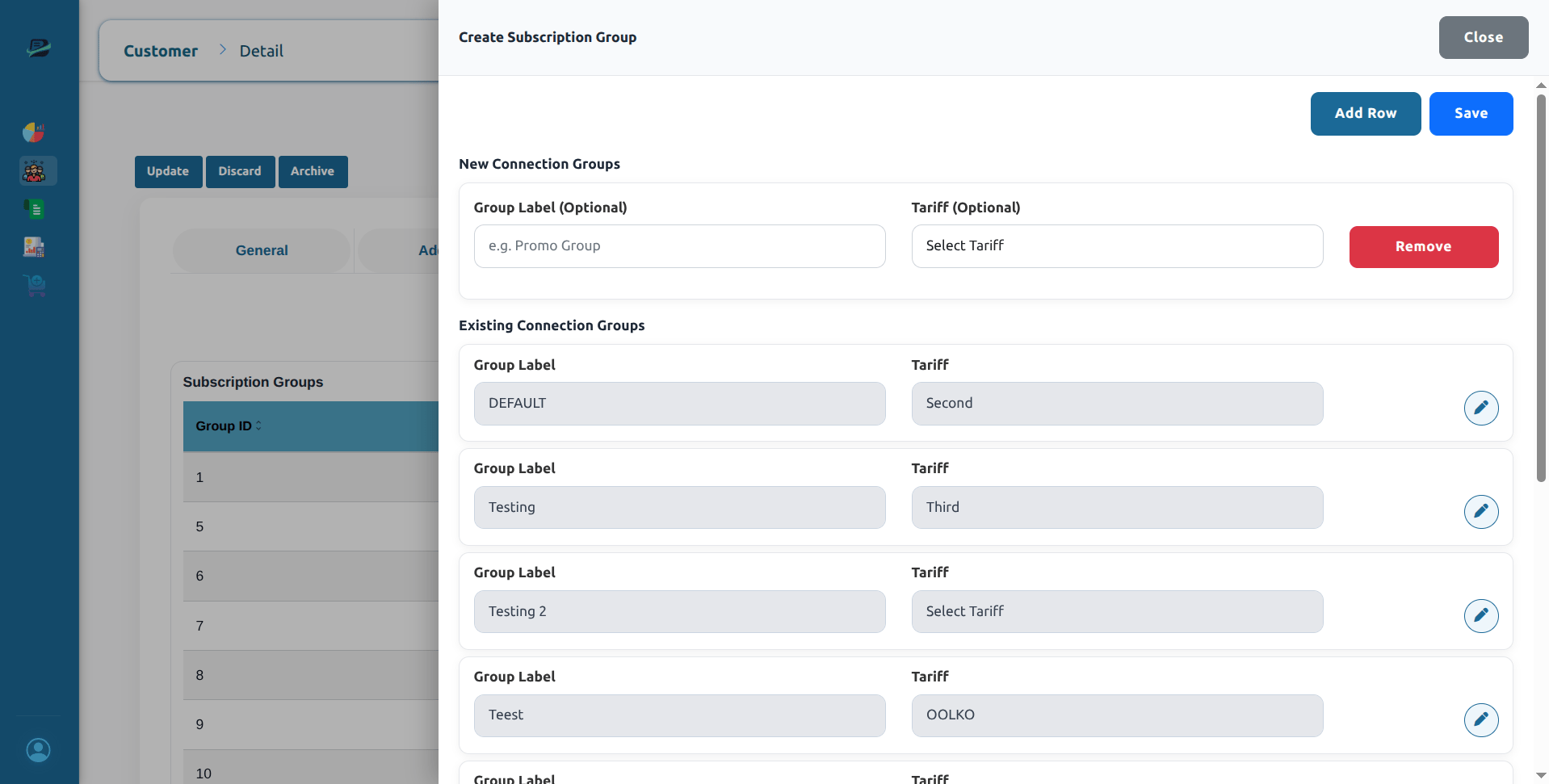
This opens the Create Subscription Group drawer.
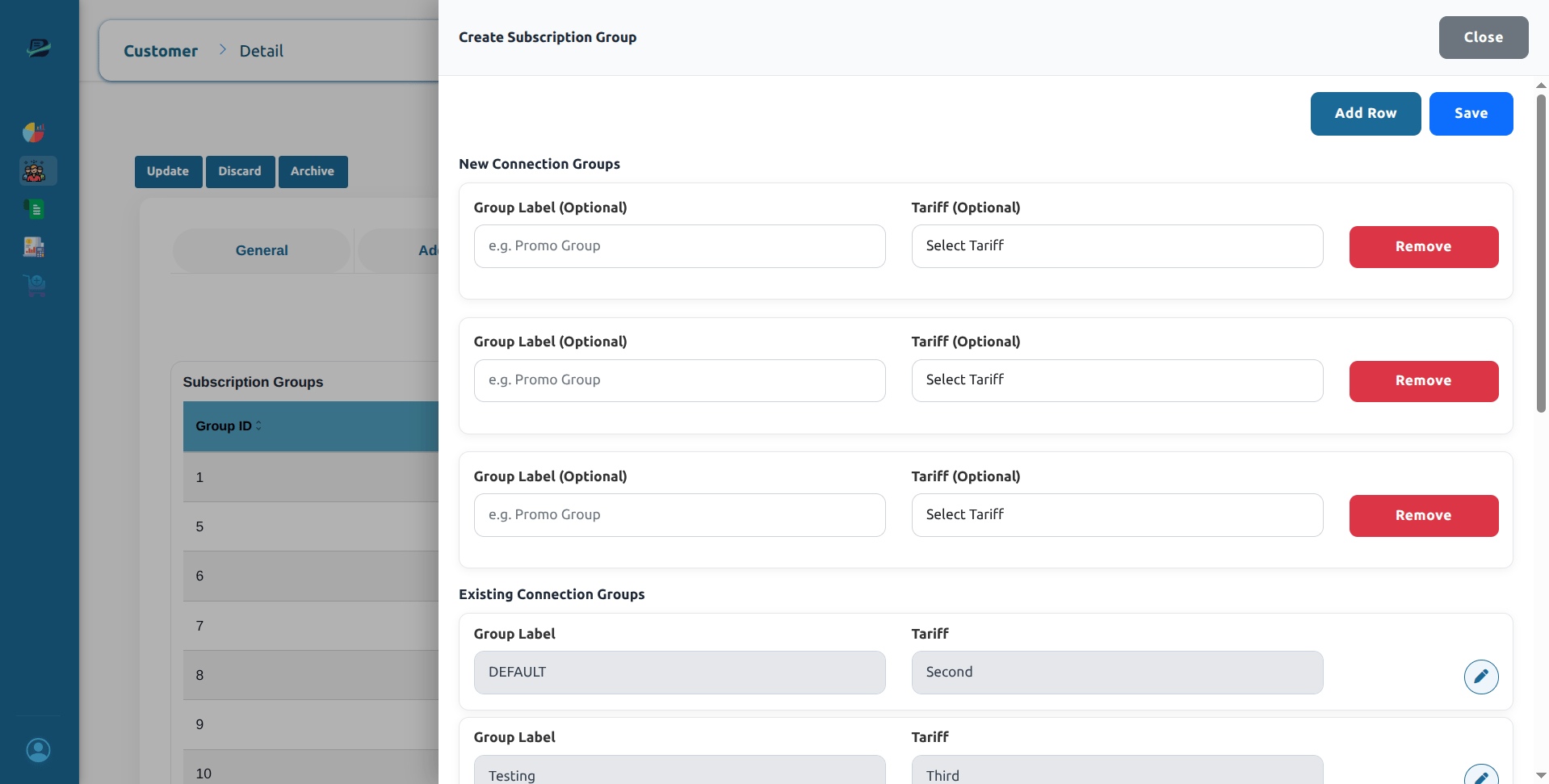
2. Add a New Group Row
Click Add Row to add a new subscription group.
Each new group row contains:
| Field | Required | Description |
|---|
| Group Label | Optional | A readable name for the group, for example Promo Group |
| Plan | Optional | Plan selected from the available plan list |
3. Save Subscription Groups
After adding the required group rows, click Save.
If the group is saved successfully, the system shows:
Subscription groups saved successfully!