
List View Customer
Managing customers in BillSpree is a straightforward process. You can view your entire customer base from the list view and add new customers using the creation form.1. Navigate to Customers
To access your customer list, click on Customers in the main sidebar. This page provides a high-level overview of all users registered in your system.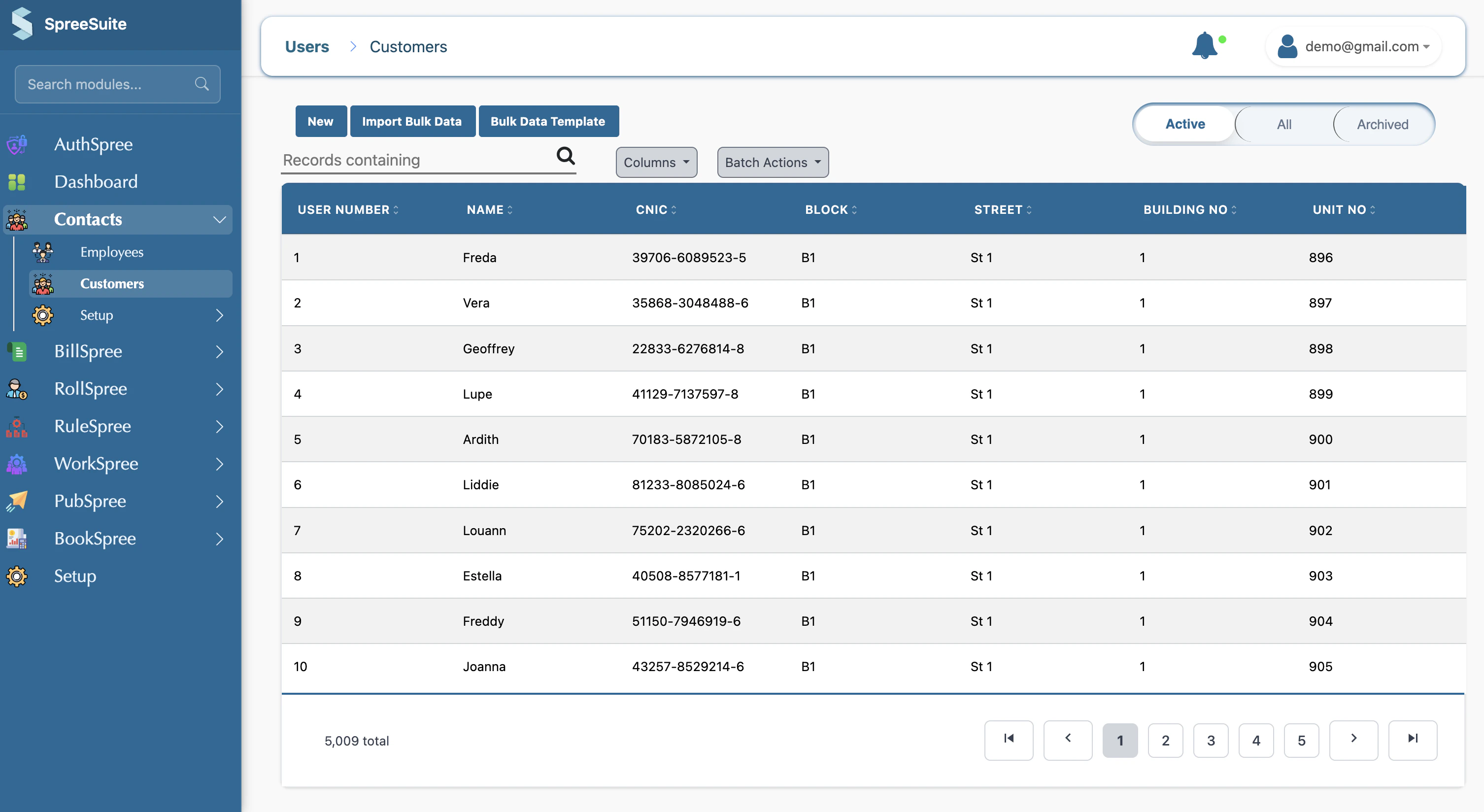
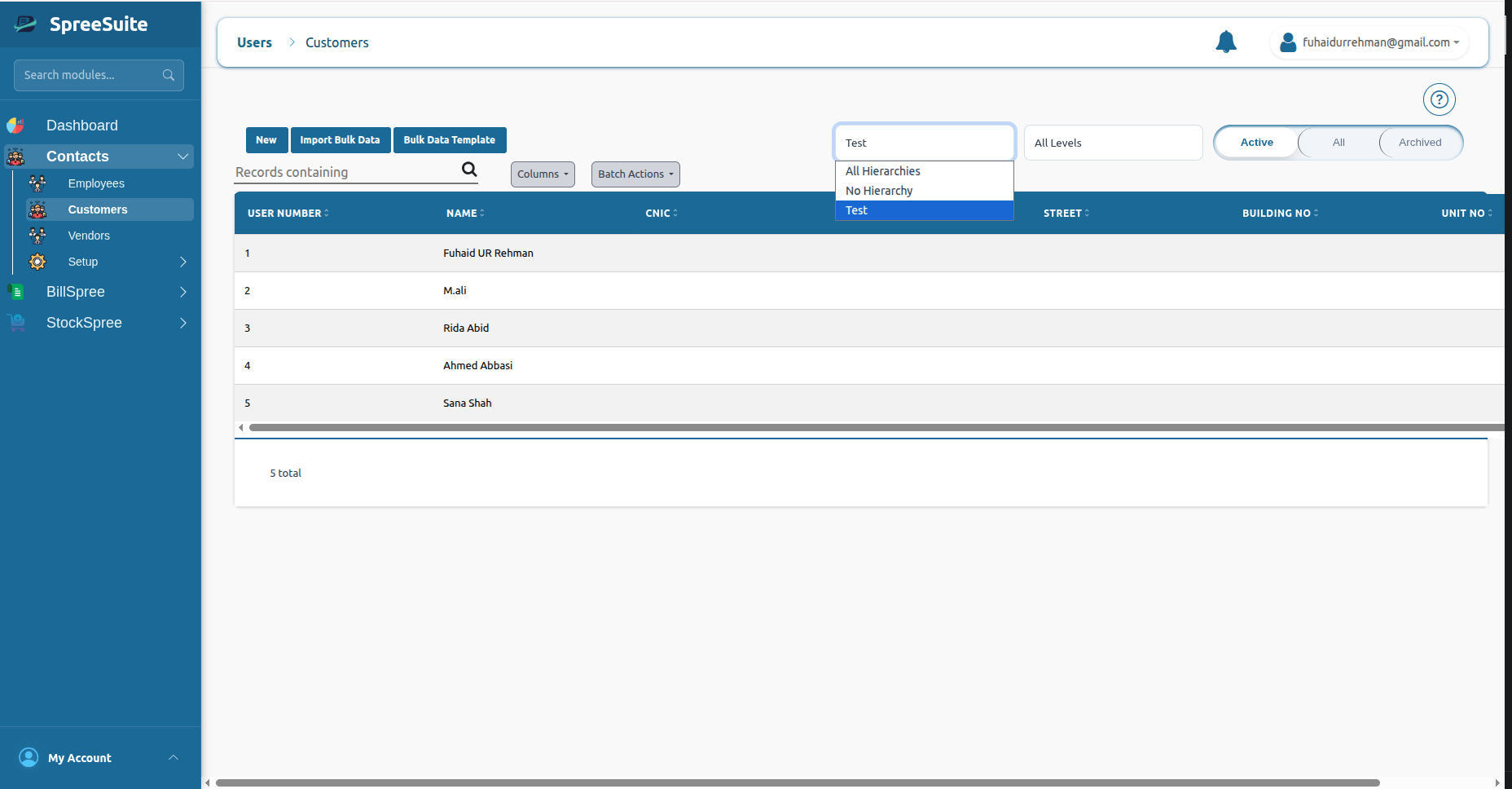
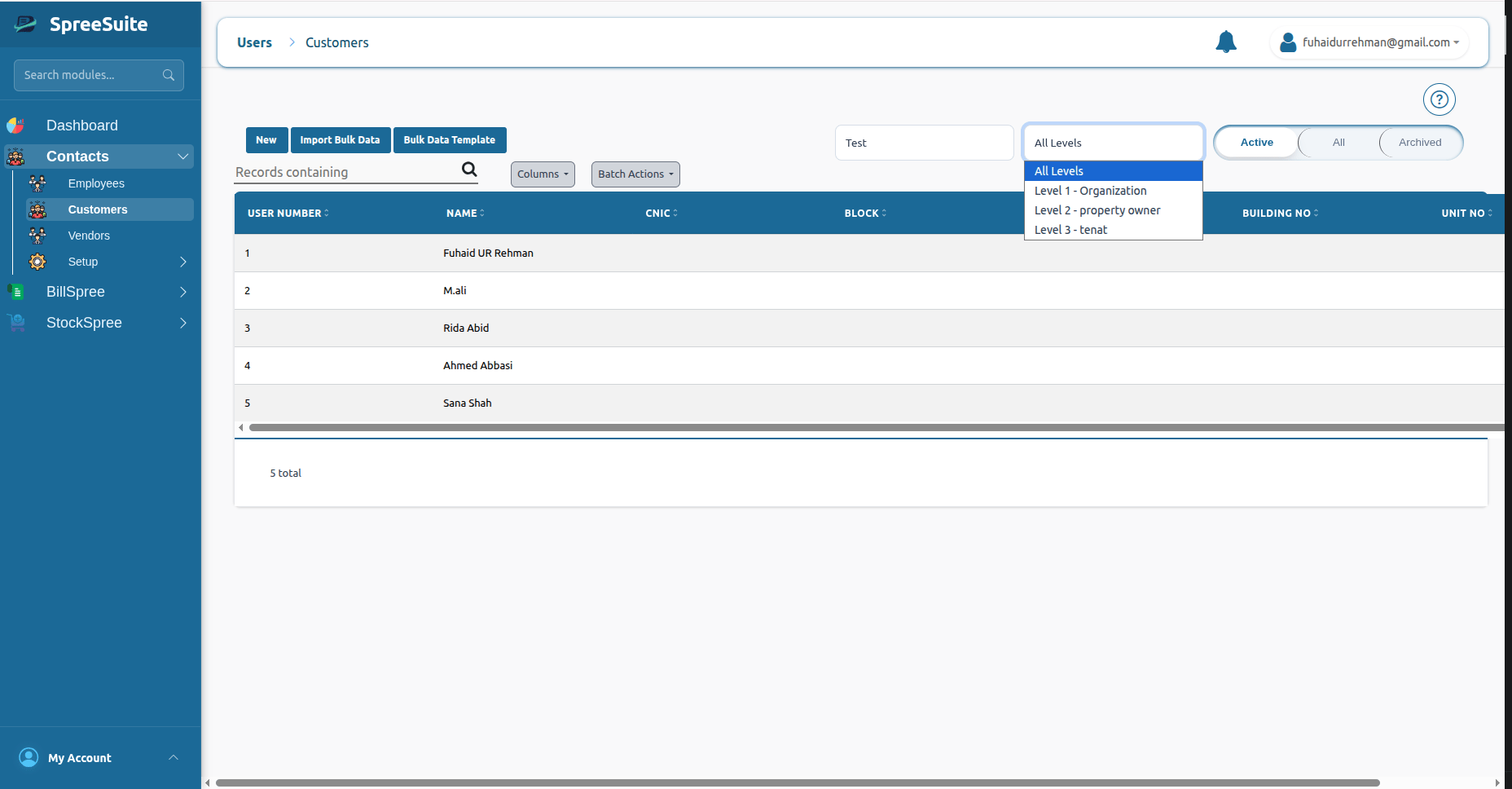
2. Add a New Customer
To add a new customer, follow these steps:1
Open Creation Form
Click the + New button in the top right corner of the Customers page.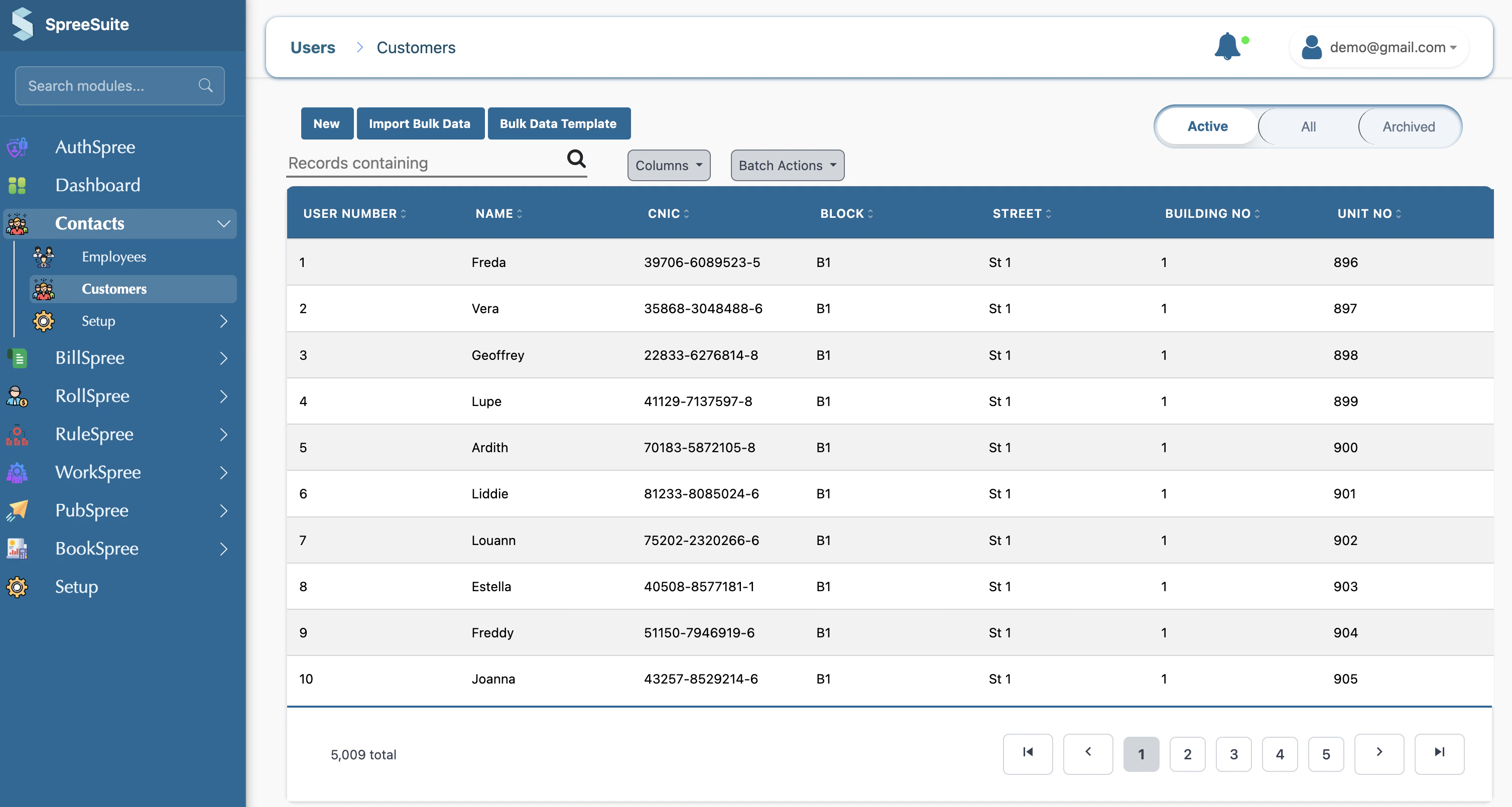
2
Enter General Information
Fill in the basic contact details and assign any required hierarchy for the customer.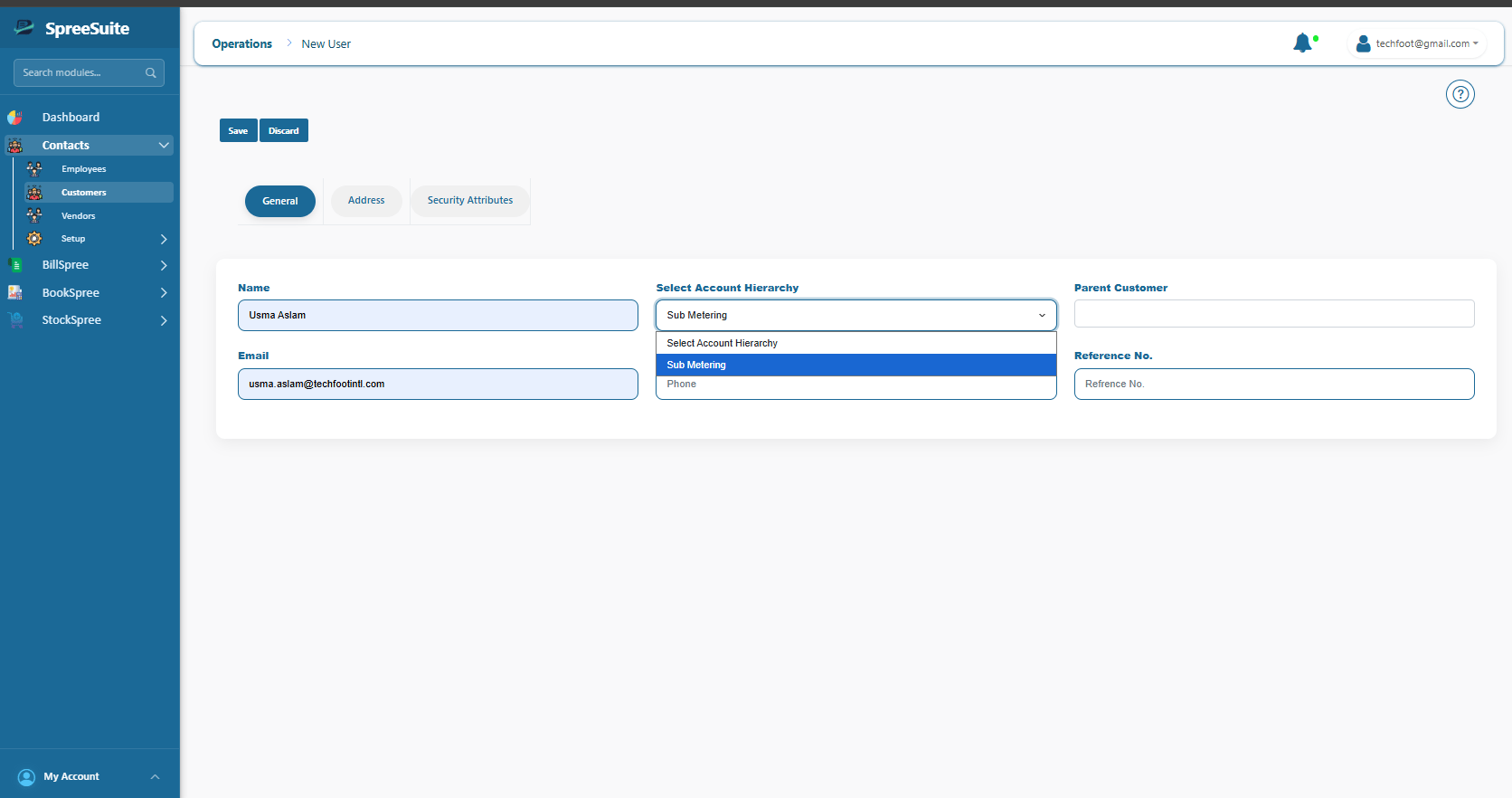
- Name: The full name of the customer (Required).
- Email: The customer’s primary email address for invoicing.
- Phone Number: A contact number for the customer.
- Select Account Hierarchy: Optional. Select the hierarchy structure if this customer is part of an organization.
- Parent Customer: Optional. If part of a hierarchy, select a parent customer to automatically assign the correct level.
- Reference Number: Your own internal identifier if applicable.
3
Provide Address Information
This section is crucial for tax compliance and accurate invoice delivery.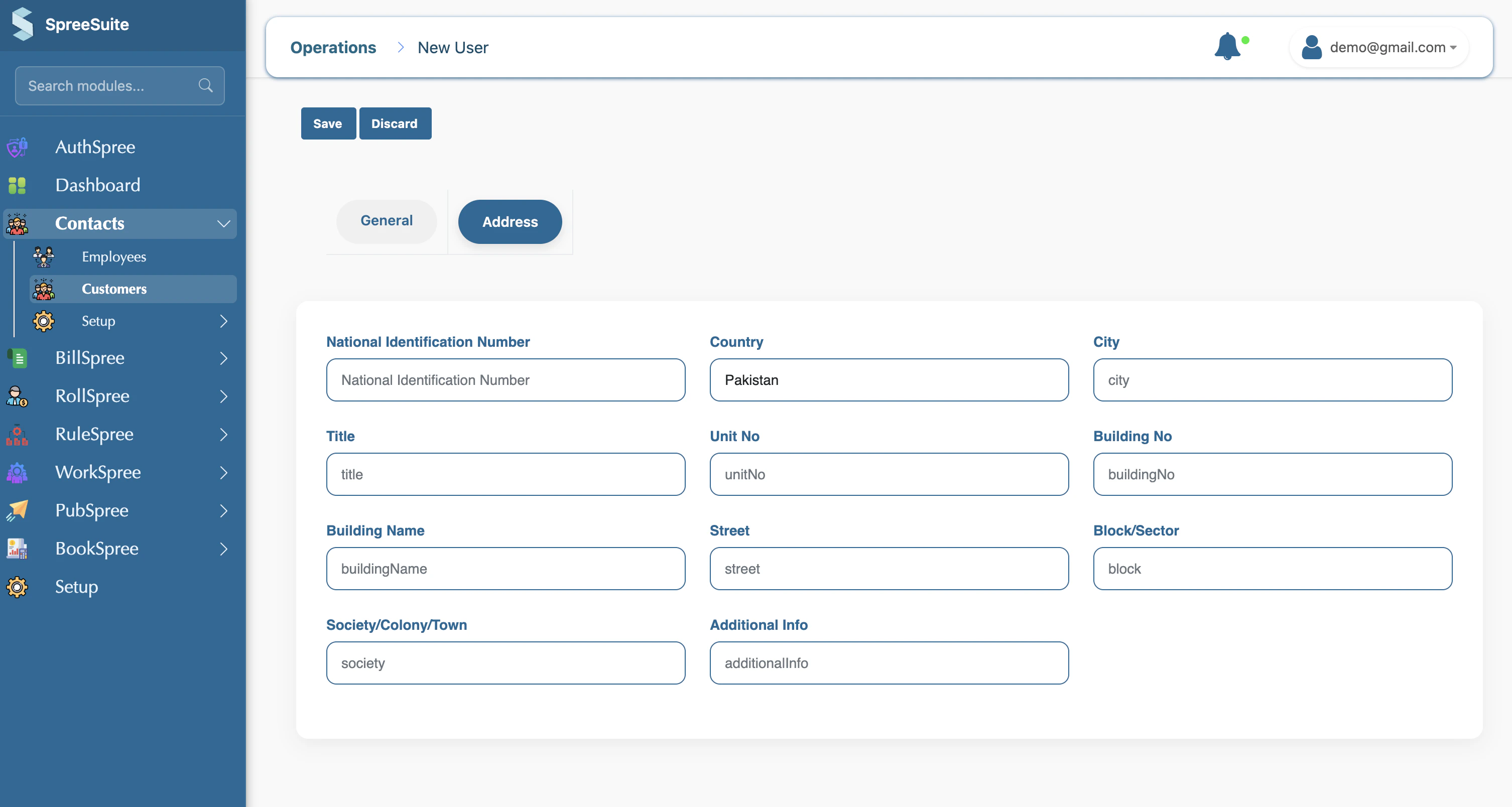
- CNIC: National identity number (if applicable in your region).
- Country: Select the customer’s country.
- Note: Other fields like Shop/Unit No, Building Name, and Street help in pinpointing the exact billing address.
4
Save and Confirm
Once all details are filled, click the Save button. The customer will now appear in your list and can be linked to a subscription.
Detailed Field Guide
1. General Information
2. Address Information
Importing Customers in Bulk
For large-scale onboarding, you can import customers efficiently using a CSV template. This process allows you to add hundreds of customers in a single action.1. The Bulk Import Workflow
Follow these steps to successfully import your customer data:1
Download the Template
In the Customers dashboard, click on the Bulk Data Template button. This will download a standard 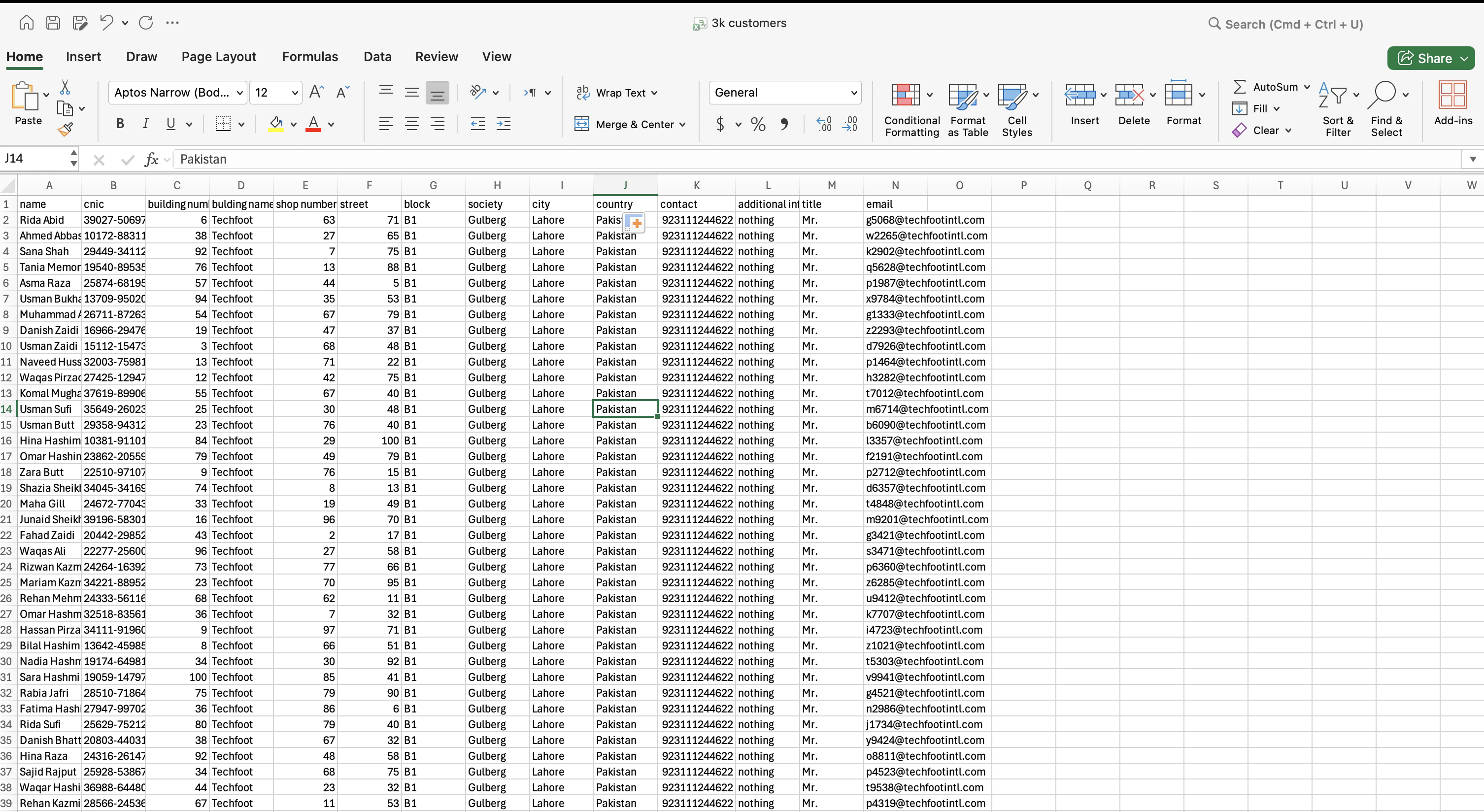
customer.csv file with all the required headers.2
Fill in the Data
Open the downloaded file in a spreadsheet application (like Excel or Google Sheets). Fill in the columns as per the headers:
- Mandatory Fields: Ensure the
namecolumn is populated for every row. - Optional Details: You can provide
cnic,email,contact, and detailed address information (building_name,street,city, etc.). - Hierarchy Settings: Use the
hierarchycolumn (ID of the hierarchy) andparent reference numberto assign customers accurately within an organizational structure. - Identifiers: Add
reference_numberif you are migrating from another system.
3
Upload the File
Once your file is ready, go back to the BillSpree Customers page and:
- Click the Import Bulk Data button.
- Select your filled
customer.csvfile from your device. - Click Upload to process the data.