
What is the Customer Portal?
The Customer Portal is the part of the system where your customers (or employees, in some setups) see their own information: what they owe, their subscriptions, their bills, and how they can pay. Think of it as “the customer’s own dashboard” – they log in and see only their data, not your admin tools.Two ways to see the Customer Portal
1. Admin View
(Staff viewing the customer’s portal) Summary: The same portal screens opened by staff for a specific customer, so they can see exactly what that customer sees and help with billing or payment issues. Who: An admin (or staff) user who is viewing the portal as if they were that customer. The system can show the same Customer Portal screens but for a specific customer (when the app is in “admin viewing customer” mode – i.e., admin is on the portal and a customer token is in use). What they see:- The same screens as the customer: Dashboard (wallet + outstanding balance), Overview, Plans, Bills, Subscriptions, Usage, Payment Methods, Logs, My profile.
- The same actions: View bills, see subscription details, see payment history, etc.
- The data shown is the customer’s data, not the admin’s own.
- Support or billing staff can “see what the customer sees” to help with questions, disputes, or to check why a payment failed.
- When an admin is viewing the customer portal like this, the breadcrumb often shows “Dashboard” so they can easily go back to the main admin area.
1
Dashboard (Main Screen)
The main overview when a customer logs in.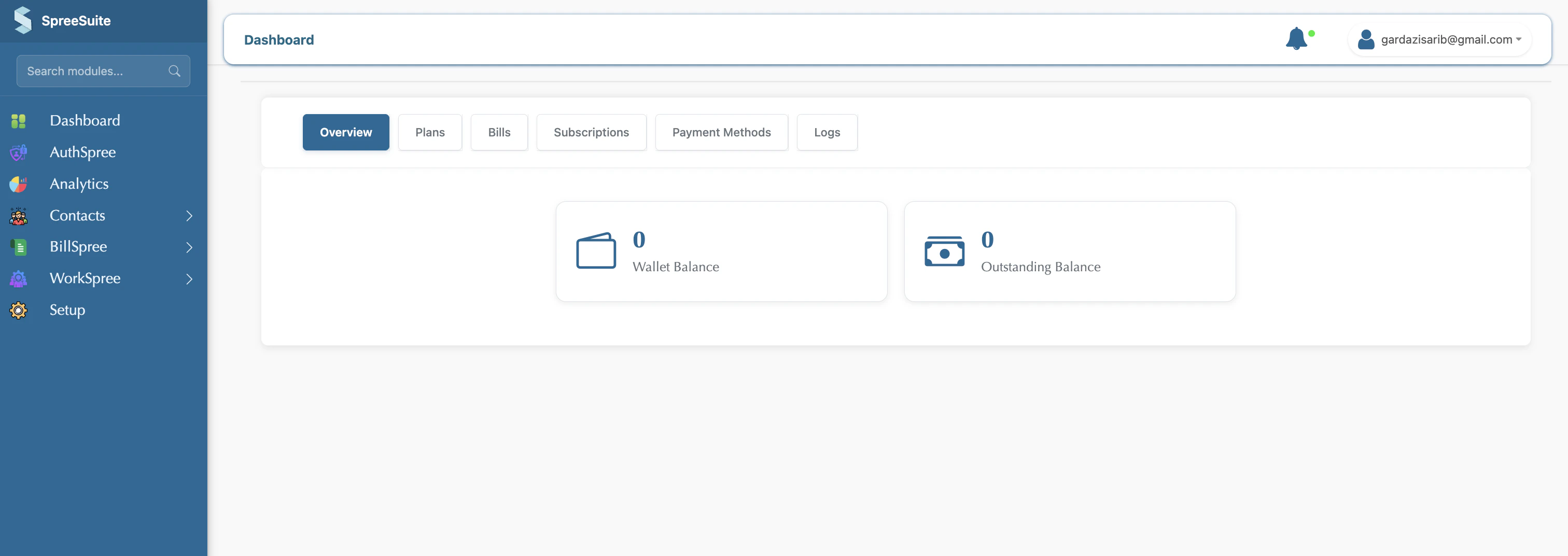
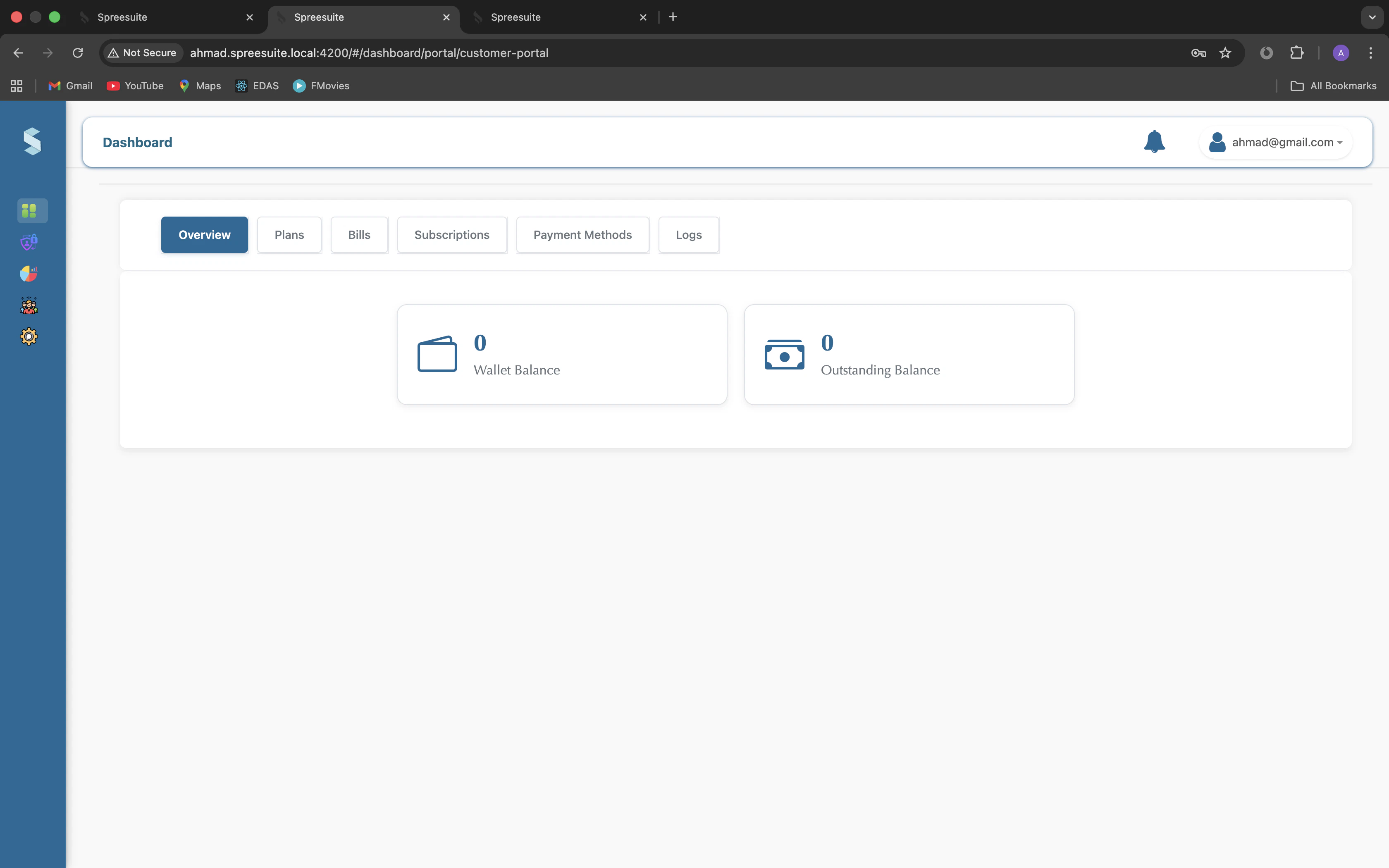
- Wallet balance: Money in their wallet (if the product uses it).
- Outstanding balance: Total amount they still owe.
2
Overview
Summary of their account (the same area is used for “Salary Slips” for employees in the employee portal).
3
Plans
Available plans (e.g., subscriptions or packages).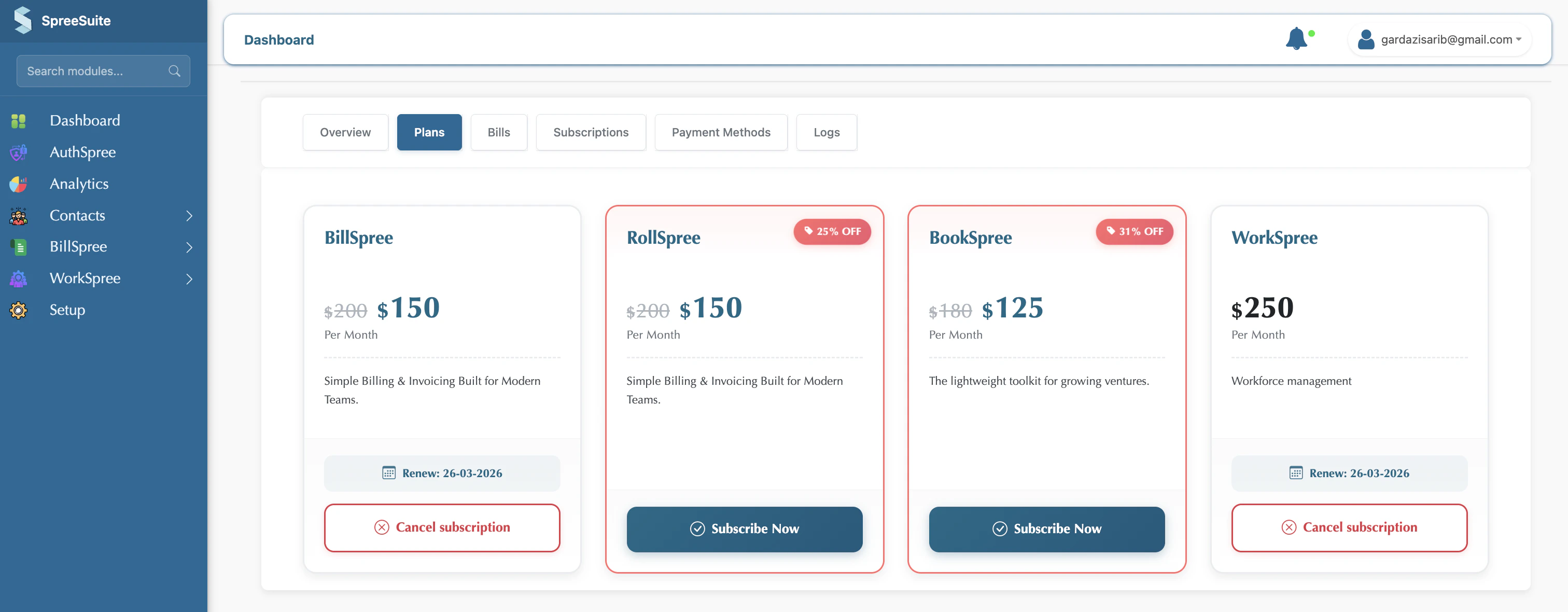
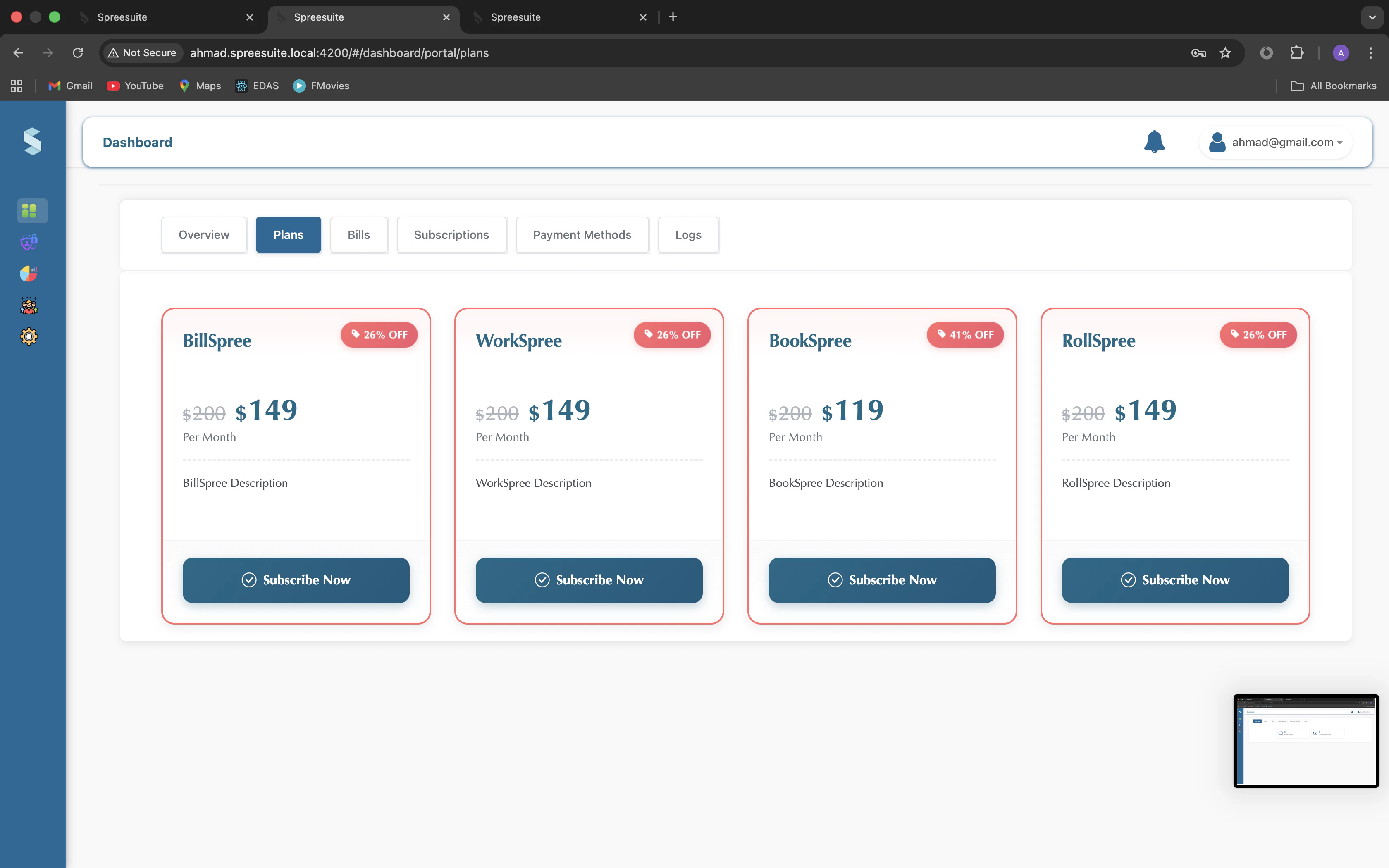
- Customers can see prices, discounts, and choose “Subscribe” or “Contact us” depending on the plan.
4
Bills
List of their bills.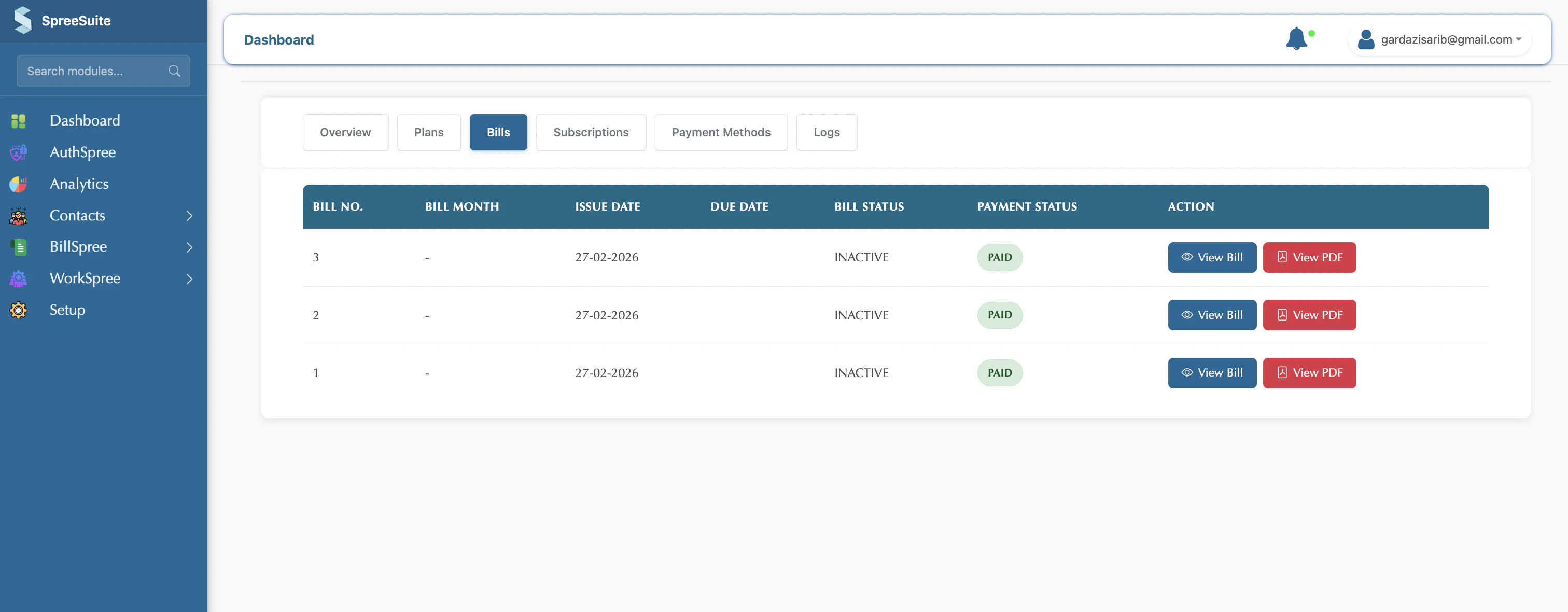
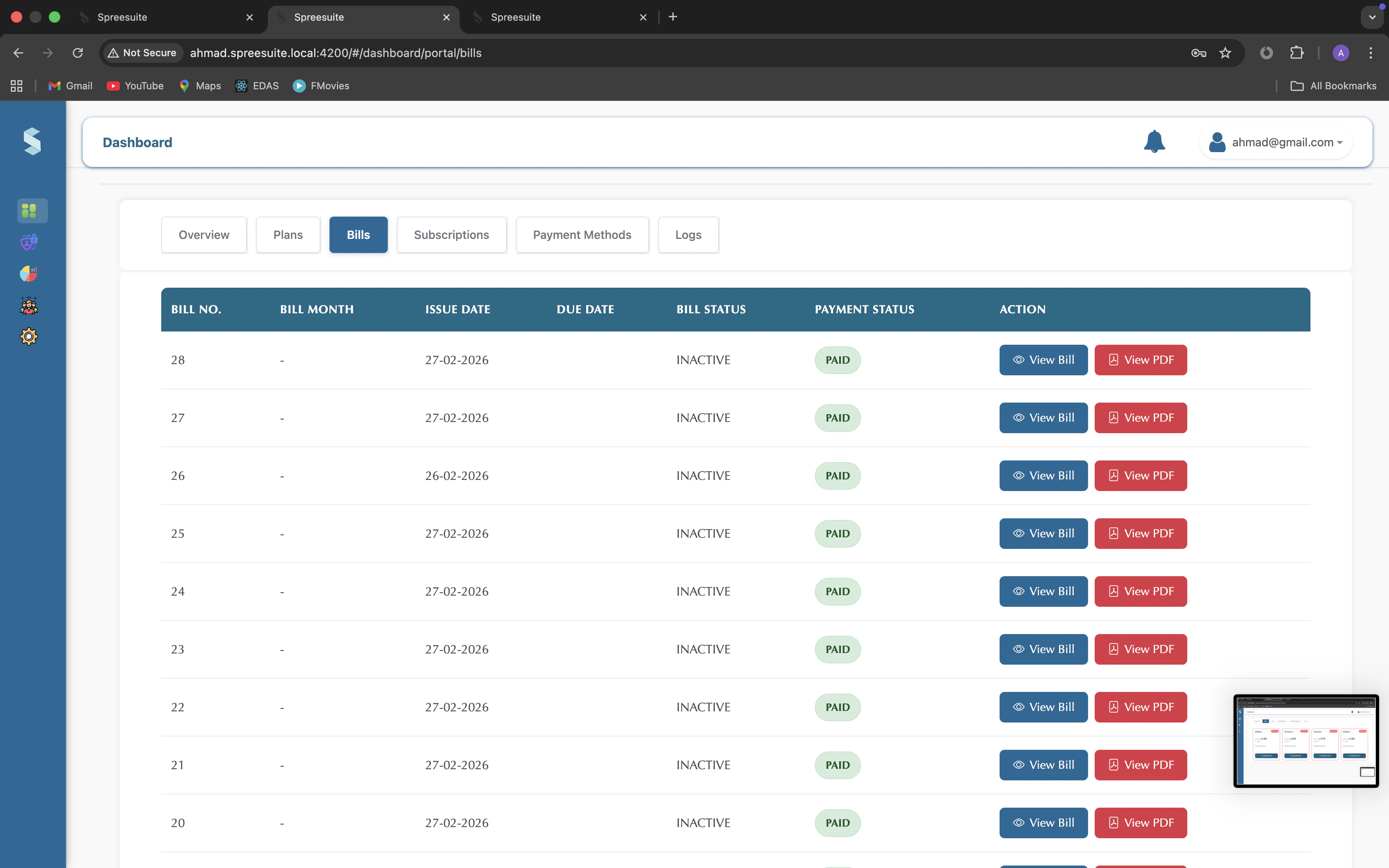
- They can open a bill and see details or pay (e.g., use the “Pay” button when online payment is enabled).
5
Subscriptions
Their active subscriptions (or “contracts” in the employee portal).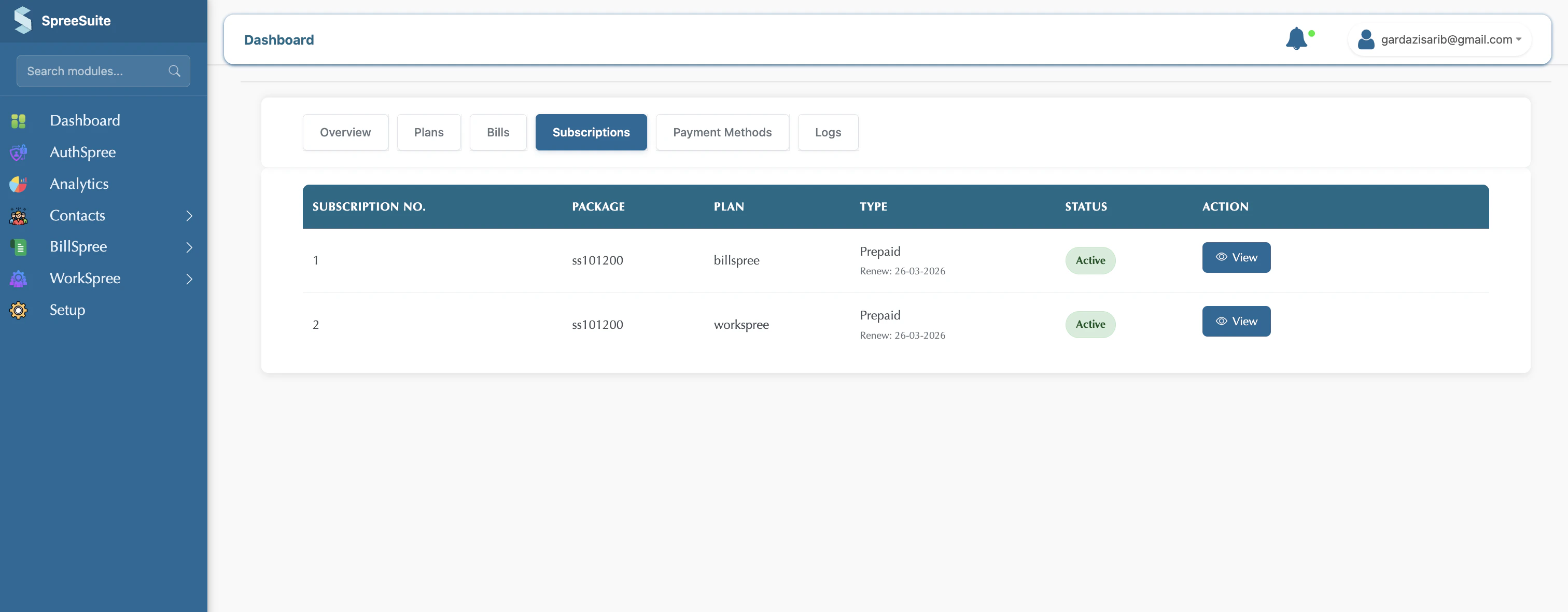
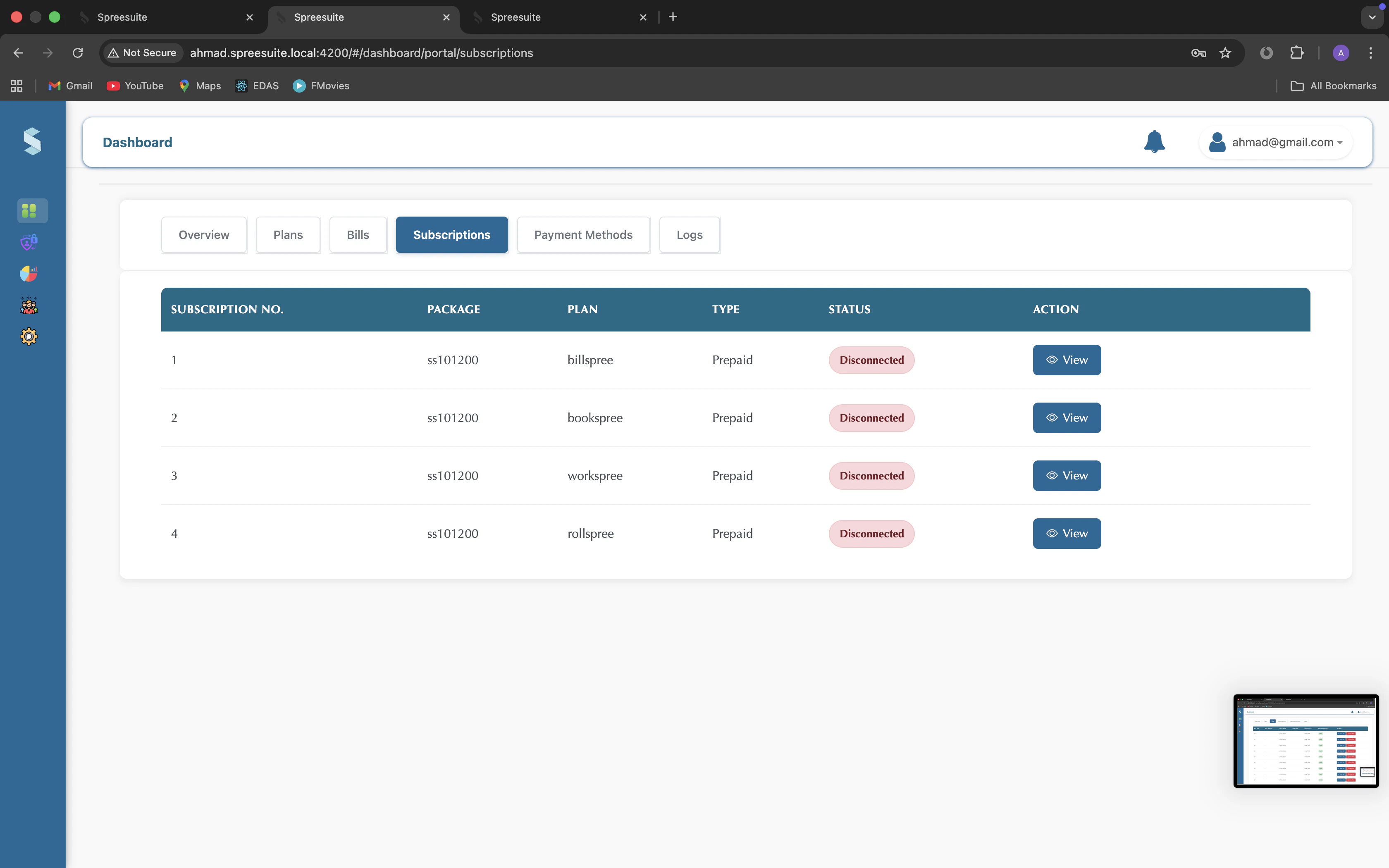
- They can open a subscription to see details, linked bills, etc.
6
Usage
Their own consumption history, not just the amount they were charged for it.
- A consumption trend chart per meter, across billing periods — so a resident can see this period against the ones before it rather than a single number on a bill.
- A summary of Min / Avg / Max covering the same range as the chart, which is what makes a spike readable: high against what?
7
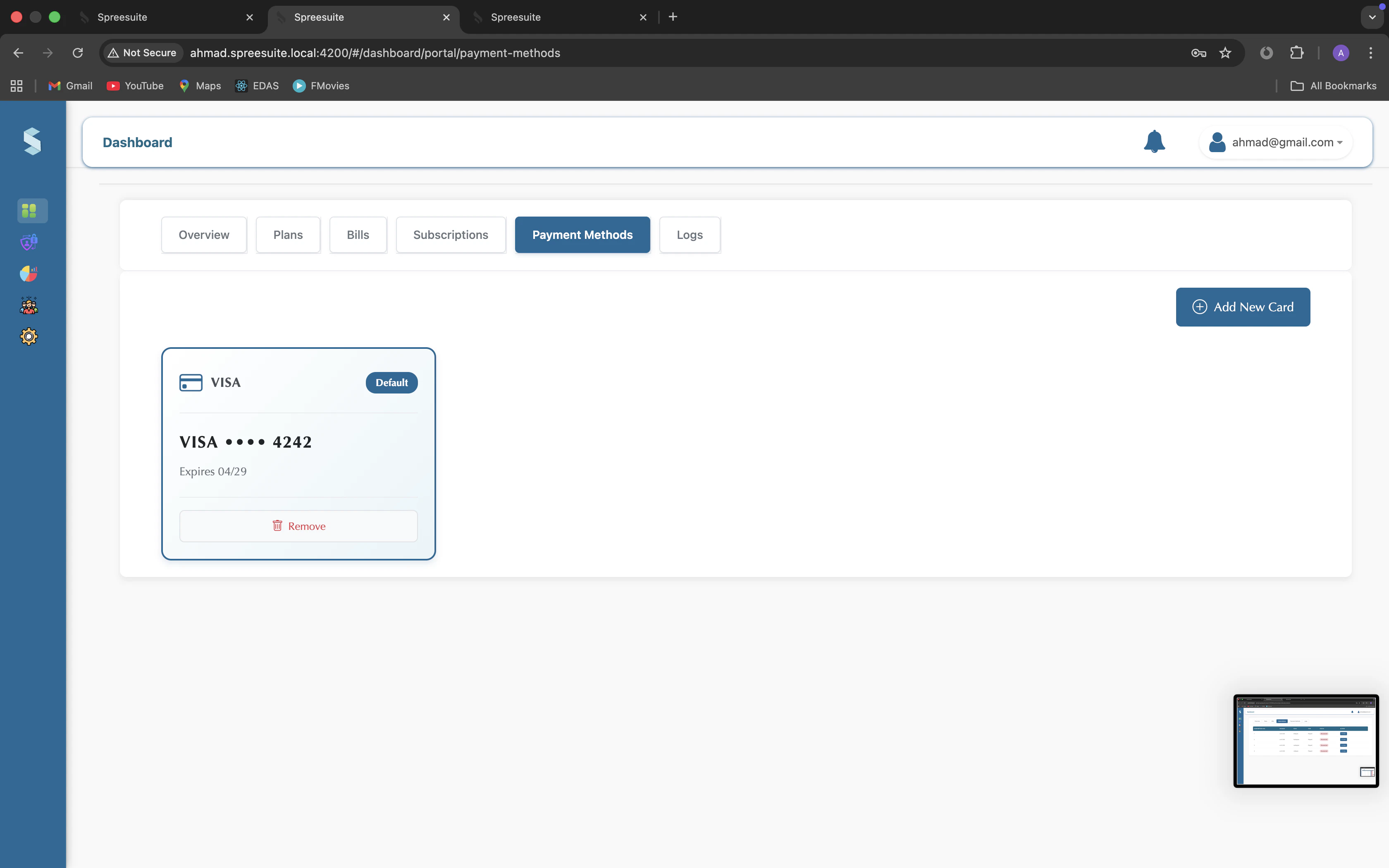
Payment Methods
Saved payment methods (e.g., credit cards).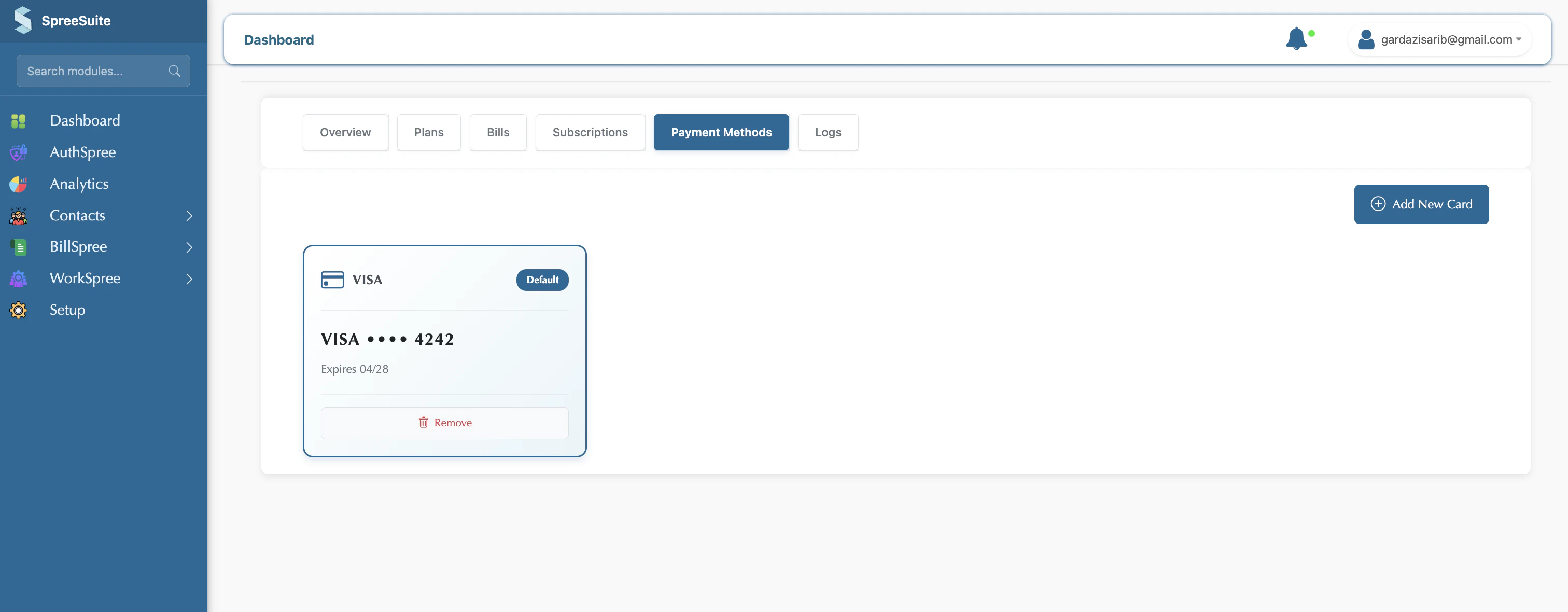
8
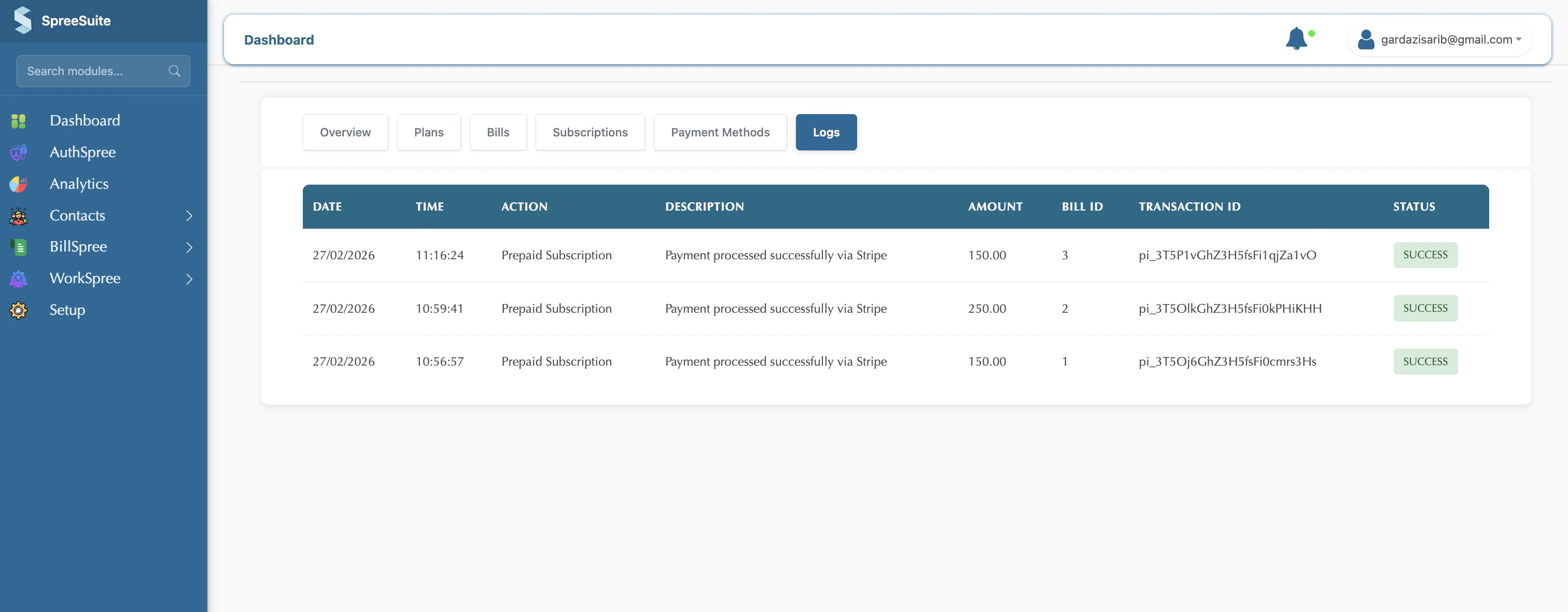
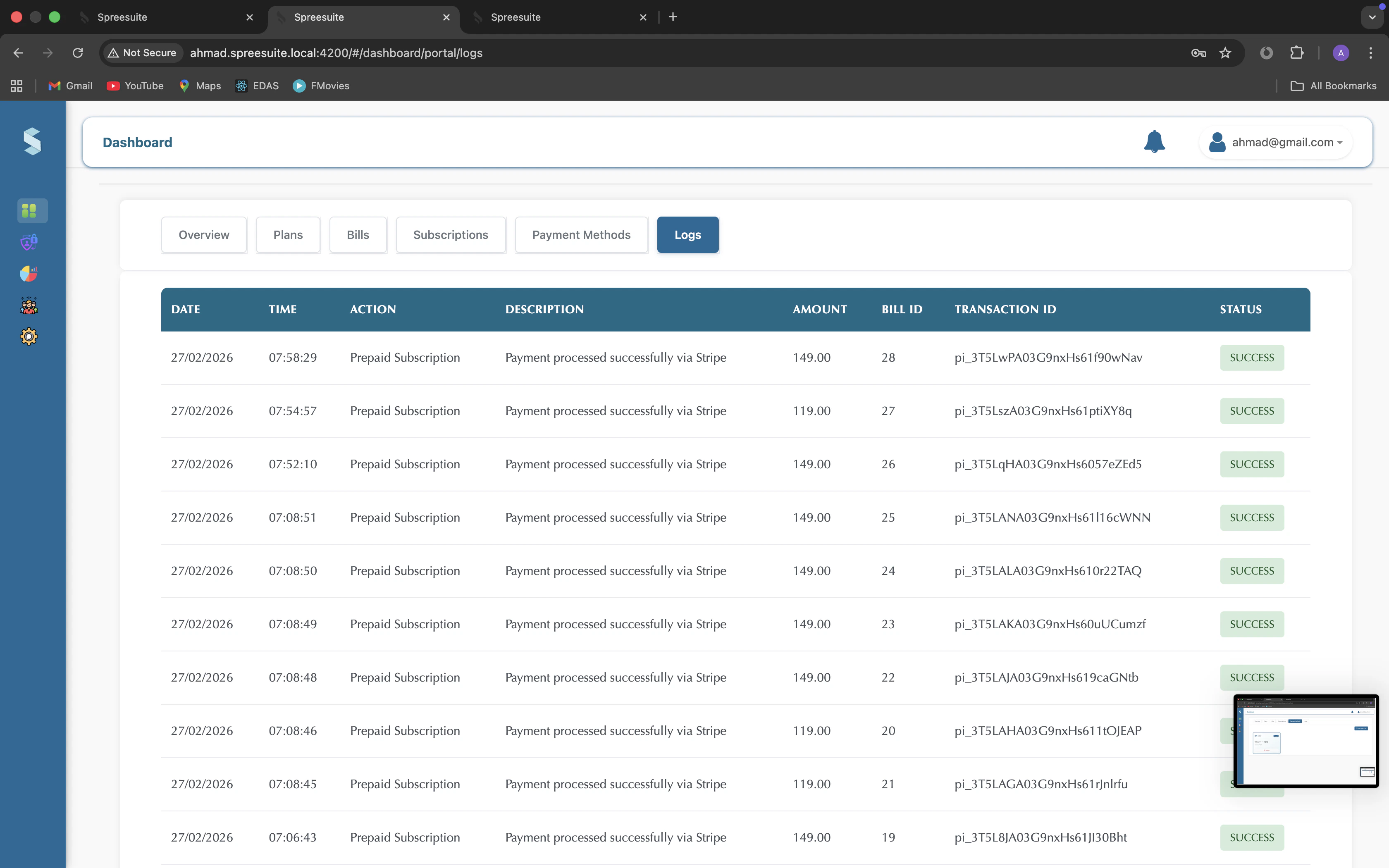
Logs
History of what happened with payments.
-
Includes date, time, action (e.g., “Payment”), description, amount, bill ID, transaction ID, and status (e.g., Success / Error).
9
My Profile
Their personal/contact and address details.
- They can view (and sometimes edit) their own profile.
2. Customer View
Summary: The place where customers log in to see their balance, bills, subscriptions, and payment history, and to pay online or manage their profile.