
Documentation Index
Fetch the complete documentation index at: https://spreesuite.mintlify.app/llms.txt
Use this file to discover all available pages before exploring further.
What is the Add-On Plan?
An Add-On Plan represents an optional, modular offering that customers can attach to their core subscription. In the Billspree catalog, there are two types of plans:- Base Plans: The primary offerings that can be subscribed to directly. A Base Plan can also include Add-On Plans to expand its scope, features, or quotas.
- Add-On Plans: Optional plans that attach to an active Base Plan. Crucially, Add-On Plans are final packages and cannot have any other Add-On Plans nested inside them.
- Define your Pricing Template (e.g., “additional meters”, “premium support”). It is a prerequisite of the Add-On Plan.
- Set prices and rules for how to calculate the extra charges.
- Set taxes and discounts that apply specifically to the Add-On.
Pricing Template Setup
1- Setup Pricing Template first.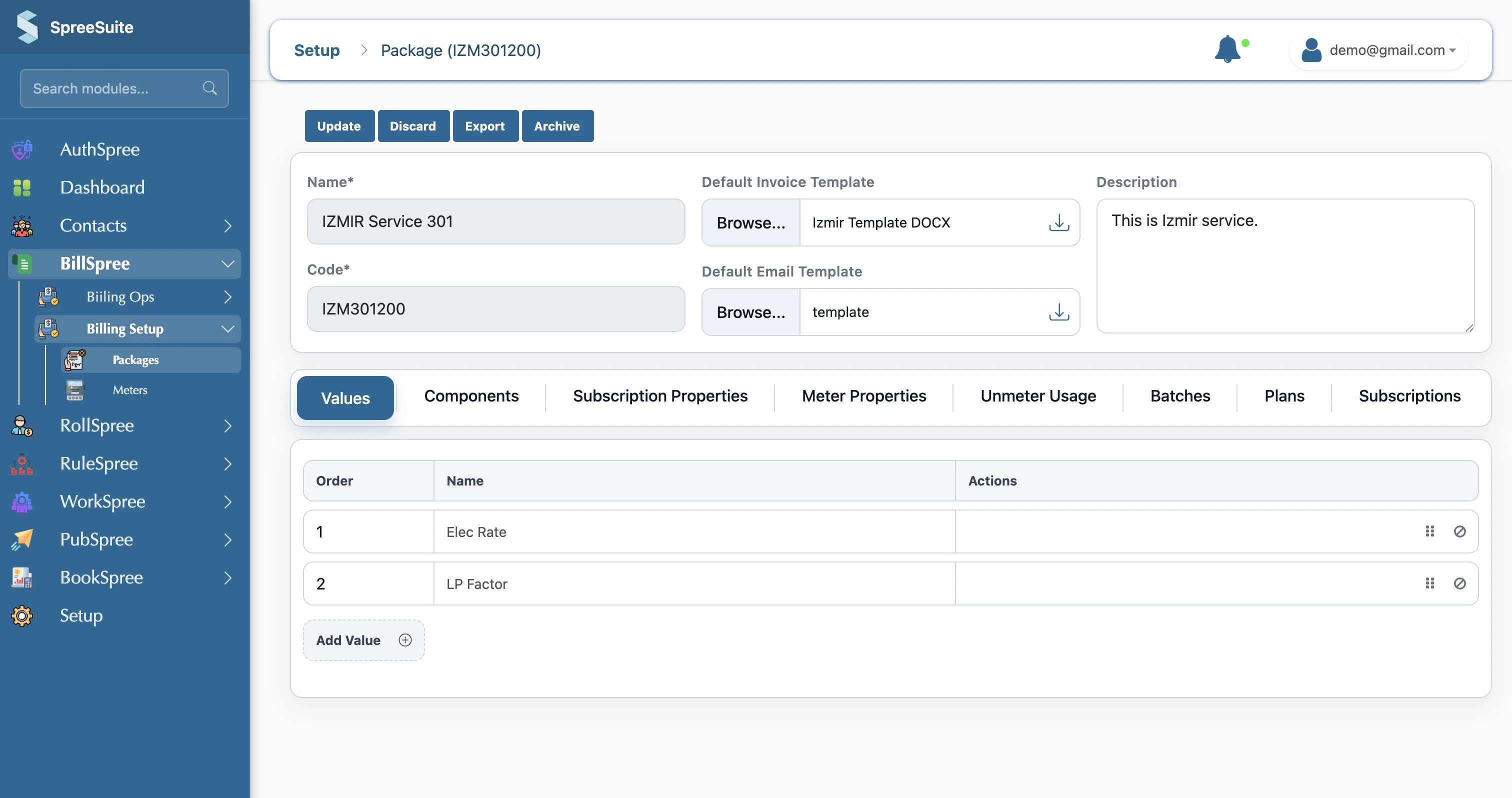
Add-On Plan Setup
- Click on the Plan Variants tab
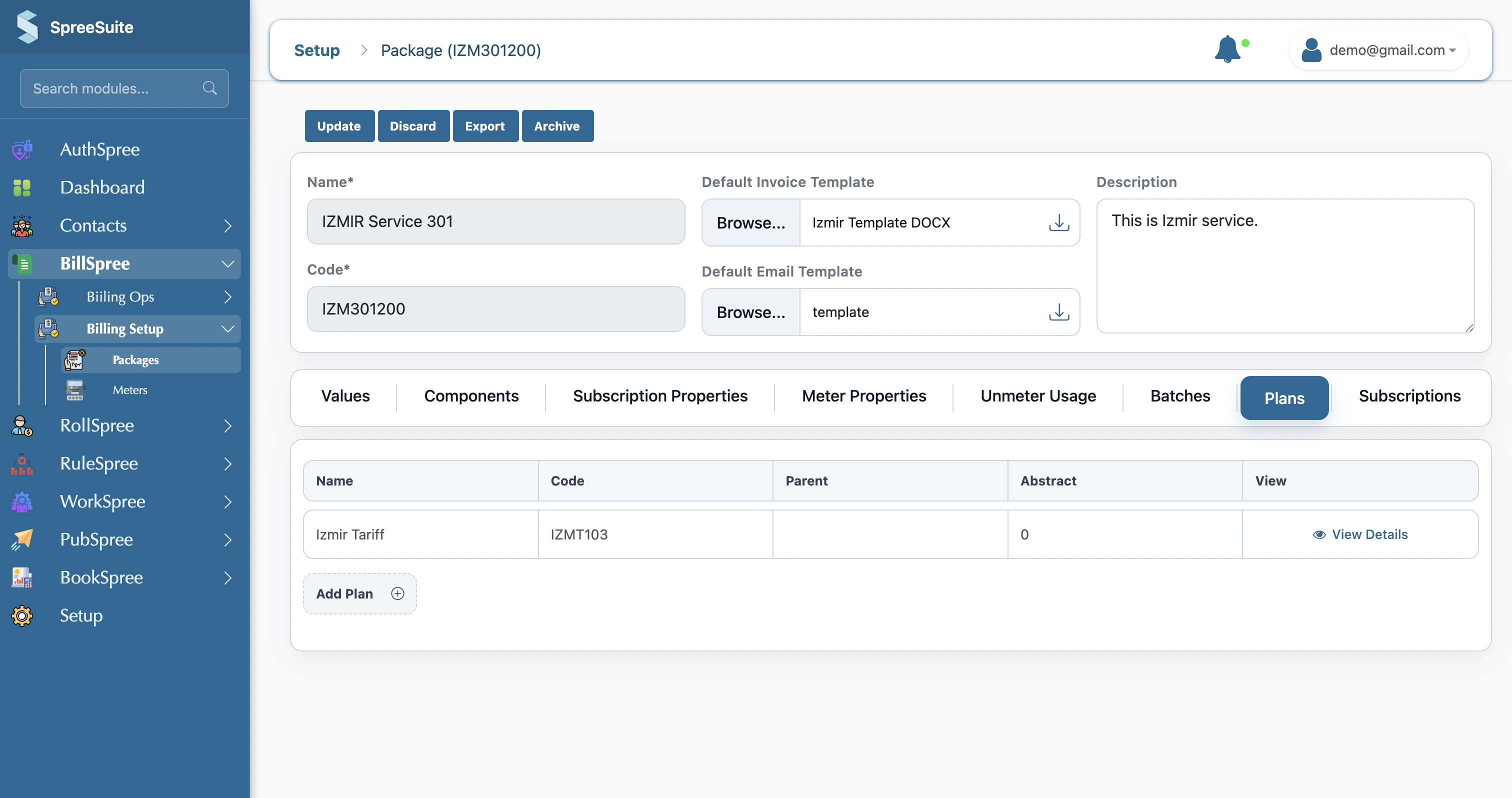
- Click on Add Plan Variant
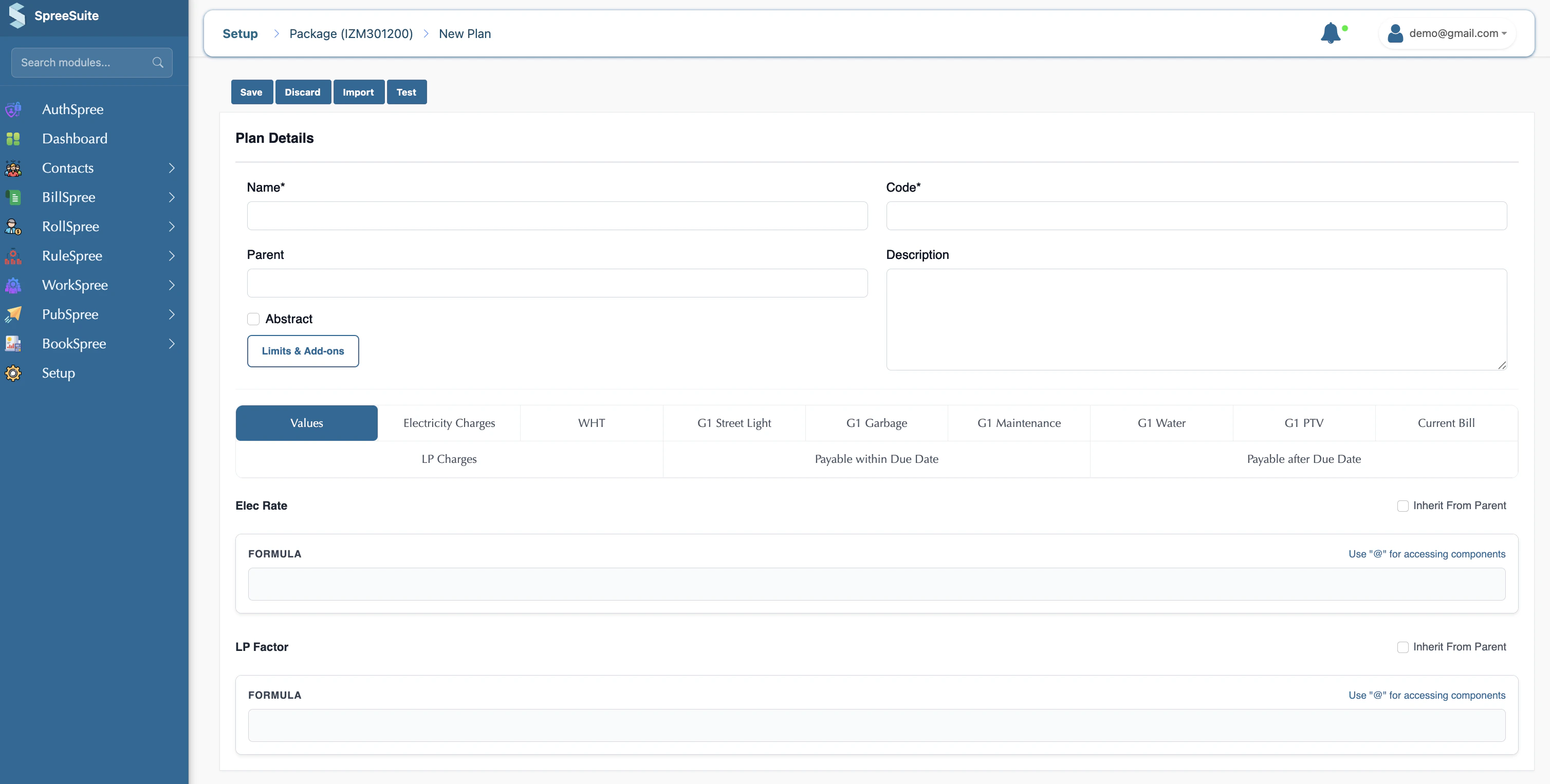
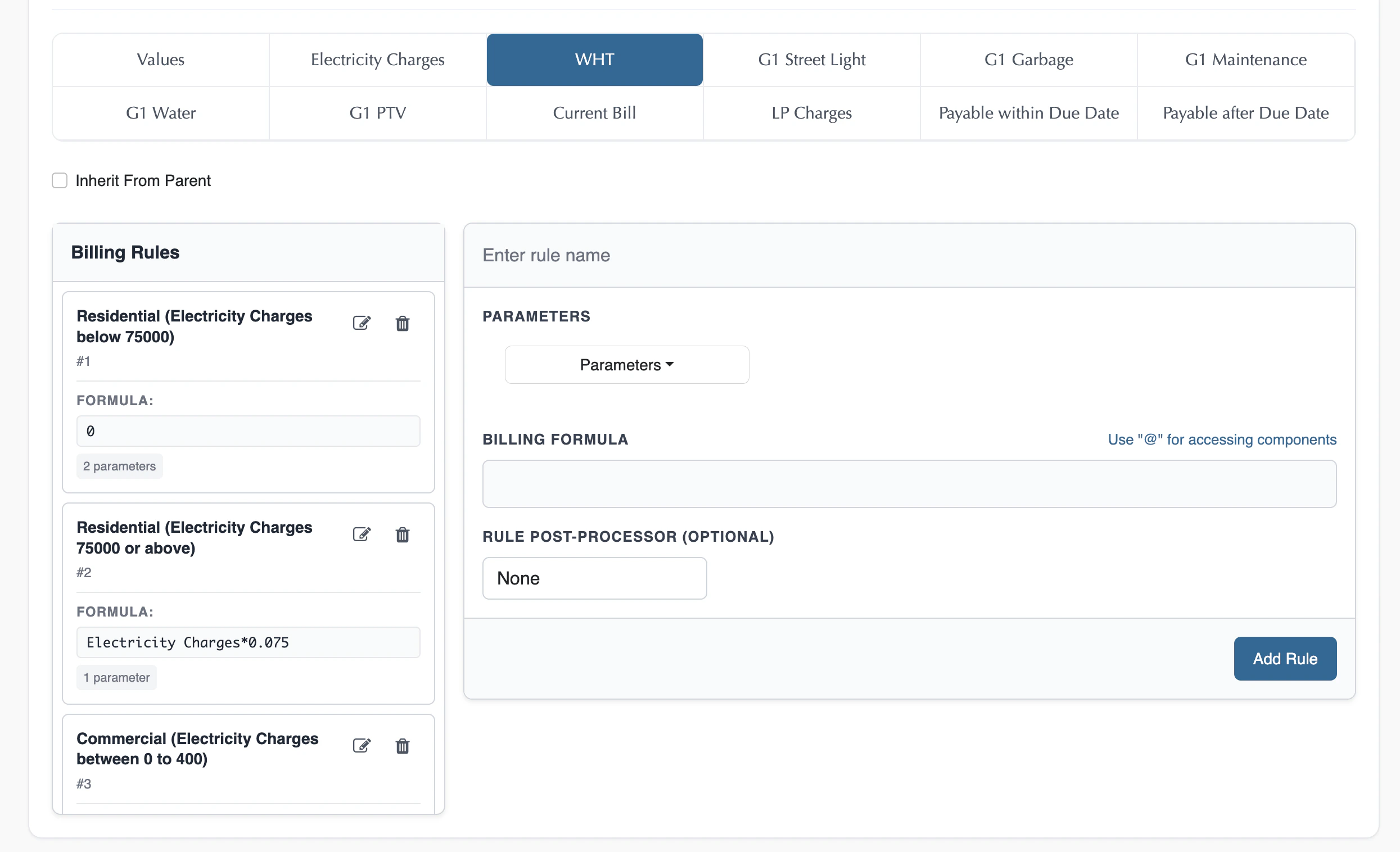
- Your Pricing Template values and components show here in the Add-On Plan as tabs

- Give your rates in Values
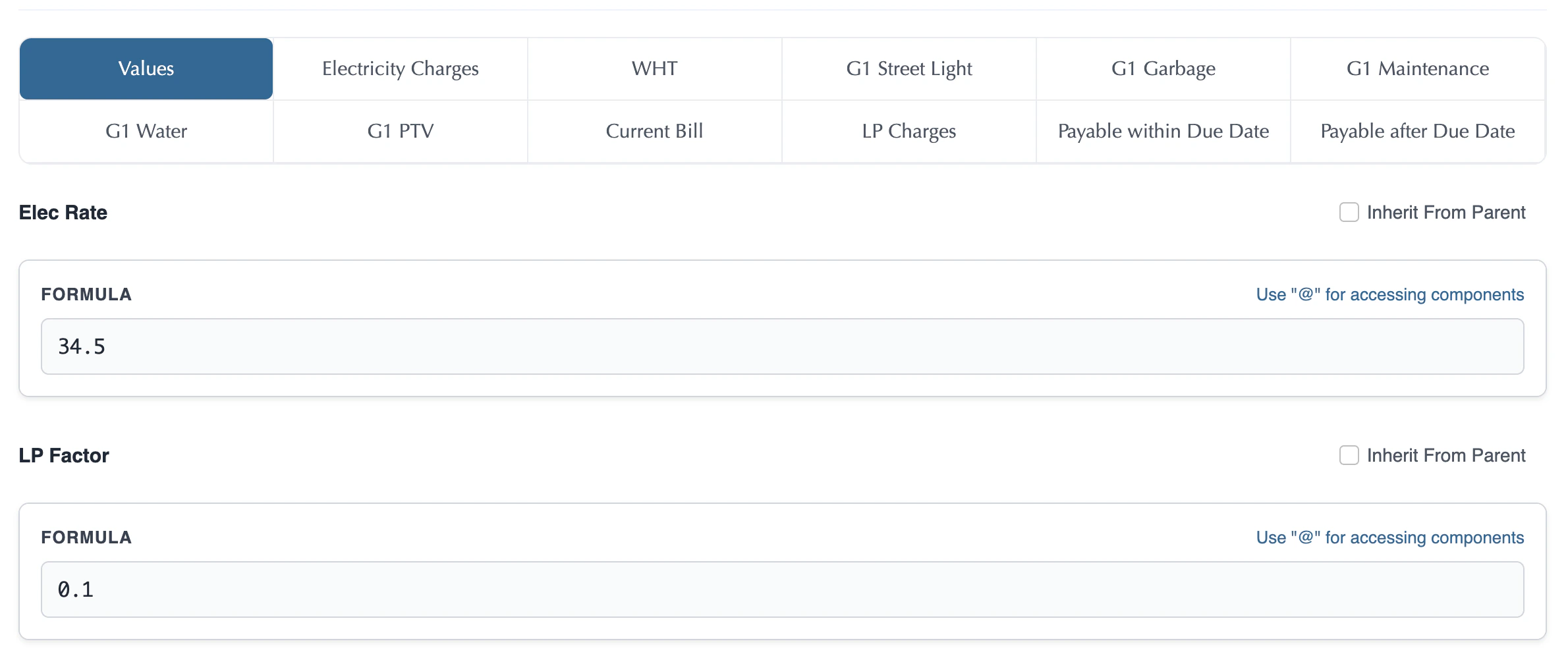
- Click each component tab, and add your formulas for all components.

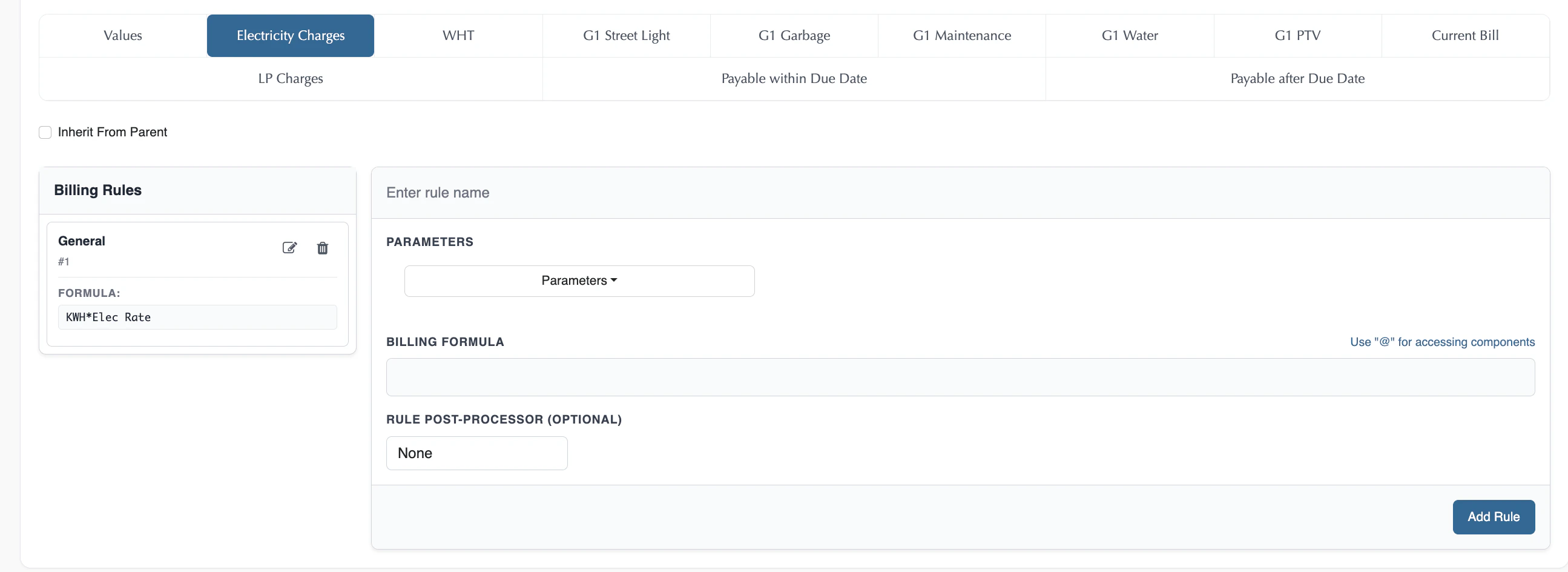
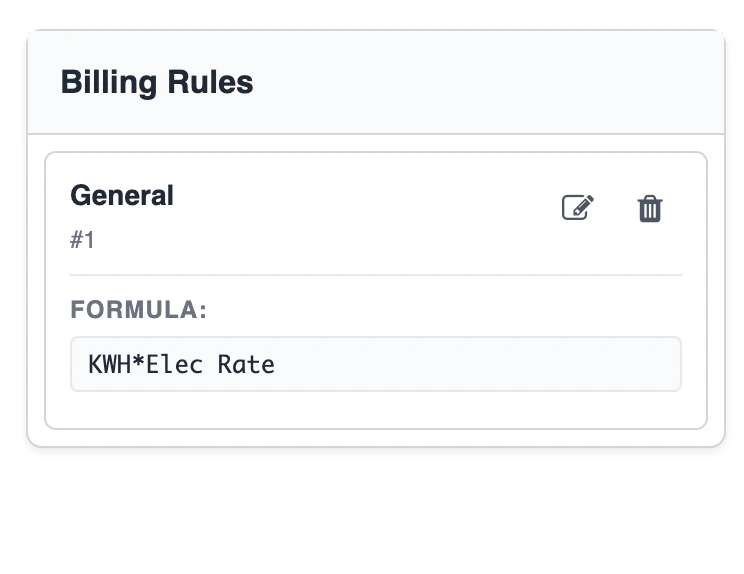
Rule
The rule is basically a combination of Condition and Billing FormulaConditions
We have conditions in the Add-On Plan for each component. We have multiple conditions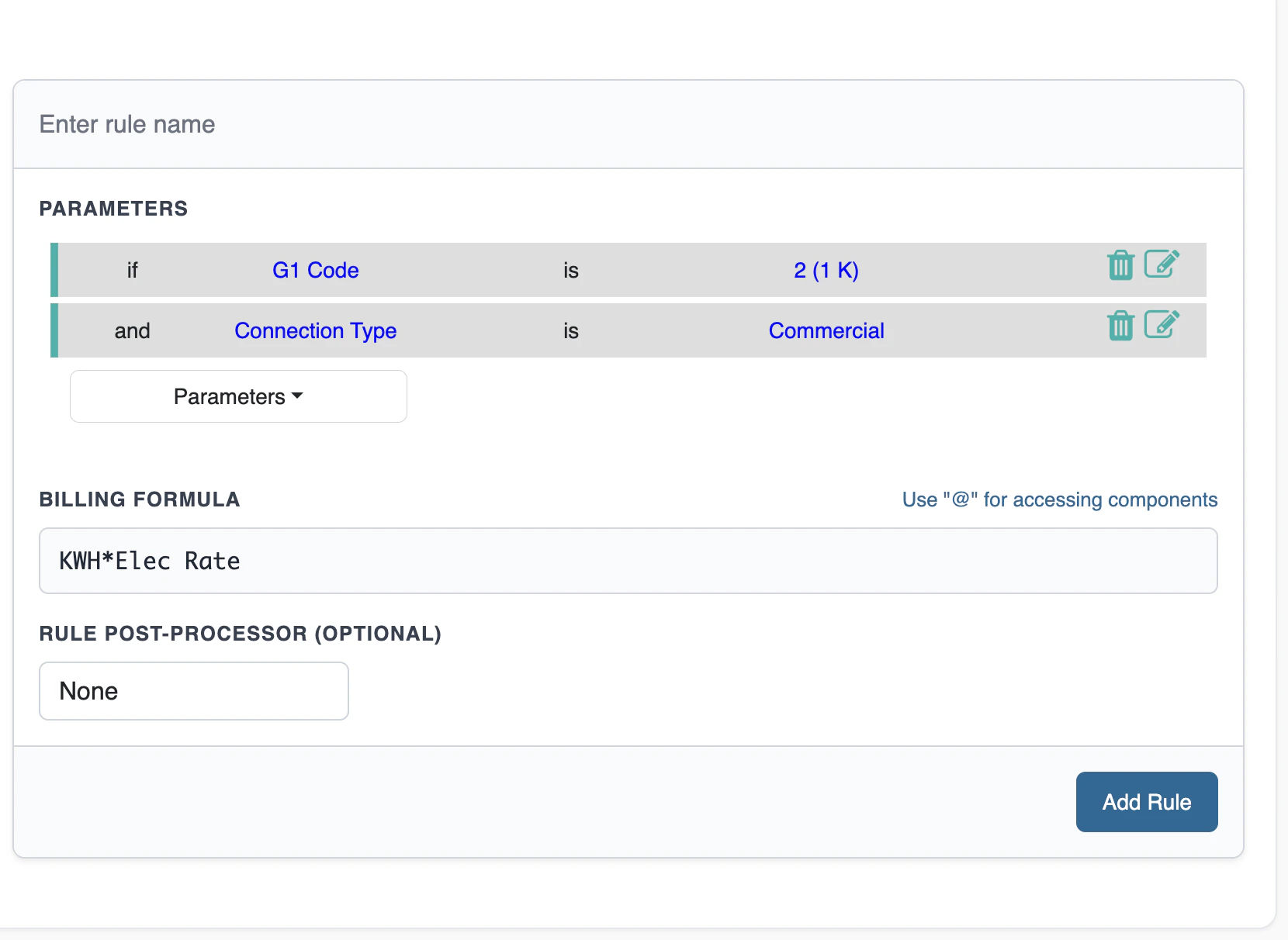
Formula
We have a formula in the Add-On Plan for each component. One formula for multiple conditions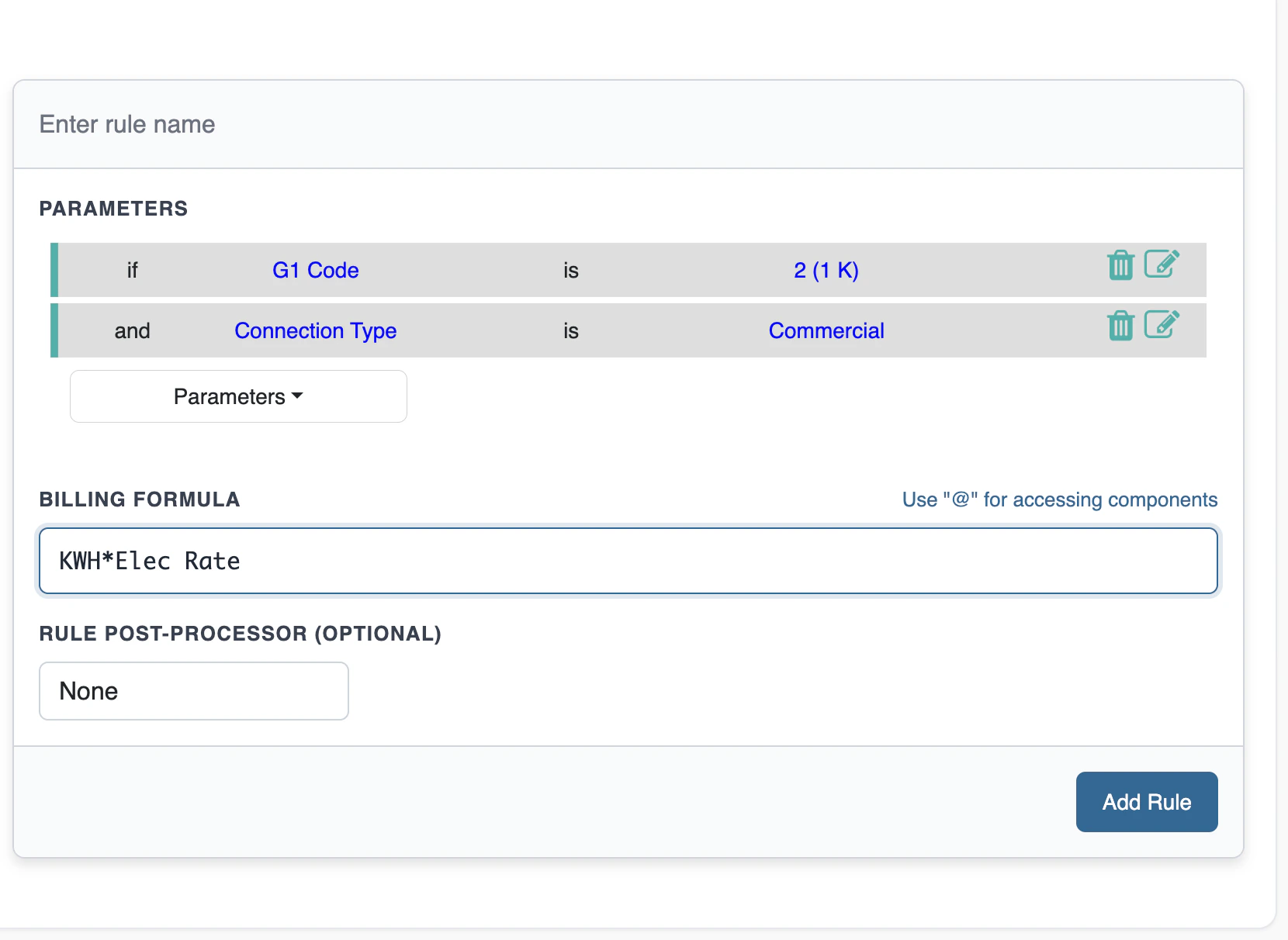
Test Plan
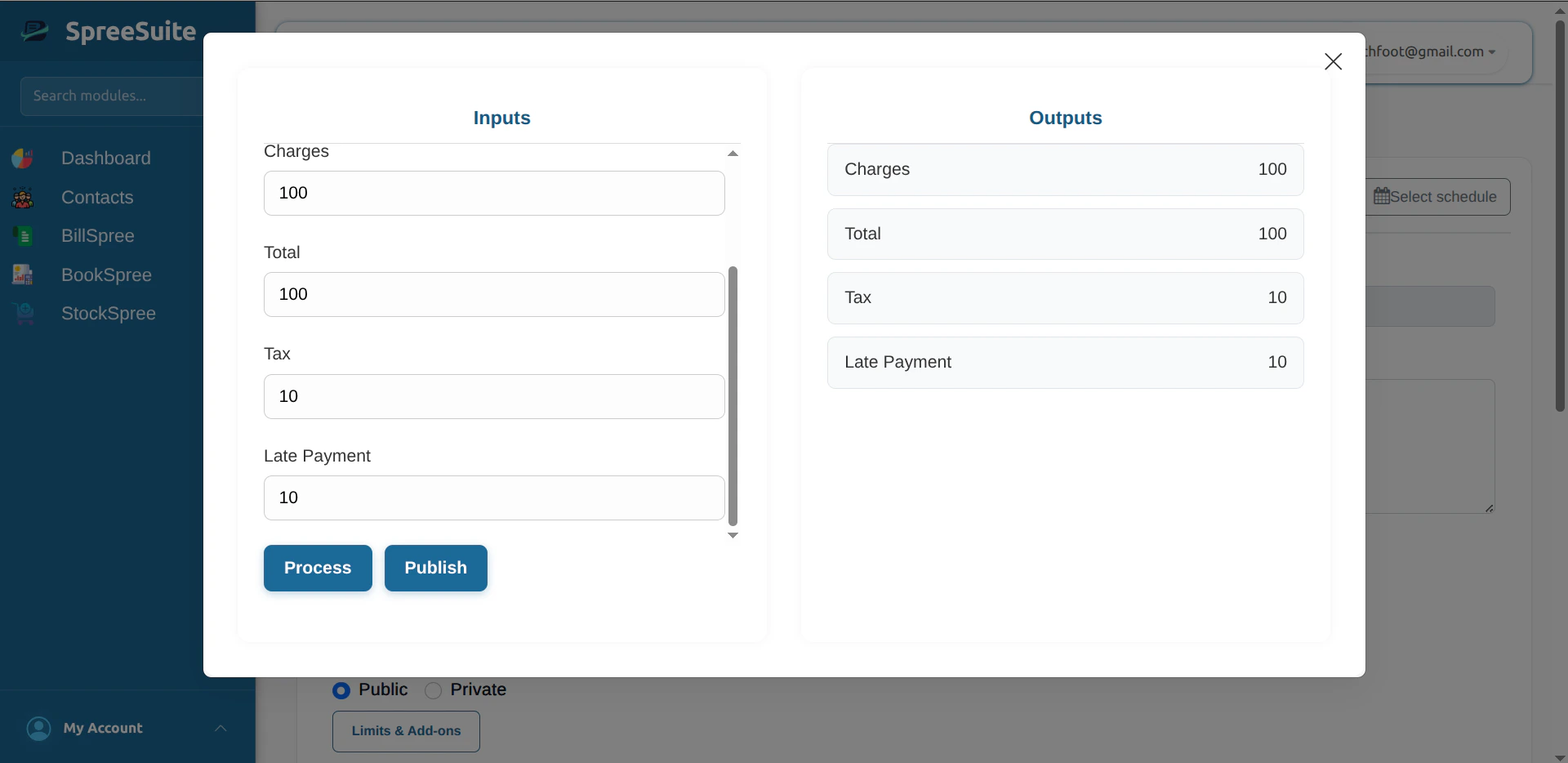
Test Plan lets you run the Add-On Plan with sample inputs and see each component’s result, before it is used in live billing.- Open the Plan screen for the Add-On Plan you want to check.
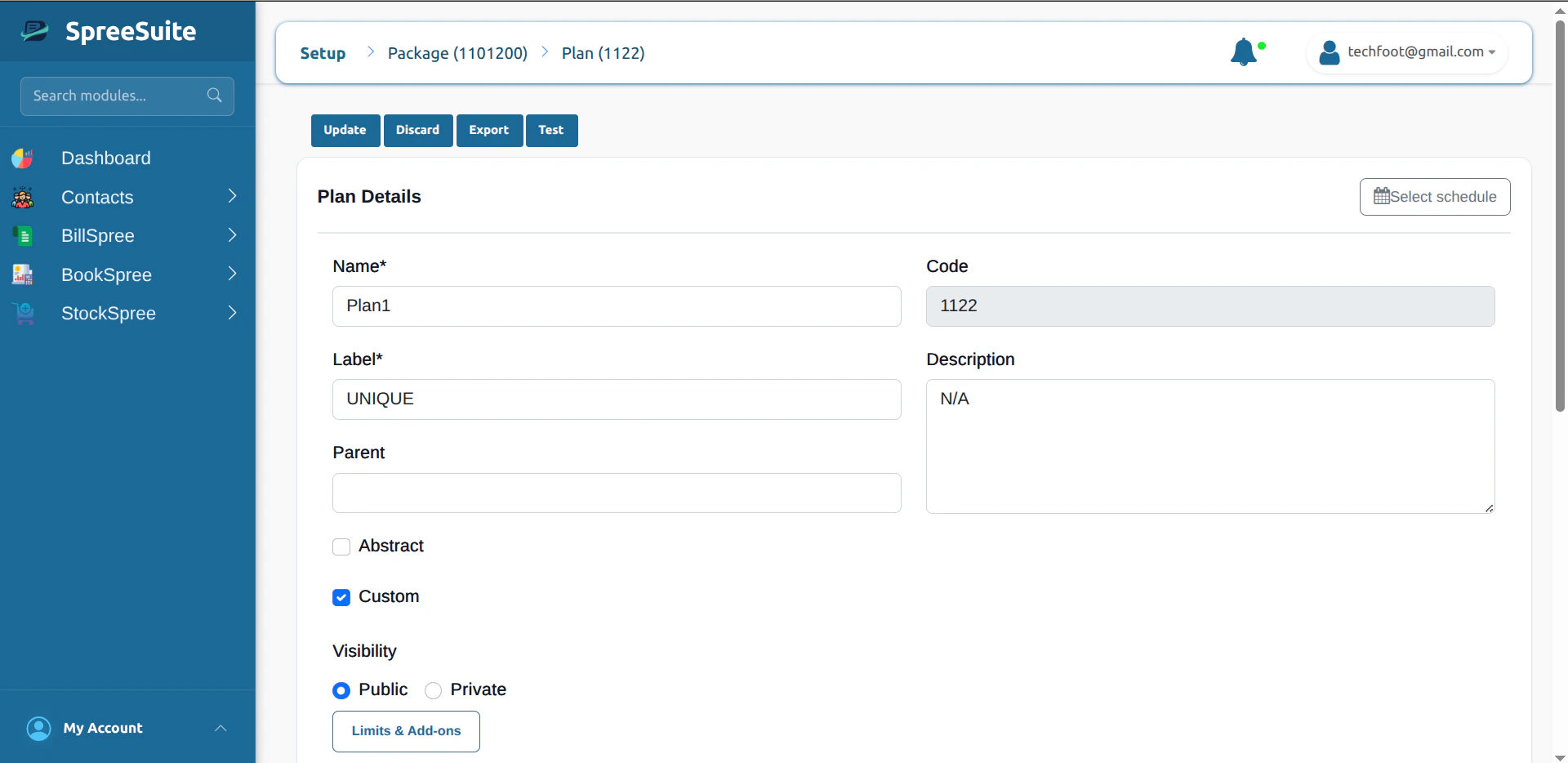
- Click Test in the plan header (with Update, Discard, and Export).
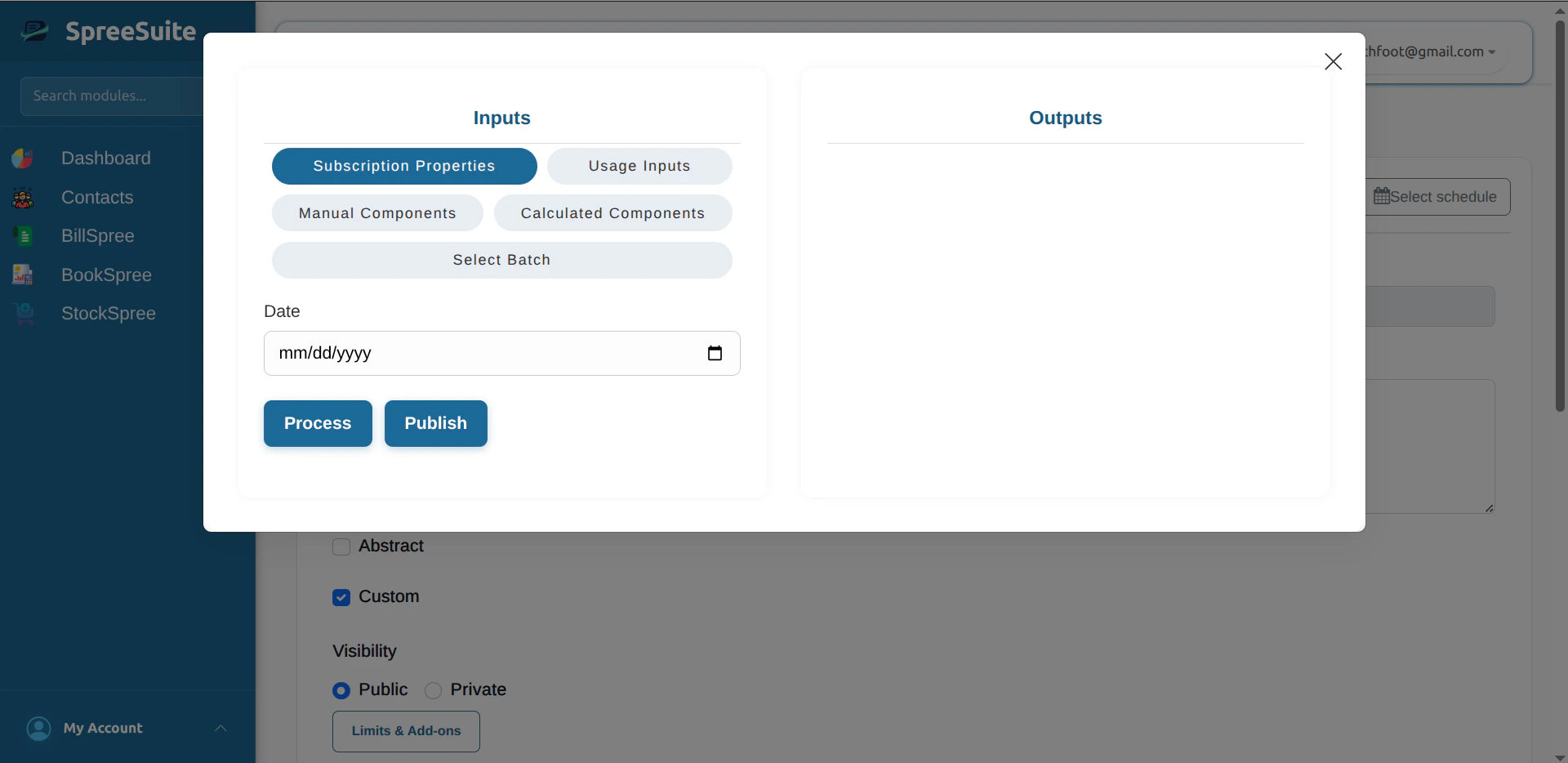
- Enter sample values for your date, components and usage inputs (and any other fields your package defines).
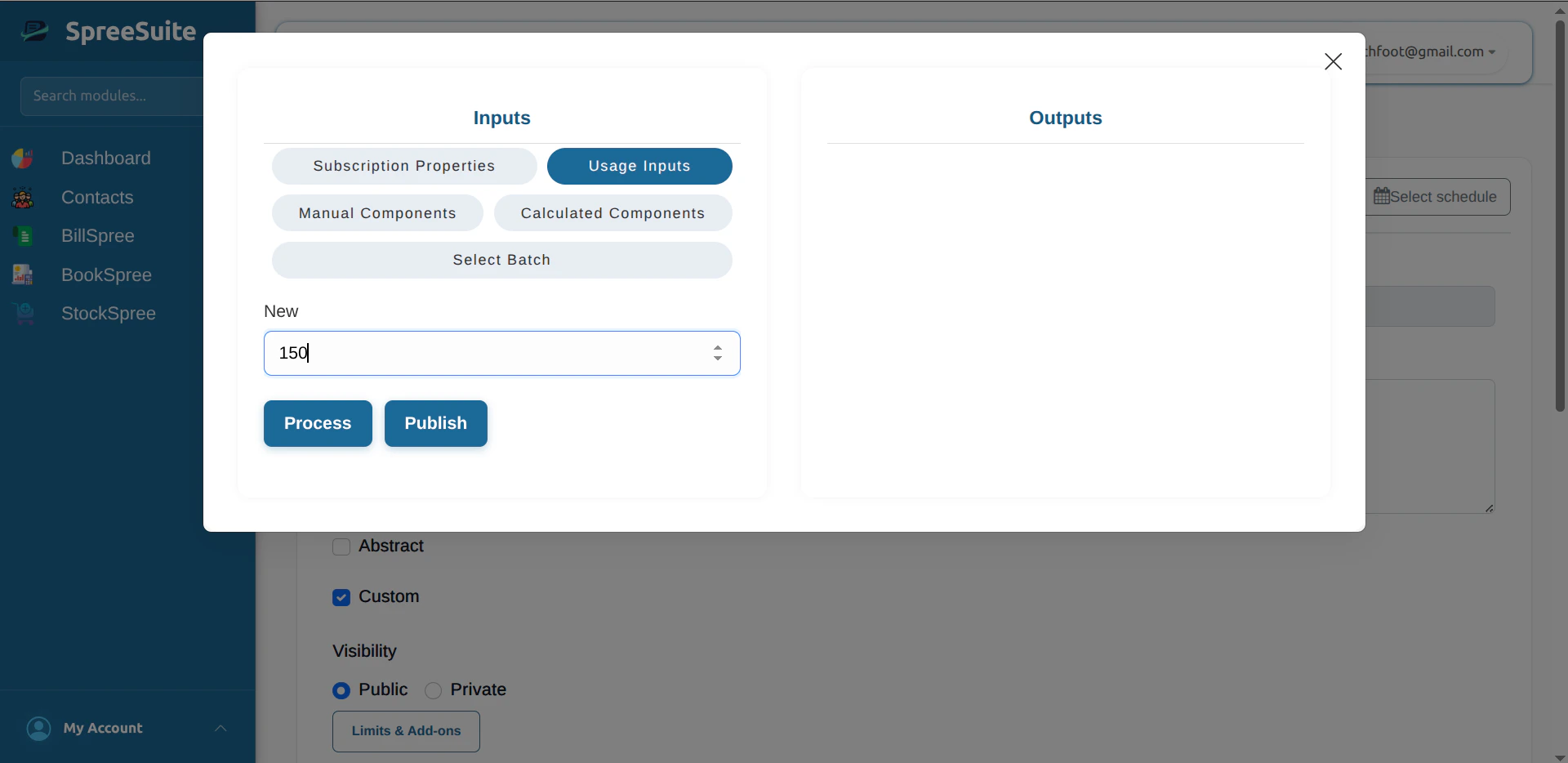
- Click Process to calculate the bill for those inputs.
- Read Outputs: you see each billing component with the amount your conditions and formula produced.
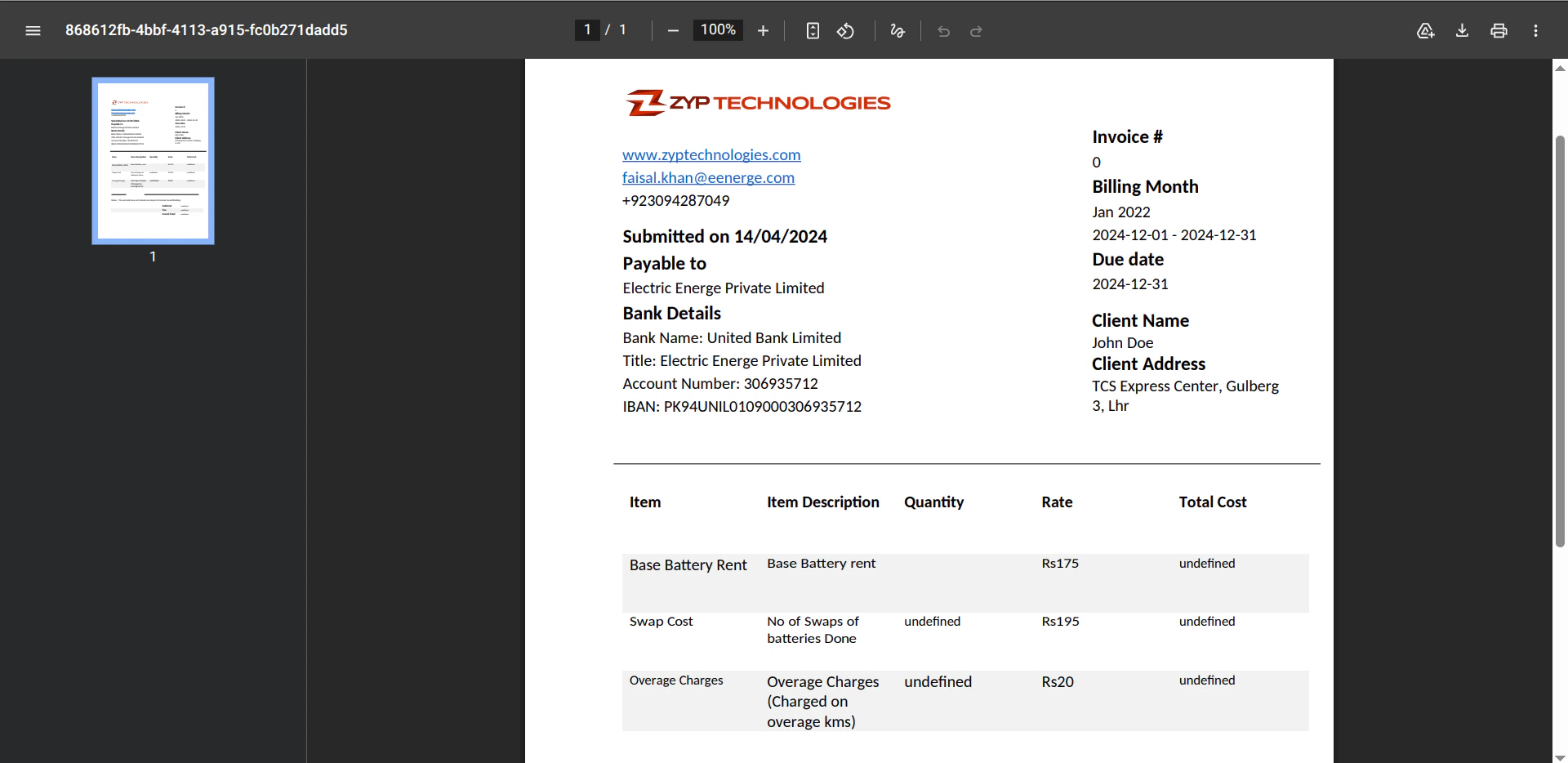
- Click Publish when you want a PDF bill for that same test run. The app uses a bill template from your pricing template. If no template is available, fix the template on the pricing template, then try again. When publish succeeds, the PDF opens in the browser.
Prepaid
Prepaid means you pay first, then use.- You select the Add-On Plan that you want, then subscribe to it as part of your active Base Plan subscription.
- Pay for it.
- Then you use the service.
- When the balance is low or finished, subscribe again.
Postpaid
Postpaid means you use first, pay later.- You use the service during the month.
- At the end of the period (e.g. month), the company sends you a bill for what you used (including the Base Plan and any active Add-On Plans).
- You pay that bill by the due date.