1. The Big Picture: What is a Parameterized Rating Rules Set?
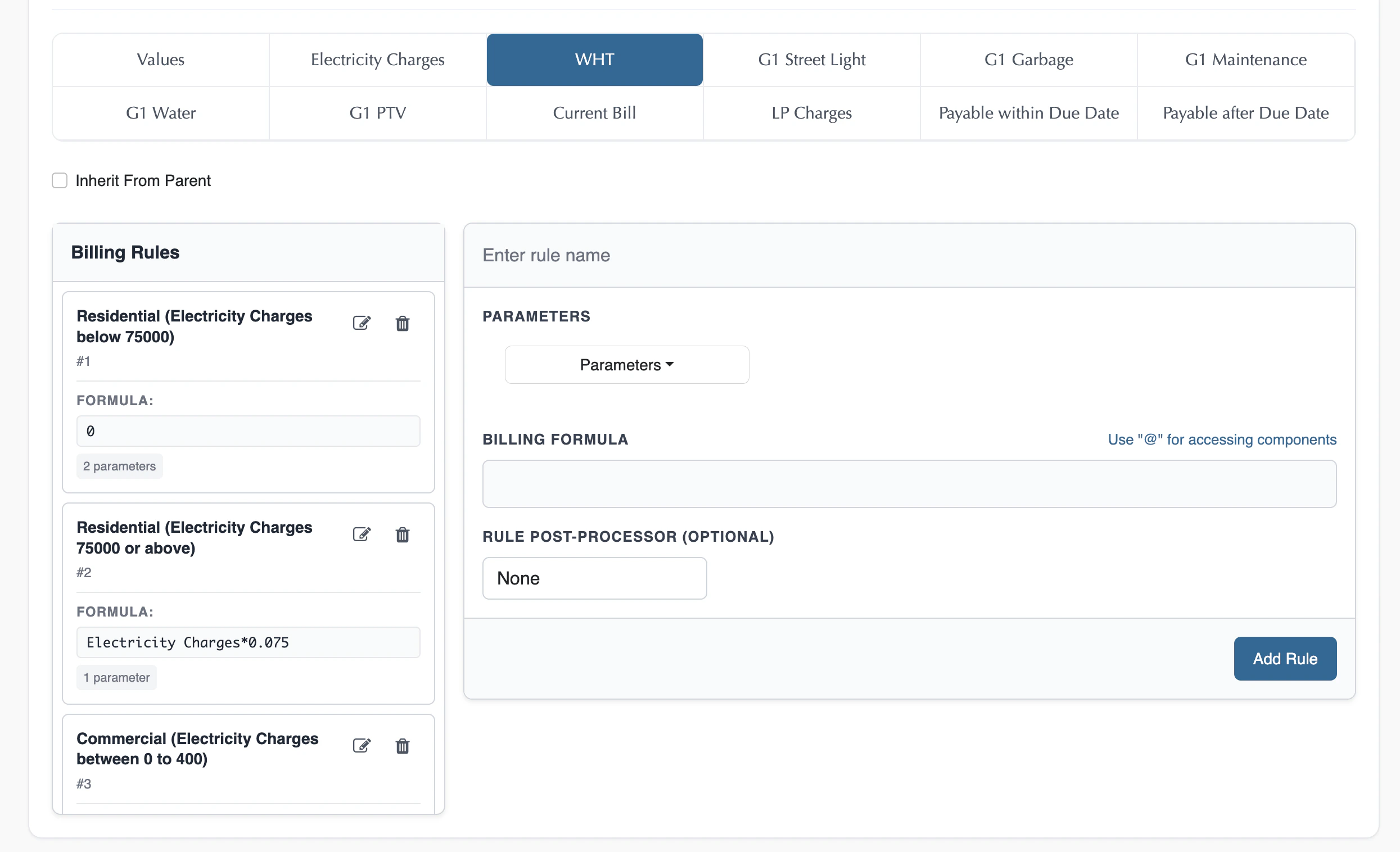
While a Pricing Context establishes the structural layout and a Rate List supplies the concrete currency prices, the Parameterized Rating Rules Set is the billing engine’s logical brain. It defines the exact calculations, tax rates, volume multipliers, and regional discounts applied to customer billing metrics. A Parameterized Rating Rules Set is created directly from a Pricing Context. After setting up your Pricing Context, you define a Charge Rules within it. If you configure only the formulas and conditions (and leave the raw values tab blank) and leave the Plan check unmarked, it instantly becomes a Parameterized Rating Rules Set (or Rating Rules Set). By marking the Plan check as unchecked, the system makes it unsubscribeable—meaning customers cannot subscribe to it directly. Instead, it serves as a reusable master logic card that other concrete, sellable Plans inherit or reference. By assigning security attributes to Charge Rules, pricing logic can be securely controlled across regions, business units, customer segments, or operational scopes. This ensures users only access and apply pricing calculations that are authorized for their assigned business dimensions.2. How Rules Are Authored
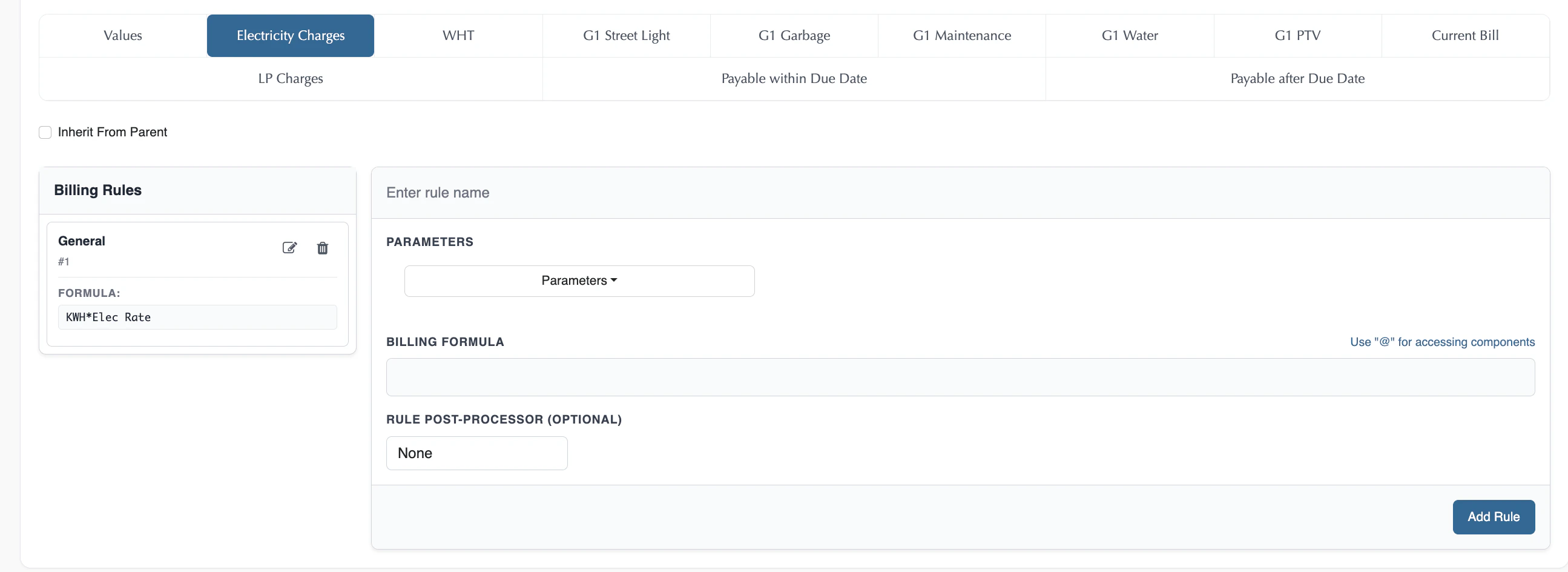
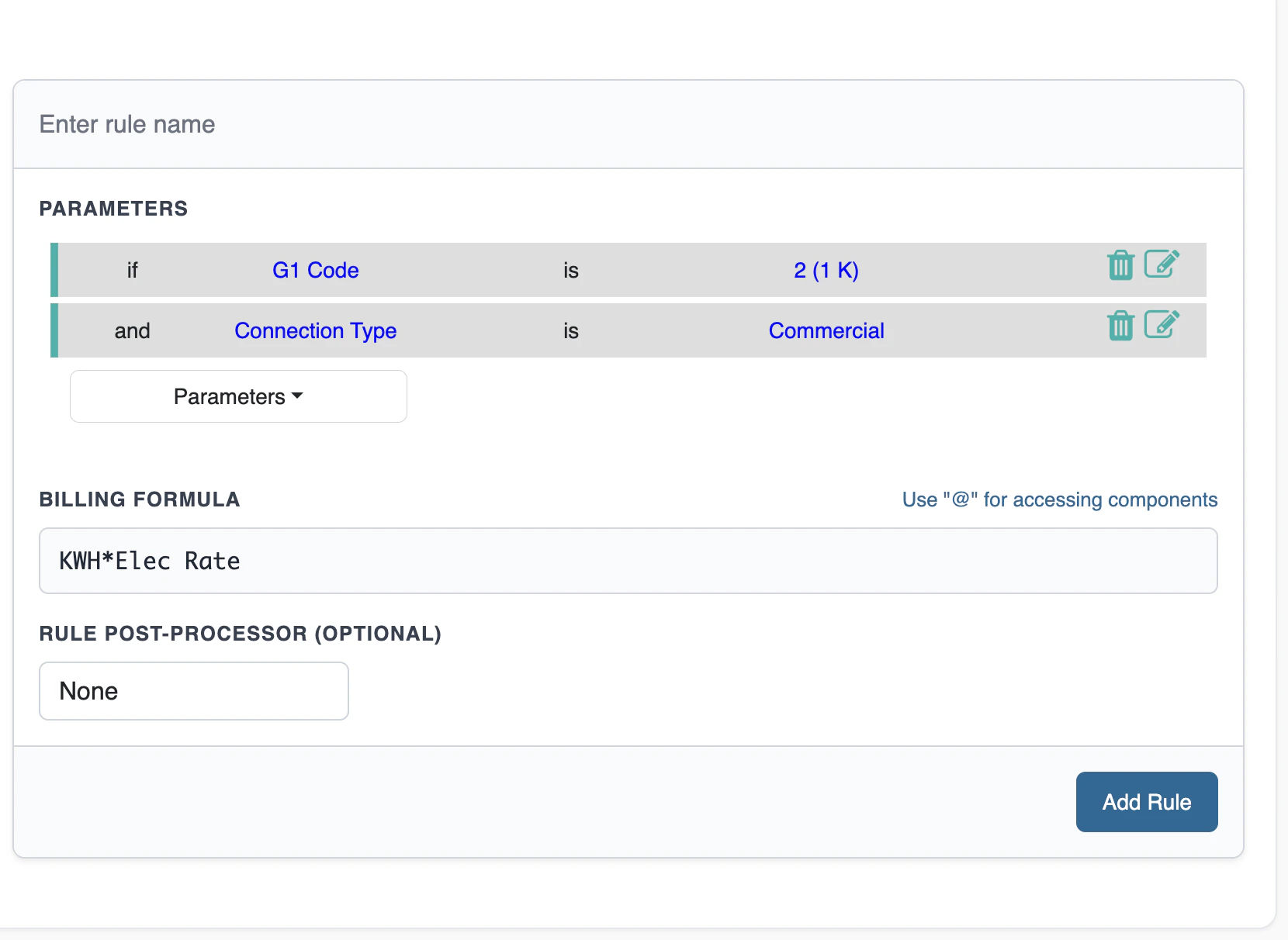
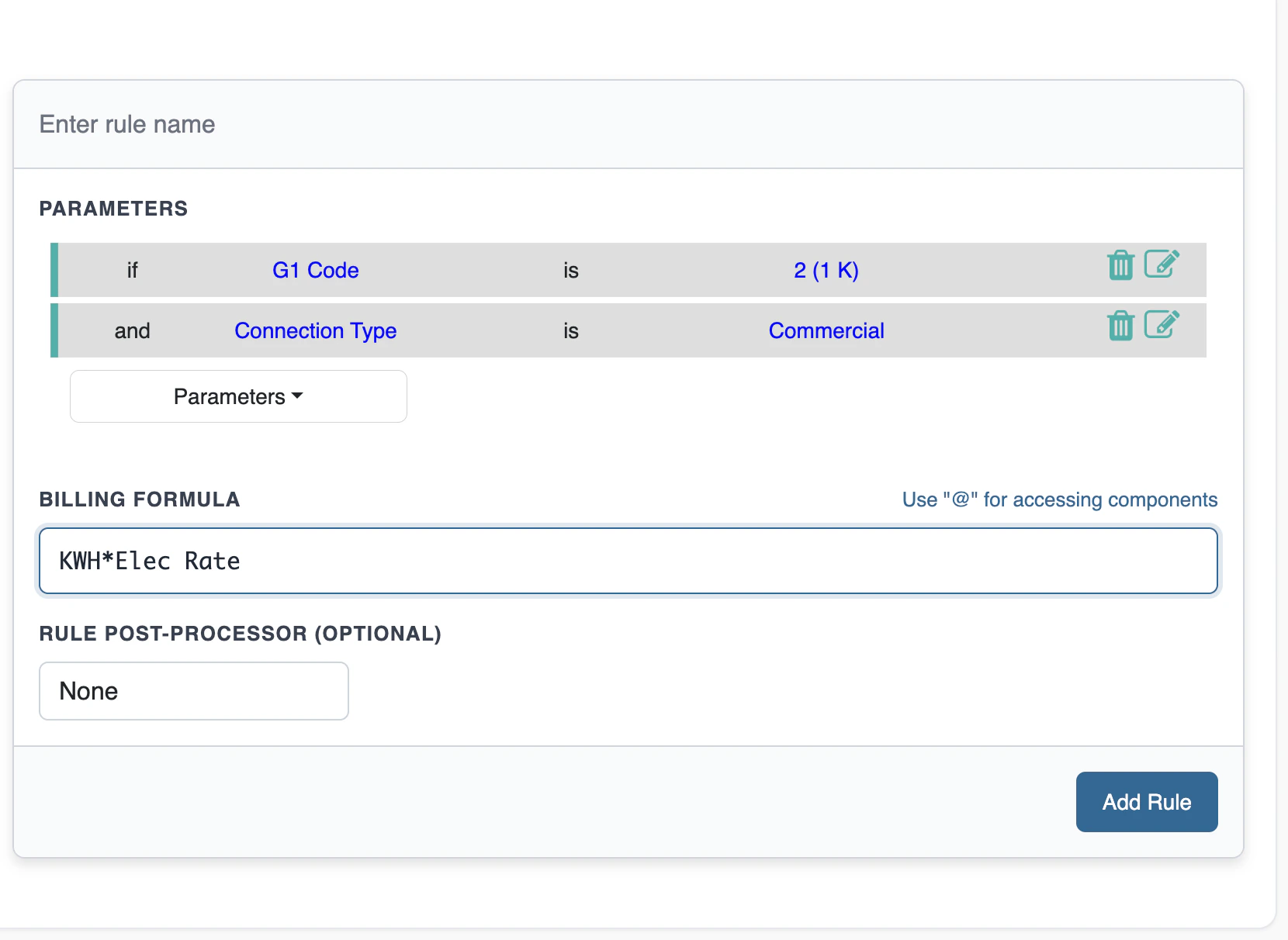
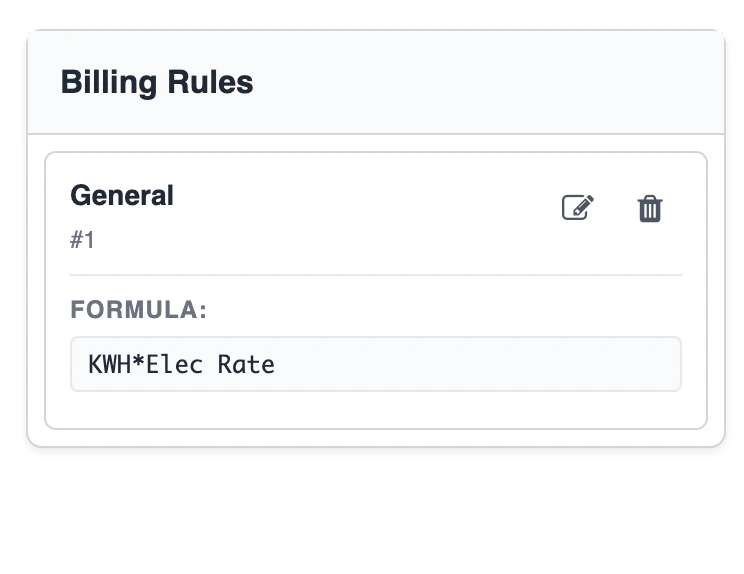
A Charges Rules module uses the same rule-authoring mechanics as any Pricing Module, Conditions, a Billing Formula, an optional Rule Post-Processor, multiple rules per component connected by OR with first-match-wins evaluation, and Component Chaining via Order. See Pricing Module → Authoring Rules for the full mechanics. What makes a Charges Rules module specifically a Parameterized Rating Rules Set: it’s a Pricing Module with only the charge components filled in (rules and formulas), the Values tab left blank, and the Plan check unmarked, so it’s unsubscribable, a reusable logic card other concrete Plans inherit or reference.3. Step-by-Step Configuration Guide
Step 1: Set Up the Pricing Context First
A Pricing Context is the strict prerequisite. Ensure your master placeholders, properties, and usage inputs are configured first: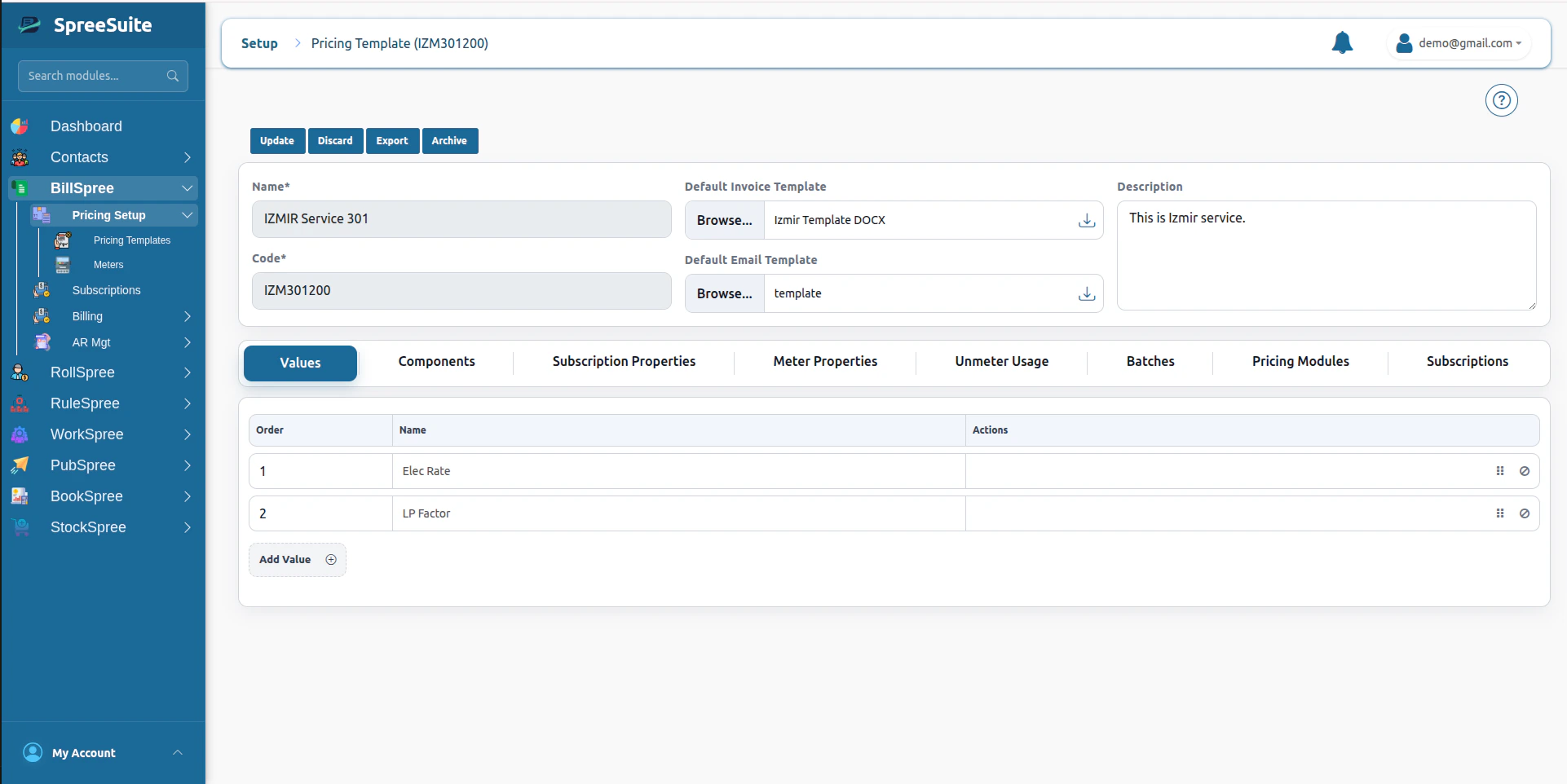
Step 2: Navigate to Pricing Modules tab
Open your Billspree dashboard, navigate to the catalog builder, and click on the Pricing Module tab: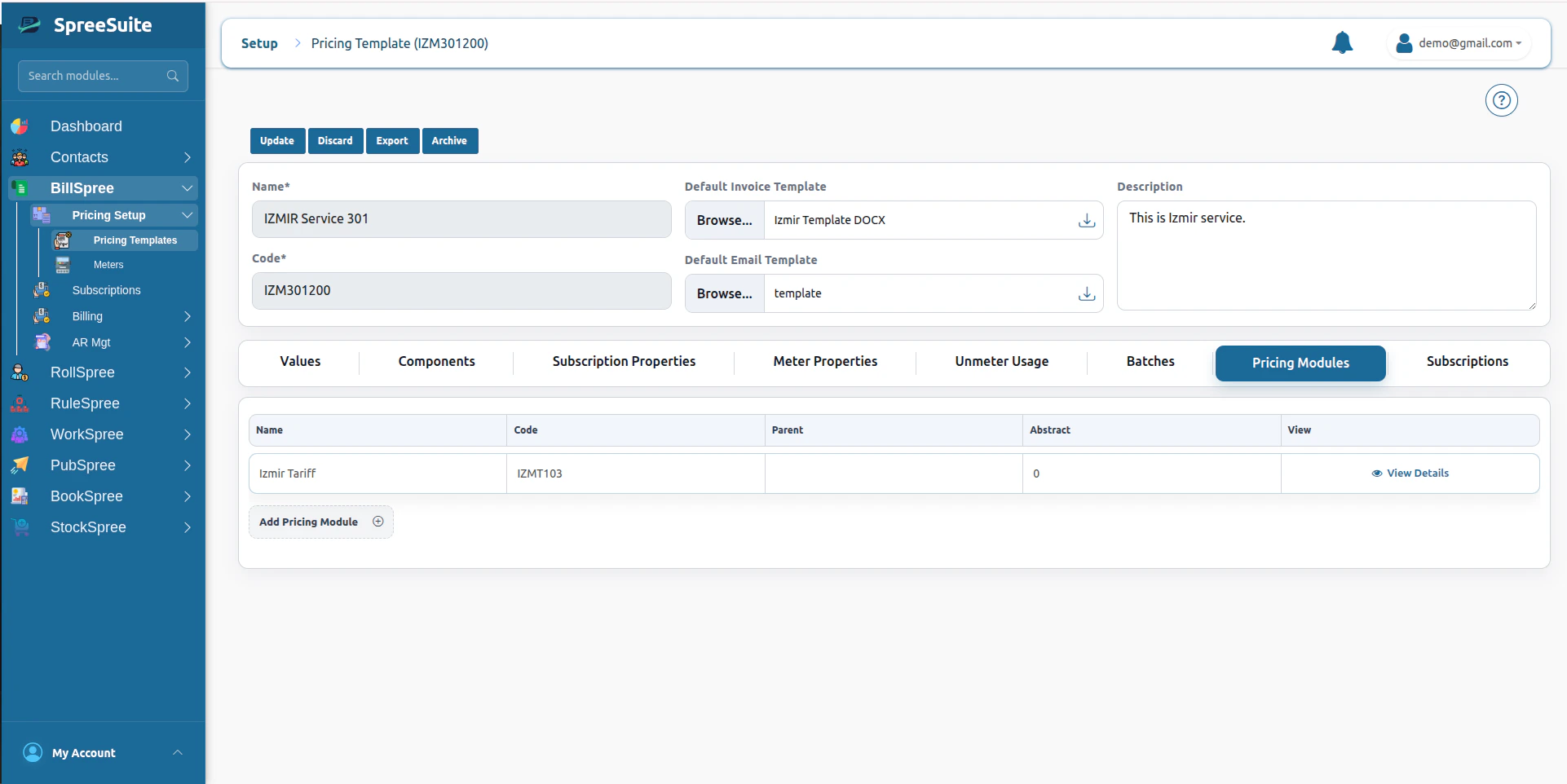
Step 3: Create a New Plan Variant
Click the Add Plan Variant button to open the workspace. Here, define the logical catalog name (e.g., SaaS Advanced Enterprise Rules), its Code, and Description: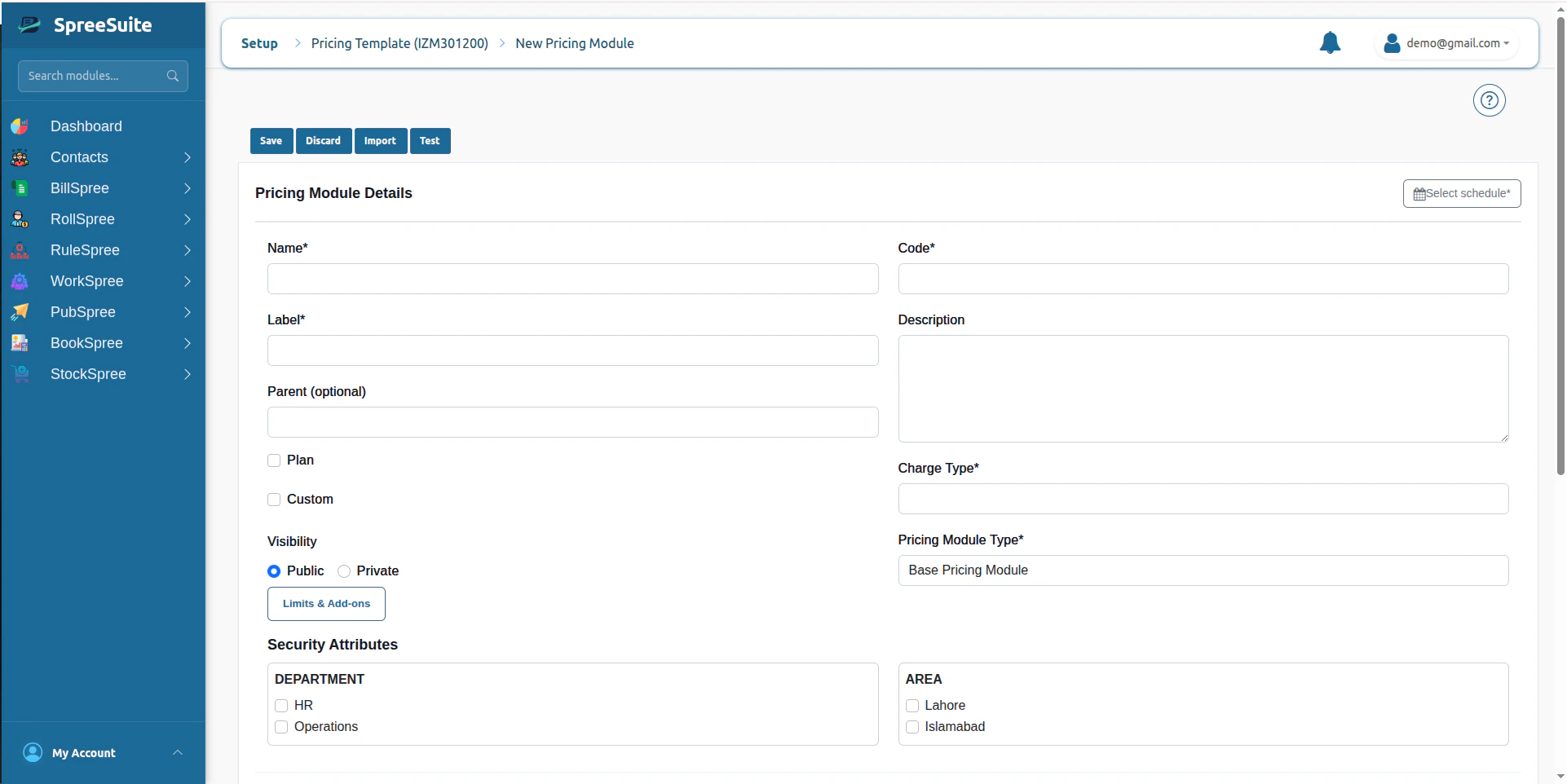
Step 4: Assign Security Attributes
Select suitable security attributes to ensure Attribute-Based Access Control (ABAC)
Step 5: Configure Conditions & Formulas for Components
Your defined components will display as tabs in your workspace. Click on each calculated component tab to configure its conditions and formulas. To chain calculations, you can select and pass previously computed components as formula parameters from the checklist: