
1. Unified Workflow Diagram
2. Comparison of Models in BillSpree
| Business Need | B2B | B2C |
|---|---|---|
| Customer Type | Business Party (Companies) | Individual Party (Regular People) |
| Pricing Model | Custom Quotes / Volume Tiers | Fixed Monthly/Yearly Plans |
| Billing Terms | Net 30/60 (Invoiced) | Instant / Due on Receipt |
| Usage Logic | Metered Add-ons (e.g., API calls) | Flat Subscription (Access-based) |
| Payment Method | ACH, Wire, or Corporate Card | Credit / Debit Card Only |
3. Scenario A: B2B Workflow
This flow is designed for negotiated contracts and high-touch business relationships.Step-by-Step Flow:
- Onboarding: Create a Party with the type
Business. Capture Tax IDs and corporate billing addresses. - Contracting: Create a custom Plan. Use “Volume Tiering” (e.g., 0.05/unit thereafter).
- Subscription: Create a Connection.
- Critical Setting: Set Due Date Offset to
30. This allows the business time to pay the invoice after receiving it.
- Critical Setting: Set Due Date Offset to
- Usage Injection: At the end of the month, upload Metered Inputs (e.g., total storage used or transactions processed).
- Invoicing: Run the Process and Post cycle. BillSpree generates a detailed PDF breakdown.
- Collection: The business pays via Bank Transfer. Go to the Payments module and manually record the receipt to clear the invoice.
4. Scenario B: B2C Workflow
This flow is designed for automated, high-speed, self-service subscriptions.Step-by-Step Flow:
Creating and configuring a Pricing Template is done directly in the admin console. Below is the step-by-step flow of how to navigate the template builder interface and configure each core structural pillar.Step 1: List Pricing Templates
Navigate to: BillSpree → Billing Setup → Pricing Templates. This displays the list of all existing Pricing Templates. From here, you can create, edit, archive, or open a template to manage plans and billing setups.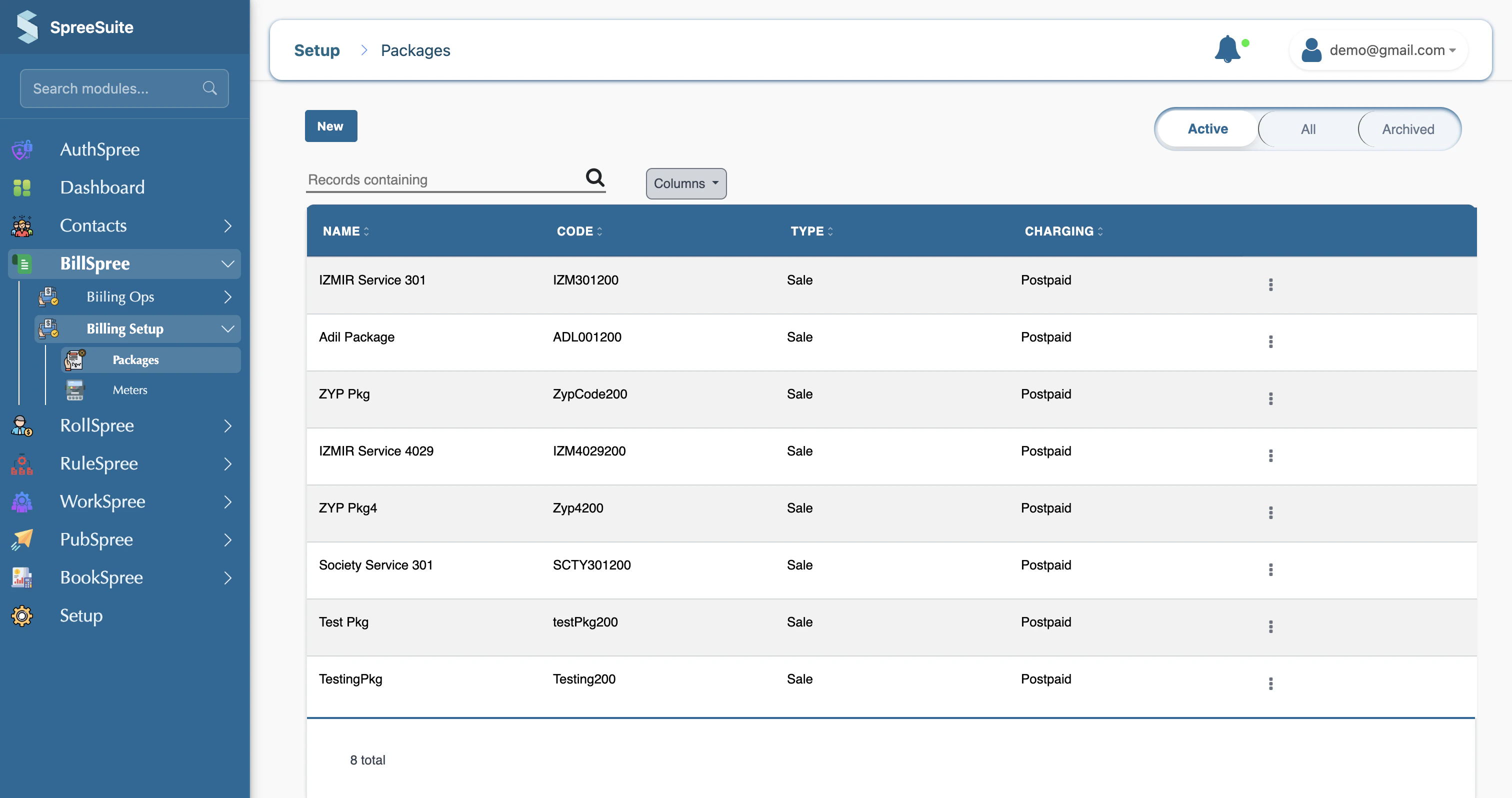
Step 2: Create a New Template
Click on the New button in the upper right corner of the Pricing Templates screen to launch the template creator.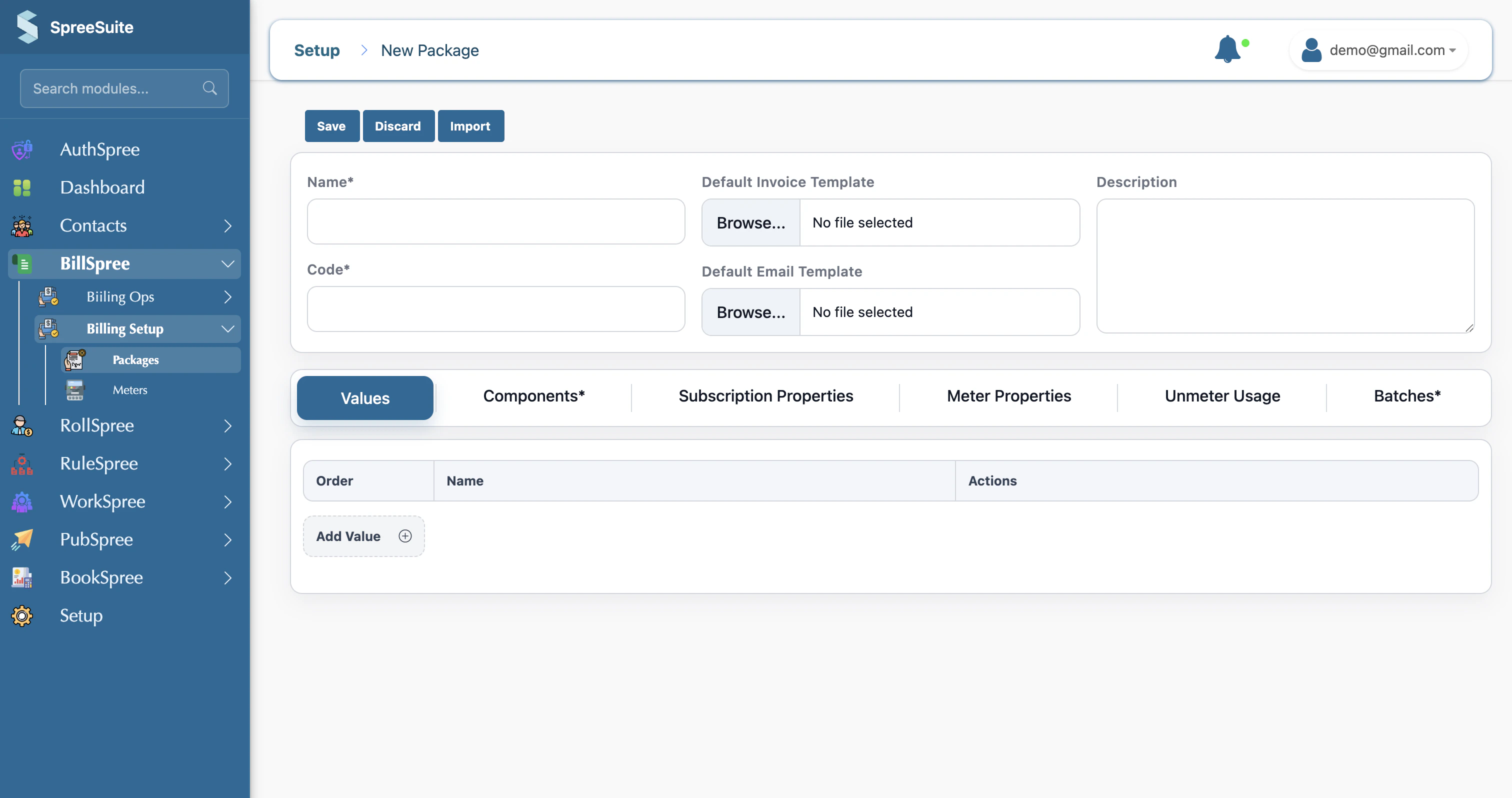
Step 3: Configure Identity Information & Invoice Template (The “Values” Tab)
Click on the Values tab. Here, you configure the core identity of the Pricing Template and attach the master bill layout:- Identity Information: Define general metadata such as Name, Code, and Description to identify the template.
- Invoice Template Attachment: You can attach a master invoice template—typically a Word document (.docx)—which serves as the master visual layout for customer bills. This template contains merge placeholders (enclosed in curly braces
{}like{partyName},{Electricity Charges}, or{KWH_currentReading}) representing the Rate List components, Charge List components, and meter properties that the billing engine will automatically populate.
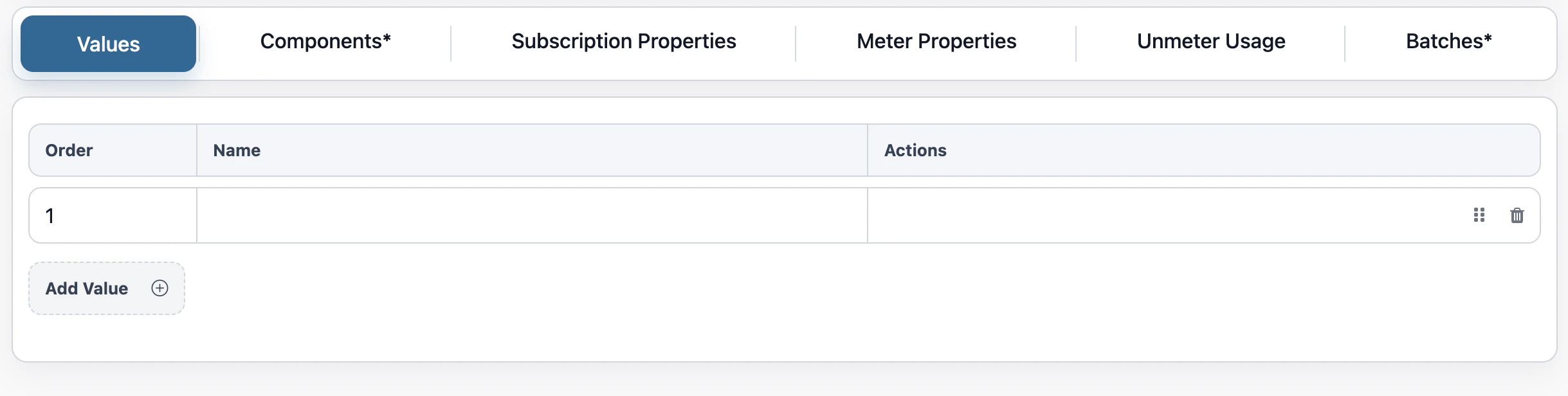
Step 4: Configure Rate List Components (The “Values” Tab)
Within the same Values tab, define your Rate List Components (the pricing placeholders or “slots” that will have actual monetary values assigned later when creating a Plan). These placeholders should align with the Rate List fields used in your attached Invoice Template:- Base Pricing Slots: Placeholders for fixed access fees (e.g., “Platform Access Fee”).
- Unit Pricing Slots: Placeholders for consumption rates (e.g., “Per-GB Storage Rate”, “Per-User License Rate”).
- Tiered Pricing Slots: Structures for volume discounts (e.g., “First 100 API Calls”, “Next 900 API Calls”).
Step 5: Configure Charge List Components (The “Component” Tab)
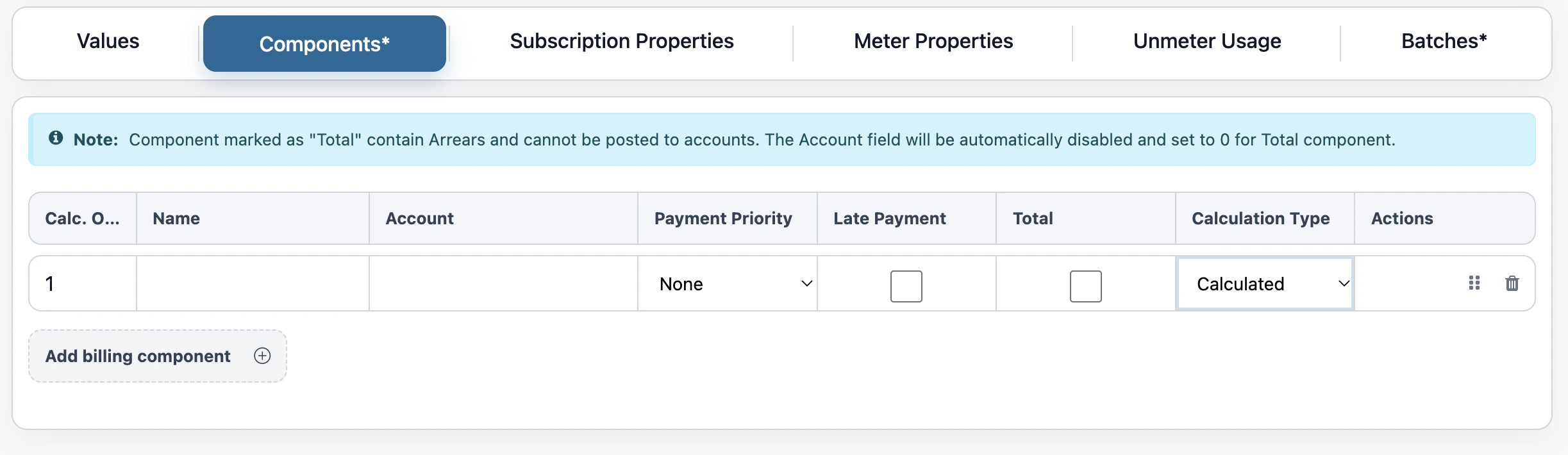
Click on the Component tab. This is where you configure your Charge List Components—the core calculation models that process rates, properties, and usage into final invoice line items. These are divided into:- Calculated Charge Components (Require Rating Rules): Dynamically computed by the system’s billing engine and must have Rating Rules governing their execution (e.g., “State/VAT Tax Calculations”, “Regional Surcharges”, or “Percentage-based Partner Discounts”).
- Manual Charge Components (No Rating Rules Required): Fixed, static, or ad-hoc items that require no automated computation (e.g., one-off flat adjustments, discretionary service credits, or custom professional services).
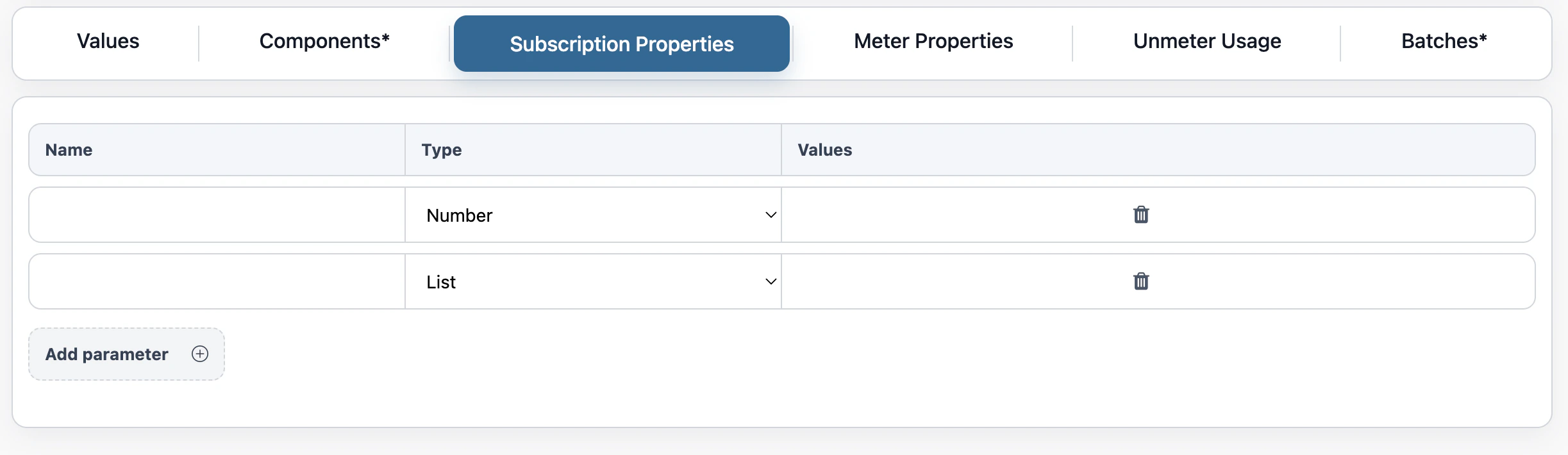
Step 6: Configure Subscription Properties (The “Subscription Properties” Tab)
Click on the Subscription Properties tab. Here, you set up the dynamic data parameter fields (the “customer profile” hooks) required from the customer during checkout and used as inputs for your rating rules:- Number Inputs: Numeric fields (e.g.,
Committed_Seats,Included_API_Quota). - Dropdown Lists: Pre-defined text selections (e.g.,
SLA_Level: [“Gold”, “Silver”, “Bronze”],Deployment_Region: [“US-East”, “EU-West”]). - Yes/No Flags: Simple toggles (e.g.,
Is_Tax_Exempt,Has_Premium_Support).
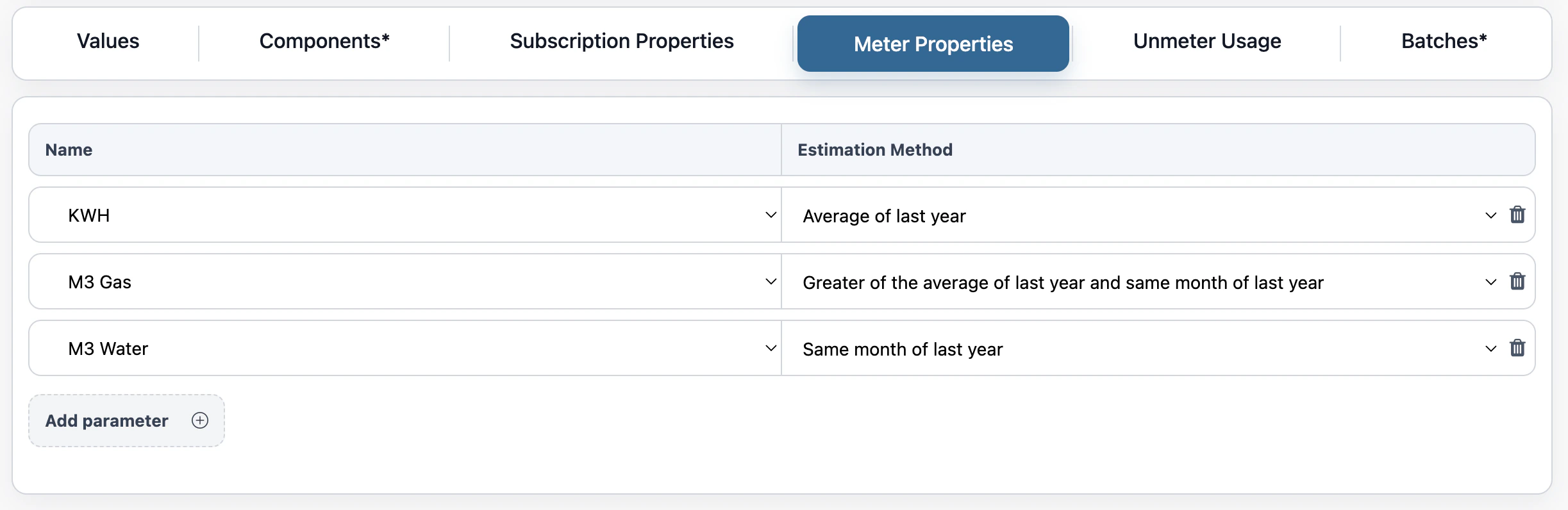
Step 7: Configure Metered Usage (The “Meter Properties” Tab)
Click on the Meter Properties tab. Define the tracking hooks to receive final readings from a physical or digital meter where continuous/odometer tracking is involved:- Odometer / Continuous Readings: The billing engine expects to receive final/current readings at the end of the billing cycle. It then calculates the net usage by subtracting the previous reading recorded in the previous bill (
Net Consumption = Current Cycle Final Reading - Previous Cycle Final Reading).- Example: An energy meter reads
15,000 kWhthis month. Last month it read14,200 kWh. The billing engine rates the net800 kWh.
- Example: An energy meter reads
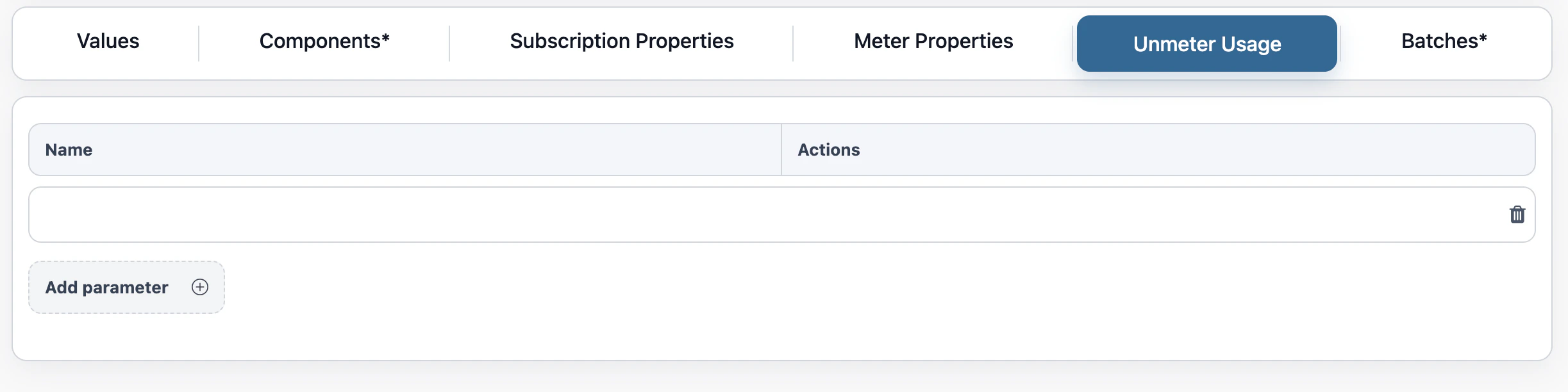
Step 8: Configure Unmetered Usage (The “Unmetered Usage” Tab)
Click on the Unmetered Usage tab. Set up hooks to receive direct, already calculated consumption amounts (delta usage) where no continuous meter is involved:- Since the provided data is already the net consumption volume, the billing engine does not need to perform any subtraction or difference calculations.
- Examples: Receiving a direct record of
50 GBof bandwidth consumed or10 hoursof support time delivered during the billing period.
Pricing Template Setup
1- Setup Pricing Template first.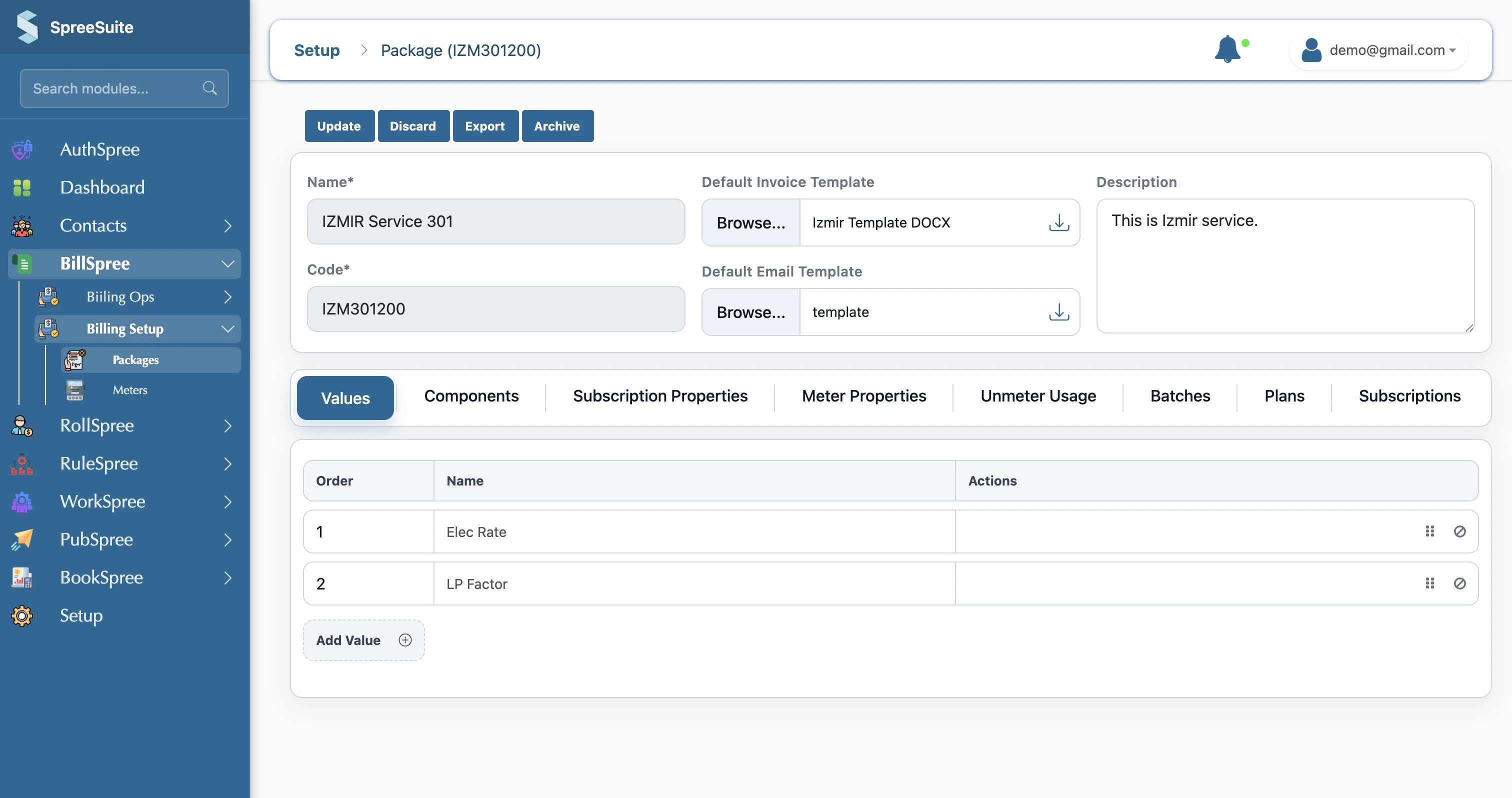
Base Plan Setup
- Click on the Plan Variants tab
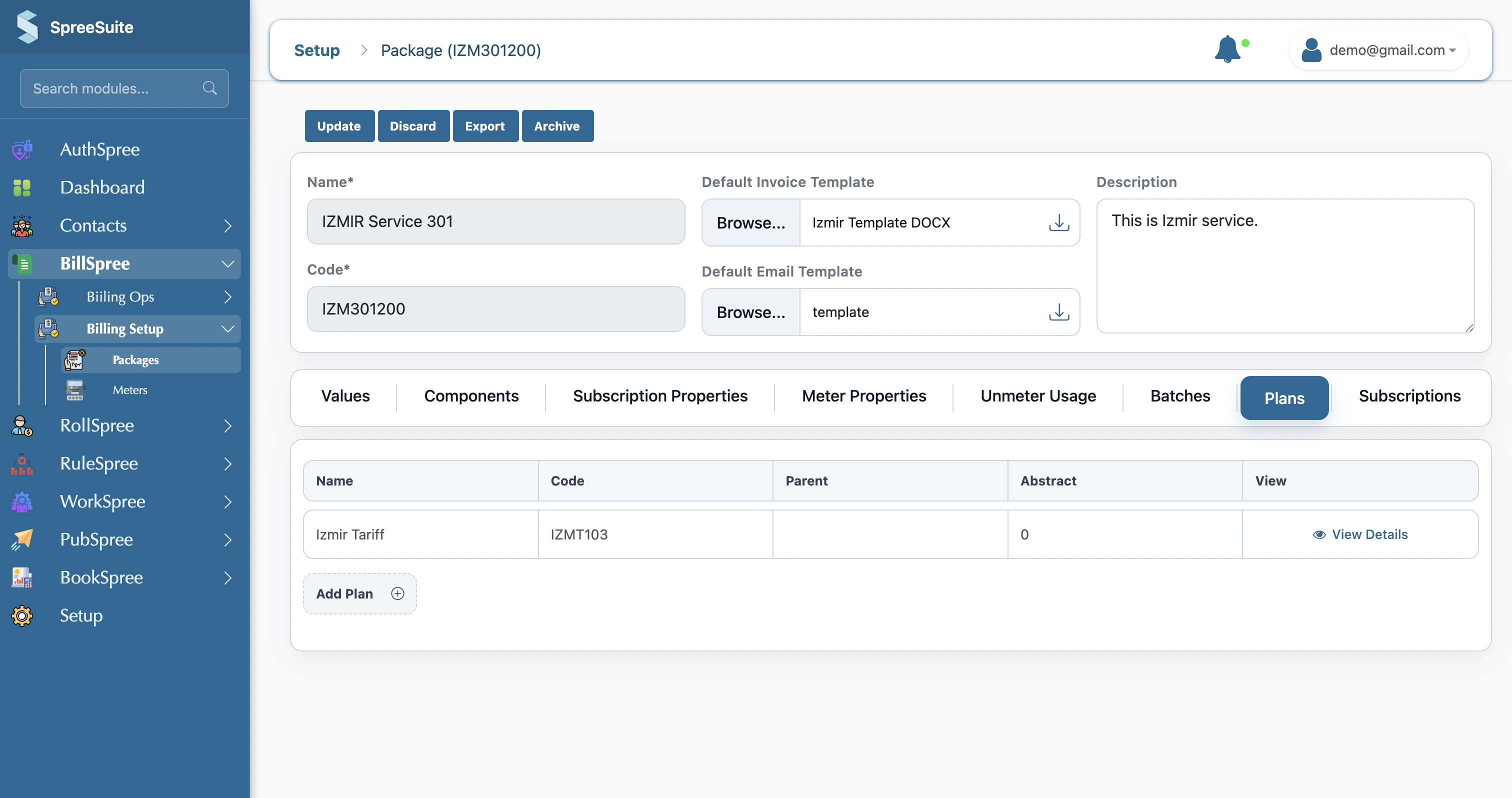
- Click on Add Plan Variant
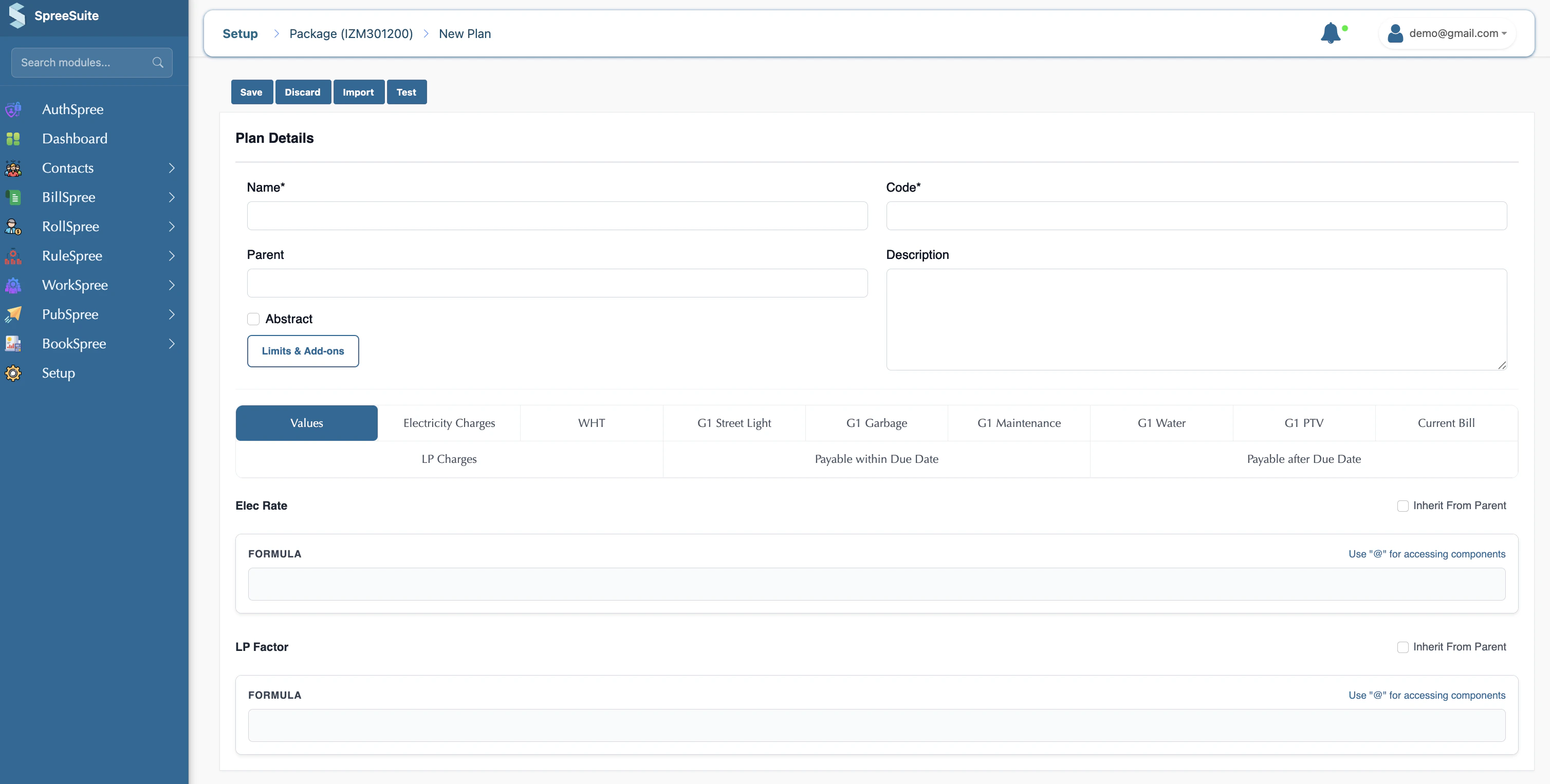
- Your Pricing Template values and components show here in the Base Plan as tabs

- Give your rates in Values
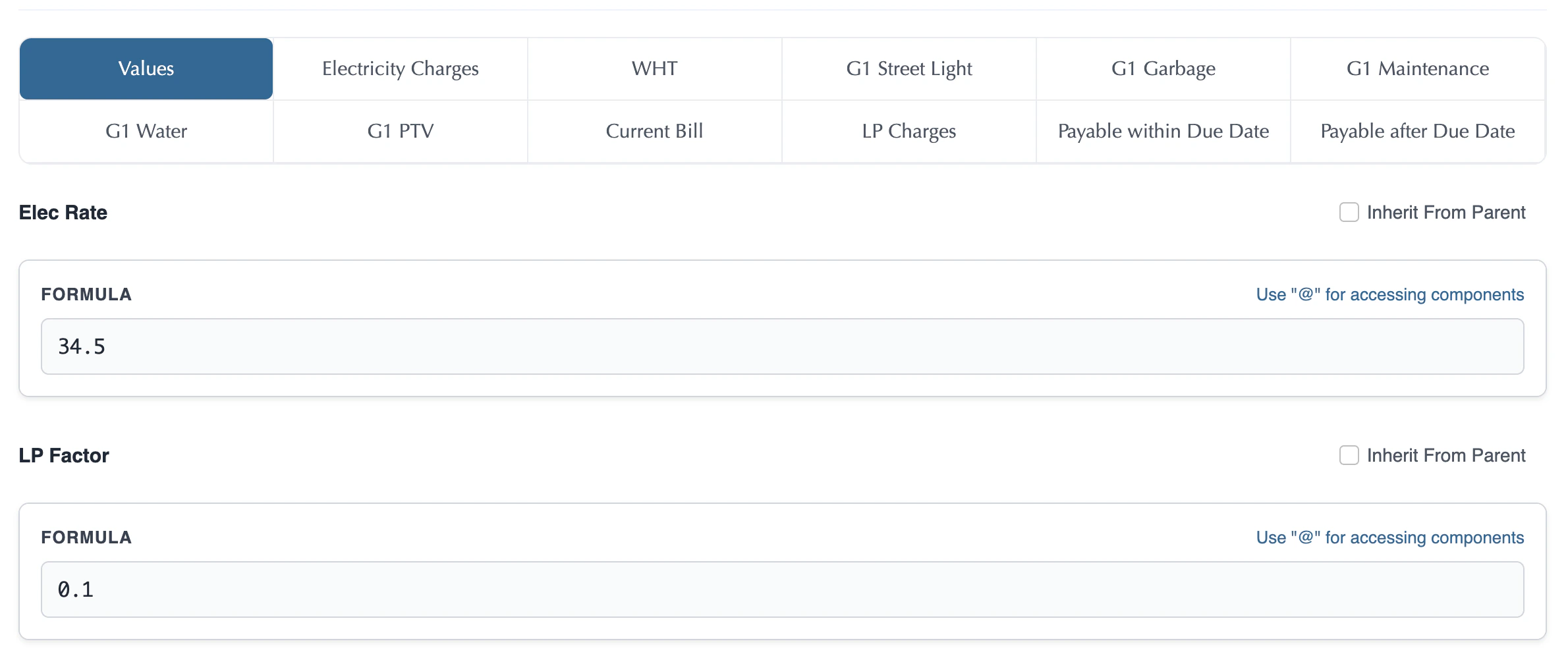
- Click each component tab, and add your formulas for all components.

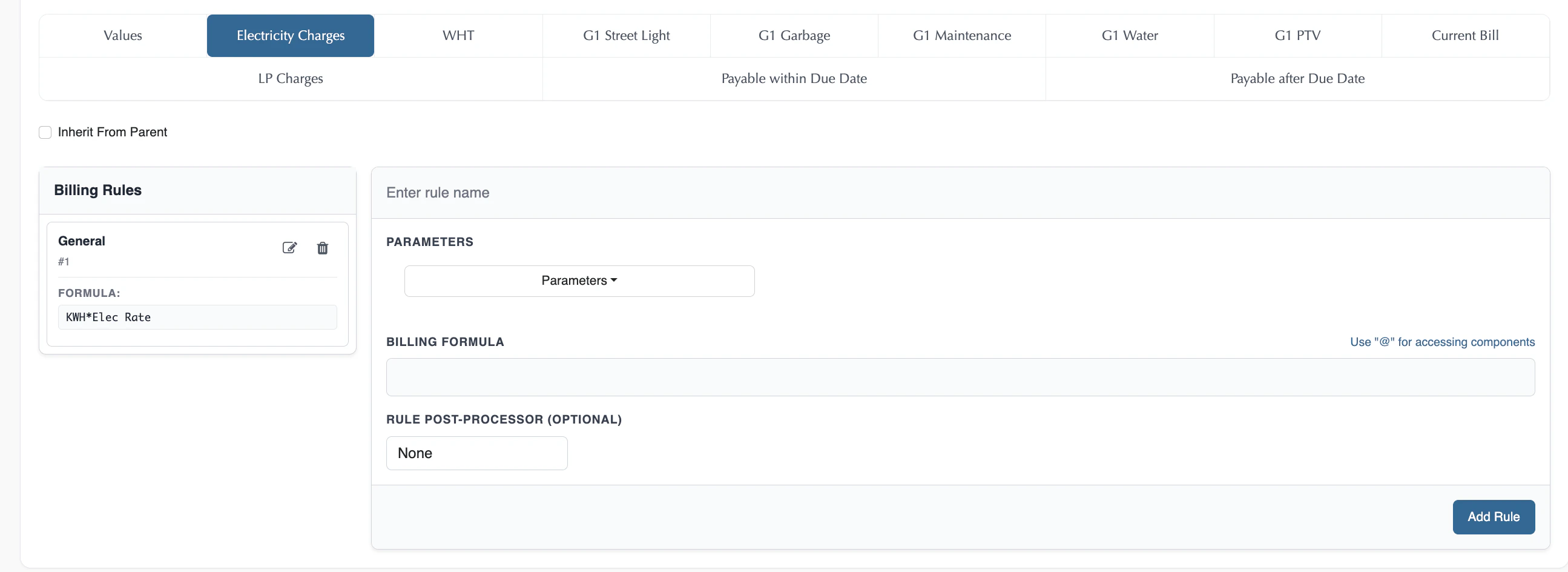
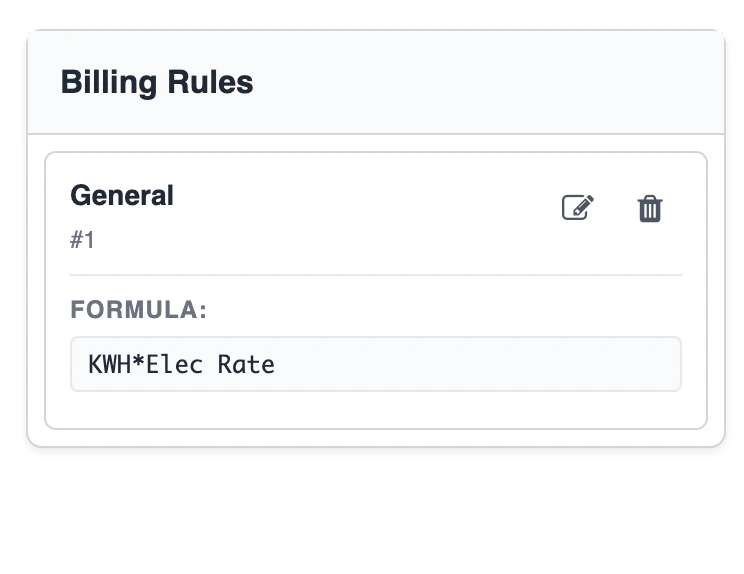
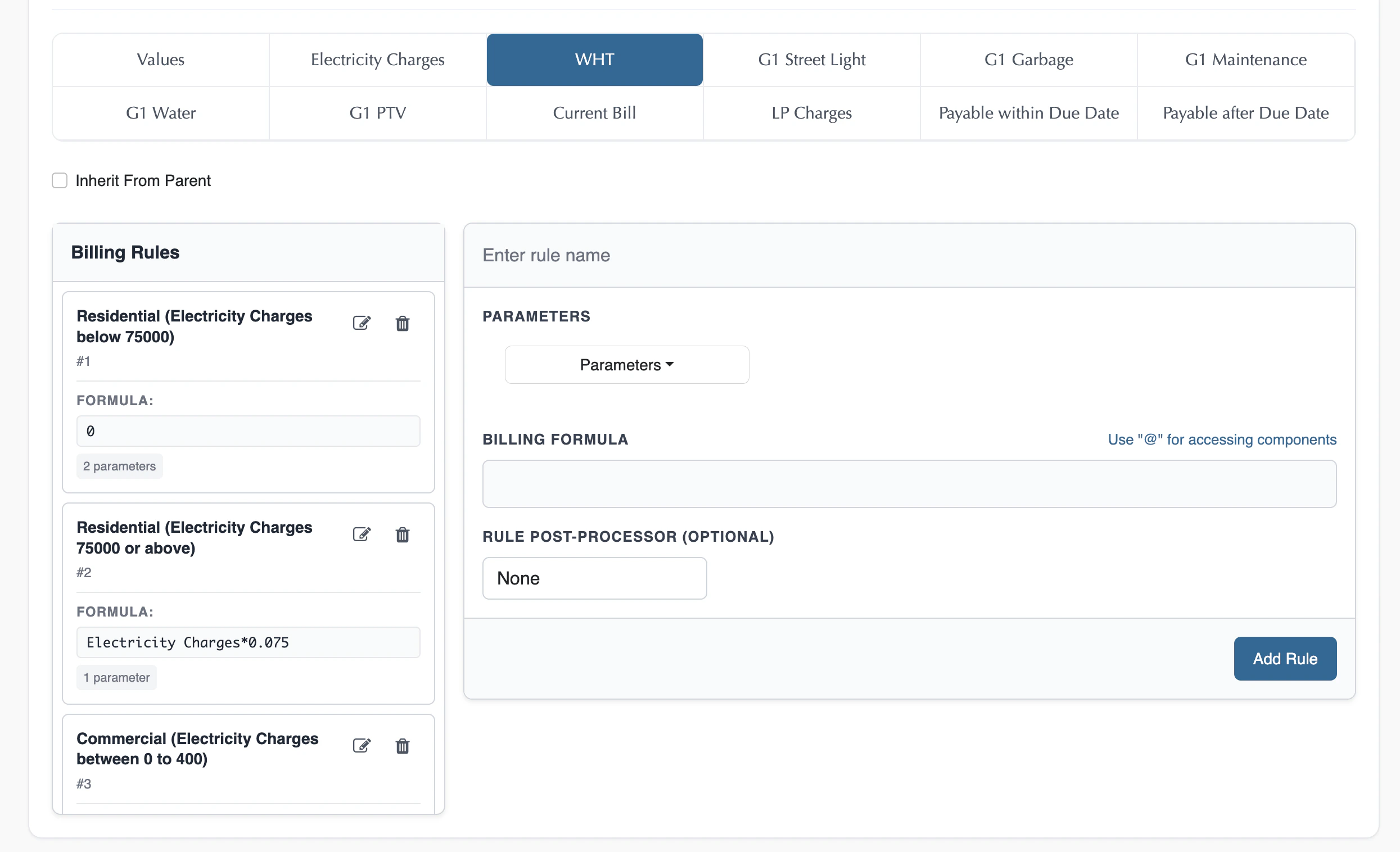
Rule
The rule is basically a combination of Condition and Billing FormulaConditions
We have conditions in the Base Plan for each component. We have multiple conditions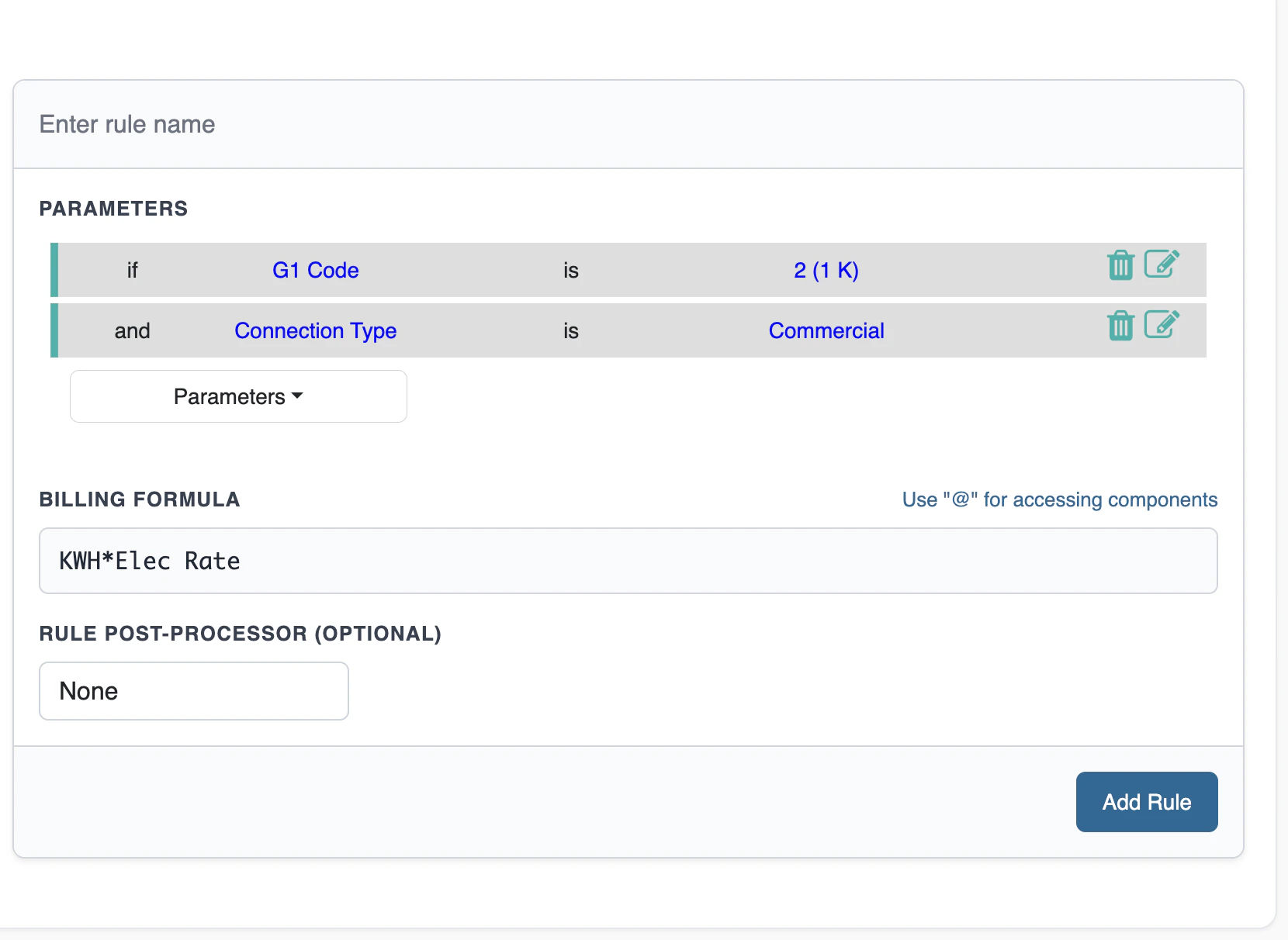
Formula
We have a formula in the Base Plan for each component. One formula for multiple conditions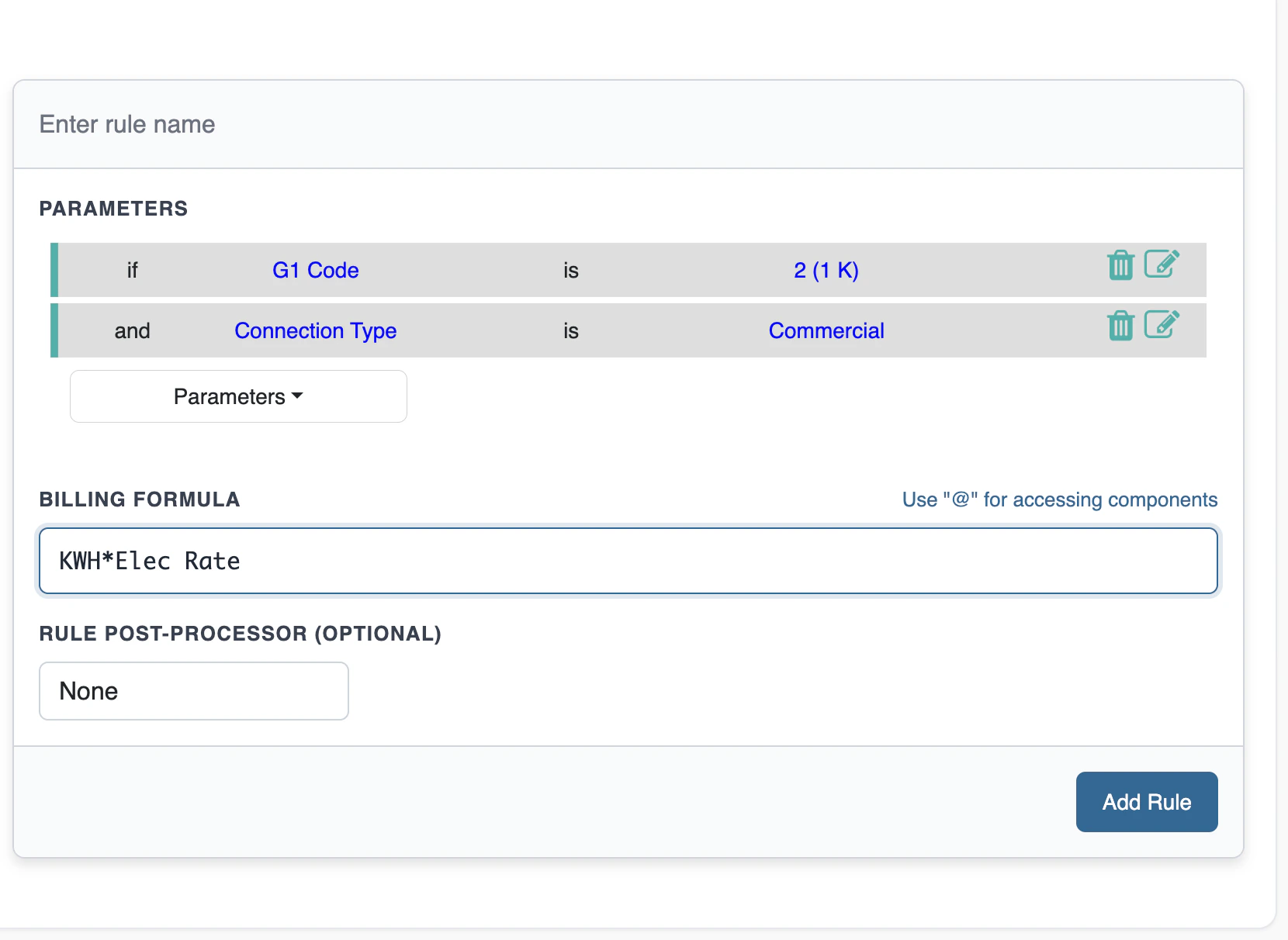
Test Plan
Test Plan lets you run the Base Plan with sample inputs and see each component’s result, before it is used in live billing.- Open the Plan screen for the Base Plan you want to check.
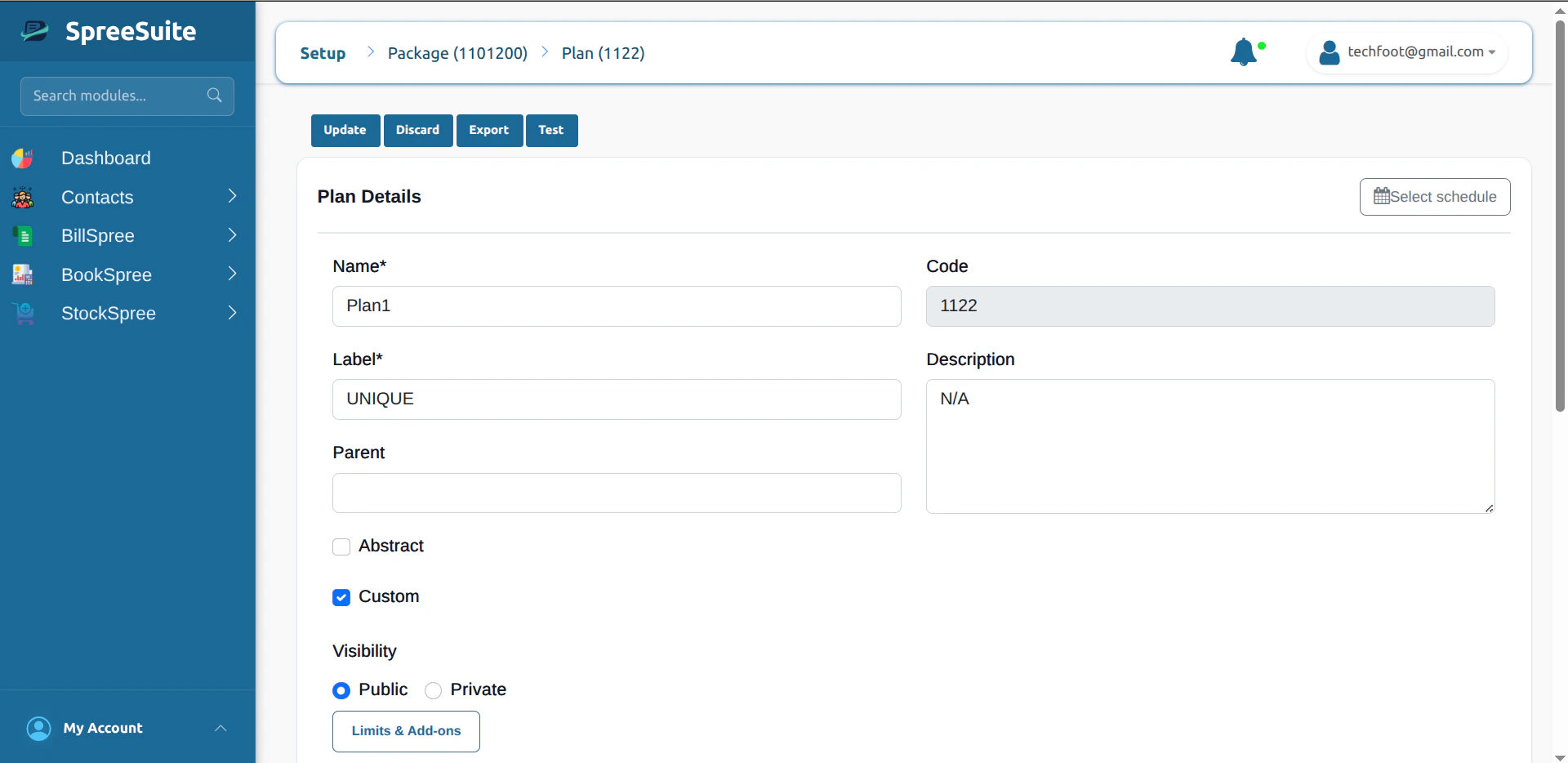
- Click Test in the plan header (with Update, Discard, and Export).
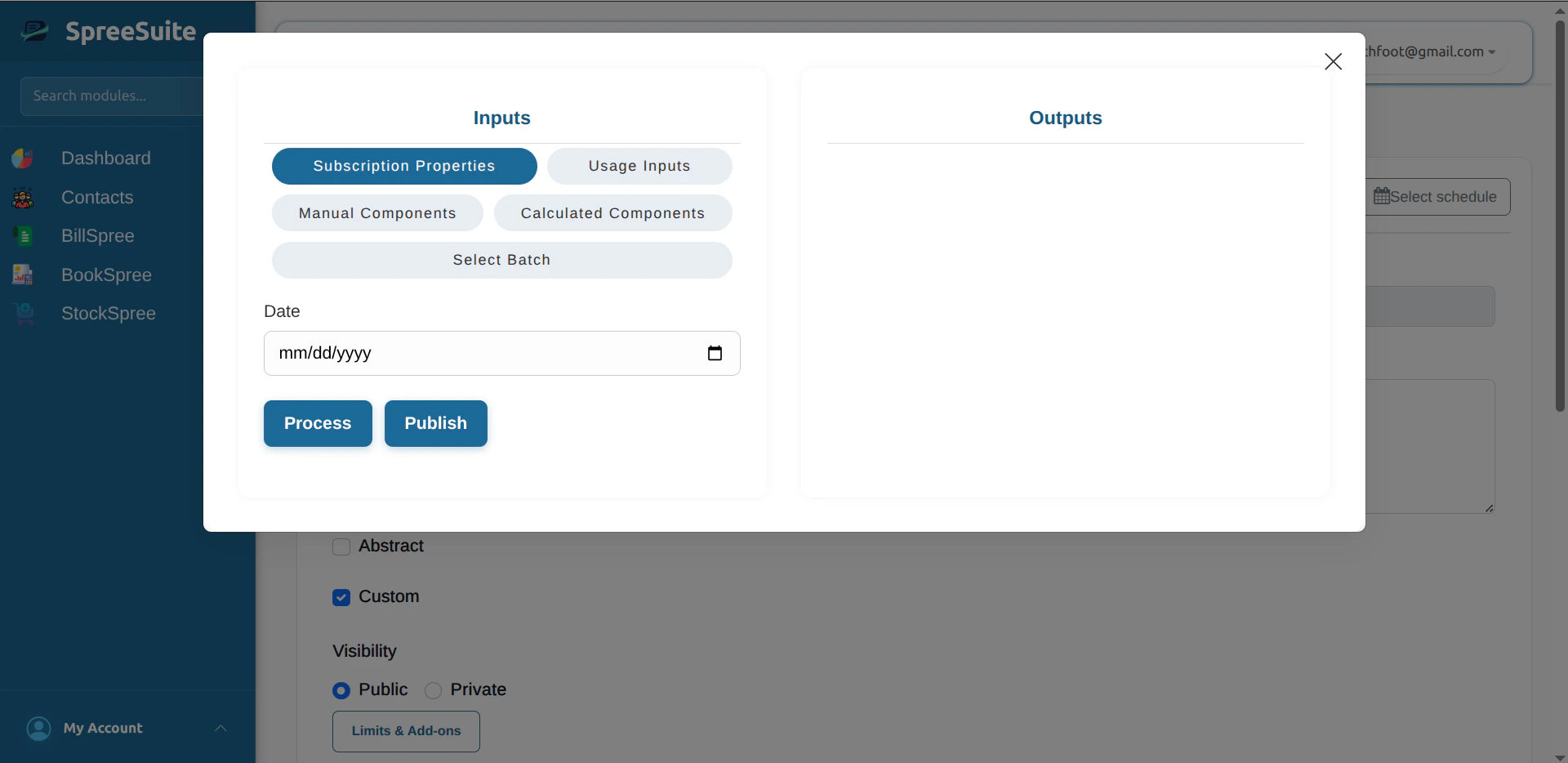
- Enter sample values for your date, components and usage inputs (and any other fields your package defines).
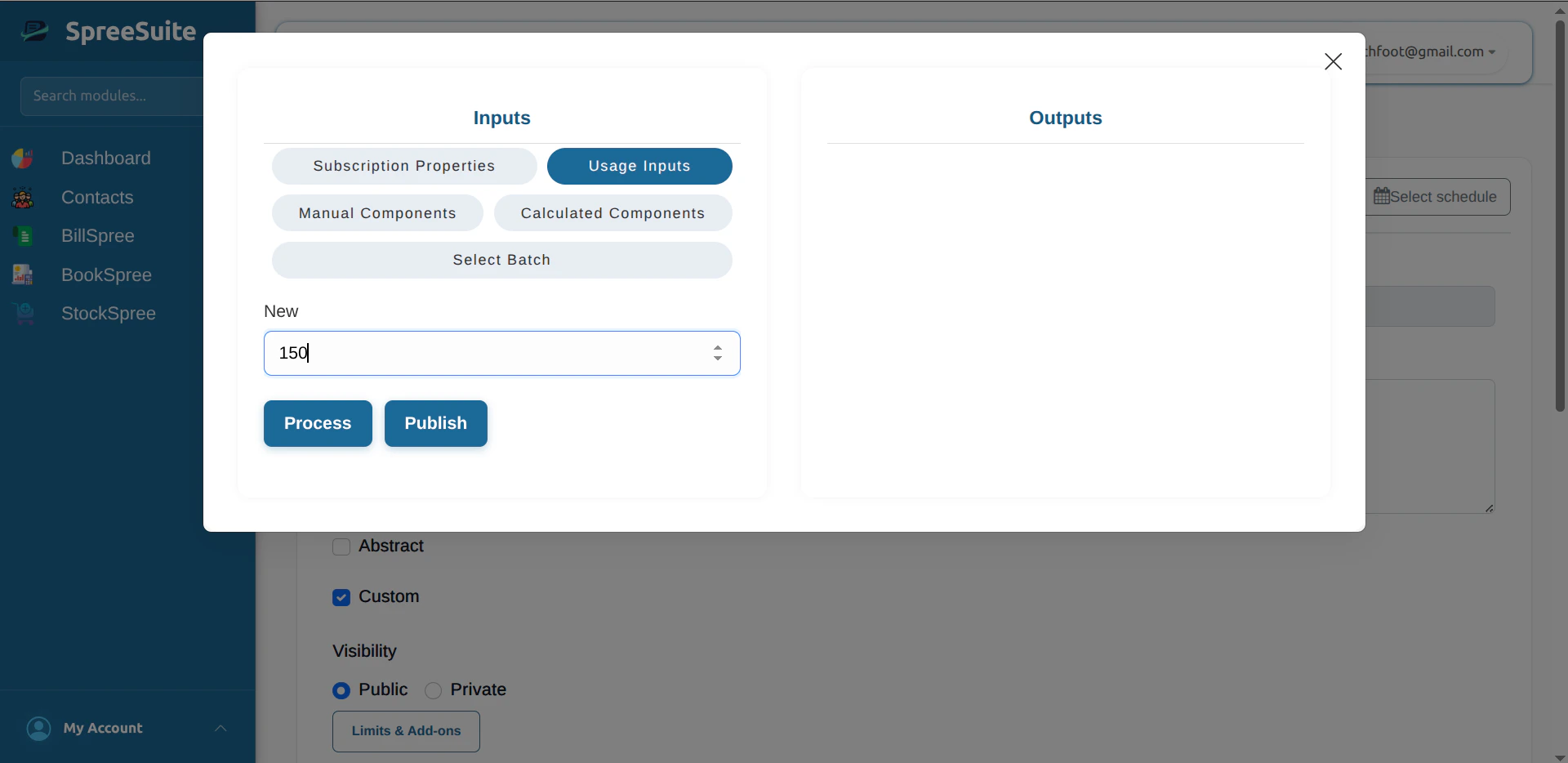
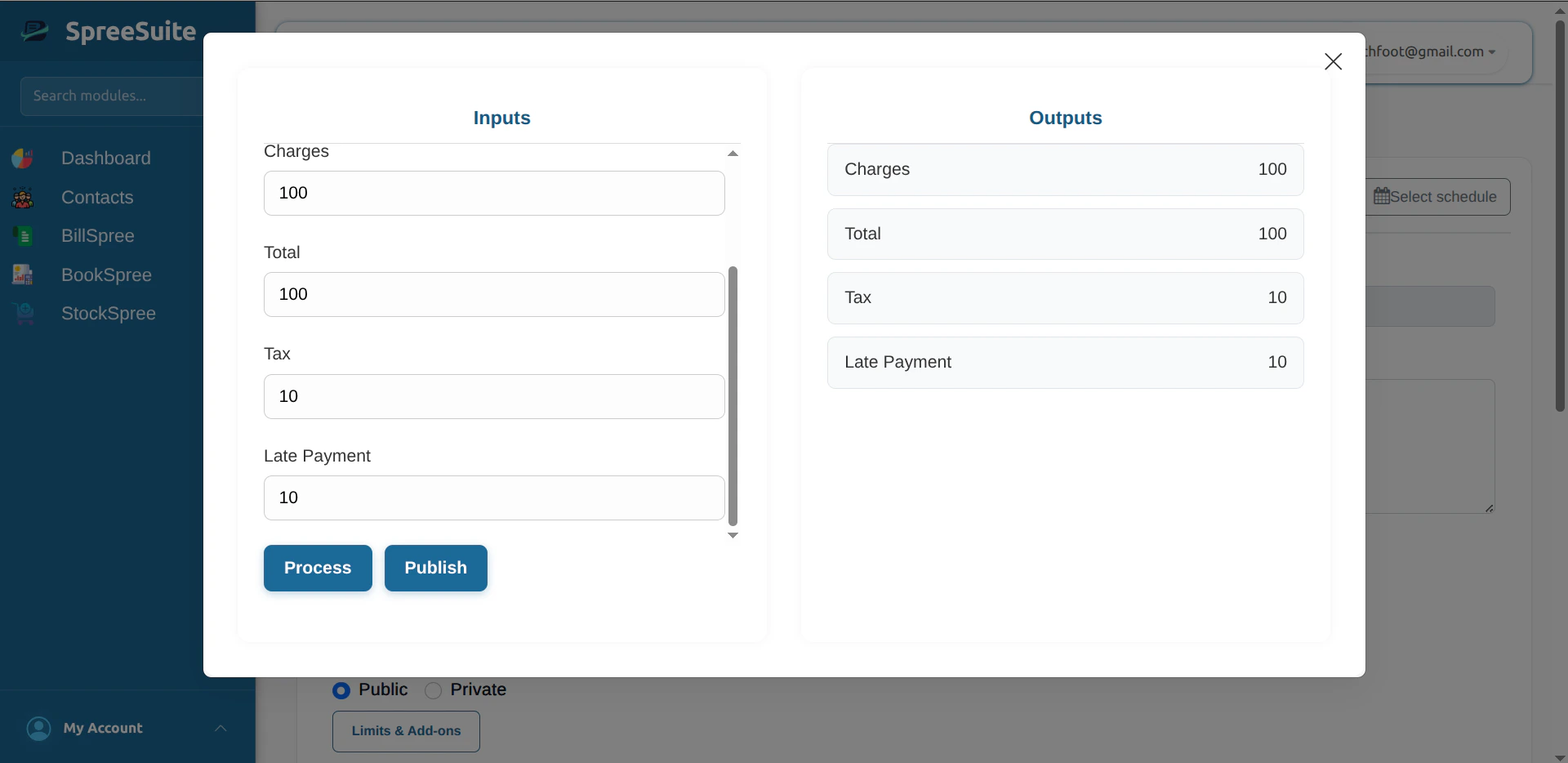
- Click Process to calculate the bill for those inputs.
- Read Outputs: you see each billing component with the amount your conditions and formula produced.
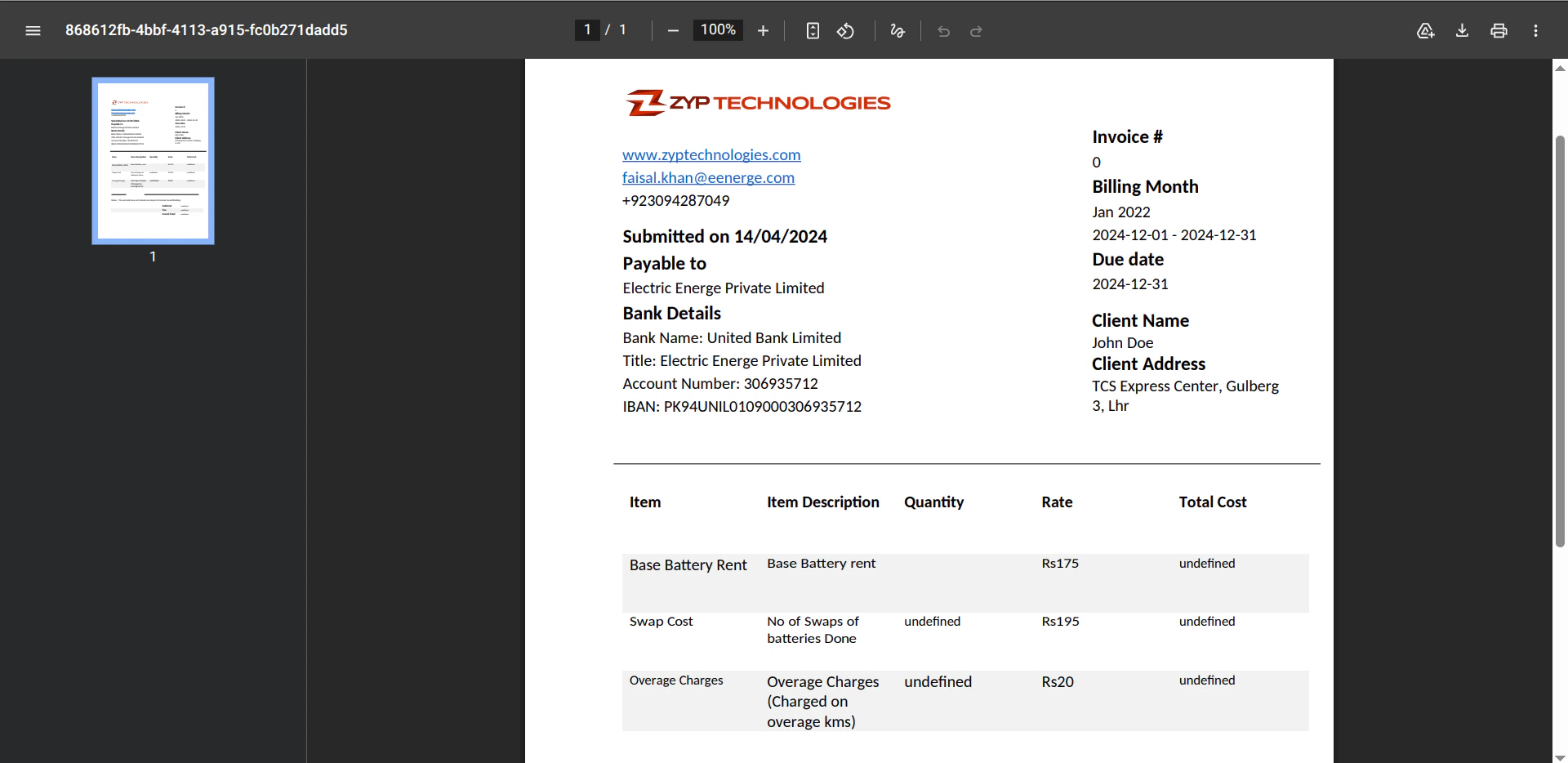
- Click Publish when you want a PDF bill for that same test run. The app uses a bill template from your pricing template. If no template is available, fix the template on the pricing template, then try again. When publish succeeds, the PDF opens in the browser.
2. Add a New Customer
To add a new customer, follow these steps: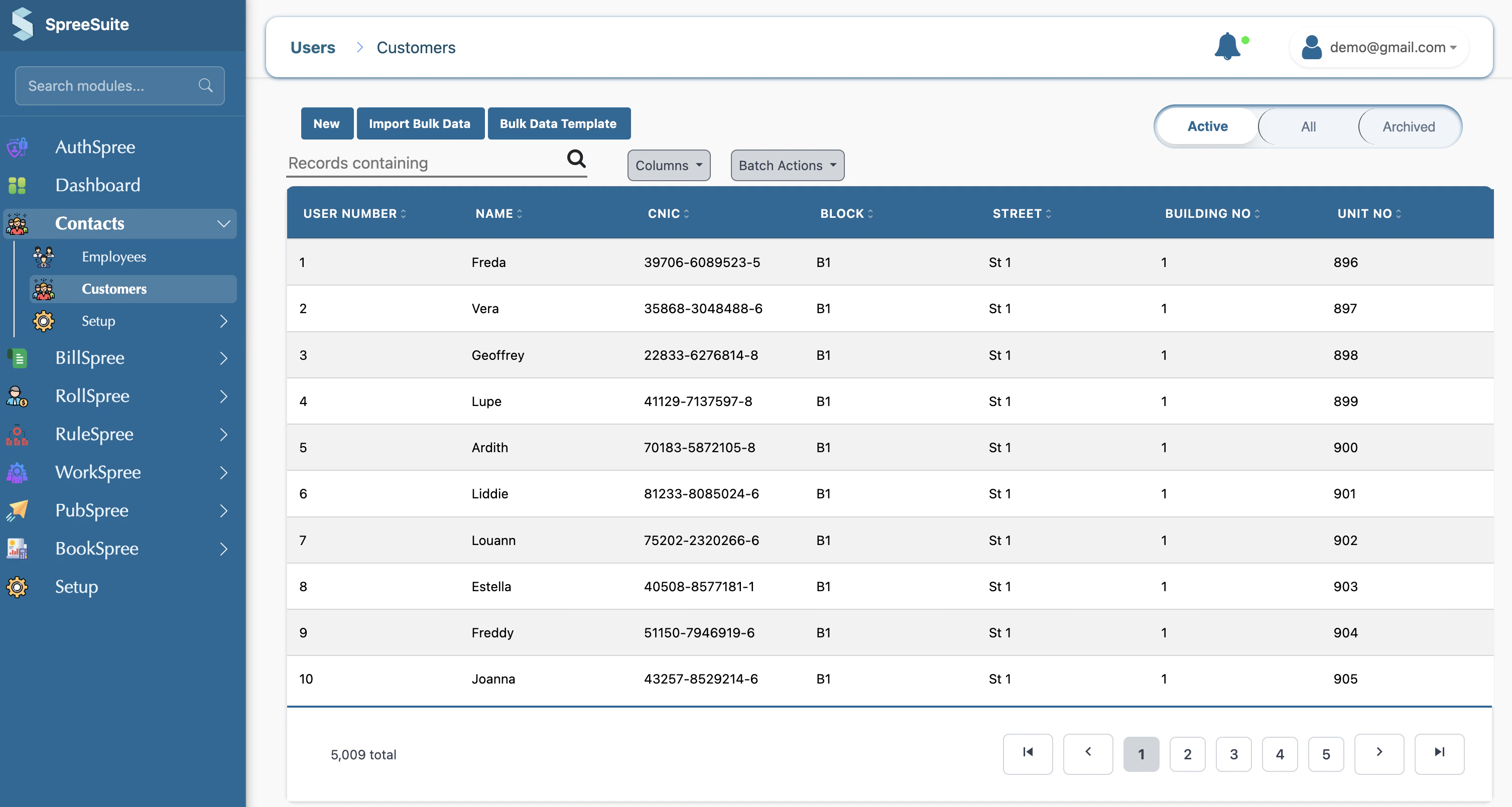
Enter General Information
Fill in the basic contact details for the customer.
- Name: The full name of the customer (Required).
- Email: The customer’s primary email address for invoicing.
- Phone Number: A contact number for the customer.
- Reference Number: Your own internal identifier if applicable.
Provide Address Information
This section is crucial for tax compliance and accurate invoice delivery.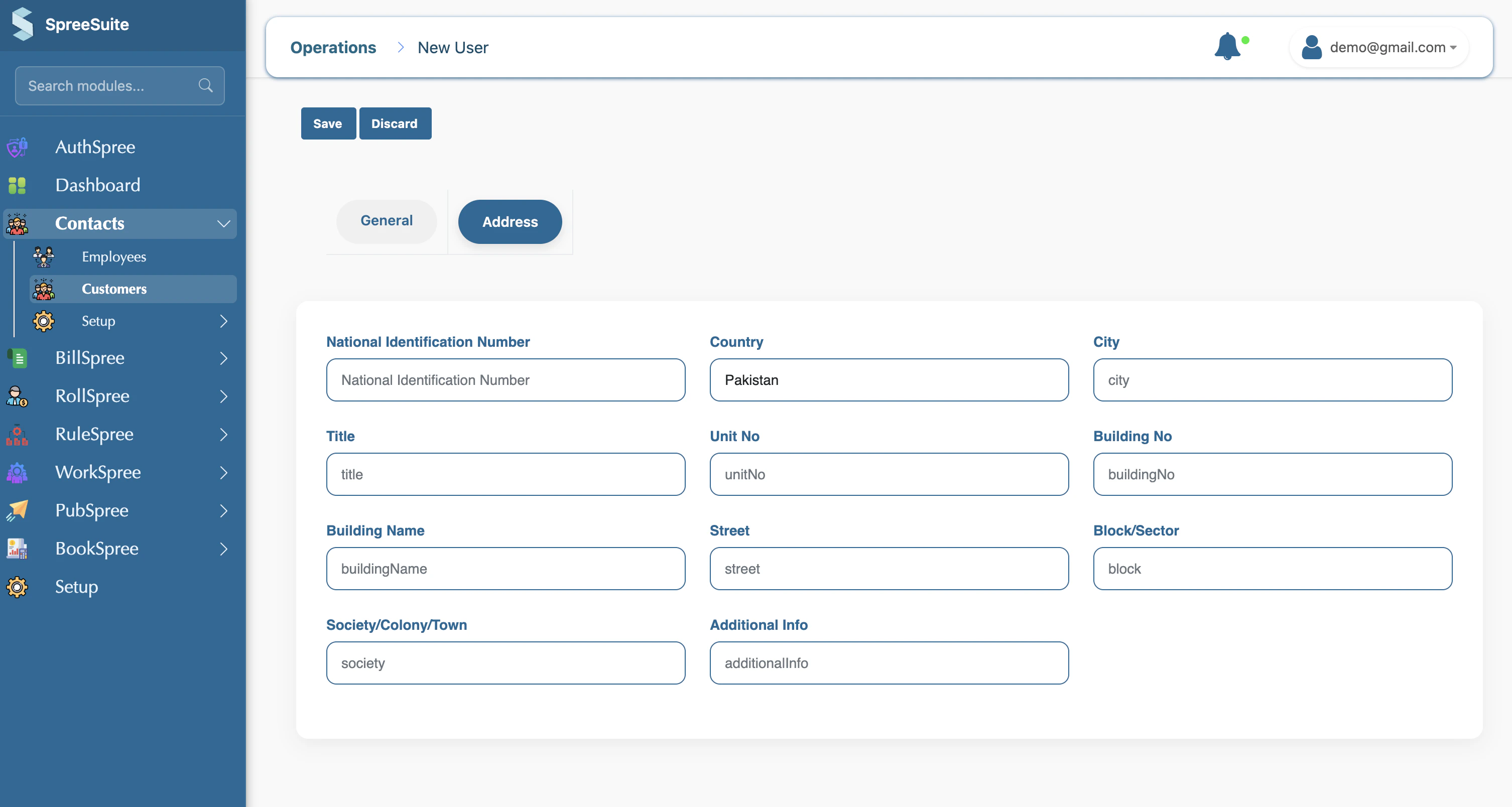
- CNIC: National identity number (if applicable in your region).
- Country: Select the customer’s country.
- Note: Other fields like Shop/Unit No, Building Name, and Street help in pinpointing the exact billing address.
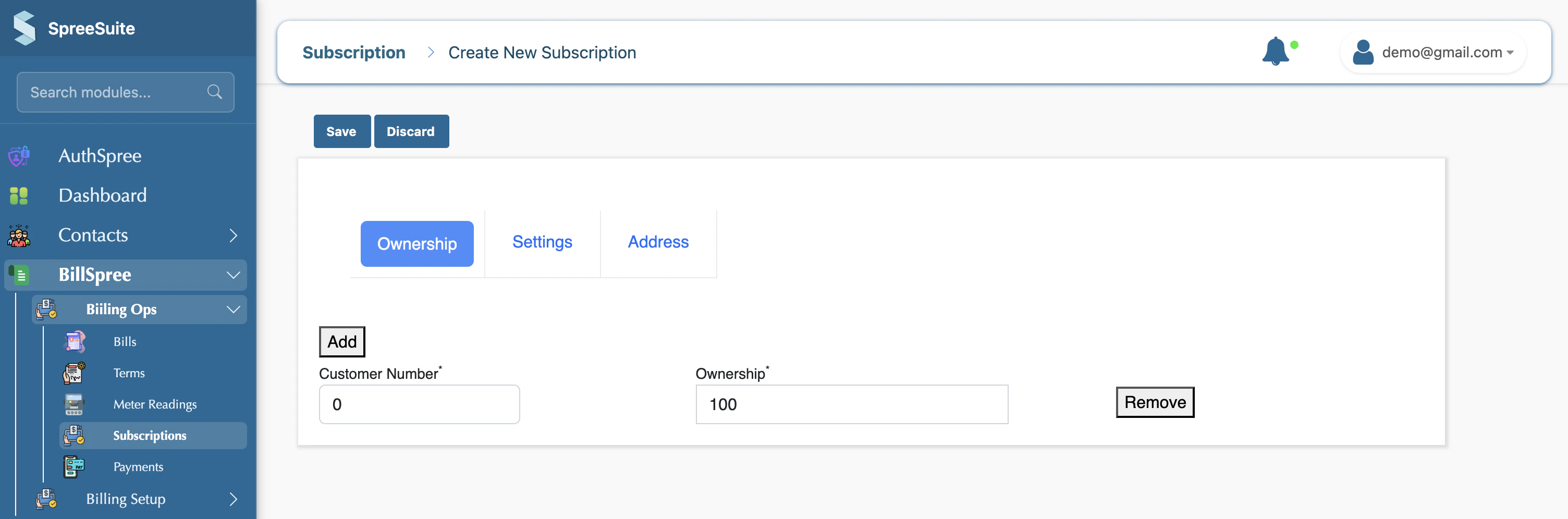
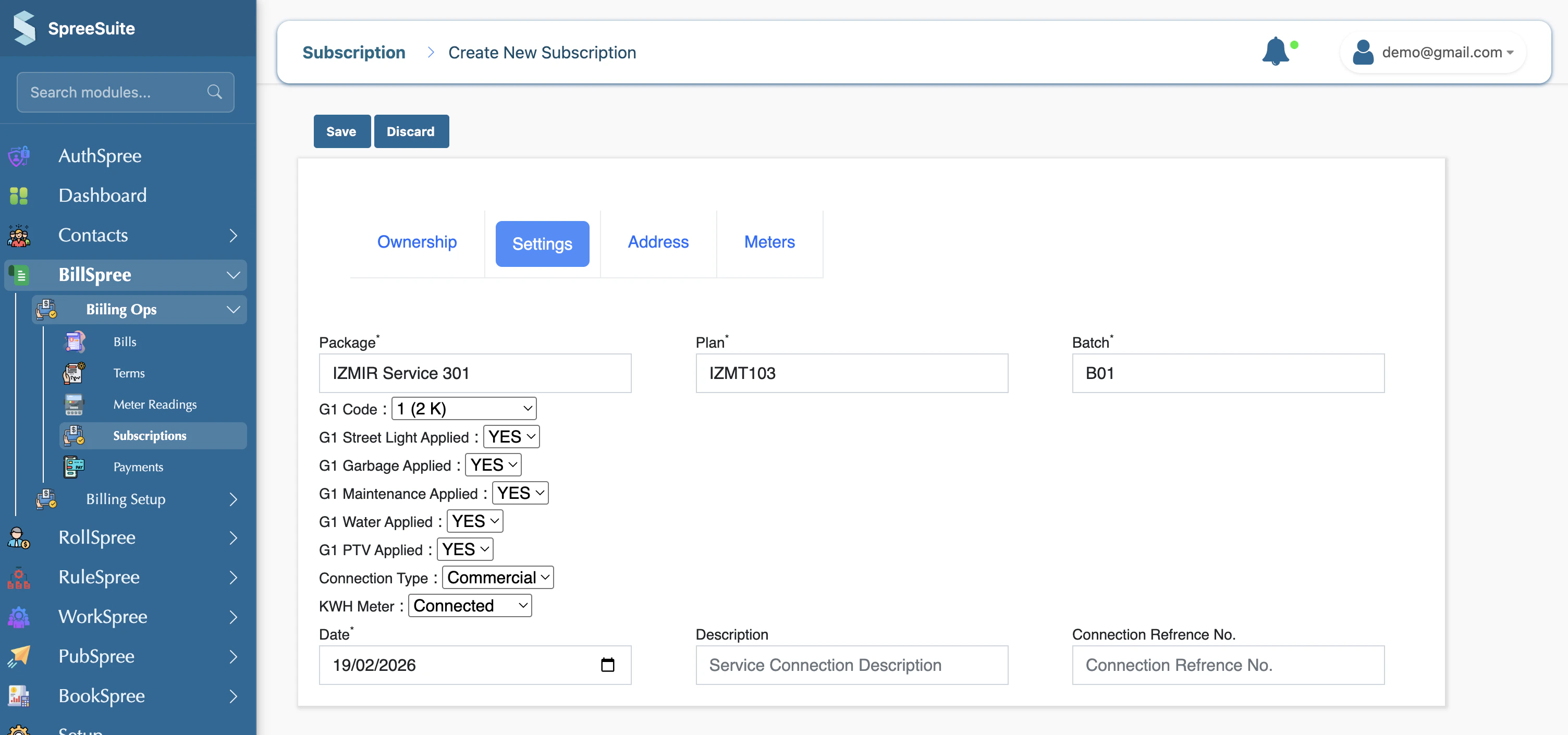
2. Navigate to Subscriptions To view your active and disconnected subscriptions, click on Subscriptions in the main sidebar. You can manage existing records or create a new one by clicking the + New button.
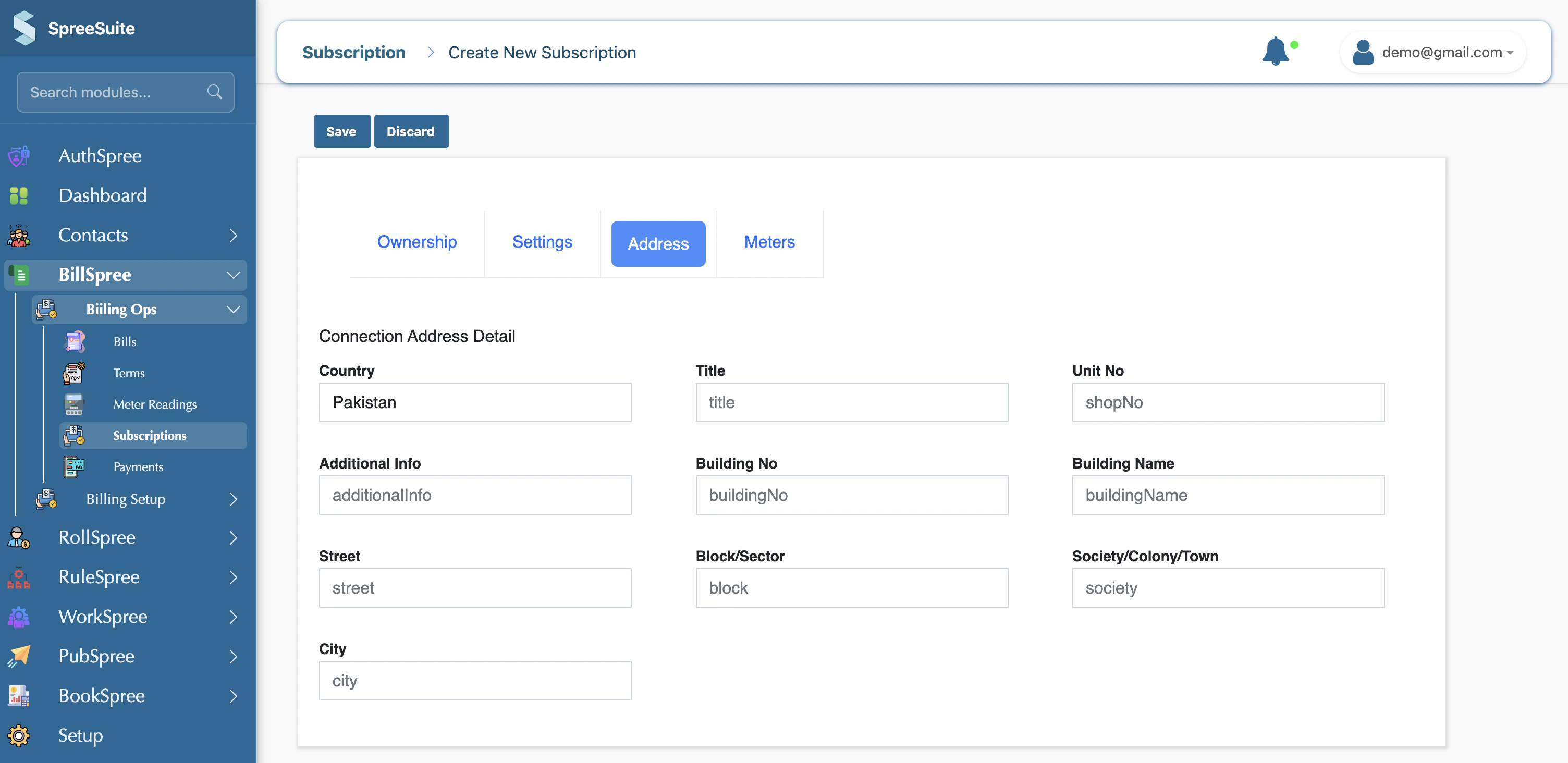
- Customer Number: Enter the system-generated ID for the customer.
Address
c. Add Address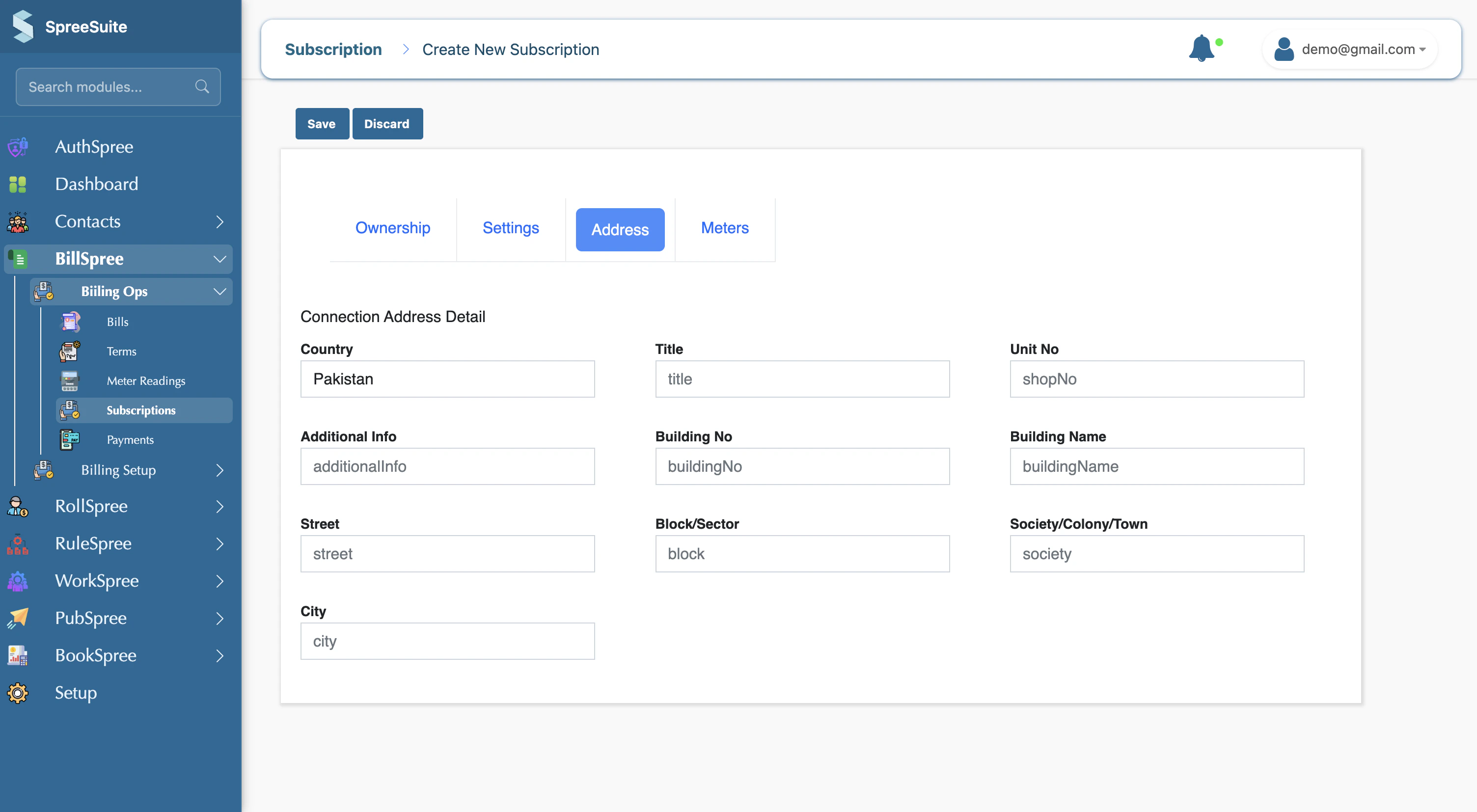
Meters
d. Attach Meters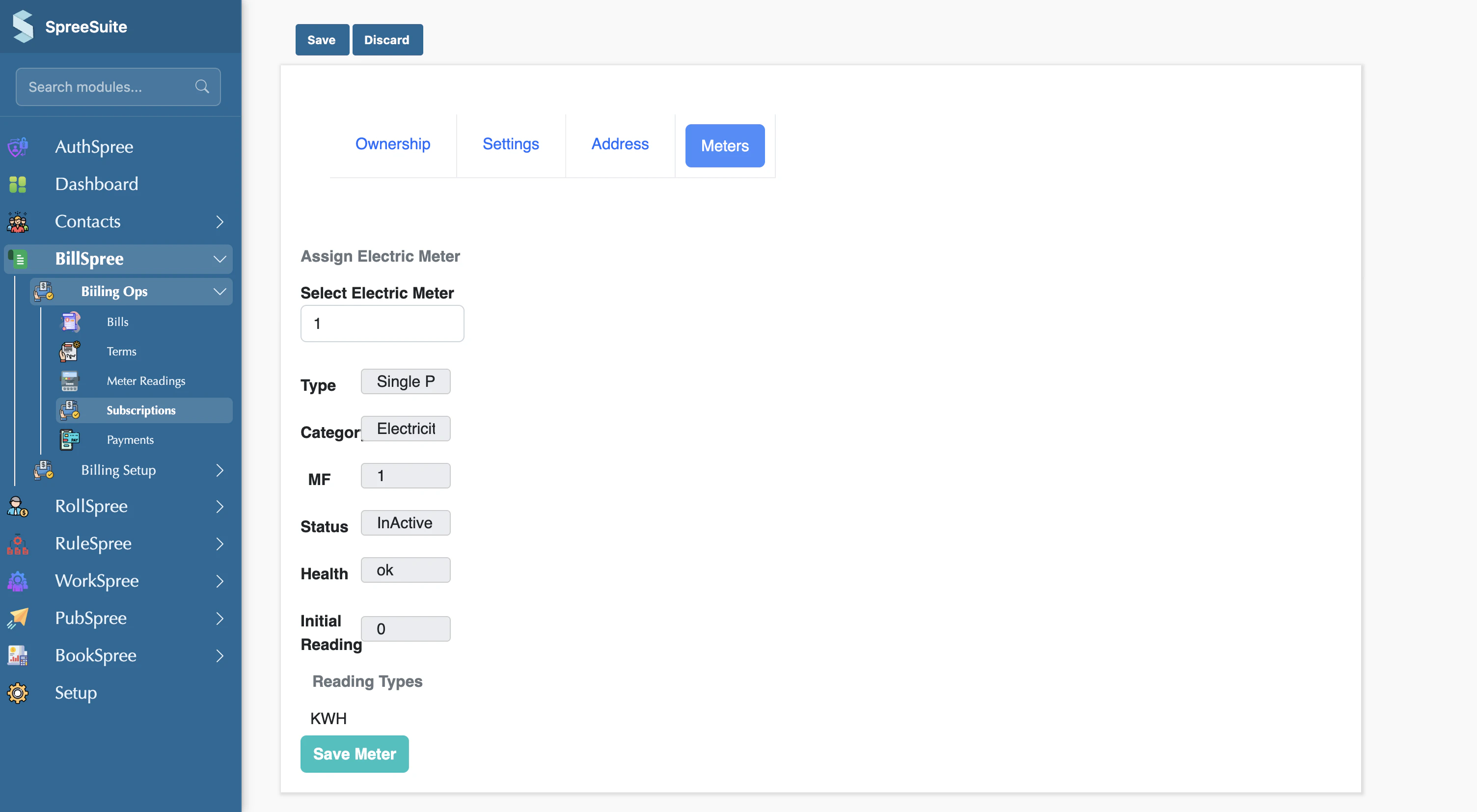
Other Scenarios
Upload Bulk subscription
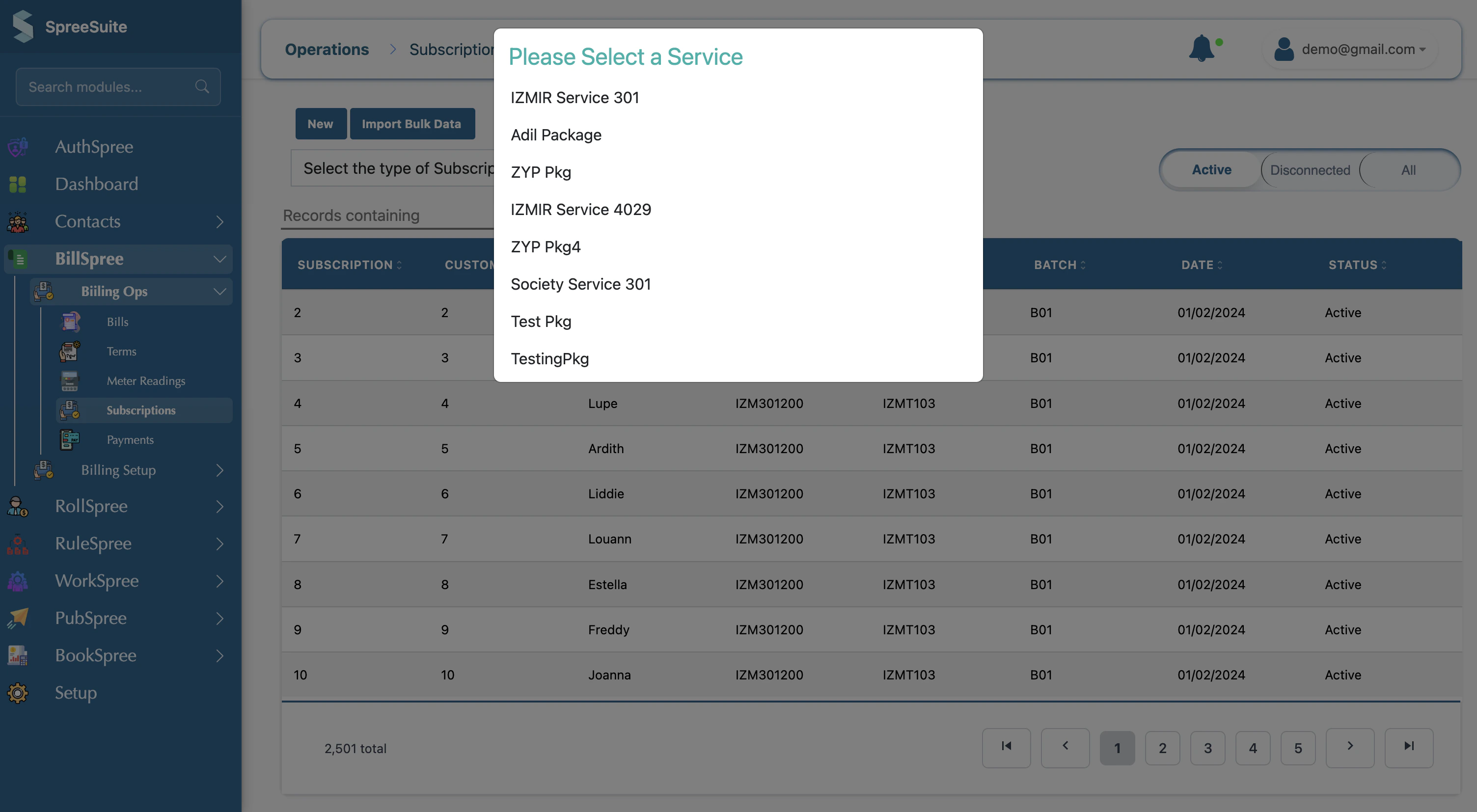
You can also upload a subscription file in bulk- Click on Import Bulk Data
- Select Pricing Template
RCO
You can reactivate the subscription by toggling the button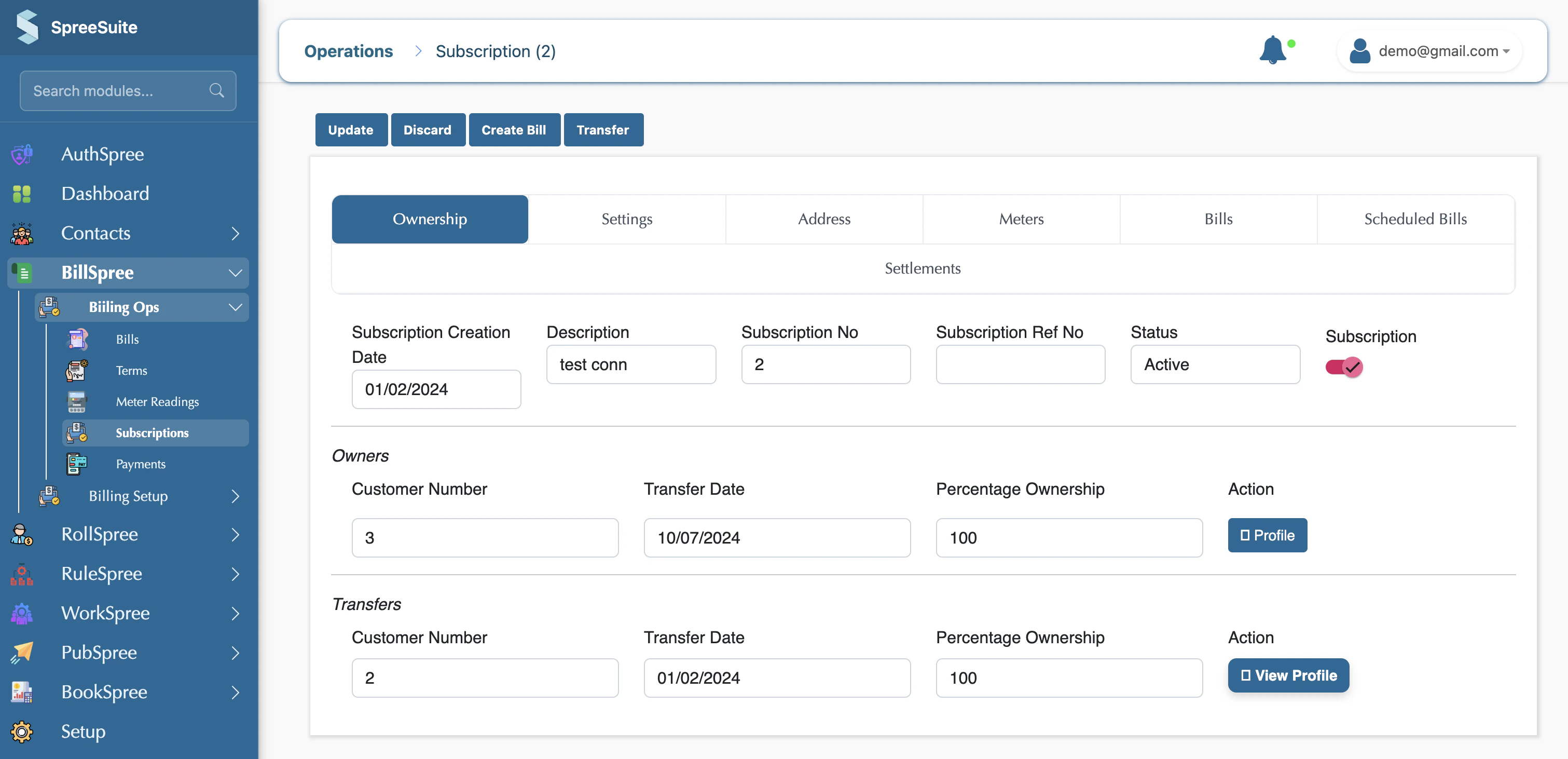
DCO
You can deactivate the subscription by toggling the button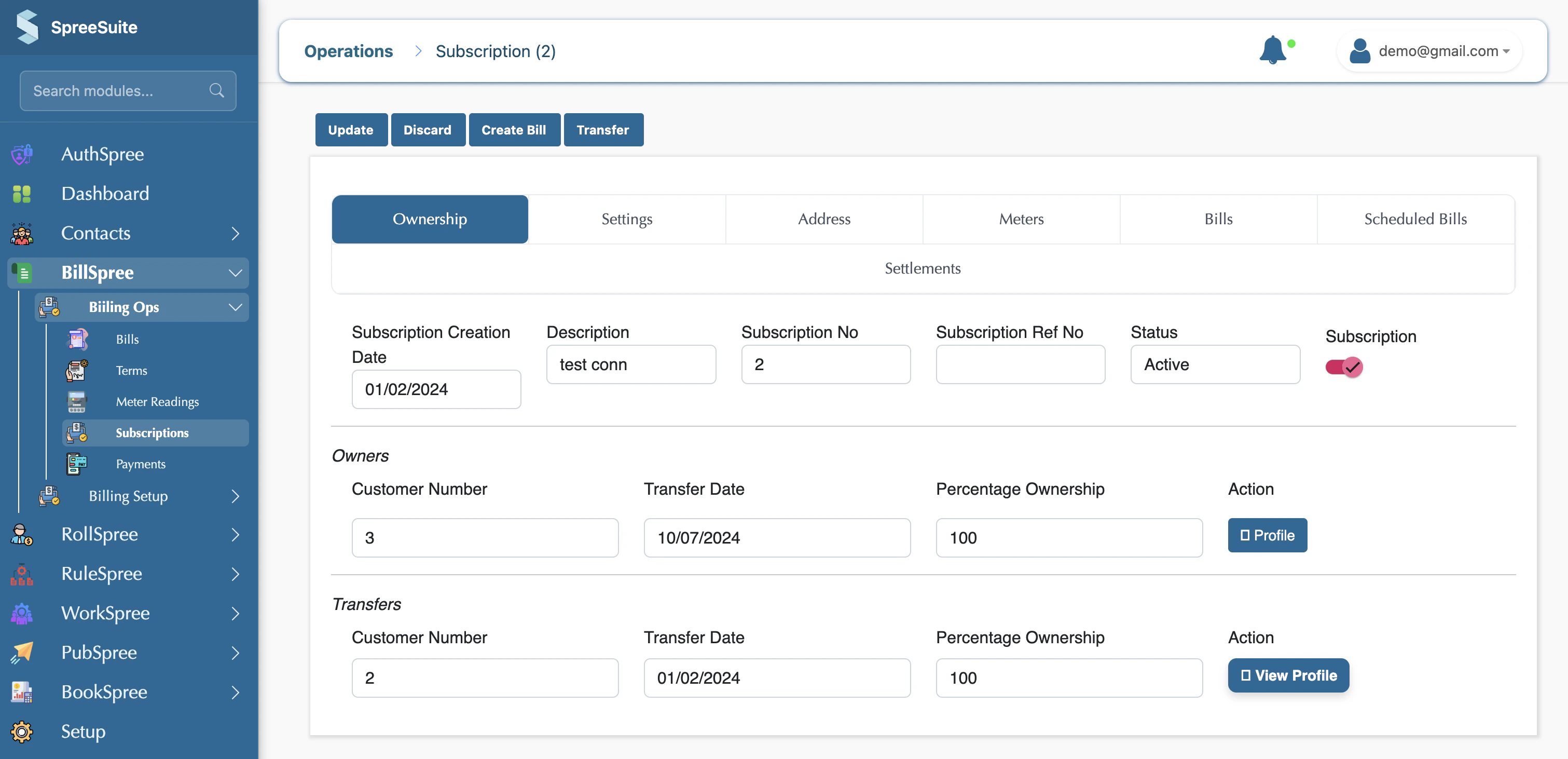
Step-by-Step Payment Flow
- Navigate to BillSpree on the sidebar
- Click on BillSpree
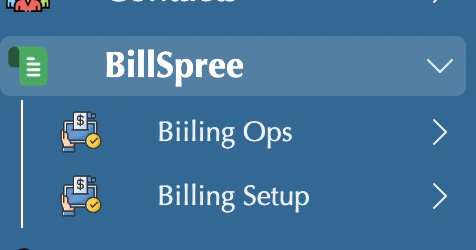
- Click on Billing Ops
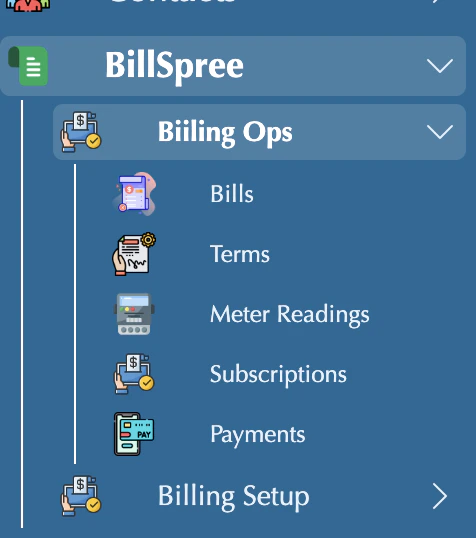
- Click on Bills
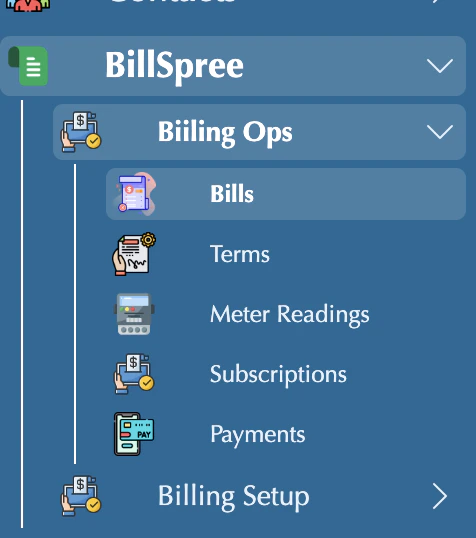
- Bill’s List View screen
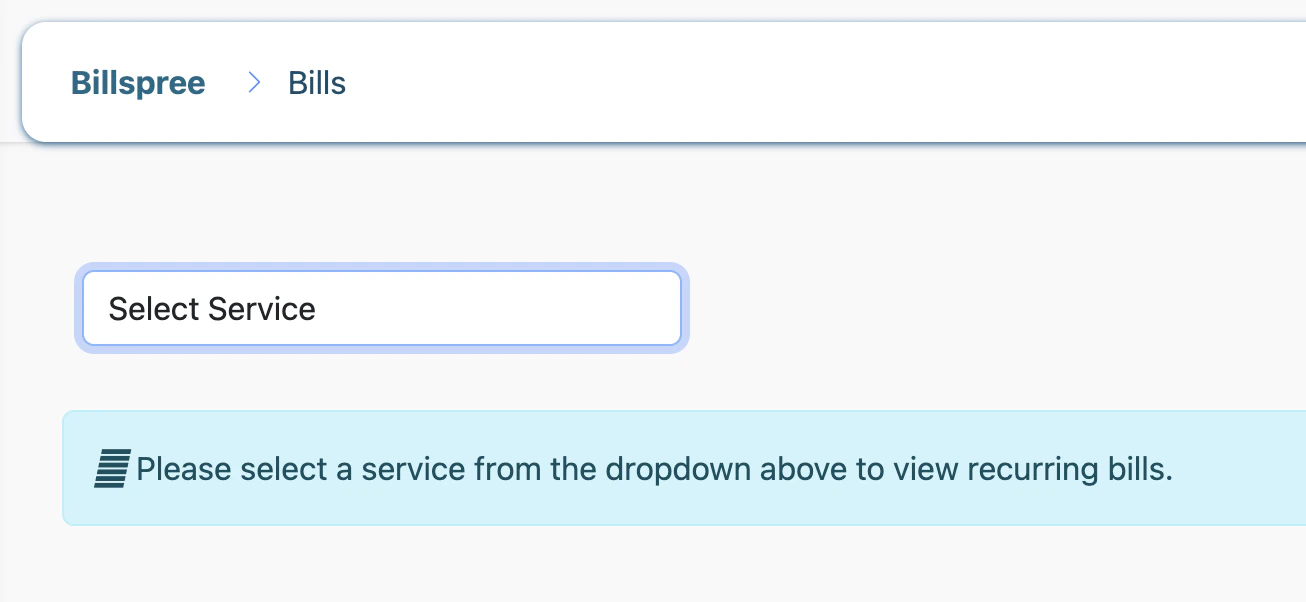
- Select you package
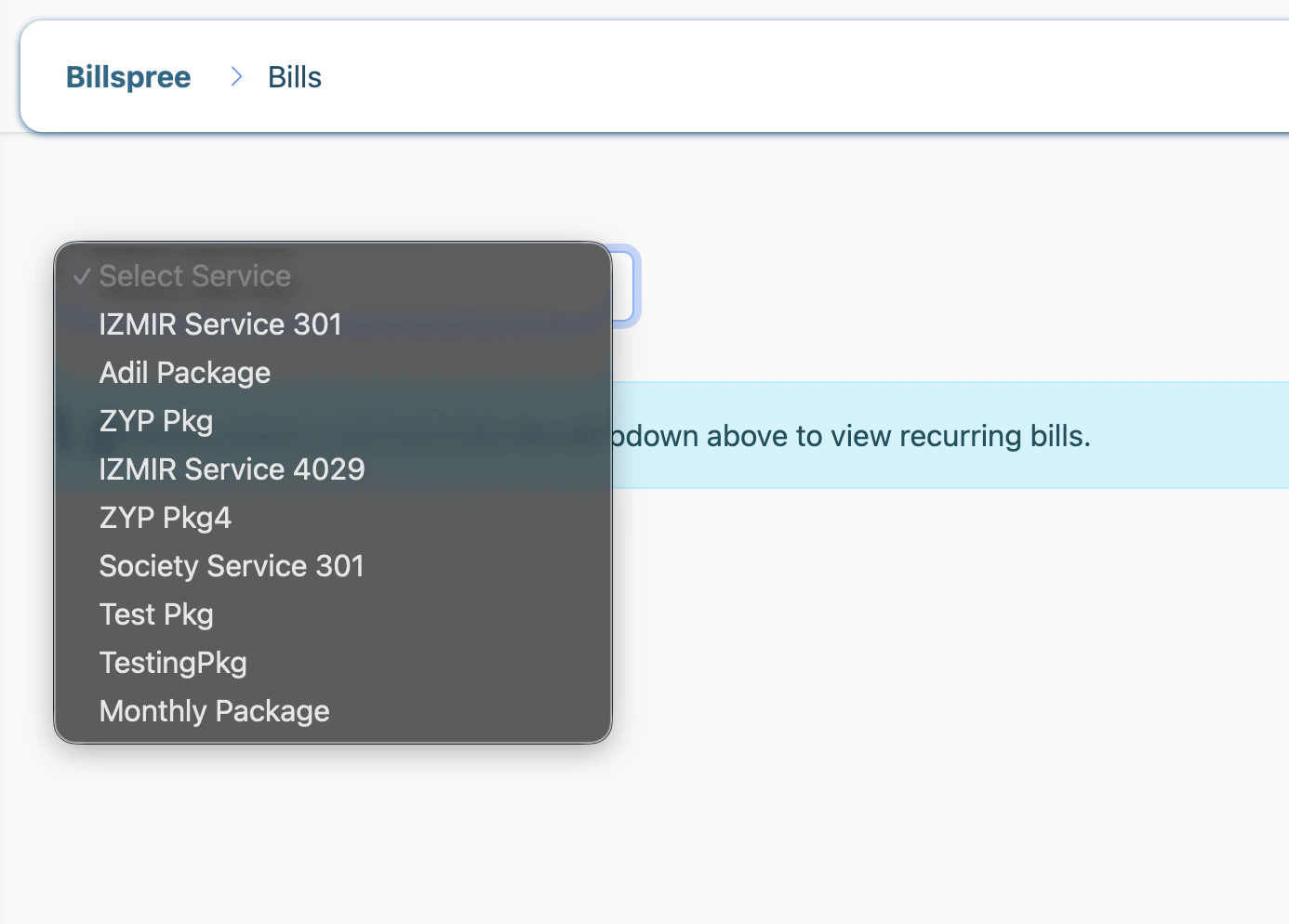
- Your Bills are showing in the list
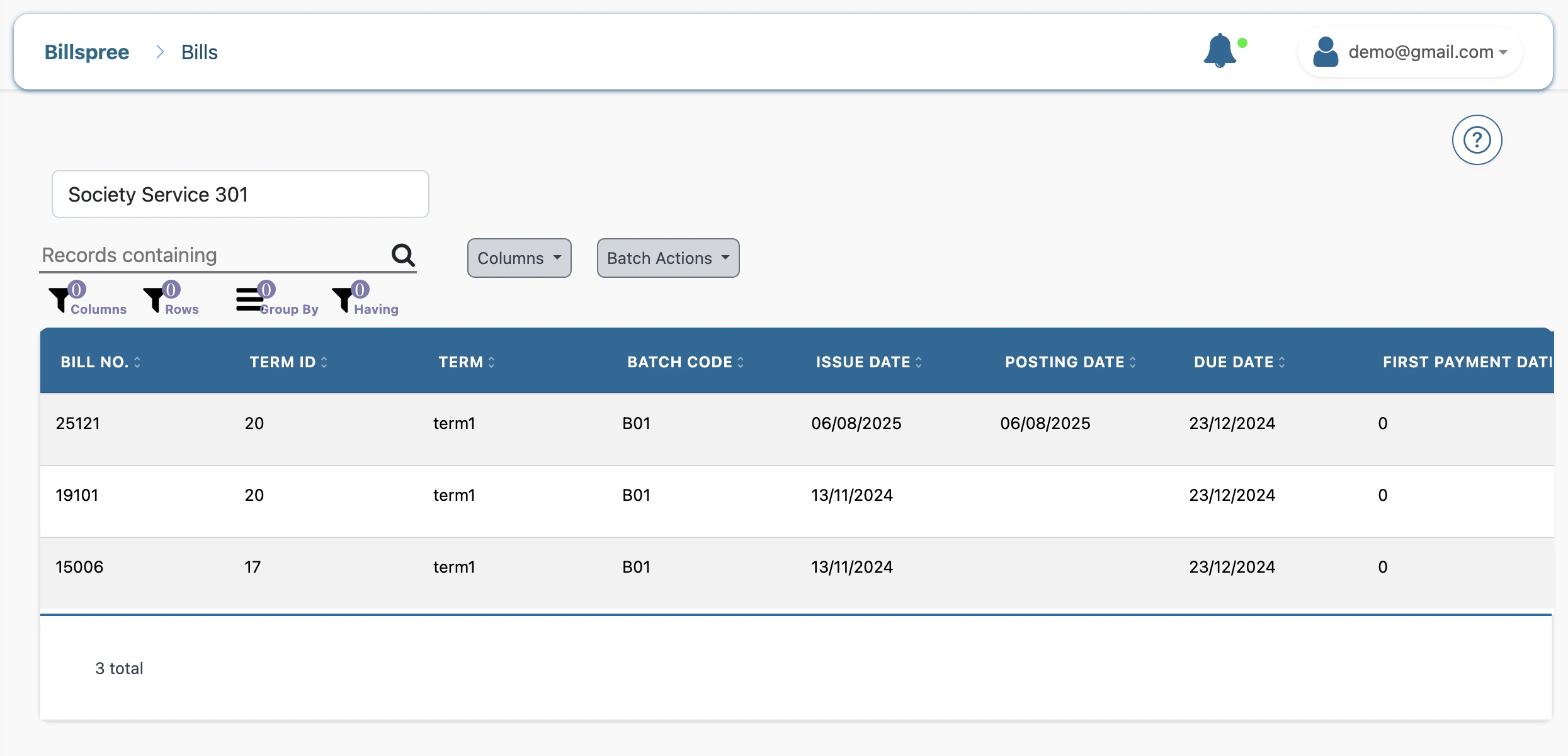
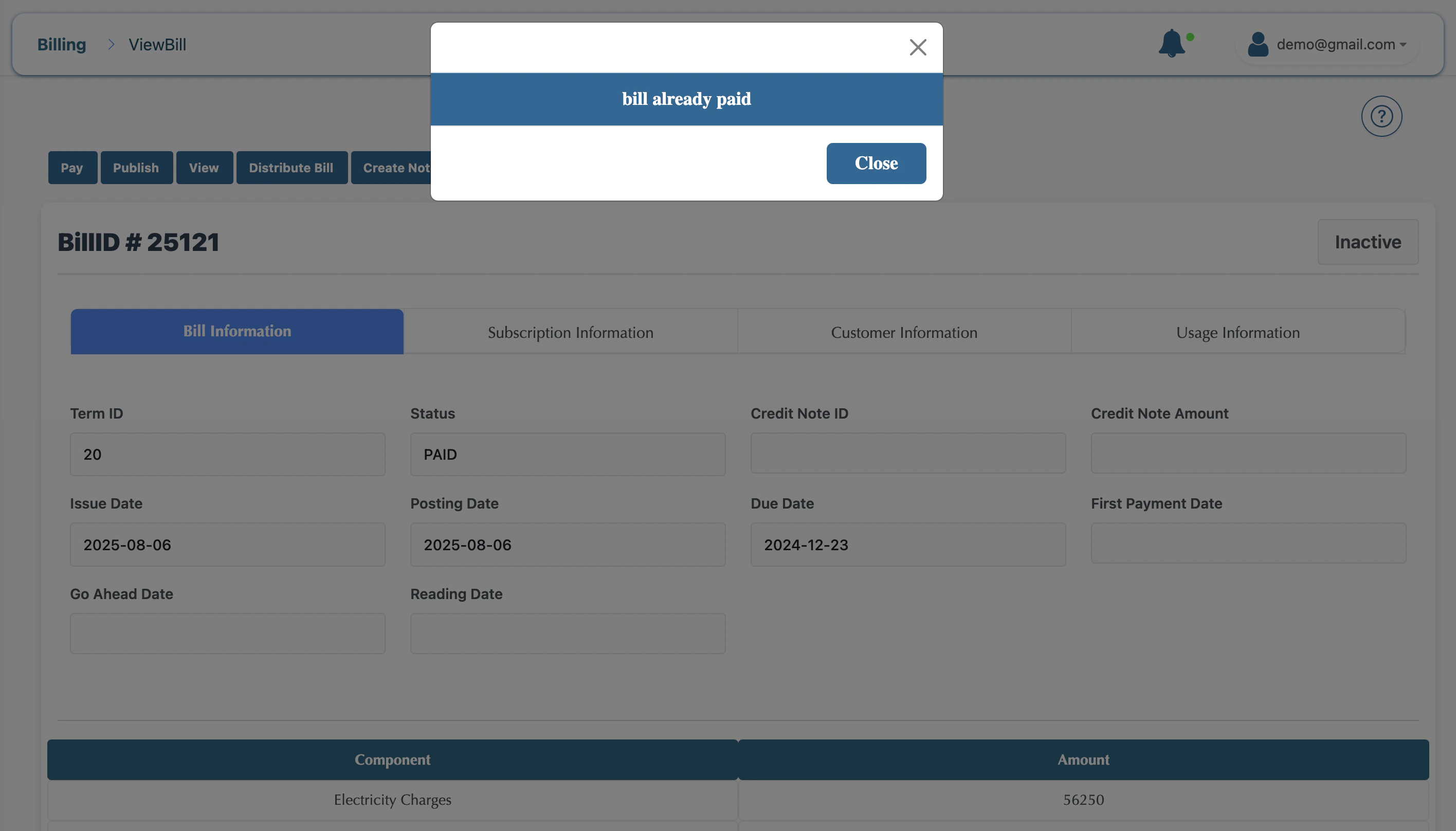
- Click on your Bill
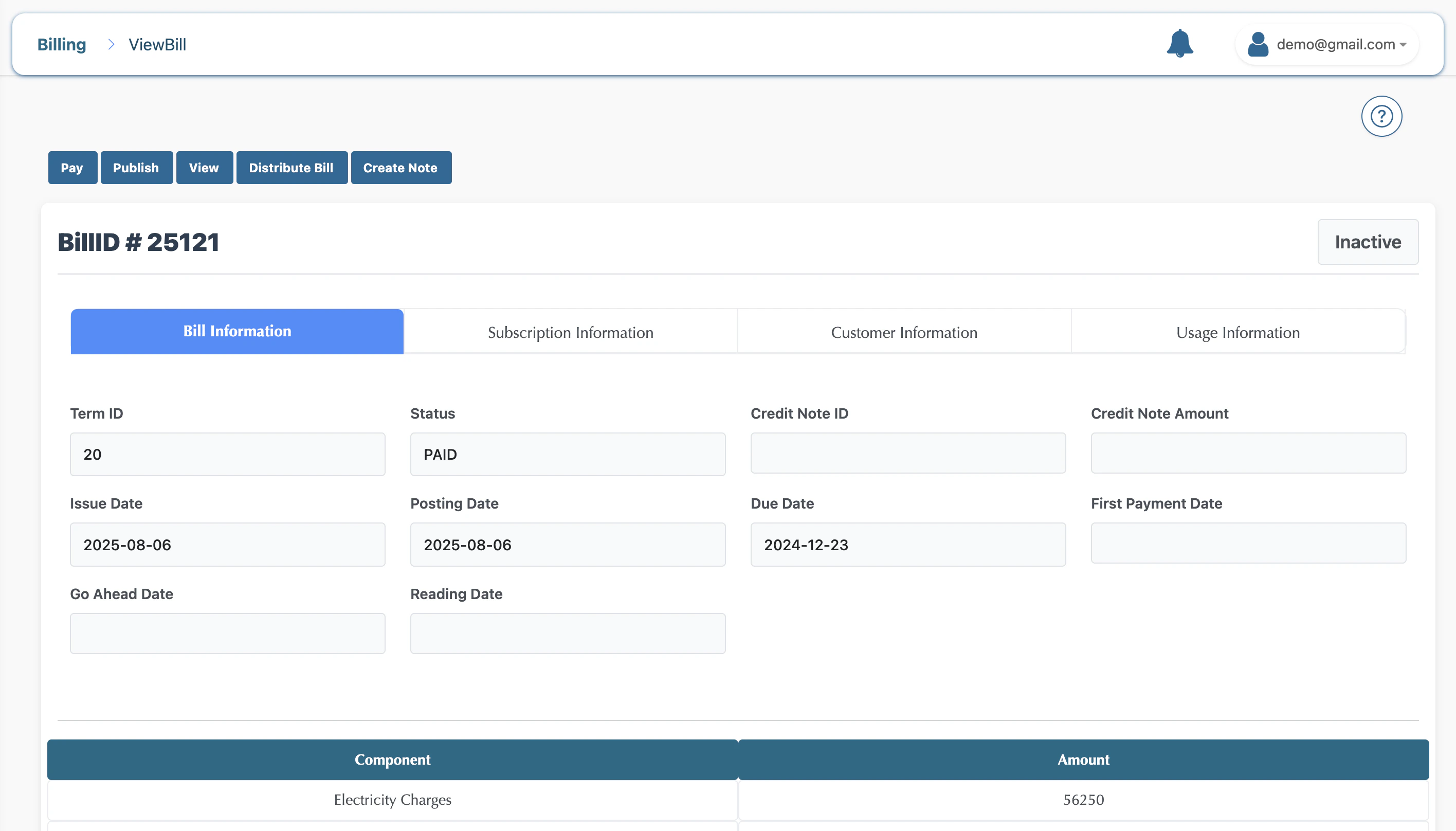
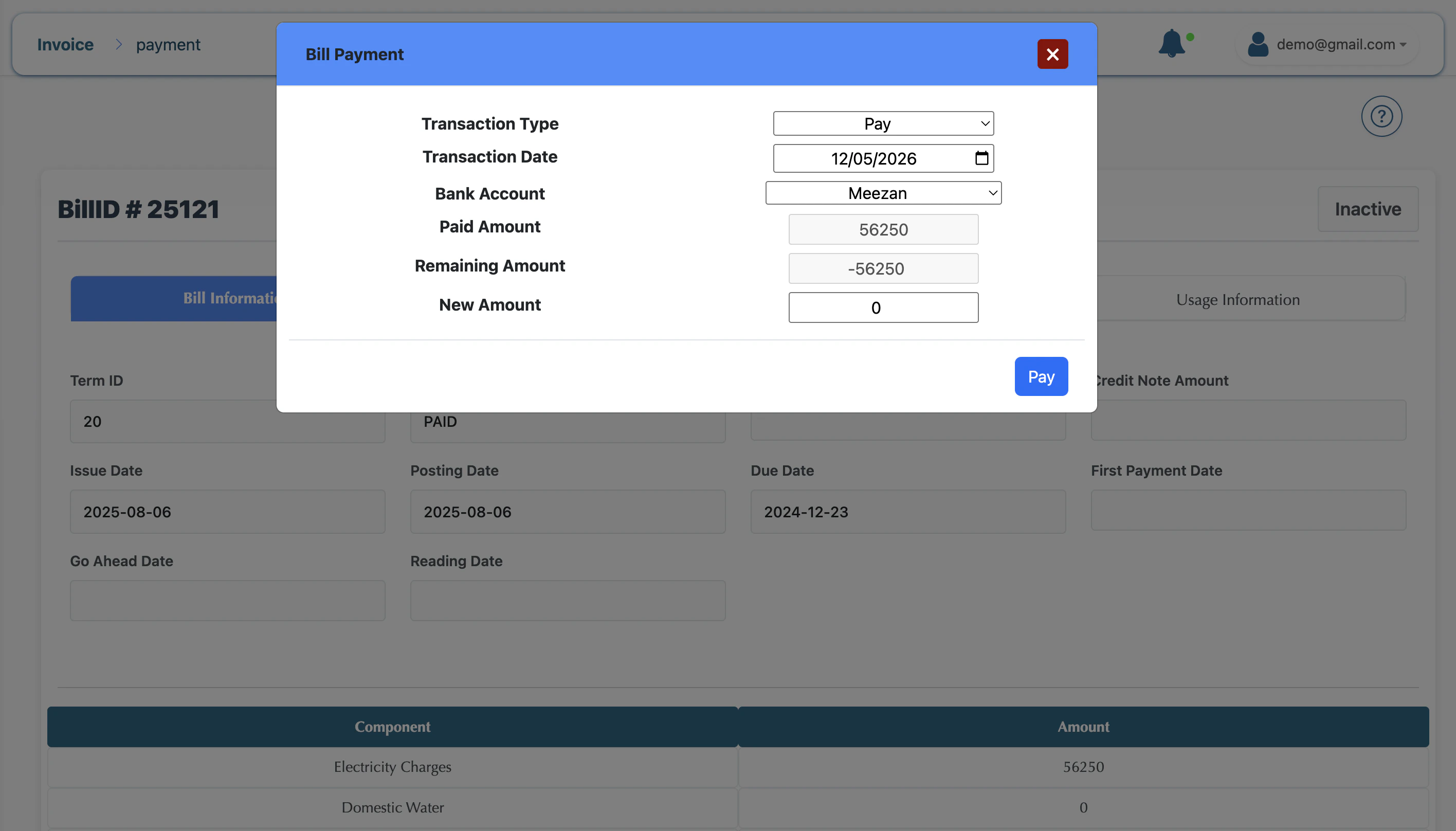
- Click on Pay, and the modal opens
5. Key System Differences
- For B2B: Focus on Adjustments. Business clients often need “one-time credits” or “fee waivers,” which you handle via the Adjustment Modal before processing.
- For B2C: Focus on Automation. Use the Billing Schedule to ensure thousands of customers are billed at the same time without manual effort.
Summary: You don’t need two systems. By simply toggling the Party Type and Due Date Offset, BillSpree transforms from an enterprise billing engine into a retail subscription platform.