
Overview
In BillSpree, Credit Notes and Debit Notes are created as Invoice Notes against an existing customer bill. They are not standalone documents with a separate credit balance pool. Each note:- Selects one or more bill line components (or manual invoice lines)
- Specifies an amount per line (up to the original line amount)
- Saves an
InvoiceNoterecord with line detail inInvoiceNoteLine - Posts a ledger journal entry immediately (BookSpree)
- Updates cumulative totals on the bill:
creditNoteAmountanddebitNoteAmount
Purchase invoices do not show the Create Note action in the UI.
Credit Note vs Debit Note
How the bill total changes
On View Bill, the footer shows:- Net Total — original bill total
- Total LP — late payment charges (if any)
- Credit Note Amount — sum of all credit notes on this bill
- Debit Note Amount — sum of all debit notes on this bill
- Total — adjusted amount:
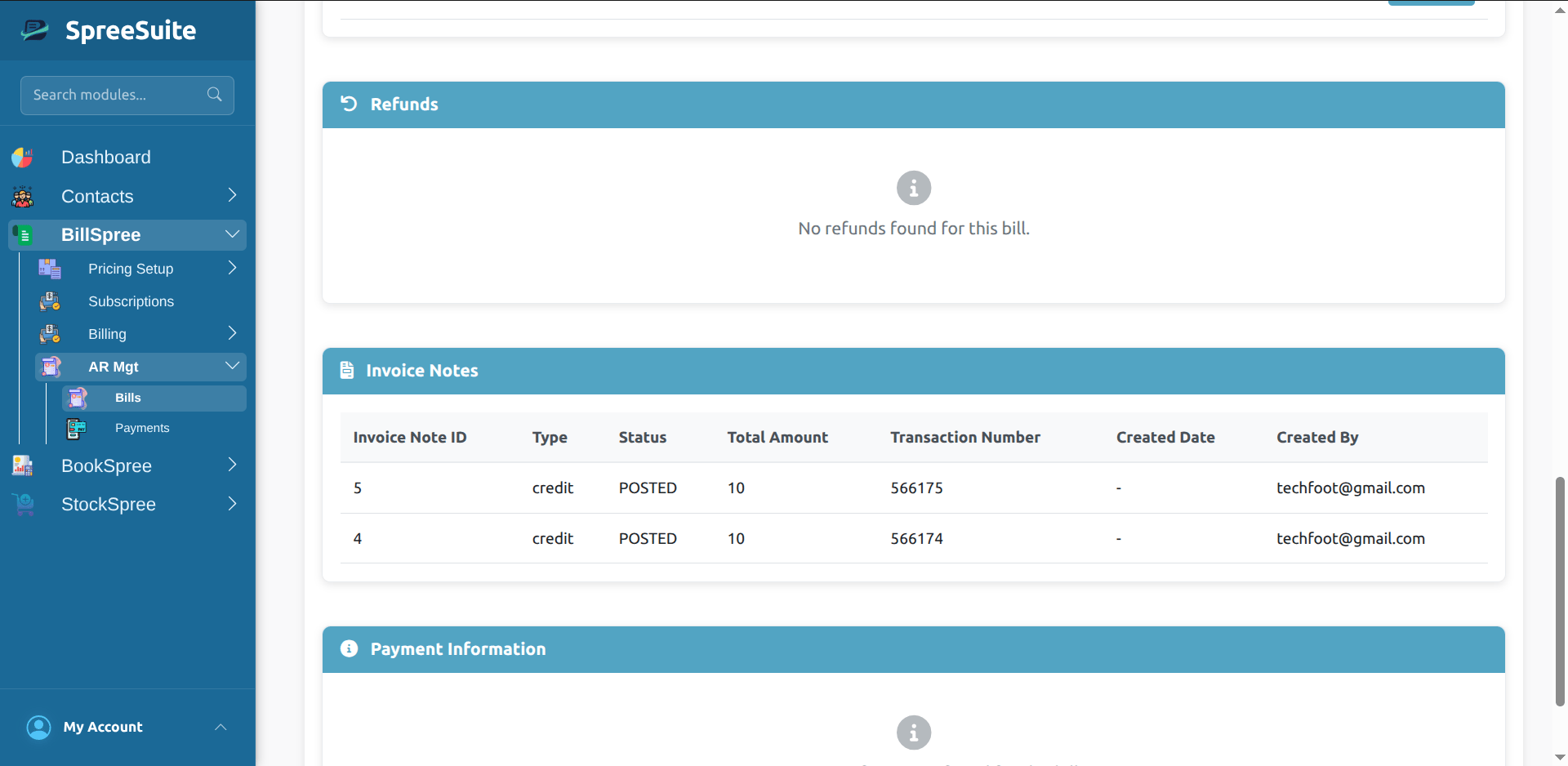
Bill footer showing credit/debit note amounts and adjusted total
Prerequisites
Before creating a note:- Open a customer bill in Billing → View Bill.
- Bill status is typically POSTED, PARTIAL-PAID, or PAID.
- Each line must be account-backed:
- Subscription bills: subscription accounts mapped to service components, plus component accounts in the Pricing Context definition
- Single/manual invoices: bill unsettled account and line accounts must be configured
- Line amount must be greater than zero; note amount cannot exceed the line original amount.
Create a credit or debit note
Step 1 — Open the bill
Go to Billing, open the bill, and use View Bill.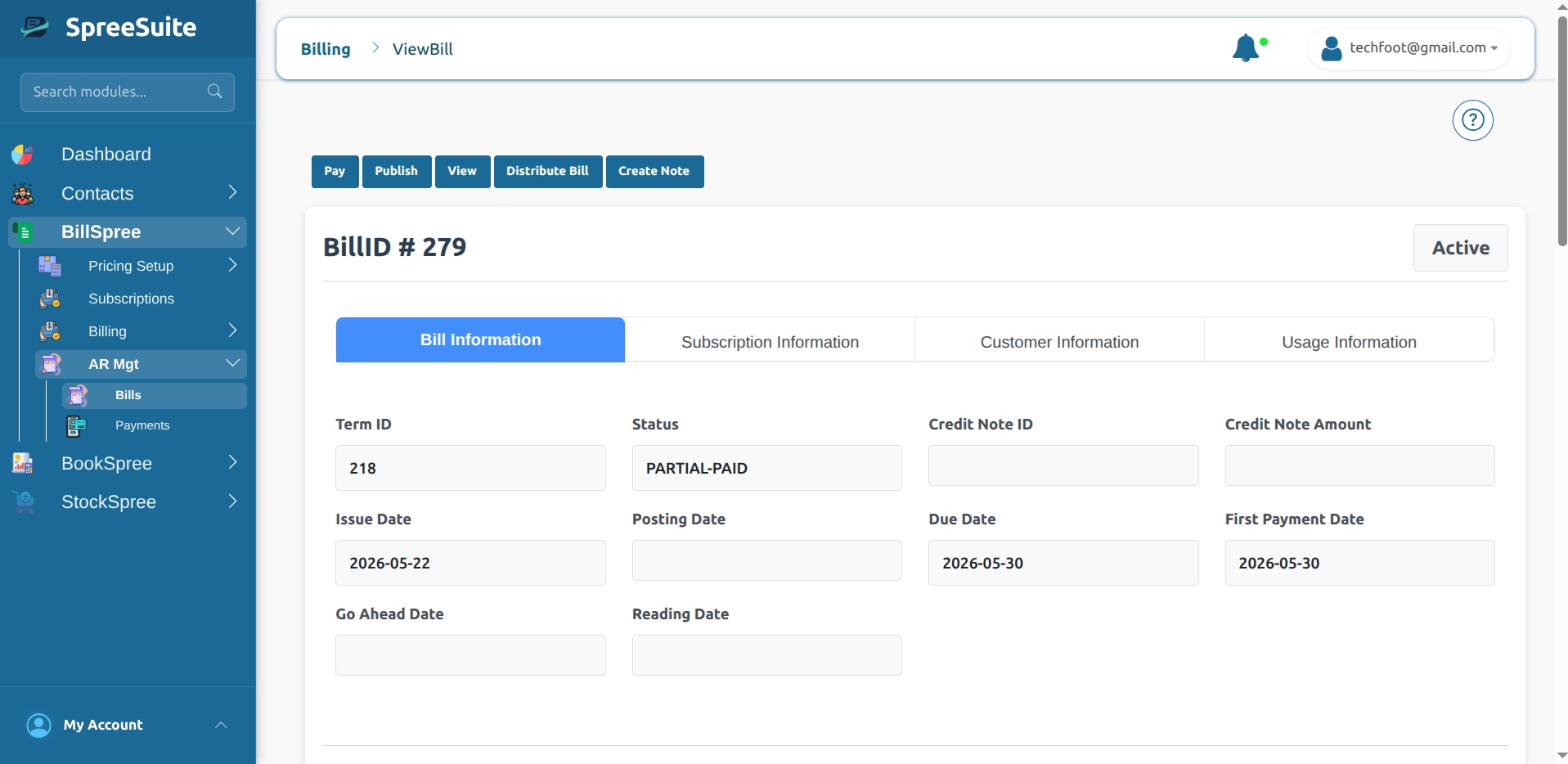
View Bill with Actions menu
Step 2 — Open Create Note
Click Actions → Create Note. (Requires unrestricted billing access.)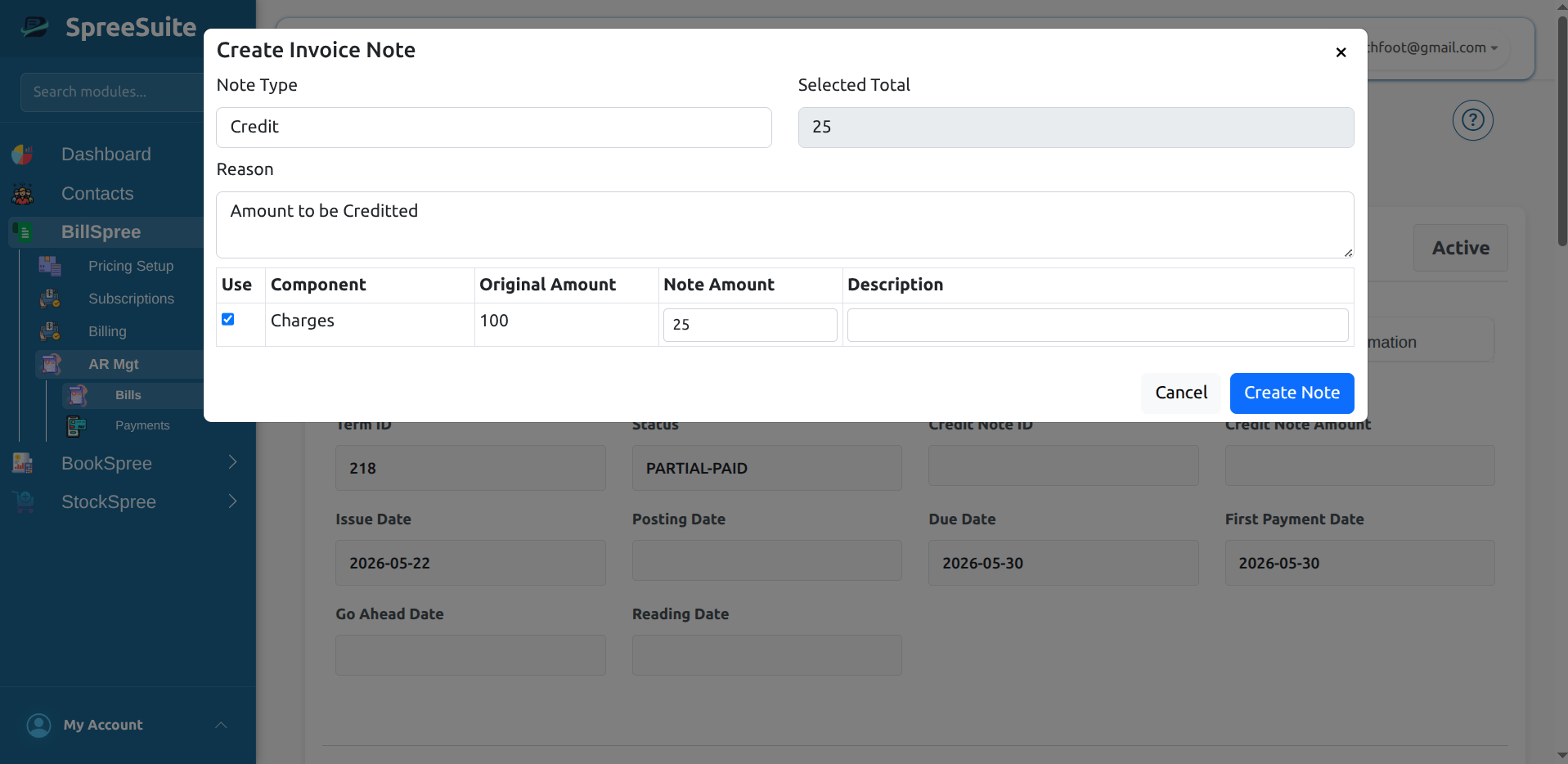
Create Invoice Note modal
Step 3 — Configure the note
Step 4 — Submit
Click Create Note. On success:- A confirmation shows Invoice Note ID and Transaction Number
- The bill footer refreshes with updated credit/debit amounts
- The Invoice Notes section lists the new note
Step 5 — Review invoice note history
Scroll to the Invoice Notes card on View Bill.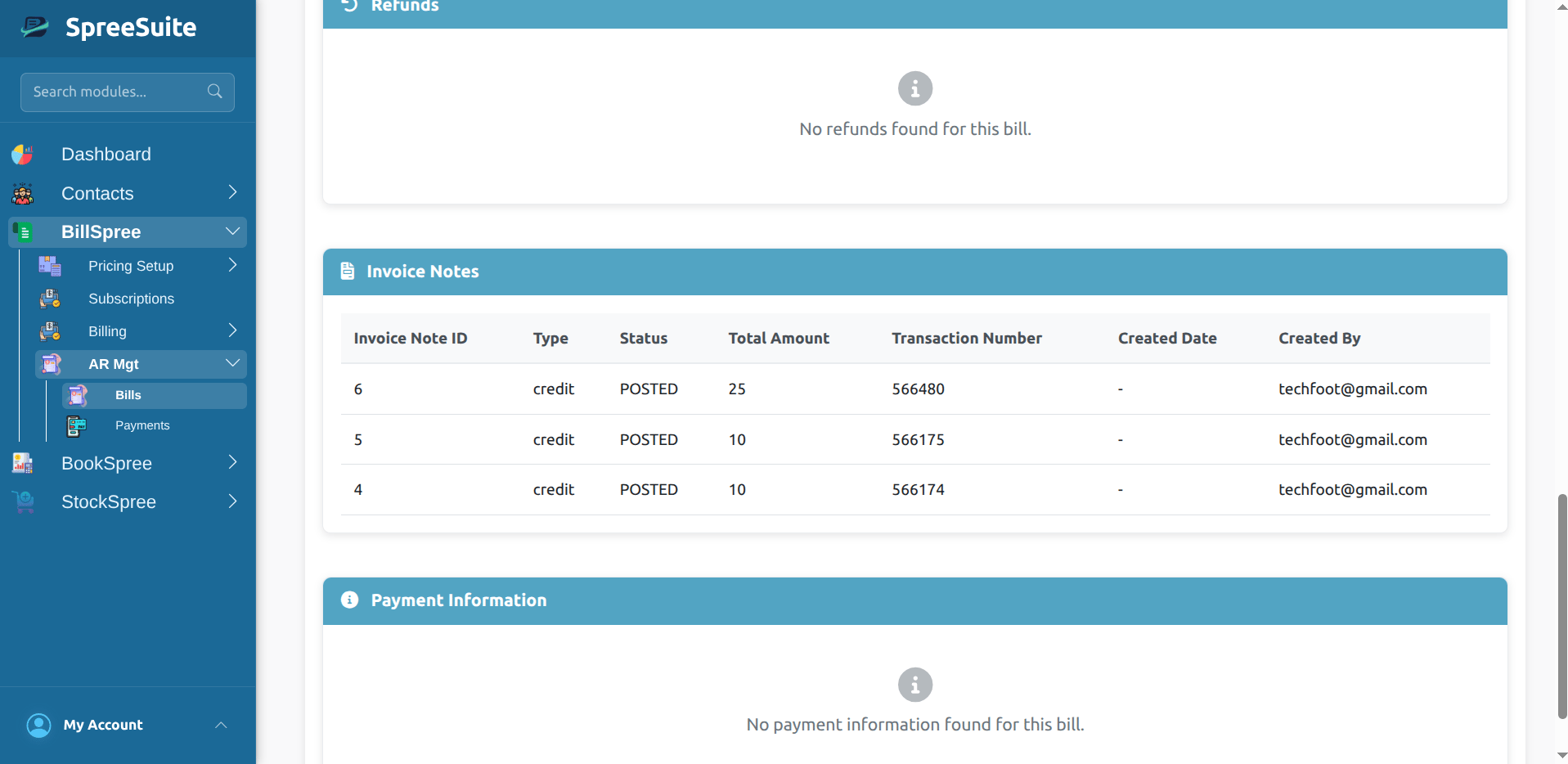
Invoice Notes table on View Bill
Credit note — when to use
Use a credit note when the customer should pay less than the invoice total:- Returned goods — credit product or charge lines partially or fully
- Billing error (overcharge) — credit the excess on specific components
- Post-invoice discount or goodwill — credit selected charge lines
creditNoteAmount increases → bill Total decreases → receivable balance is reduced after the journal posts.
Debit note — when to use
Use a debit note when the customer should pay more than the invoice total:- Undercharged invoice — add the missing amount on specific components
- Extra fees agreed after the original invoice
debitNoteAmount increases → bill Total increases.
Troubleshooting
Related topics
- Bill run (Terms) — generate bills from subscriptions
- Journal / Transactions — ledger entries created by invoice notes