> ## Documentation Index
> Fetch the complete documentation index at: https://docs.techfootintl.com/llms.txt
> Use this file to discover all available pages before exploring further.
# Competencies
> Learn how to organize and track skills and categories in WorkSpree.
**Competency Management** in WorkSpree is a centralized system for defining and organizing skills across your organization. It allows you to group specific expertise into logical buckets, making it easier to manage workforce capabilities and assign the right people to the right tasks.
## **List View Competencies**
### **1. Navigate to Competencies**
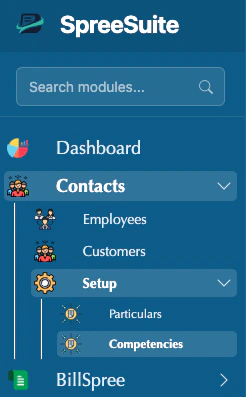 The Competency Management interface is split into two primary areas: **Categories** and **Competencies**. You can switch between them using the tabs at the top of the page.
## **Add a new Competencies**
The Competency Management interface is split into two primary areas: **Categories** and **Competencies**. You can switch between them using the tabs at the top of the page.
## **Add a new Competencies**
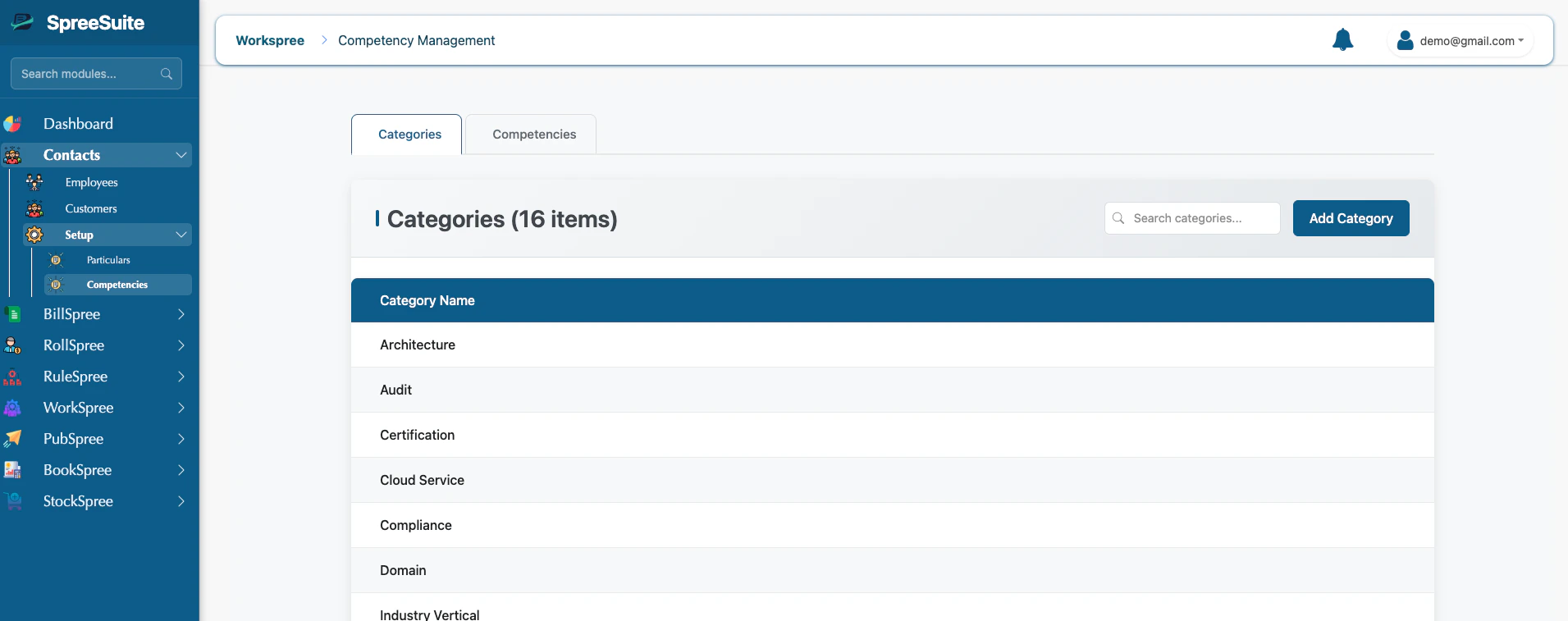 **Categories Tab**
This is where you manage the high-level "buckets" or groups for your skills.
* **View List**: See all created categories in a clean table.
* **Search**: Use the search bar to find a specific category by name.
* **Pagination**: If you have many categories, use the page controls at the bottom to navigate.
**Categories Tab**
This is where you manage the high-level "buckets" or groups for your skills.
* **View List**: See all created categories in a clean table.
* **Search**: Use the search bar to find a specific category by name.
* **Pagination**: If you have many categories, use the page controls at the bottom to navigate.
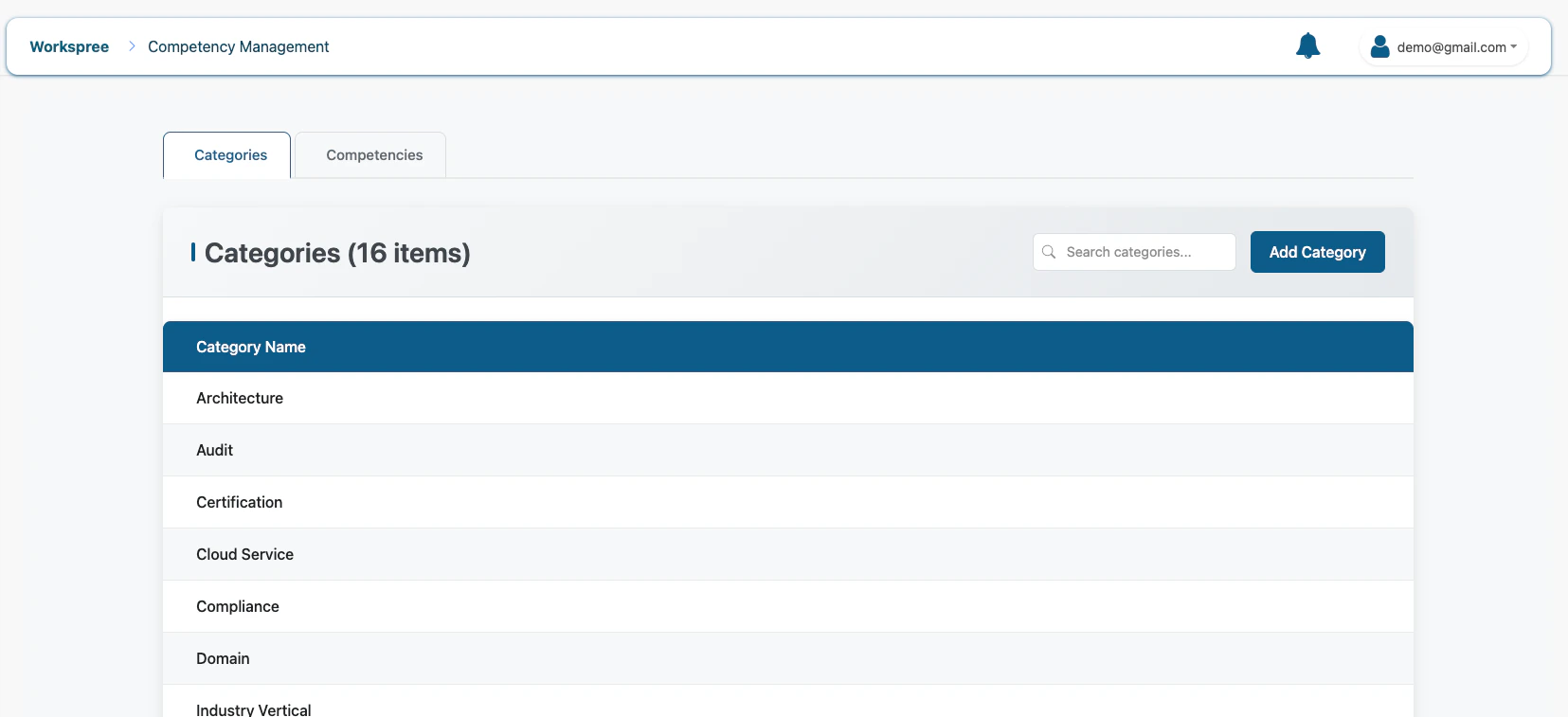 #### **1. How to Create a Category**
Click the **Add Category** button in the top right corner of the Categories tab.
Provide a clear, descriptive name for the group.
* **Category Name**: Use broad terms like "Programming," "Languages," or "Safety Standards" (Required, min 2 characters).
Click the **Save** button. The new category will now be available for your skills.
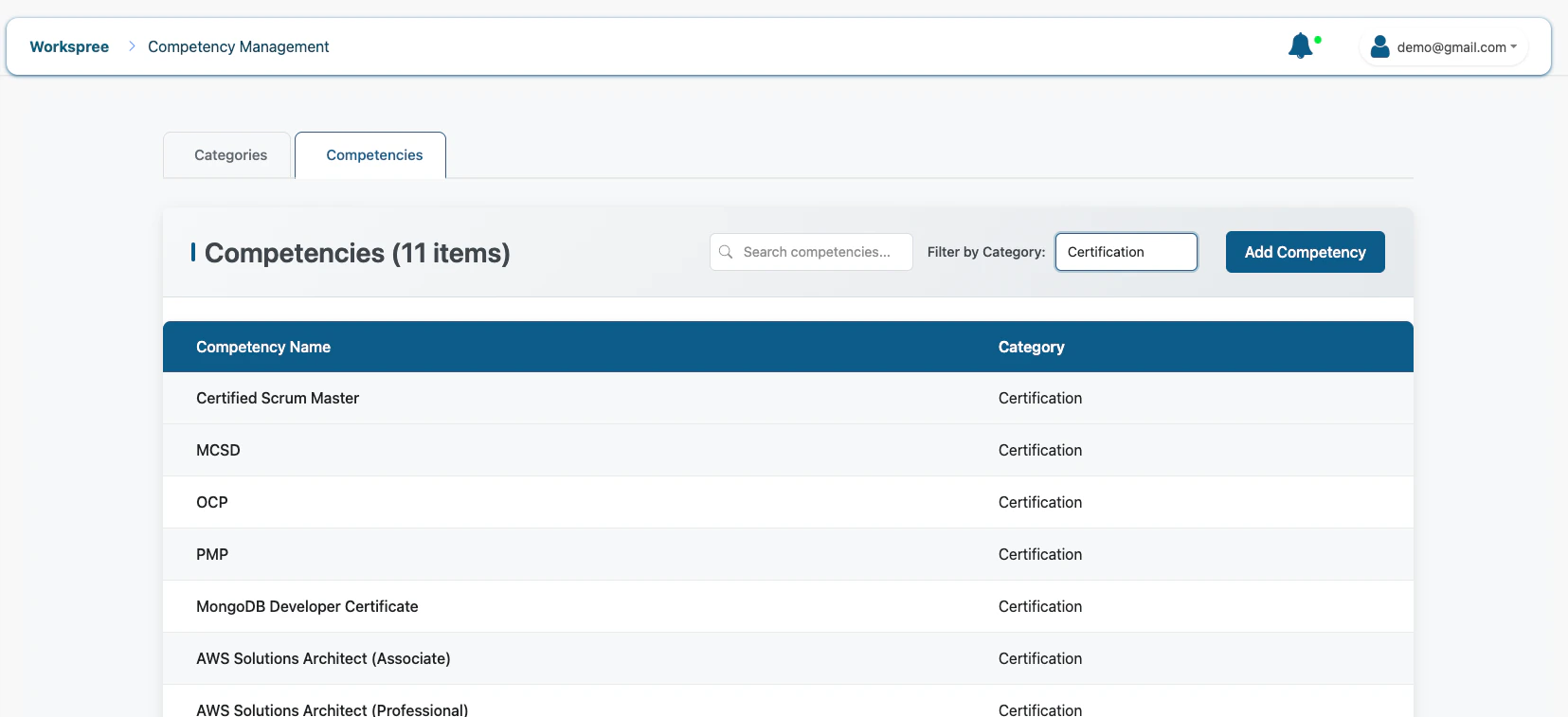
**Competencies Tab**
This is where you manage individual skills and link them to categories.
* **Filter by Category**: Use the dropdown menu to see only skills belonging to a specific group (e.g., "Technical" or "Administrative").
* **Search**: Quickly find a skill by typing its name.
#### **1. How to Create a Category**
Click the **Add Category** button in the top right corner of the Categories tab.
Provide a clear, descriptive name for the group.
* **Category Name**: Use broad terms like "Programming," "Languages," or "Safety Standards" (Required, min 2 characters).
Click the **Save** button. The new category will now be available for your skills.
**Competencies Tab**
This is where you manage individual skills and link them to categories.
* **Filter by Category**: Use the dropdown menu to see only skills belonging to a specific group (e.g., "Technical" or "Administrative").
* **Search**: Quickly find a skill by typing its name.
 #### **2. How to Create a Competency**
Switch to the **Competencies** tab and click the **Add Competency** button.
Fill in the specific skill information.
* **Competency Name**: The specific skill name, like "Python," "French," or "First Aid" (Required, min 2 characters).
Select the most relevant category from the dropdown menu.
Click **Save**. The competency is now registered and will appear in your filtered lists.
***
## **Detailed Field Guide**
### **1. Category Fields**
| Field | Meaning in simple words | Requirement |
| :---------------- | :---------------------------------------- | :---------- |
| **Category Name** | The broad group name for a set of skills. | Required |
### **2. Competency Fields**
| Field | Meaning in simple words | Requirement |
| :------------------ | :--------------------------------------- | :---------- |
| **Competency Name** | The specific skill or area of expertise. | Required |
| **Category** | The group this skill belongs to. | Required |
***
## **Where do Competencies show up?**
Competencies are used throughout the system to help you understand your team's strengths:
* **Employee Profiles**: Assign these skills to specific staff members to build their professional profiles.
* **Resource Planning**: Search for employees who have specific competencies needed for a project.
* **Workspree (Projects)**: Match task requirements with the skills of your team members.
Keep your category names broad and your competency names specific to ensure your library remains organized as it grows.
#### **2. How to Create a Competency**
Switch to the **Competencies** tab and click the **Add Competency** button.
Fill in the specific skill information.
* **Competency Name**: The specific skill name, like "Python," "French," or "First Aid" (Required, min 2 characters).
Select the most relevant category from the dropdown menu.
Click **Save**. The competency is now registered and will appear in your filtered lists.
***
## **Detailed Field Guide**
### **1. Category Fields**
| Field | Meaning in simple words | Requirement |
| :---------------- | :---------------------------------------- | :---------- |
| **Category Name** | The broad group name for a set of skills. | Required |
### **2. Competency Fields**
| Field | Meaning in simple words | Requirement |
| :------------------ | :--------------------------------------- | :---------- |
| **Competency Name** | The specific skill or area of expertise. | Required |
| **Category** | The group this skill belongs to. | Required |
***
## **Where do Competencies show up?**
Competencies are used throughout the system to help you understand your team's strengths:
* **Employee Profiles**: Assign these skills to specific staff members to build their professional profiles.
* **Resource Planning**: Search for employees who have specific competencies needed for a project.
* **Workspree (Projects)**: Match task requirements with the skills of your team members.
Keep your category names broad and your competency names specific to ensure your library remains organized as it grows.