> ## Documentation Index
> Fetch the complete documentation index at: https://docs.techfootintl.com/llms.txt
> Use this file to discover all available pages before exploring further.
# Customer Portal
> The place where customers log in to manage their billing, or where staff can view what the customer sees to provide support.
## **What is the Customer Portal?**
The **Customer Portal** is the part of the system where your customers (or employees, in some setups) see their own information: what they owe, their subscriptions, their bills, and how they can pay.
Think of it as **“the customer’s own dashboard”** – they log in and see only their data, not your admin tools.
***
## **Two ways to see the Customer Portal**
### **1. Admin View**
(Staff viewing the customer's portal)
**Summary**: The same portal screens opened by staff for a specific customer, so they can see exactly what that customer sees and help with billing or payment issues.
**Who**: An admin (or staff) user who is viewing the portal as if they were that customer.
The system can show the same Customer Portal screens but for a specific customer (when the app is in “admin viewing customer” mode – i.e., admin is on the portal and a customer token is in use).
**What they see**:
* **The same screens as the customer**: Dashboard (wallet + outstanding balance), Overview, Plans, Bills, Subscriptions, Payment Methods, Logs, My profile.
* **The same actions**: View bills, see subscription details, see payment history, etc.
* **The data shown is the customer’s data**, not the admin’s own.
**How it’s used**:
* Support or billing staff can **“see what the customer sees”** to help with questions, disputes, or to check why a payment failed.
* When an admin is viewing the customer portal like this, the breadcrumb often shows **“Dashboard”** so they can easily go back to the main admin area.
**In short**: "When I’m an admin, and I open the Customer Portal for a customer, I see exactly what that customer sees: their balance, bills, subscriptions, payment methods, and logs. I use this to help them or to verify their account."
**What they see**:
The main overview when a customer logs in.
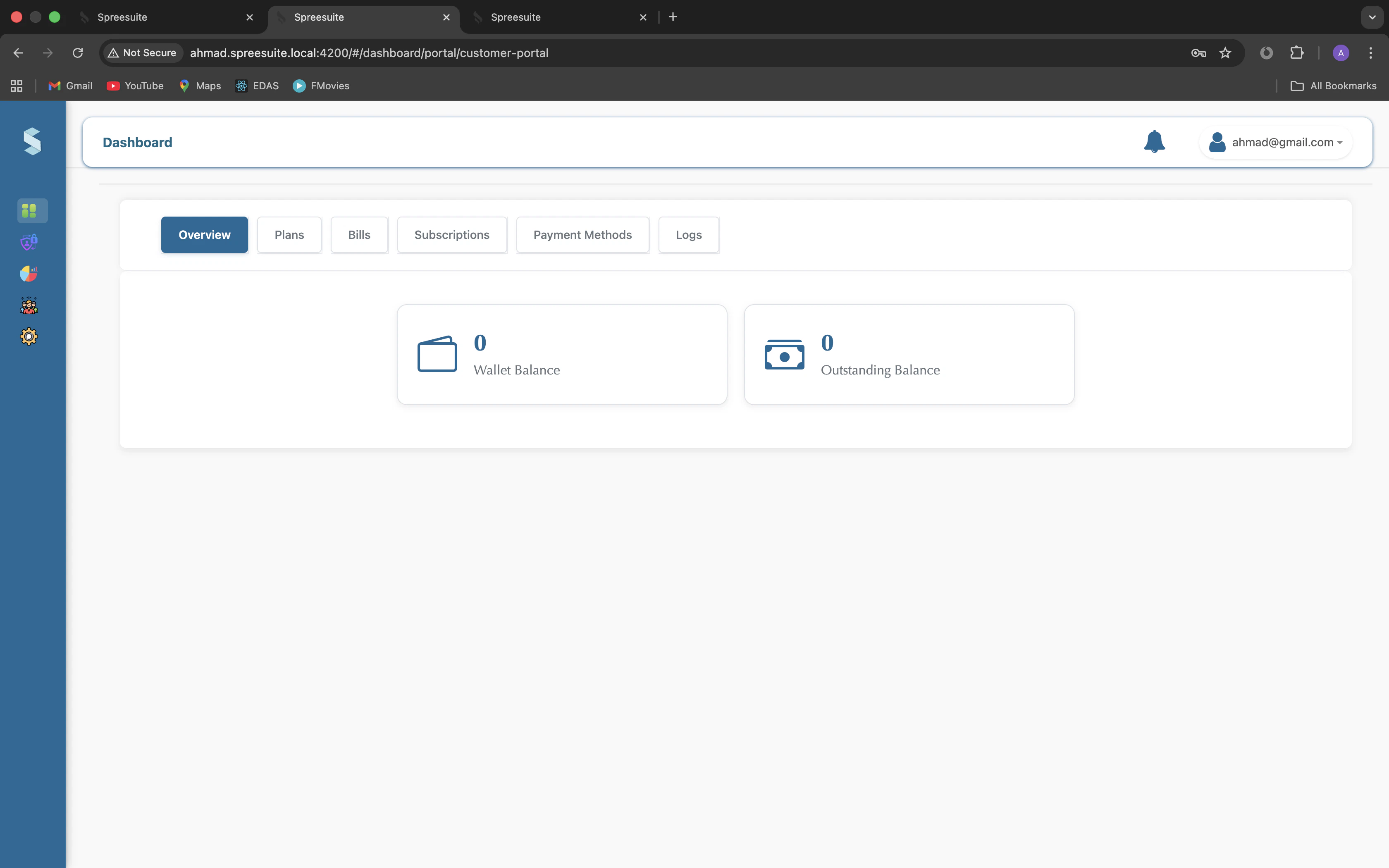
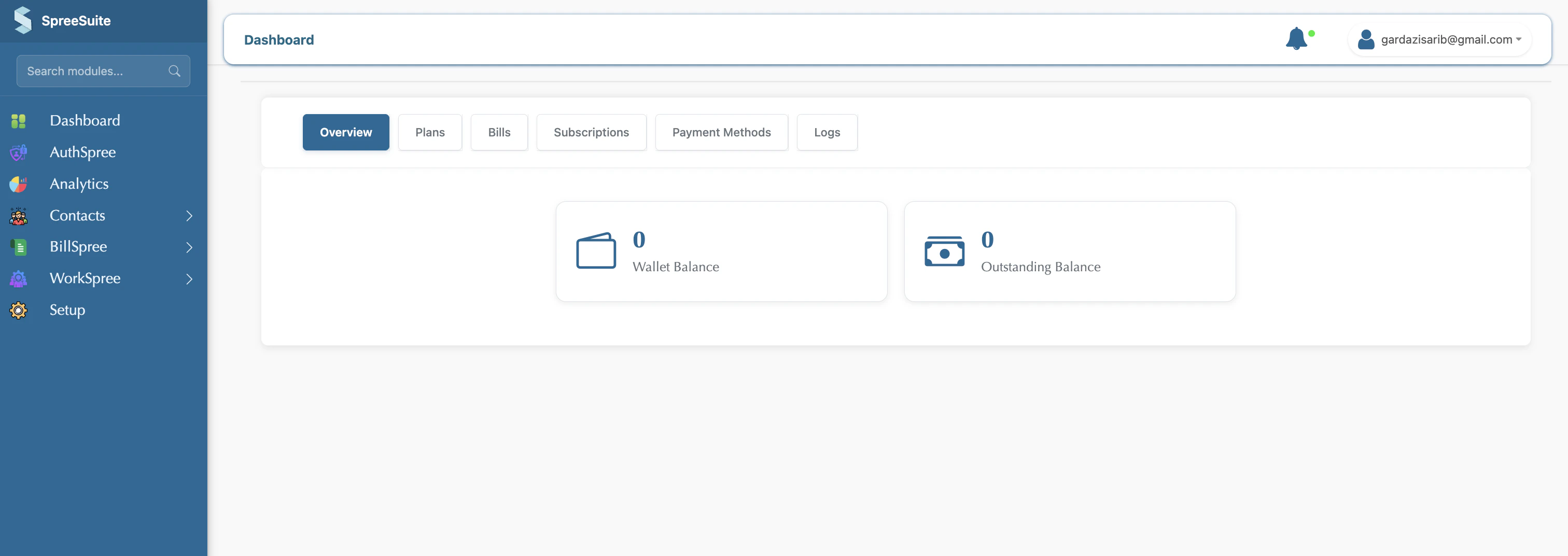 * **Wallet balance**: Money in their wallet (if the product uses it).
* **Outstanding balance**: Total amount they still owe.
Summary of their account (the same area is used for “Salary Slips” for employees in the employee portal).
Available plans (e.g., subscriptions or packages).
* **Wallet balance**: Money in their wallet (if the product uses it).
* **Outstanding balance**: Total amount they still owe.
Summary of their account (the same area is used for “Salary Slips” for employees in the employee portal).
Available plans (e.g., subscriptions or packages).
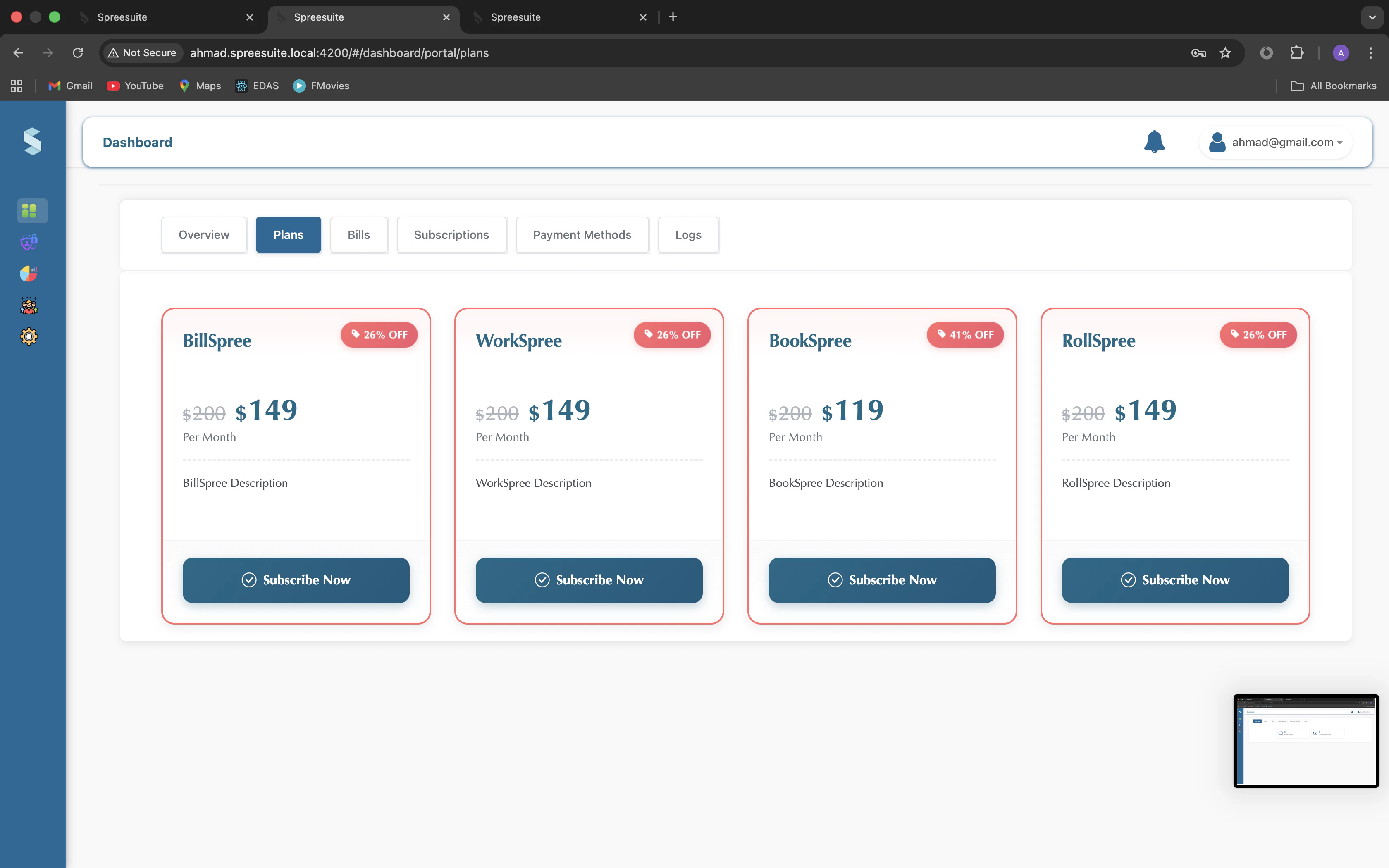
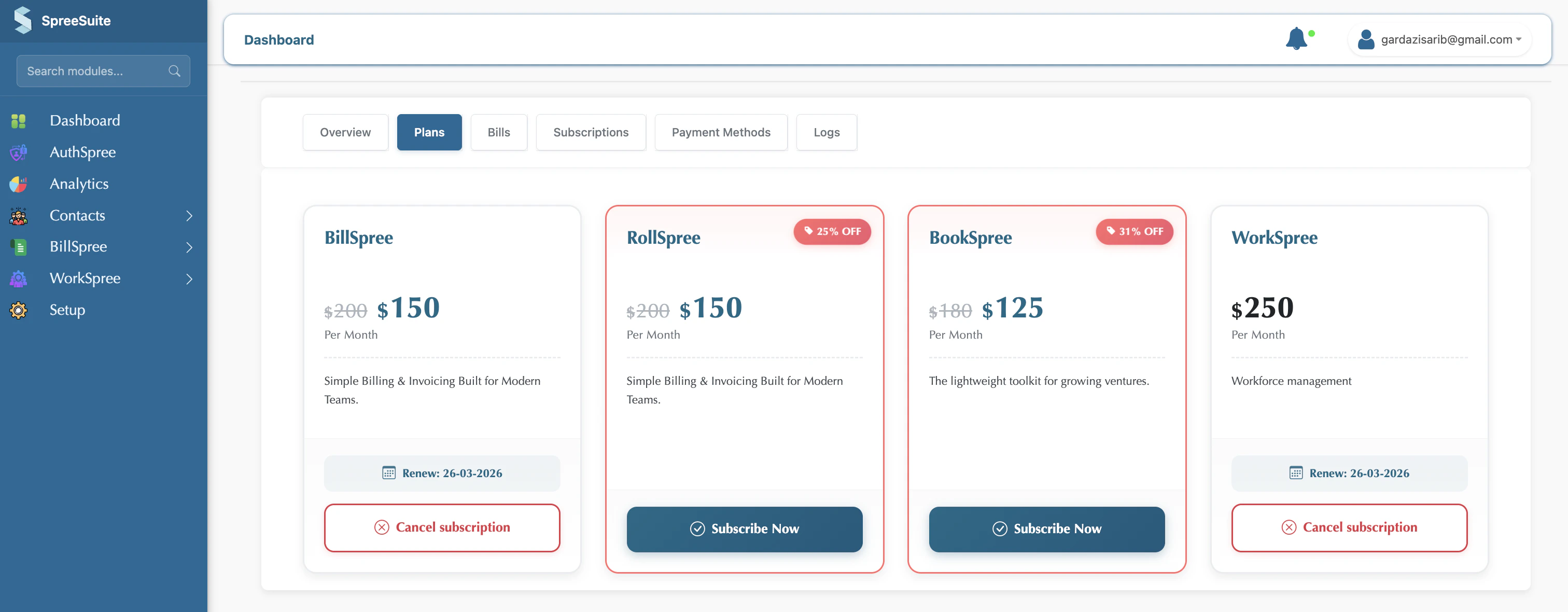 * Customers can see prices, discounts, and choose “Subscribe” or “Contact us” depending on the plan.
List of their bills.
* Customers can see prices, discounts, and choose “Subscribe” or “Contact us” depending on the plan.
List of their bills.
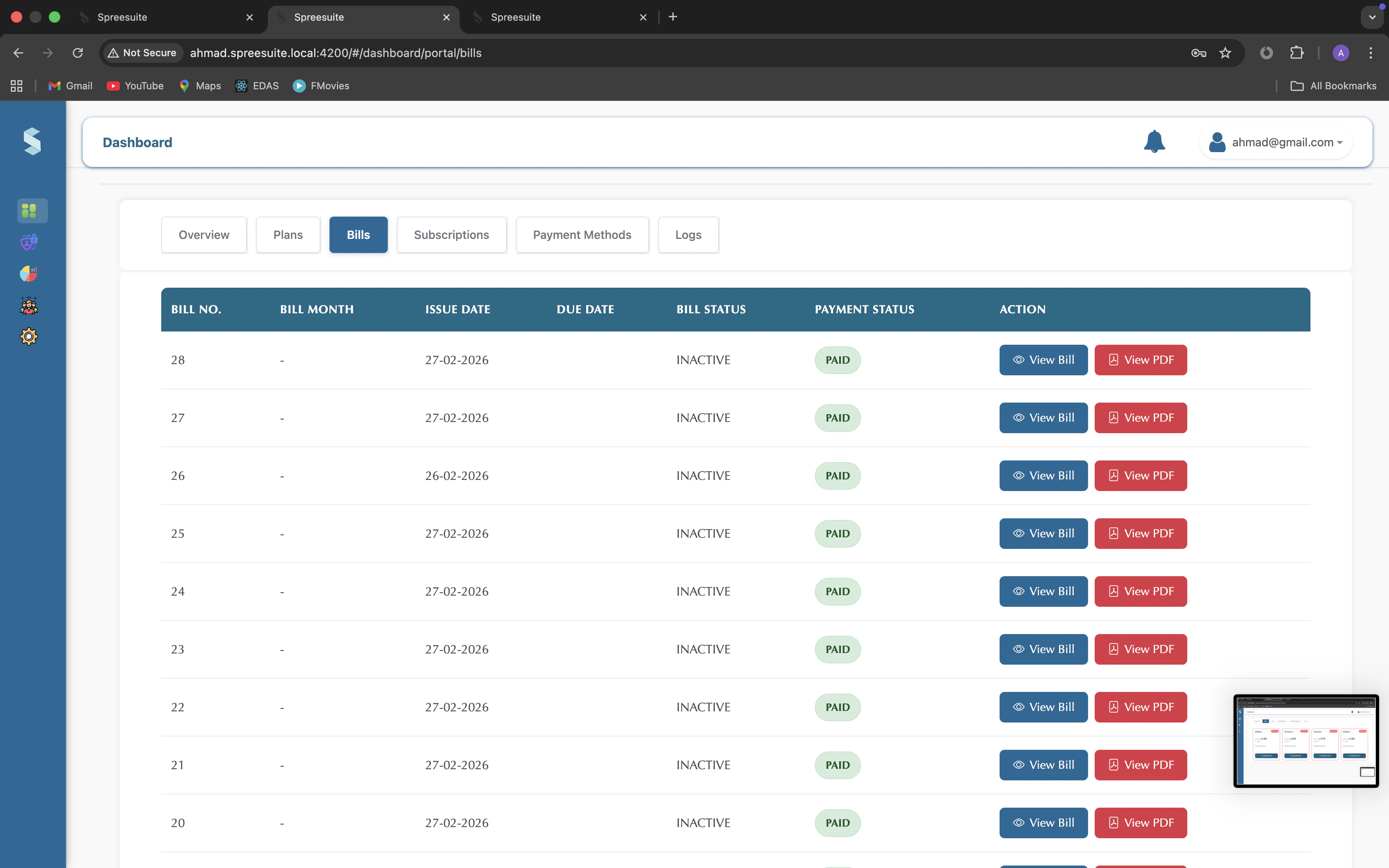
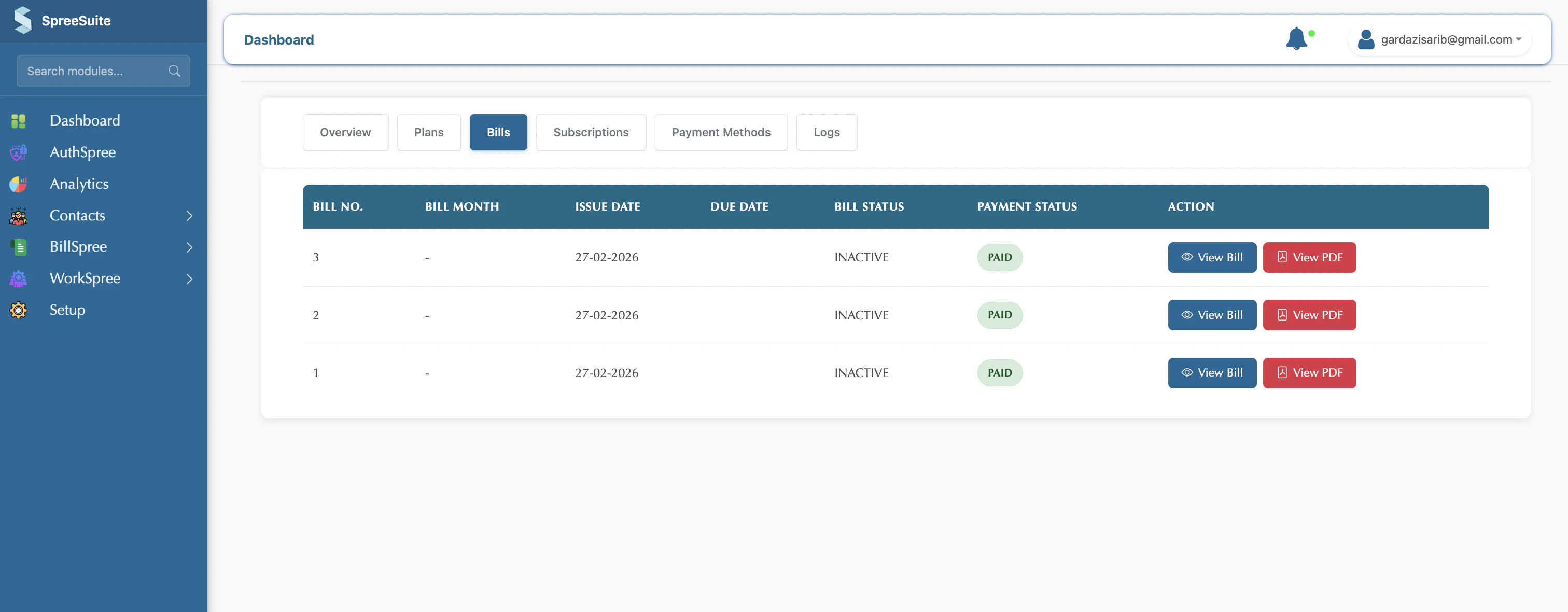 * They can open a bill and see details or pay (e.g., use the **“Pay”** button when online payment is enabled).
Their active subscriptions (or “contracts” in the employee portal).
* They can open a bill and see details or pay (e.g., use the **“Pay”** button when online payment is enabled).
Their active subscriptions (or “contracts” in the employee portal).
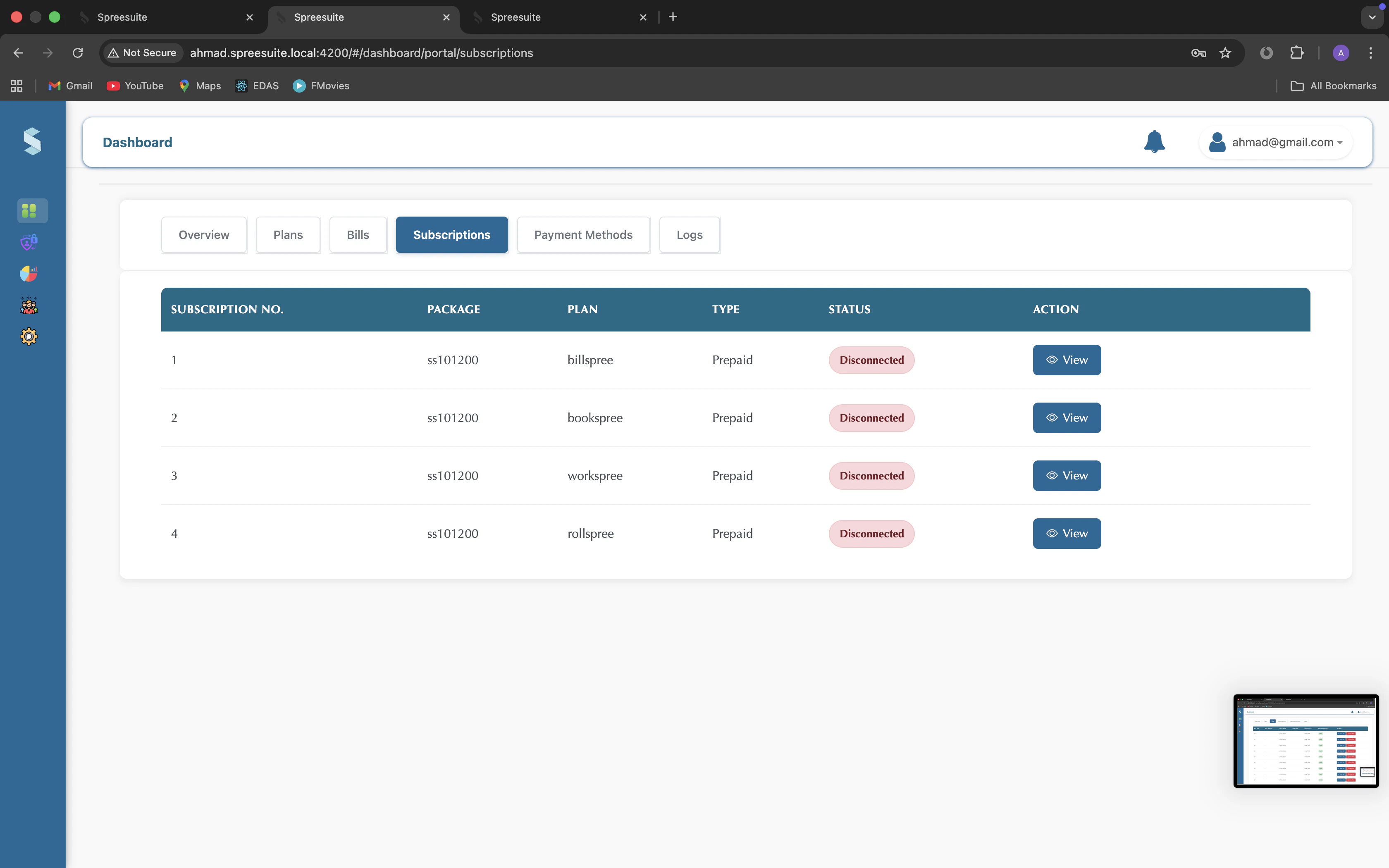
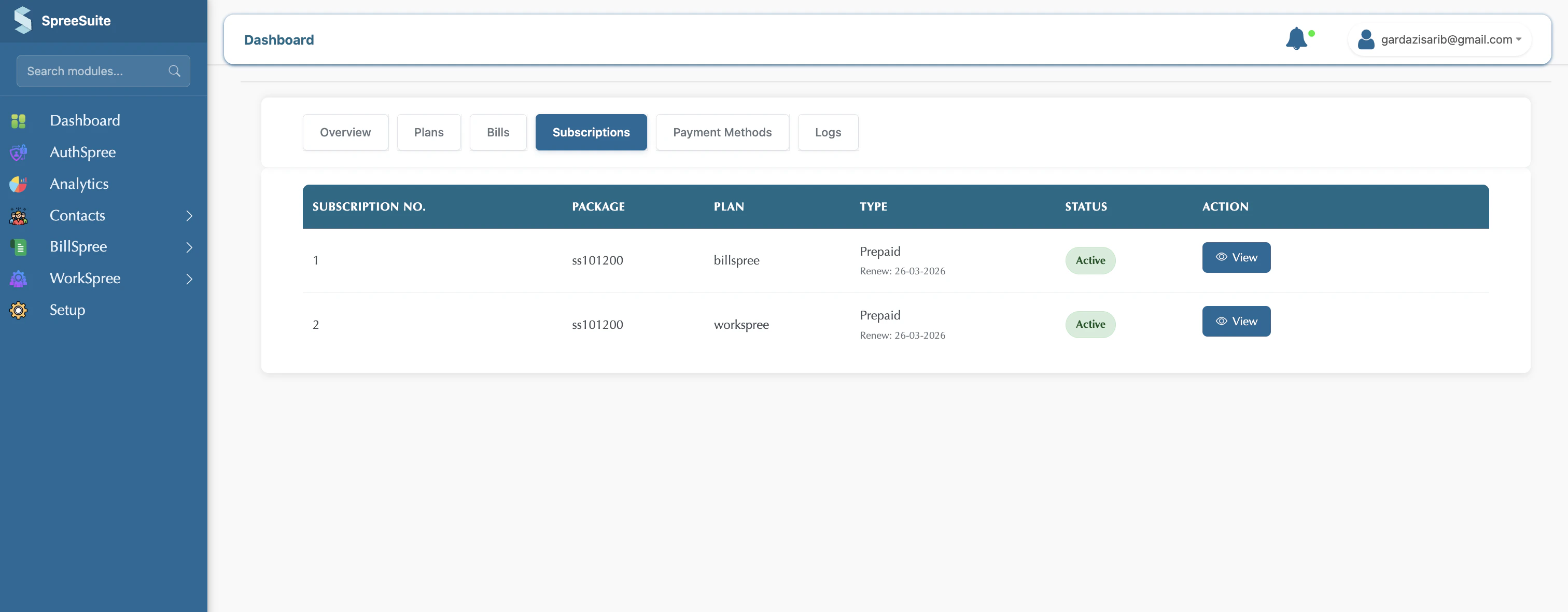 * They can open a subscription to see details, linked bills, etc.
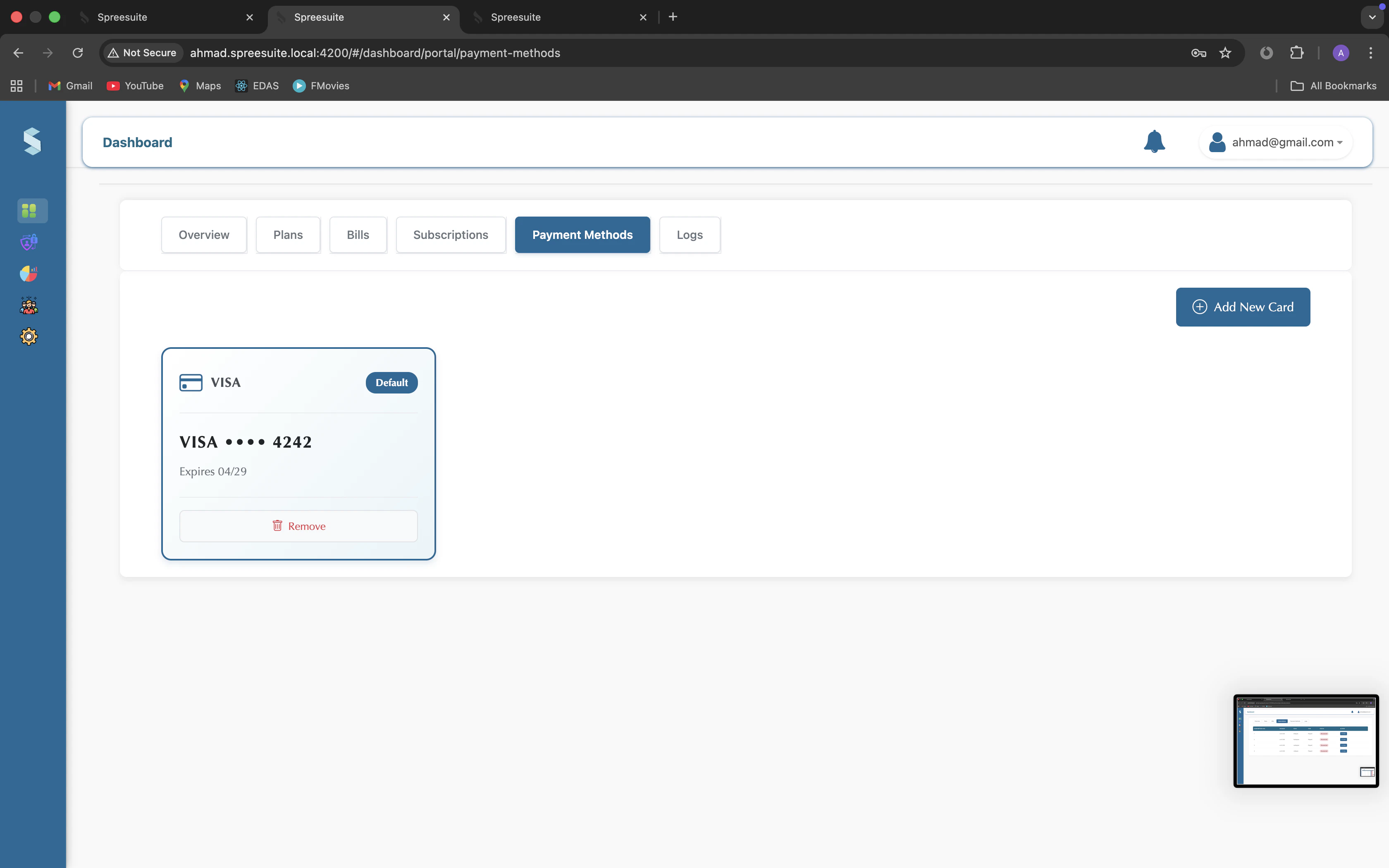
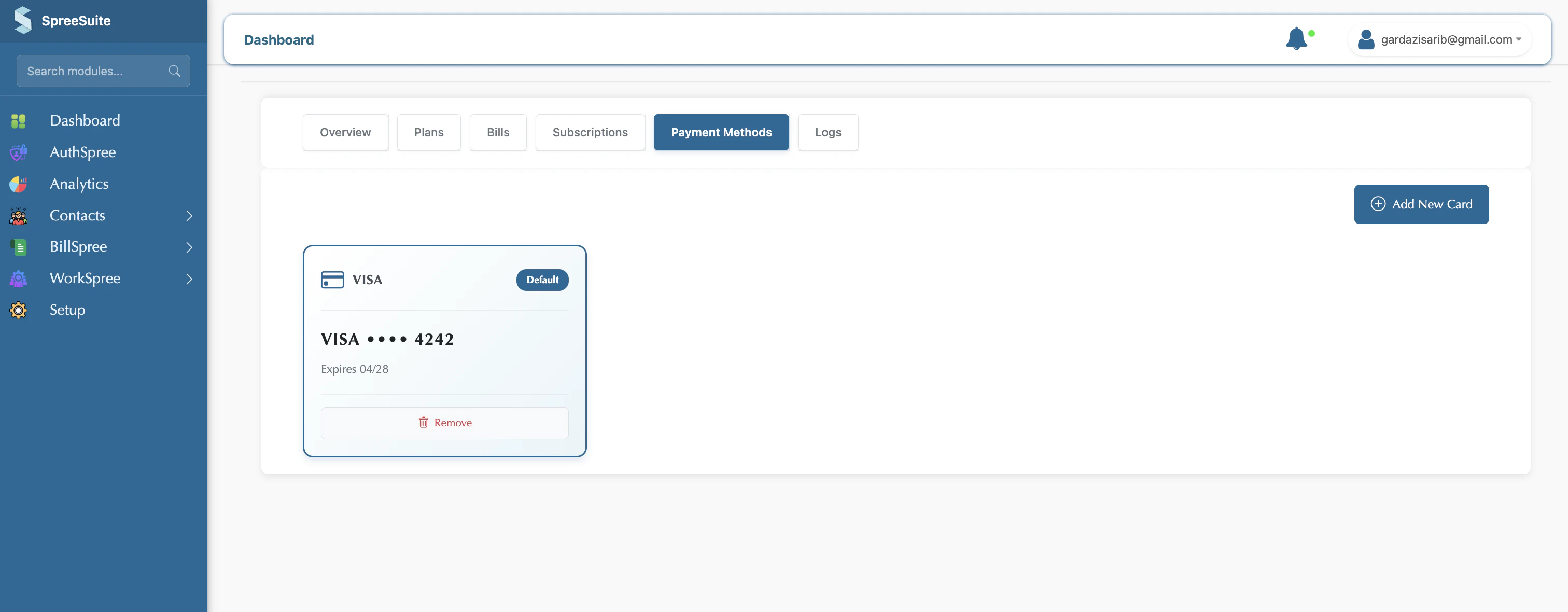
Saved payment methods (e.g., credit cards).
* They can open a subscription to see details, linked bills, etc.
Saved payment methods (e.g., credit cards).
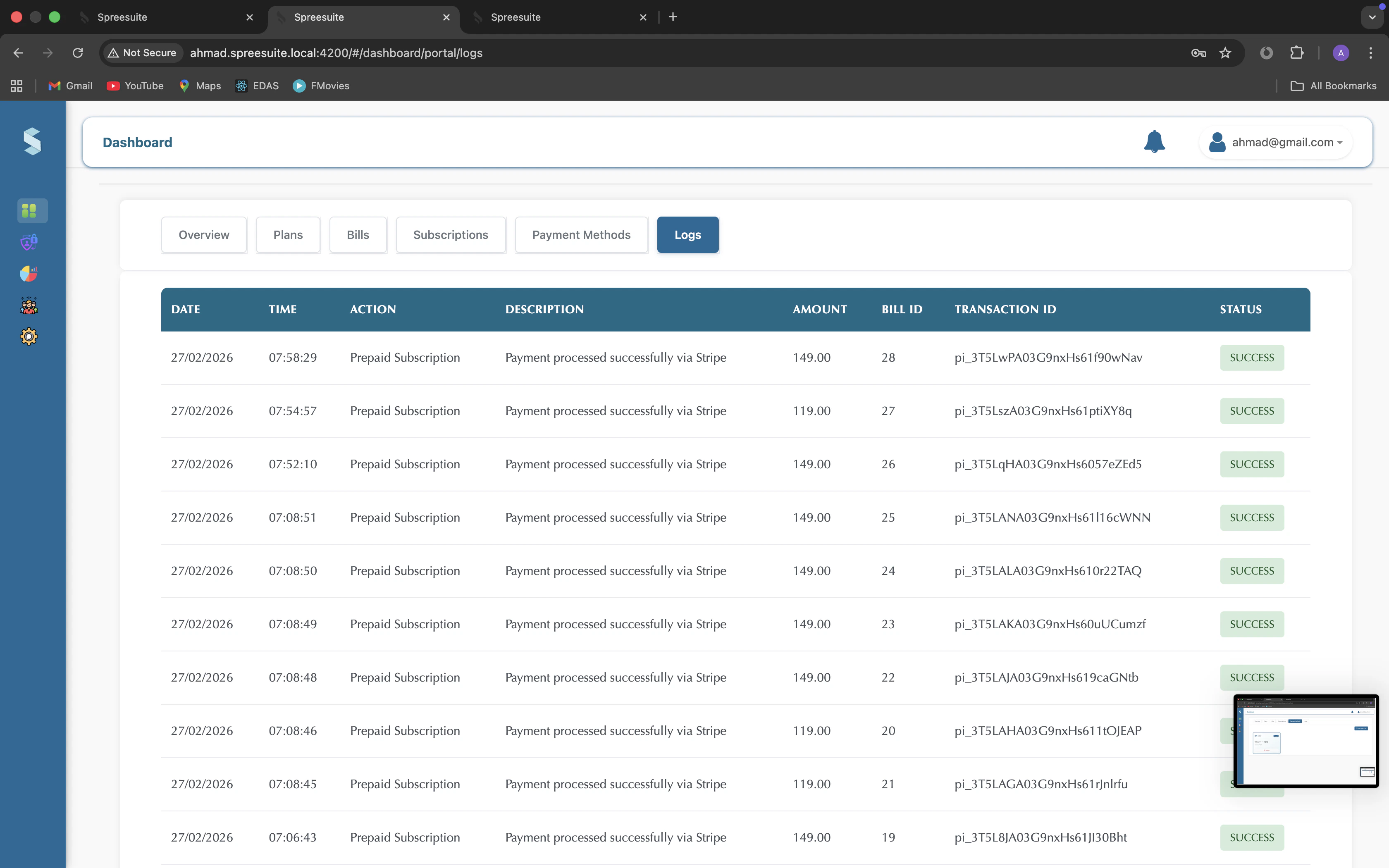
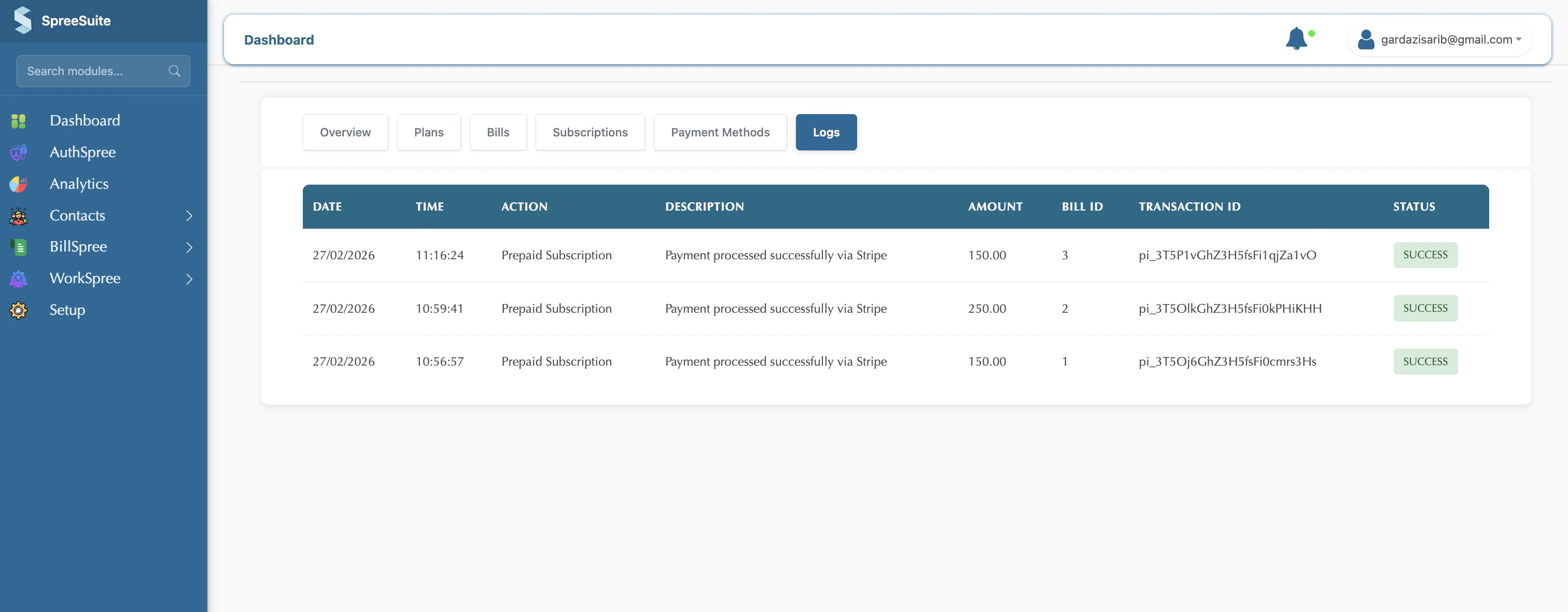
 History of what happened with payments.
* Includes date, time, action (e.g., “Payment”), description, amount, bill ID, transaction ID, and status (e.g., Success / Error).
History of what happened with payments.
* Includes date, time, action (e.g., “Payment”), description, amount, bill ID, transaction ID, and status (e.g., Success / Error).
 Their personal/contact and address details.
* They can view (and sometimes edit) their own profile.
**In short**: "When I log in as a customer, I see my balance, my plans, my bills, my subscriptions, my payment methods, my payment history, and my profile. I can pay bills and manage my account myself."
***
### **2. Customer View**
**Summary**: The place where customers log in to see their balance, bills, subscriptions, and payment history, and to pay online or manage their profile.
**Who**: A customer (or someone with a “customer” role) who logs in with their own email and password.
**In short**: "When I log in as an admin, I see my balance, my plans, my bills, my subscriptions, my payment methods, my payment history, and my profile. I can pay bills and manage my account myself."
***
## **Summary Comparison**
| Topic | Customer view | Admin view |
| :------------------ | :----------------------------------- | :--------------------------------------------------------- |
| **Who** | The customer (logged in as customer) | Admin/staff viewing as that customer |
| **Login** | Customer’s own email/password | Admin’s login; app then shows a specific customer’s portal |
| **Dashboard** | Wallet balance + outstanding balance | Same numbers, but for the selected customer |
| **Plans** | Browse and subscribe to plans | See the same plans the customer sees |
| **Bills** | See and pay their bills | See that customer’s bills (and payment status) |
| **Subscriptions** | Their subscriptions | That customer’s subscriptions |
| **Payment methods** | Their saved cards/methods | That customer’s payment methods |
| **Logs** | Their payment/action history | That customer’s payment/action history |
| **My profile** | Their own profile | That customer’s profile |
| **Purpose** | **Self-service**: view and pay | **Support**: “see what the customer sees” |
Their personal/contact and address details.
* They can view (and sometimes edit) their own profile.
**In short**: "When I log in as a customer, I see my balance, my plans, my bills, my subscriptions, my payment methods, my payment history, and my profile. I can pay bills and manage my account myself."
***
### **2. Customer View**
**Summary**: The place where customers log in to see their balance, bills, subscriptions, and payment history, and to pay online or manage their profile.
**Who**: A customer (or someone with a “customer” role) who logs in with their own email and password.
**In short**: "When I log in as an admin, I see my balance, my plans, my bills, my subscriptions, my payment methods, my payment history, and my profile. I can pay bills and manage my account myself."
***
## **Summary Comparison**
| Topic | Customer view | Admin view |
| :------------------ | :----------------------------------- | :--------------------------------------------------------- |
| **Who** | The customer (logged in as customer) | Admin/staff viewing as that customer |
| **Login** | Customer’s own email/password | Admin’s login; app then shows a specific customer’s portal |
| **Dashboard** | Wallet balance + outstanding balance | Same numbers, but for the selected customer |
| **Plans** | Browse and subscribe to plans | See the same plans the customer sees |
| **Bills** | See and pay their bills | See that customer’s bills (and payment status) |
| **Subscriptions** | Their subscriptions | That customer’s subscriptions |
| **Payment methods** | Their saved cards/methods | That customer’s payment methods |
| **Logs** | Their payment/action history | That customer’s payment/action history |
| **My profile** | Their own profile | That customer’s profile |
| **Purpose** | **Self-service**: view and pay | **Support**: “see what the customer sees” |