> ## Documentation Index
> Fetch the complete documentation index at: https://docs.techfootintl.com/llms.txt
> Use this file to discover all available pages before exploring further.
# Account/COA
## **What is the Chart of Accounts?**
The **Chart of Accounts (COA)** is like a filing cabinet for your business. It is a list of all the categories (accounts) where you store your money transactions.
For example:
* **Cash Account**: Money you have in hand.
* **Bank Account**: Money in your bank.
* **Rent Expense**: Money you spend on office rent.
***
## **Viewing Your Accounts**
You can look at your accounts in two ways:
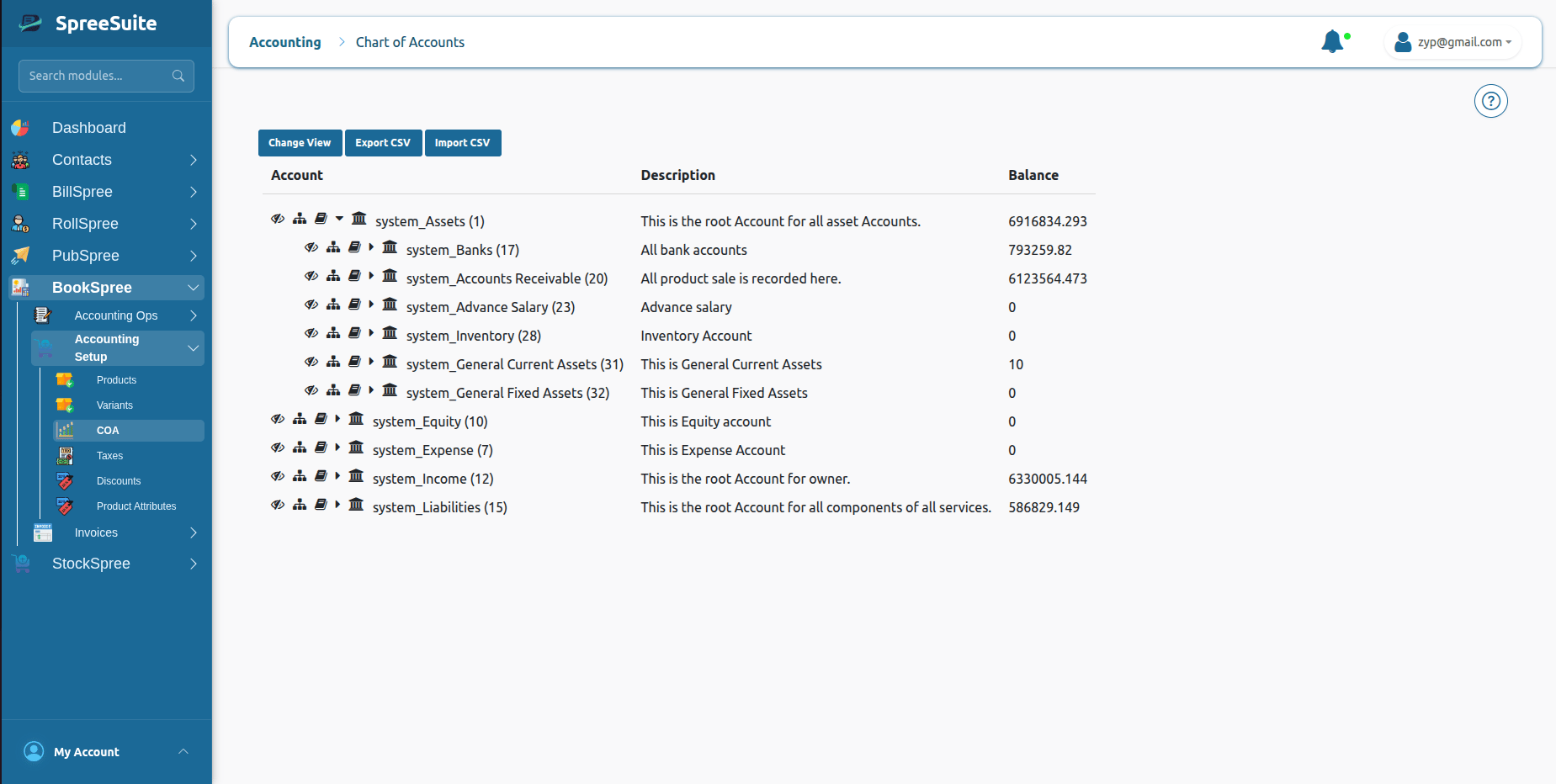
### **1. Tree View**
This shows how accounts are related. For example, "Current Assets" might include "Cash" and "Bank".
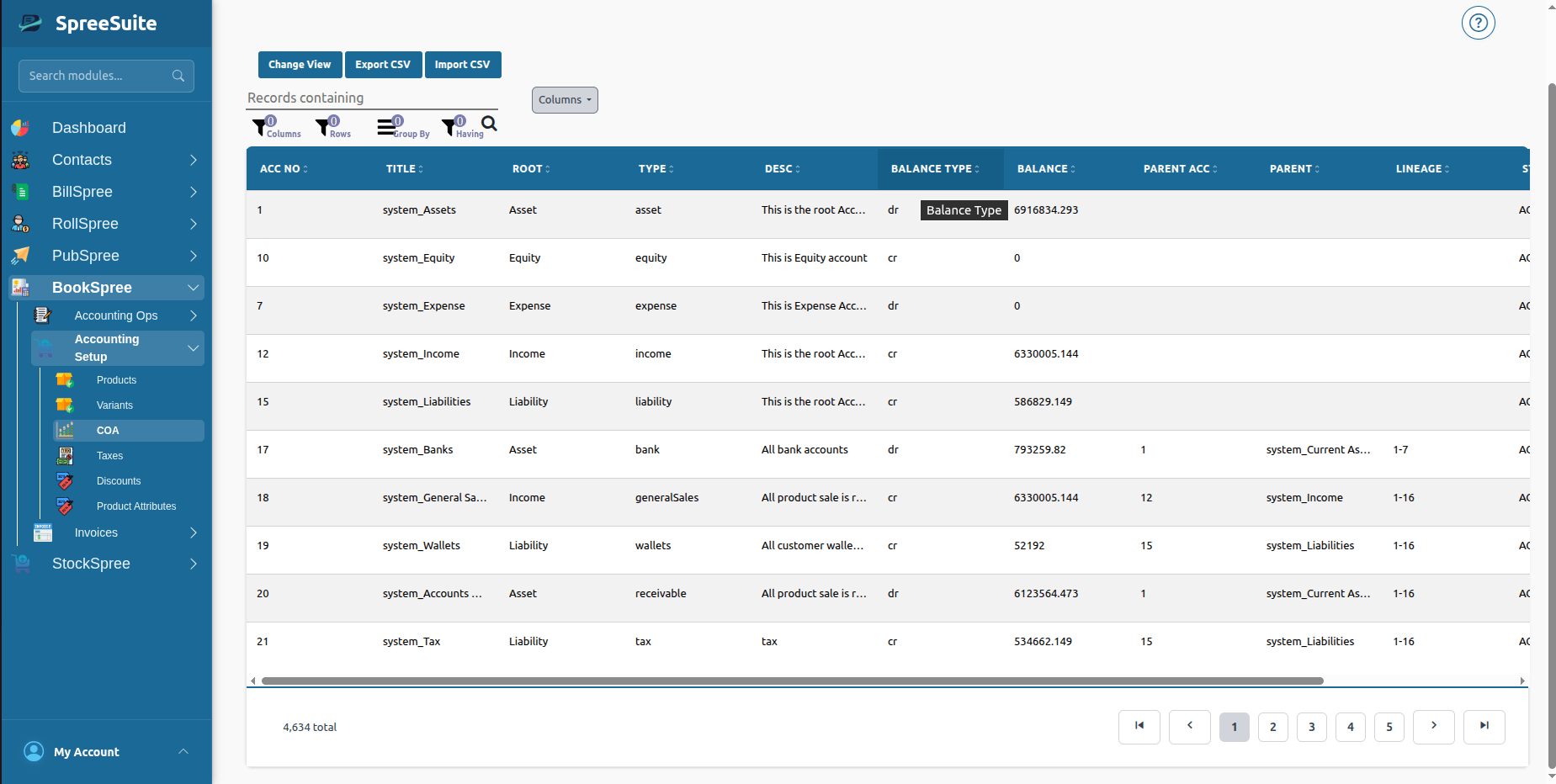
 ### **2. List View**
This shows all your accounts in a simple list, like a spreadsheet. It tells you the name, type, and current balance of each account.
### **2. List View**
This shows all your accounts in a simple list, like a spreadsheet. It tells you the name, type, and current balance of each account.
 ***
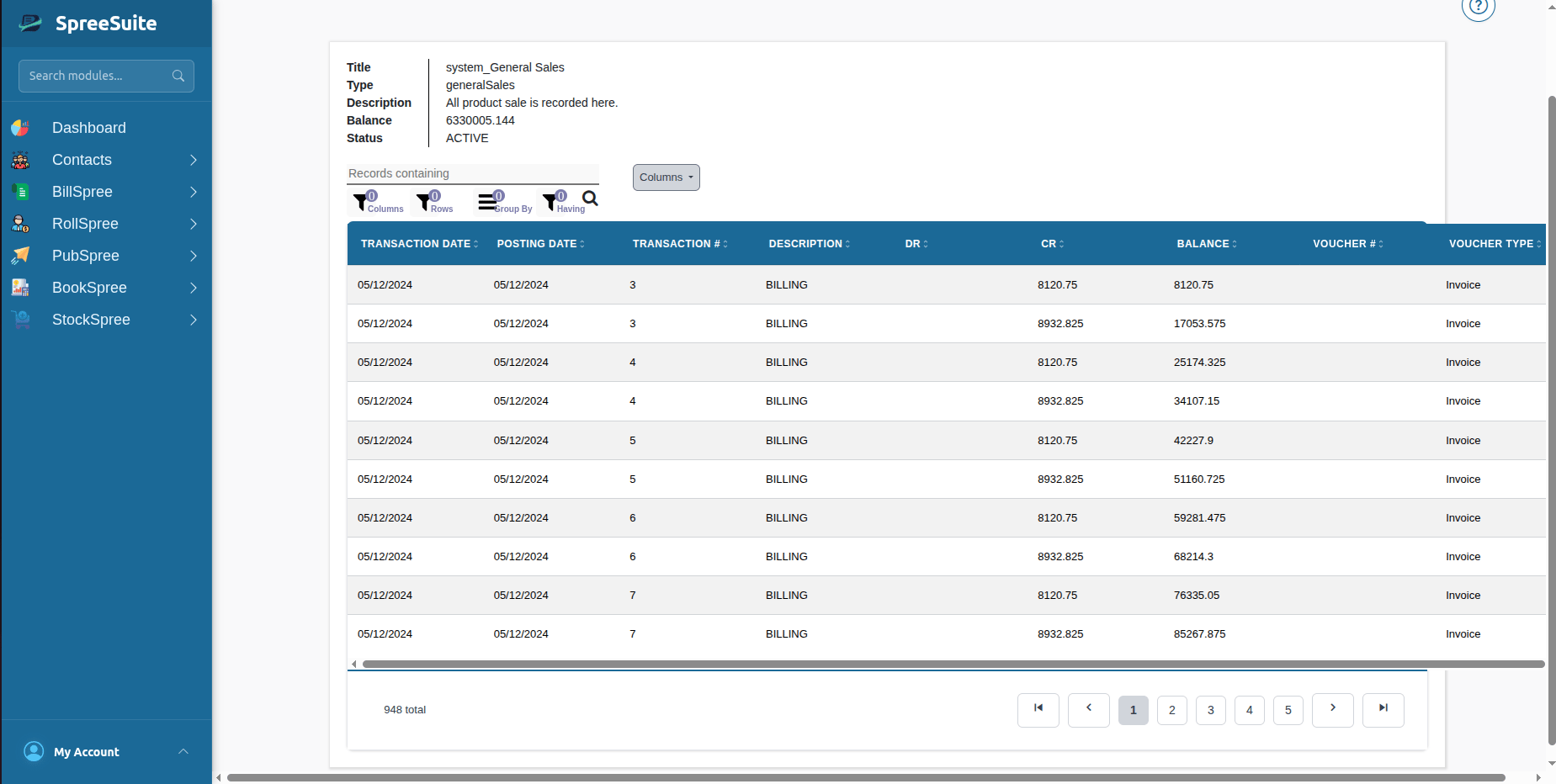
## **Account Details & Ledger**
When you click on an account name, you can see its **Details**. This shows you every single transaction that has ever affected that specific account.
***
## **Account Details & Ledger**
When you click on an account name, you can see its **Details**. This shows you every single transaction that has ever affected that specific account.
 ***
## **Create a new category (Account)?**
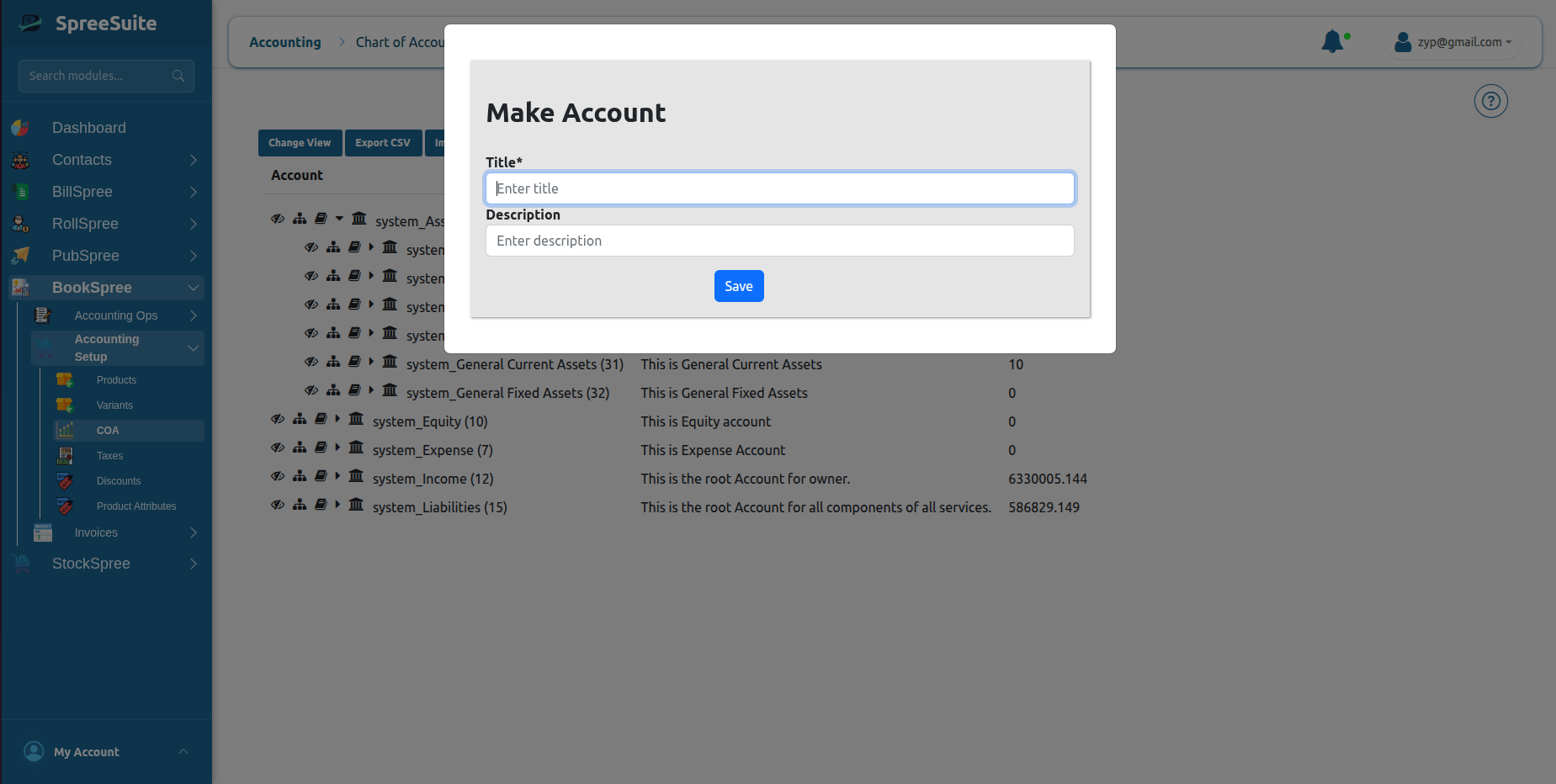
1. Go to **Accounting Setup → COA**.
2. Click the **"Tree Structure "** in tree view.
3. Give it a **Title** (like "New Office Laptop").
4. Pick the **Type** (is it an Asset? an Expense?).
5. Click **Save**. Now you can start recording money in this new category!
***
## **Create a new category (Account)?**
1. Go to **Accounting Setup → COA**.
2. Click the **"Tree Structure "** in tree view.
3. Give it a **Title** (like "New Office Laptop").
4. Pick the **Type** (is it an Asset? an Expense?).
5. Click **Save**. Now you can start recording money in this new category!