> ## Documentation Index
> Fetch the complete documentation index at: https://docs.techfootintl.com/llms.txt
> Use this file to discover all available pages before exploring further.
# Capture Usage Data
## Overview
Before bills can be calculated and generated, all billable usage must be captured within the term.
Usage data represents the services consumed by customers during the billing period. This information serves as the foundation for billing calculations and determines how much a customer will be charged.
The billing system supports multiple methods of usage collection, allowing organizations to bill both consumption-based and non-consumption-based services within the same term.
Once all required usage data has been captured, the term contains the information needed for bill processing and charge calculation.
# Why Usage Data Matters
Usage data is one of the most important inputs in the billing lifecycle.
Without usage information, the system cannot determine:
* How much of a service was consumed
* Which customers should be charged
* How billing rules should be applied
* The final amount that should appear on customer bills
Accurate usage collection leads to accurate billing.
# Types of Usage Data
The billing system supports three primary categories of billable inputs:
```mermaid theme={null}
graph LR
%% Define Nodes
Root["Usage Data"]
NodeA["Metered Usage"]
NodeB["Unmetered Usage"]
NodeC["Manual Components"]
%% Define Connections
Root --> NodeA
Root --> NodeB
Root --> NodeC
%% Styling for a clean, professional look
style Root fill:#fff,stroke:#333,stroke-width:1px
style NodeA fill:#fff,stroke:#333,stroke-width:1px
style NodeB fill:#fff,stroke:#333,stroke-width:1px
style NodeC fill:#fff,stroke:#333,stroke-width:1px
```
Each category serves a different purpose and may be used independently or together within the same billing term.
***
# Metered Usage
Metered usage is collected from physical meters and is typically used for consumption-based billing.
The customer's charge depends on the amount of service consumed during the billing period.
## Common Examples
### Electricity
Customers are billed based on electricity units consumed.
| Previous Reading | Current Reading | Consumption |
| :--------------- | :-------------- | :---------- |
| 12,500 | 13,250 | 750 Units |
### Water
Customers are billed based on water usage.
| Previous Reading | Current Reading | Consumption |
| :--------------- | :-------------- | :---------- |
| 4,500 | 4,680 | 180 Units |
### Gas
Customers are billed according to gas consumption recorded by a meter.
### Utility Services
Any service that uses a physical meter to record consumption falls into this category.
## Benefits of Metered Usage
* Accurate consumption tracking
* Fair customer billing
* Detailed usage reporting
* Support for tiered pricing model
## How Meter Usage is Recorded:
* Meter assignment to subscriptions or connections
* Meter reading uploads
* Consumption-based billing
* Active and inactive meter management
* Batch-based billing processing Lifecycle
```mermaid theme={null}
graph TD
%% Define Nodes
A["Create Meter"]
B["Assign Meter to Connection"]
C["Upload Meter Readings"]
D["Post Meter Readings"]
E["Billing Processing"]
F["Invoice Generation"]
%% Define Connections
A --> B
B --> C
C --> D
D --> E
E --> F
%% Styling for a clean, professional look
style A fill:#fff,stroke:#333,stroke-width:1px
style B fill:#fff,stroke:#333,stroke-width:1px
style C fill:#fff,stroke:#333,stroke-width:1px
style D fill:#fff,stroke:#333,stroke-width:1px
style E fill:#fff,stroke:#333,stroke-width:1px
style F fill:#fff,stroke:#333,stroke-width:1px
```
## Create Meter
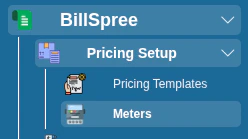
1- Go to **Billspree → Pricing Templates →Meters**
 2- Use the **“New”** action to open **Add New Meter**
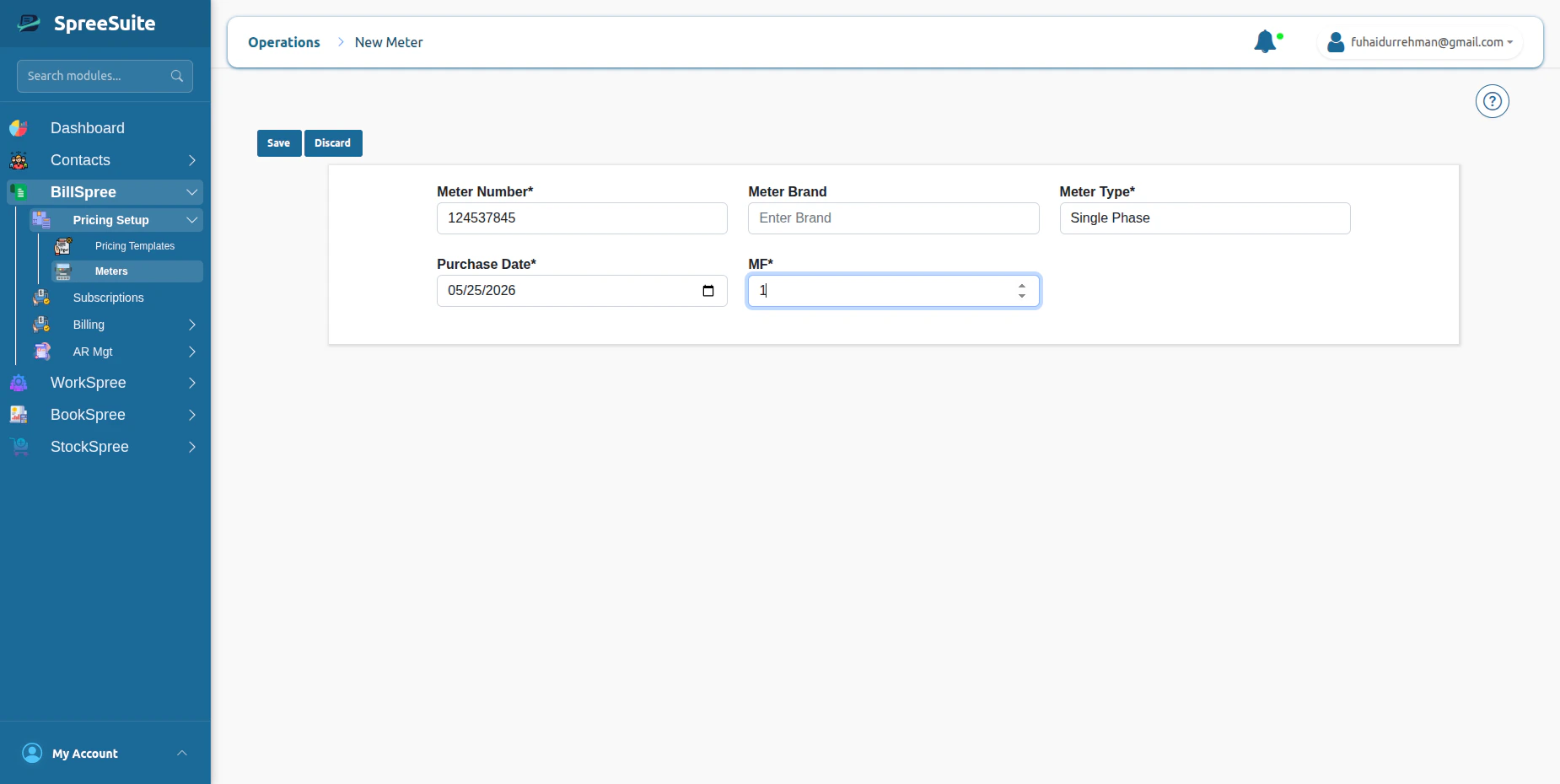 3- Fill: **Meter Number**\_, **Brand**, **Meter Type (from dropdown), Purchase Date**, \_***MF***.
4- Click the Save buttonNew meters start as **unassigned** and **InActive** until you assign them to a connection.
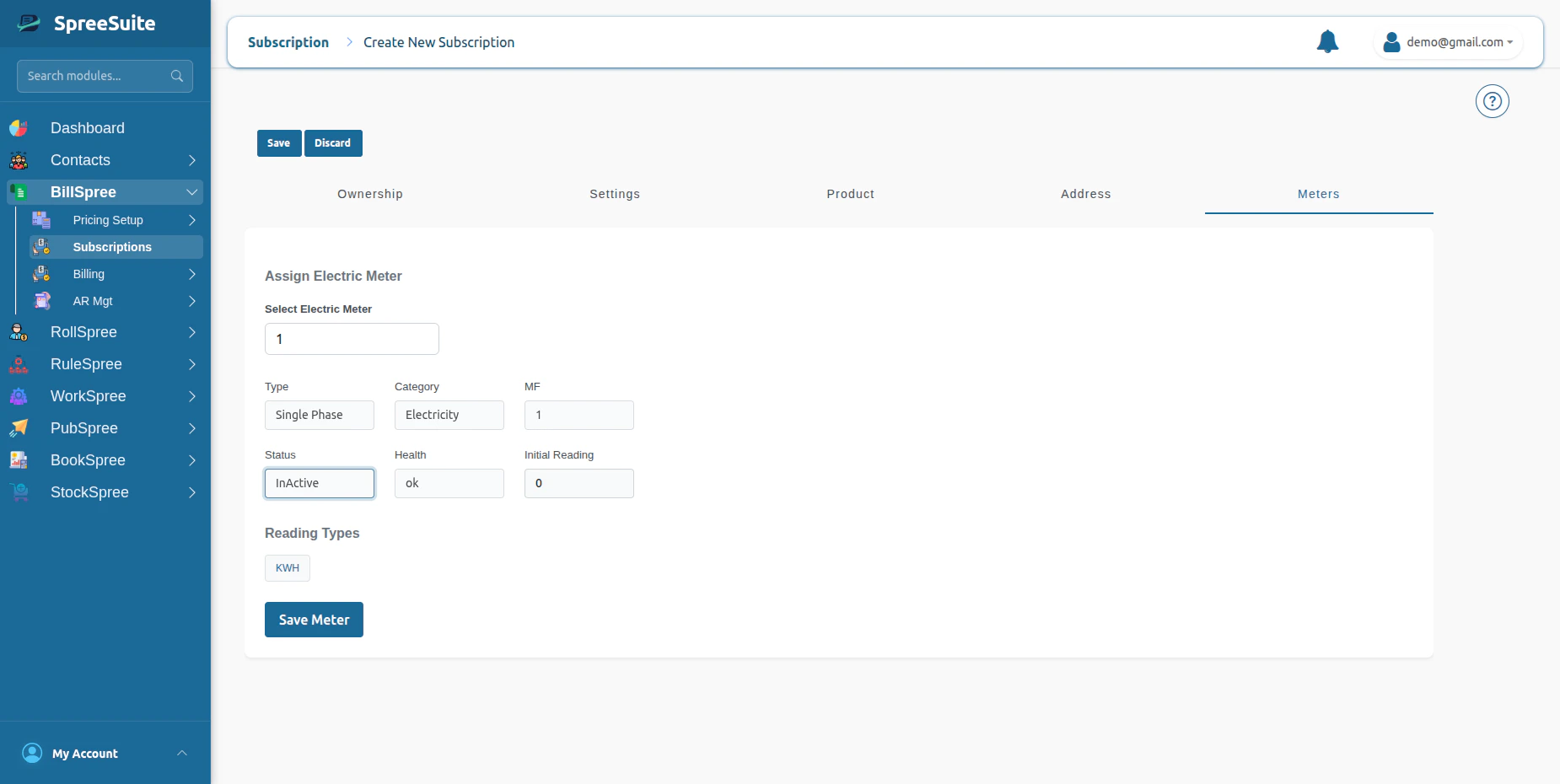
## **Where do we assign meters?**
1- Go on Subscription screen click new Button
3- Fill: **Meter Number**\_, **Brand**, **Meter Type (from dropdown), Purchase Date**, \_***MF***.
4- Click the Save buttonNew meters start as **unassigned** and **InActive** until you assign them to a connection.
## **Where do we assign meters?**
1- Go on Subscription screen click new Button
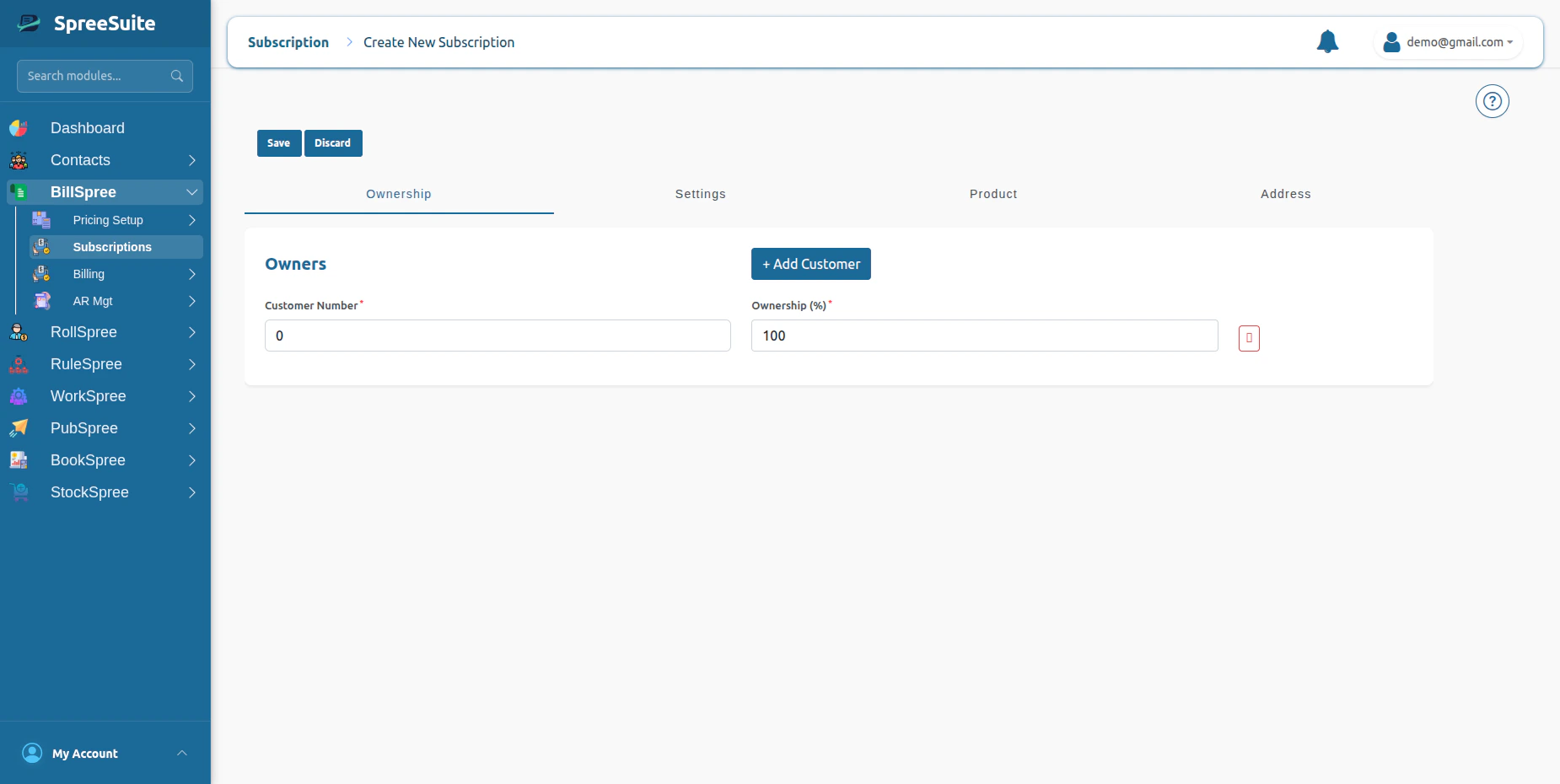 2- Click on the settings tab Select pricing template, plan variant, and batch
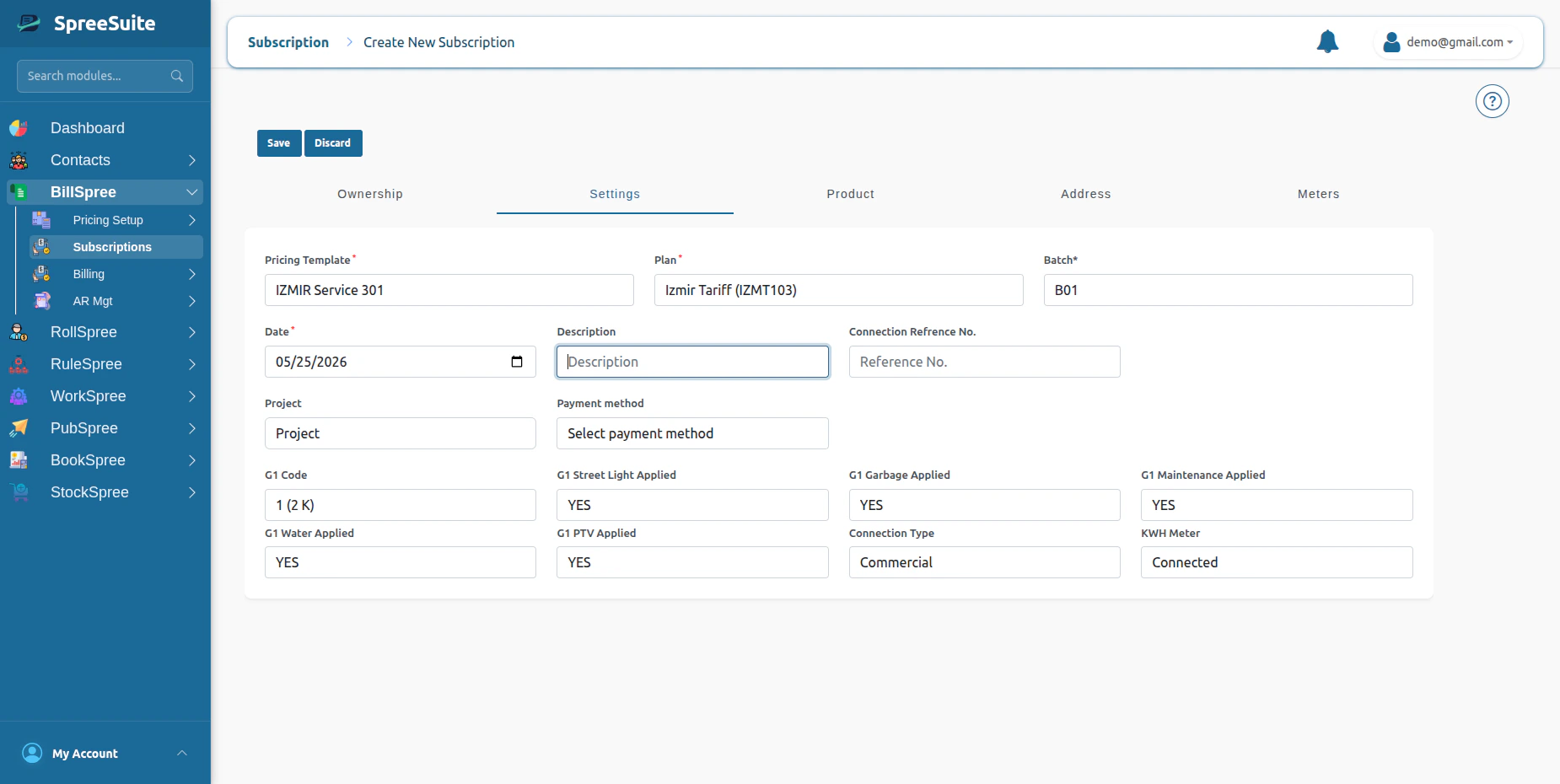 4- Meter tab appears Select Meter from the dropdown
 ## Upload Meter Readings
Before billing can be processed, meter readings must first be uploaded into the system.
These readings represent the customer’s actual utility consumption for a billing cycle.
1- Go to **Billspree →Billing →Meter Readings**
## Upload Meter Readings
Before billing can be processed, meter readings must first be uploaded into the system.
These readings represent the customer’s actual utility consumption for a billing cycle.
1- Go to **Billspree →Billing →Meter Readings**
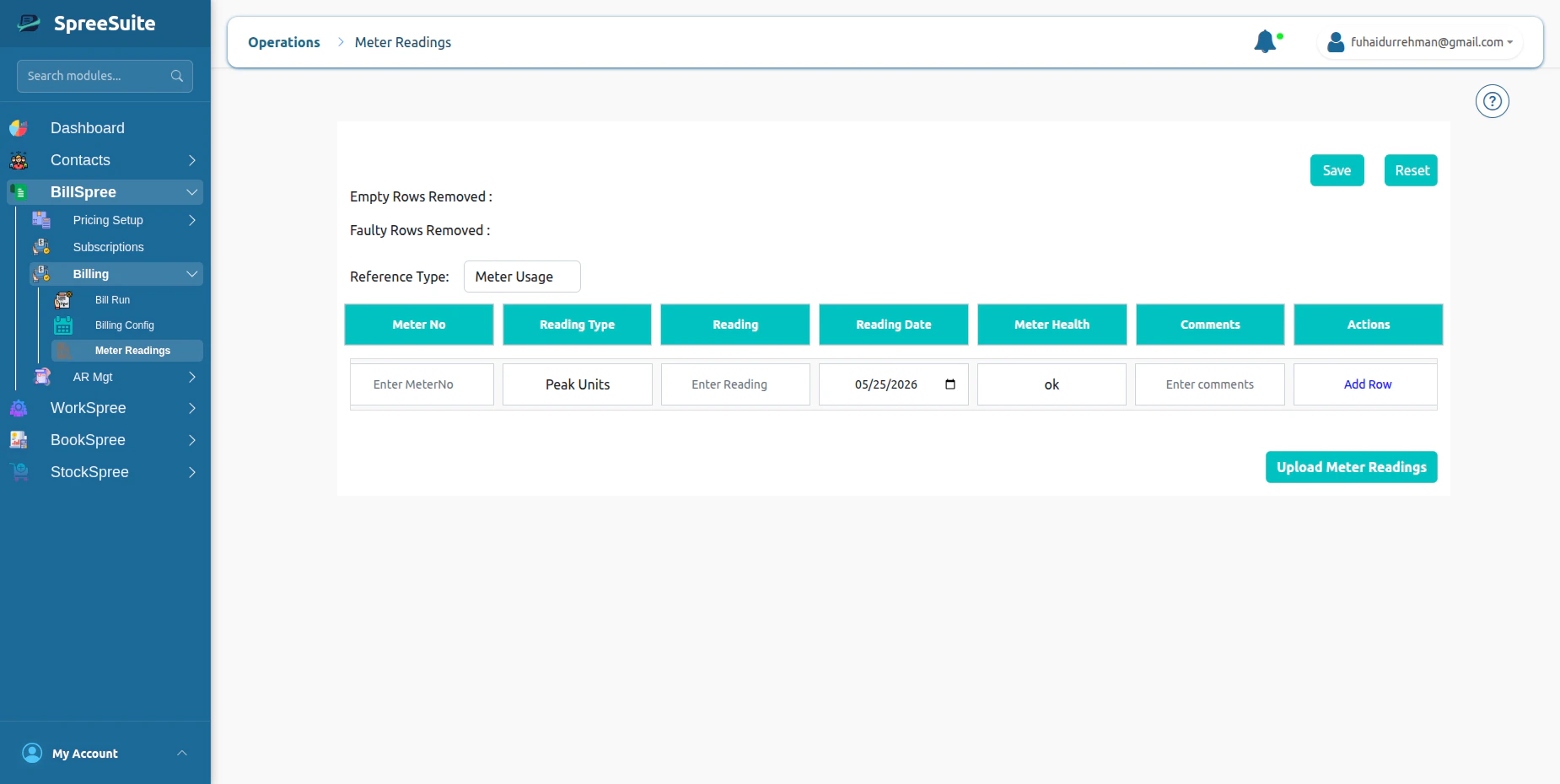 2- Select Reference type Meter Usage
3- Fill all fields and click on save button.
2- Select Reference type Meter Usage
3- Fill all fields and click on save button.
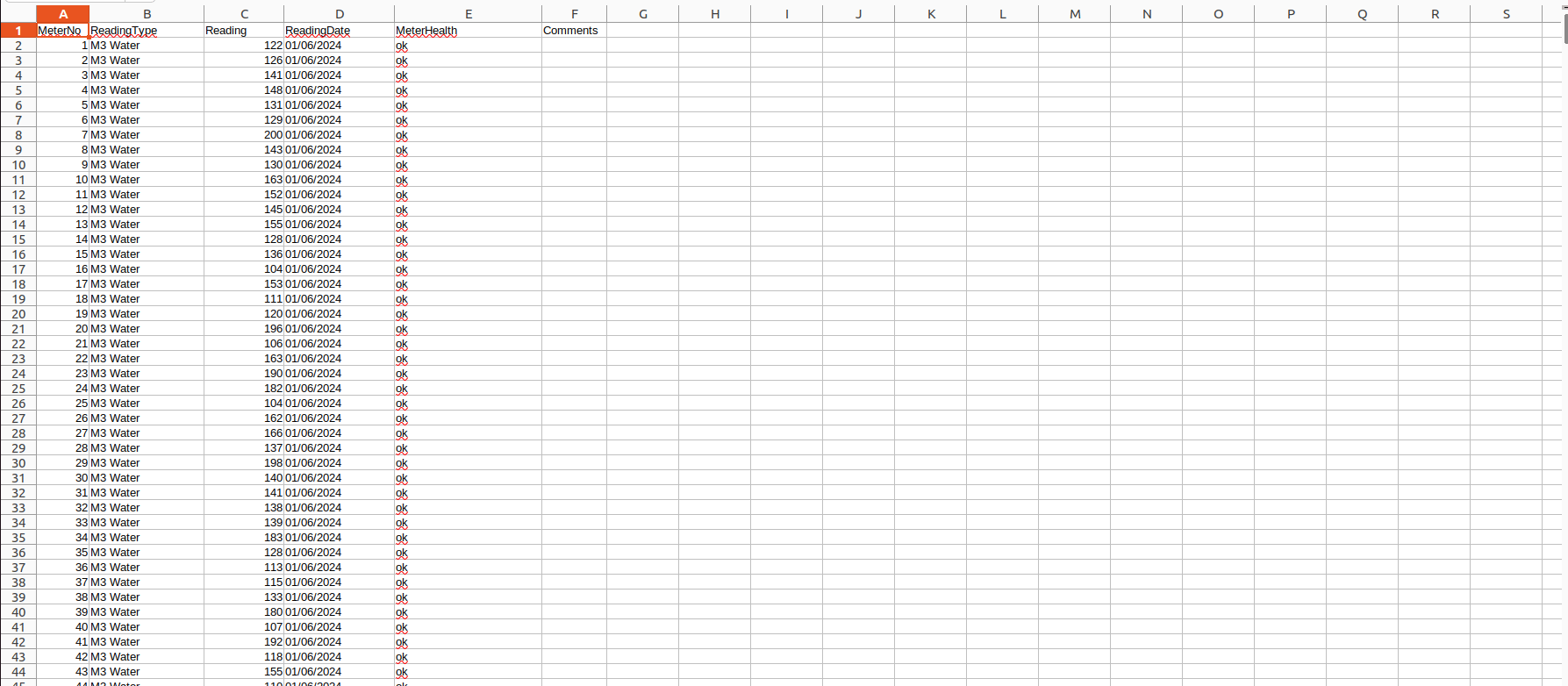
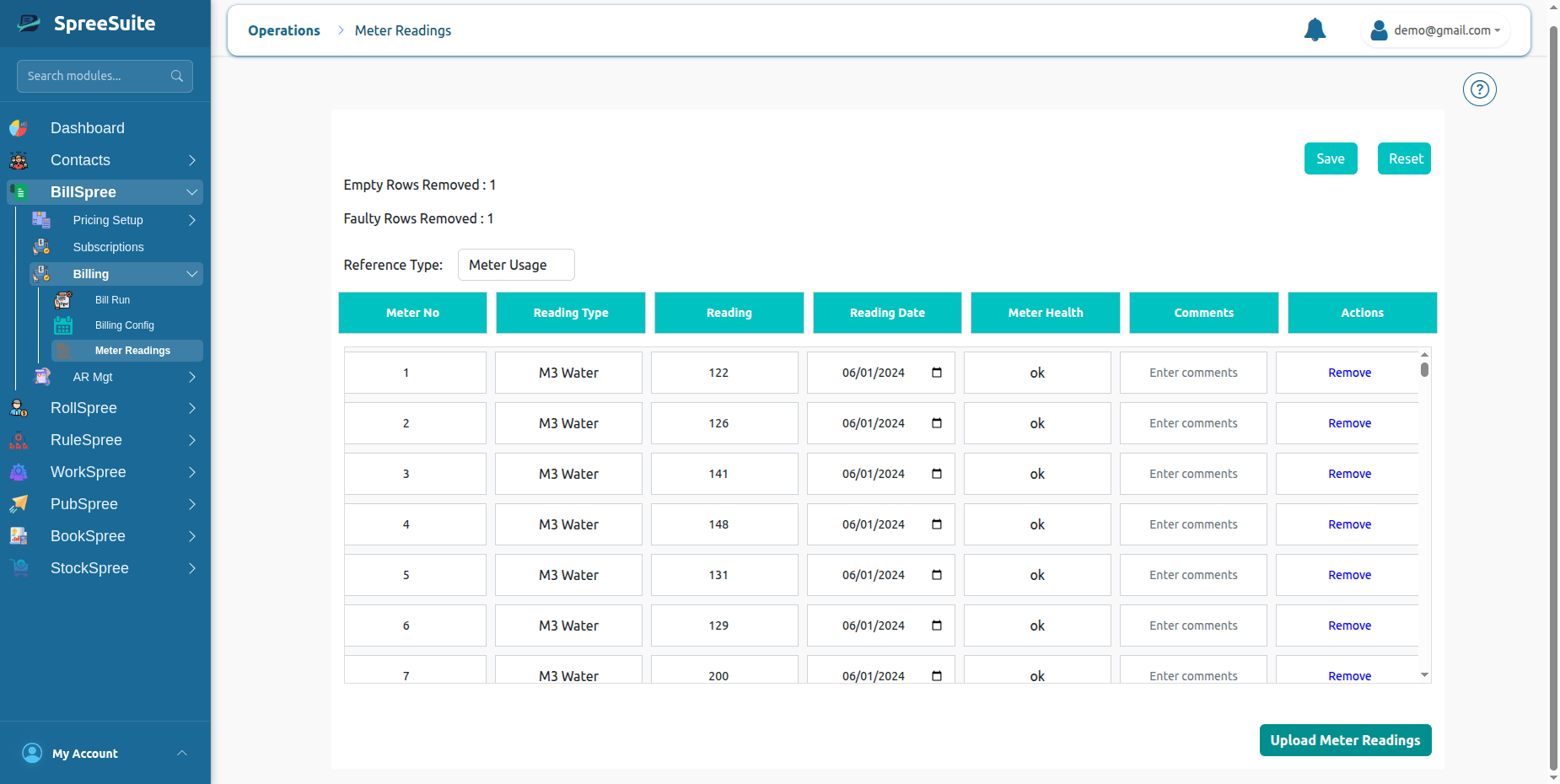 4-You can upload Meter Reading via CSV.
 # Unmetered Usage
Not all services have physical meters.
Some services require usage values to be recorded manually or generated through operational processes.
These values are known as unmetered usage.
## Common Examples
### Fixed Service Quantities
A customer receives a predefined service quantity every billing cycle.
Example:
| Customer | Service | Quantity |
| :---------- | :--------------- | :----------- |
| ABC Company | Waste Collection | 1 Collection |
### Subscription-Based Services
A customer subscribes to a recurring service.
Example:
| Customer | Service |
| :--------- | :----------------------- |
| John Smith | Premium Maintenance Plan |
### Virtual Usage
Usage generated by systems rather than physical devices.
Examples:
* Cloud resources
* Virtual machines
* Digital service consumption
## Benefits of Unmetered Usage
* Supports non-metered services
* Flexible billing models
* Easy service tracking
* Consistent billing workflows
## Upload Unmetered Usage Data
Instead of uploading meter readings, the system accepts usage datasets that represent customer consumption or billable quantities.
These uploads become the source for billing calculations.
These readings represent the customer’s actual Usage of Billing cycle.
1- Go to **Billspree →Billing →Meter Readings**
2- Select Reference type UnMeter Usage
# Unmetered Usage
Not all services have physical meters.
Some services require usage values to be recorded manually or generated through operational processes.
These values are known as unmetered usage.
## Common Examples
### Fixed Service Quantities
A customer receives a predefined service quantity every billing cycle.
Example:
| Customer | Service | Quantity |
| :---------- | :--------------- | :----------- |
| ABC Company | Waste Collection | 1 Collection |
### Subscription-Based Services
A customer subscribes to a recurring service.
Example:
| Customer | Service |
| :--------- | :----------------------- |
| John Smith | Premium Maintenance Plan |
### Virtual Usage
Usage generated by systems rather than physical devices.
Examples:
* Cloud resources
* Virtual machines
* Digital service consumption
## Benefits of Unmetered Usage
* Supports non-metered services
* Flexible billing models
* Easy service tracking
* Consistent billing workflows
## Upload Unmetered Usage Data
Instead of uploading meter readings, the system accepts usage datasets that represent customer consumption or billable quantities.
These uploads become the source for billing calculations.
These readings represent the customer’s actual Usage of Billing cycle.
1- Go to **Billspree →Billing →Meter Readings**
2- Select Reference type UnMeter Usage
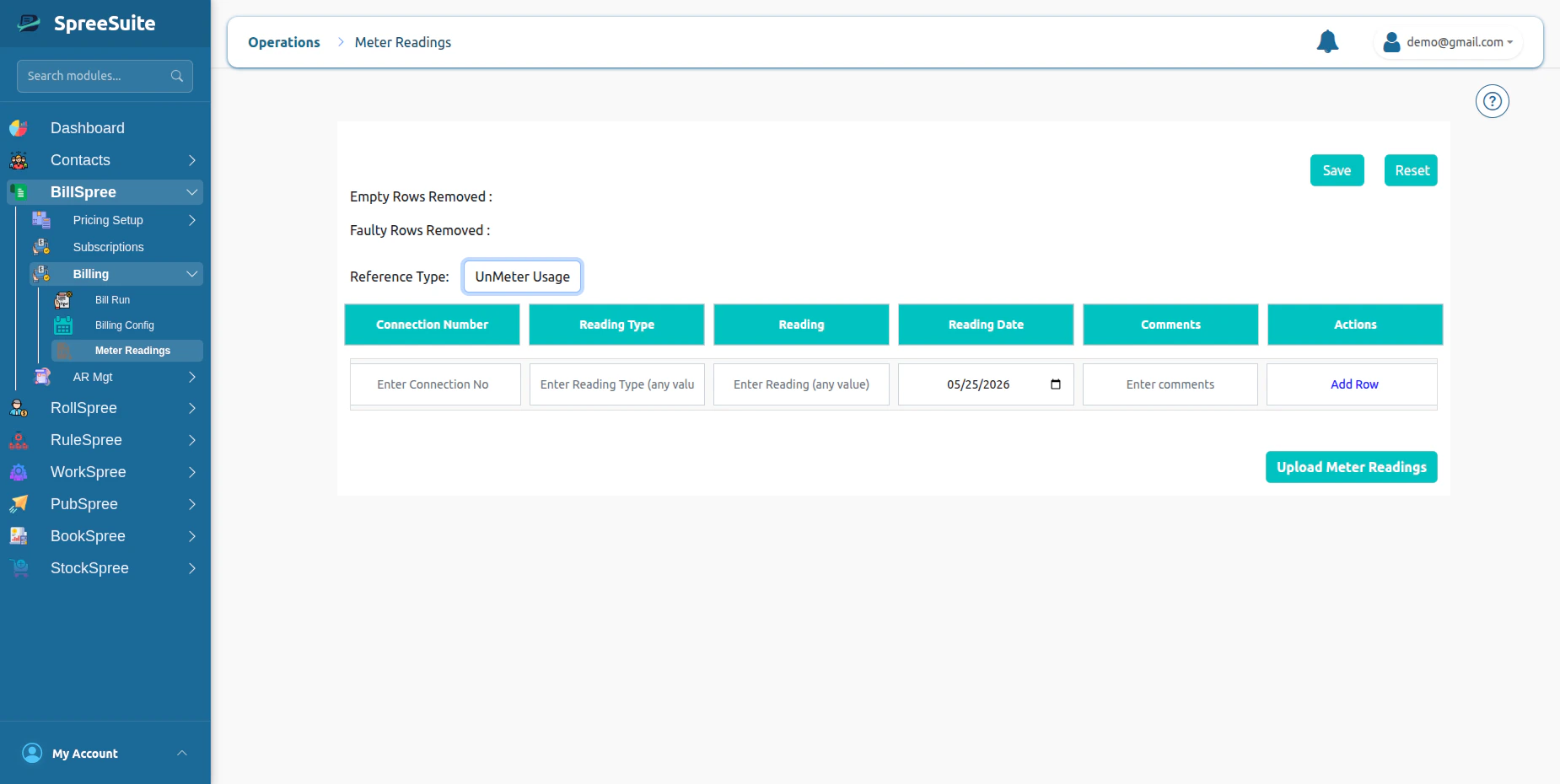 3- Fill all fields and click on save button.
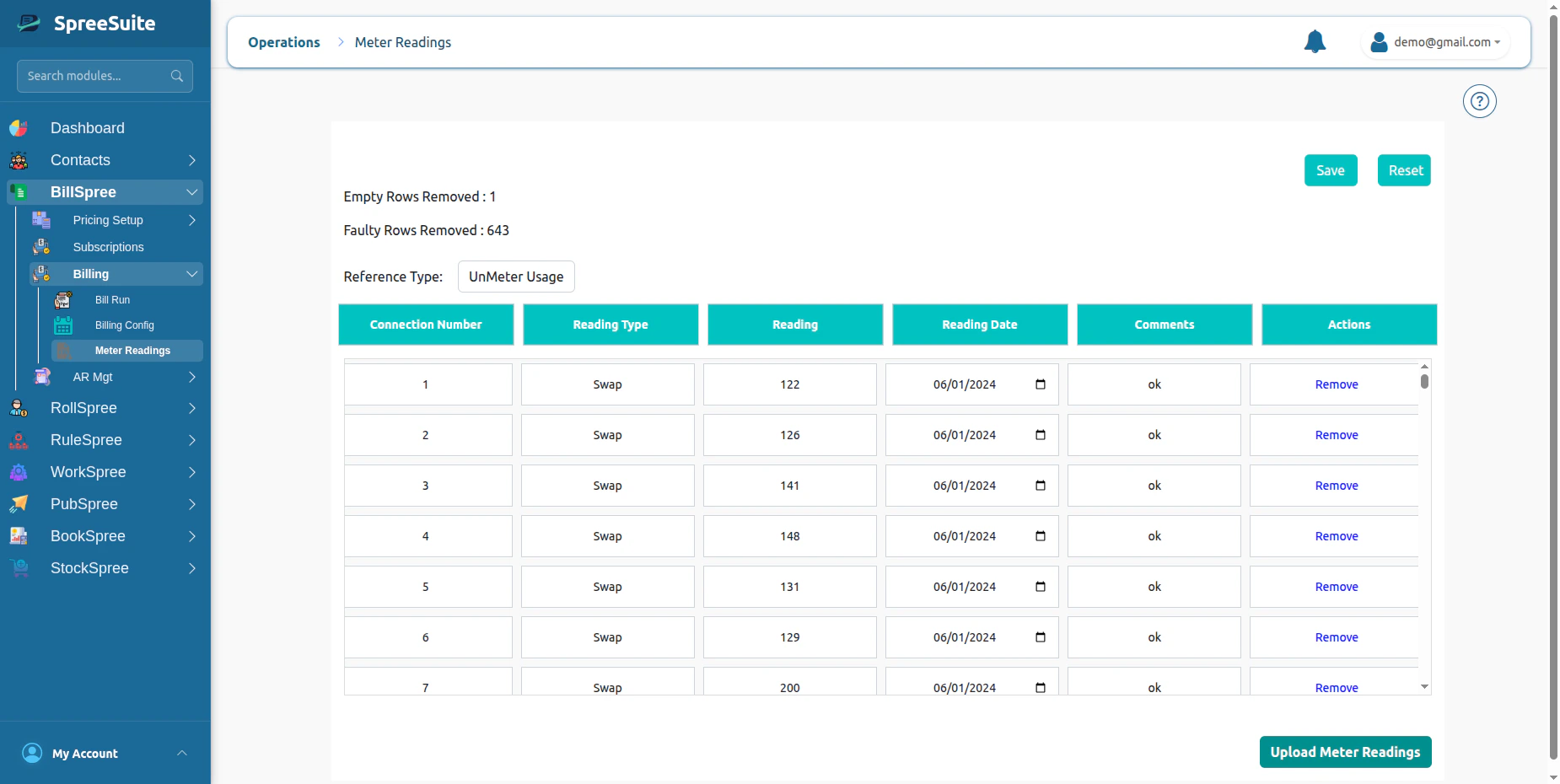 ## Unmetered Billing Flow
```mermaid theme={null}
graph TD
%% Define Nodes
A["Upload Usage Data"]
B["Validate Records"]
C["Post Billing Usage"]
D["Apply Pricing Rules"]
E["Generate Charges"]
F["Create Invoice"]
%% Define Connections
A --> B
B --> C
C --> D
D --> E
E --> F
%% Styling for a clean, professional look
style A fill:#fff,stroke:#333,stroke-width:1px
style B fill:#fff,stroke:#333,stroke-width:1px
style C fill:#fff,stroke:#333,stroke-width:1px
style D fill:#fff,stroke:#333,stroke-width:1px
style E fill:#fff,stroke:#333,stroke-width:1px
style F fill:#fff,stroke:#333,stroke-width:1px
```
# Manual Components
Manual components are additional billable items entered directly into the billing term.
Unlike metered and unmetered usage, manual components usually represent adjustments, charges, or credits applied to specific customers.
These components are included during bill calculation.
## Common Examples
### Penalties
Late payment charges or policy violations.
Example:
| Customer | Charge |
| :--------- | :------------ |
| John Smith | \$25 Late Fee |
### Rebates
Credits provided to customers.
Example:
| Customer | Credit |
| :---------- | :---------- |
| ABC Company | \$50 Rebate |
### Service Adjustments
Corrections applied after usage review.
Example:
| Customer | Adjustment |
| :------- | :--------------- |
| XYZ Ltd | -\$15 Adjustment |
### Upload Manual Comps
1-If your Pricing Template has Manual Comps, then click on batch action, upload the manual comps file
## Unmetered Billing Flow
```mermaid theme={null}
graph TD
%% Define Nodes
A["Upload Usage Data"]
B["Validate Records"]
C["Post Billing Usage"]
D["Apply Pricing Rules"]
E["Generate Charges"]
F["Create Invoice"]
%% Define Connections
A --> B
B --> C
C --> D
D --> E
E --> F
%% Styling for a clean, professional look
style A fill:#fff,stroke:#333,stroke-width:1px
style B fill:#fff,stroke:#333,stroke-width:1px
style C fill:#fff,stroke:#333,stroke-width:1px
style D fill:#fff,stroke:#333,stroke-width:1px
style E fill:#fff,stroke:#333,stroke-width:1px
style F fill:#fff,stroke:#333,stroke-width:1px
```
# Manual Components
Manual components are additional billable items entered directly into the billing term.
Unlike metered and unmetered usage, manual components usually represent adjustments, charges, or credits applied to specific customers.
These components are included during bill calculation.
## Common Examples
### Penalties
Late payment charges or policy violations.
Example:
| Customer | Charge |
| :--------- | :------------ |
| John Smith | \$25 Late Fee |
### Rebates
Credits provided to customers.
Example:
| Customer | Credit |
| :---------- | :---------- |
| ABC Company | \$50 Rebate |
### Service Adjustments
Corrections applied after usage review.
Example:
| Customer | Adjustment |
| :------- | :--------------- |
| XYZ Ltd | -\$15 Adjustment |
### Upload Manual Comps
1-If your Pricing Template has Manual Comps, then click on batch action, upload the manual comps file
 # Summary
Capture Usage Data is the process of collecting metered usage, unmetered usage, and manual billing components so that the system has all necessary inputs to calculate accurate customer bills.
# Summary
Capture Usage Data is the process of collecting metered usage, unmetered usage, and manual billing components so that the system has all necessary inputs to calculate accurate customer bills.