> ## Documentation Index
> Fetch the complete documentation index at: https://docs.techfootintl.com/llms.txt
> Use this file to discover all available pages before exploring further.
# Single bill adjustment
> A comprehensive guide to managing bill adjustments within a billing term, from initial draft review to final processing.
Adjustments are a critical part of the billing lifecycle in BillSpree. They allow administrators to correct errors, apply manual credits, or modify usage data before a bill is finalized and posted to the customer.
## 1. The Adjustment Lifecycle
The adjustment process ensures that every change is captured and recalculated correctly through the plan’s pricing modules.
```mermaid theme={null}
graph TD
A[1. Term Initialization
Draft Bills Created] --> B[2. Identify Bill
Locate Draft in Term List]
B --> C[3. Open Adjustment
Click 'Make Adjustment']
C --> D[4. Update Values
Edit Manual/Metered Inputs]
D --> E[5. Save Changes
Update Draft Record]
E --> F[6. Process Bill
Recalculate Totals]
F --> G[7. Post Bill
Finalize & Lock Invoice]
```
***
## 2. Step-by-Step Instructions
### Step 1: Access the Term Records
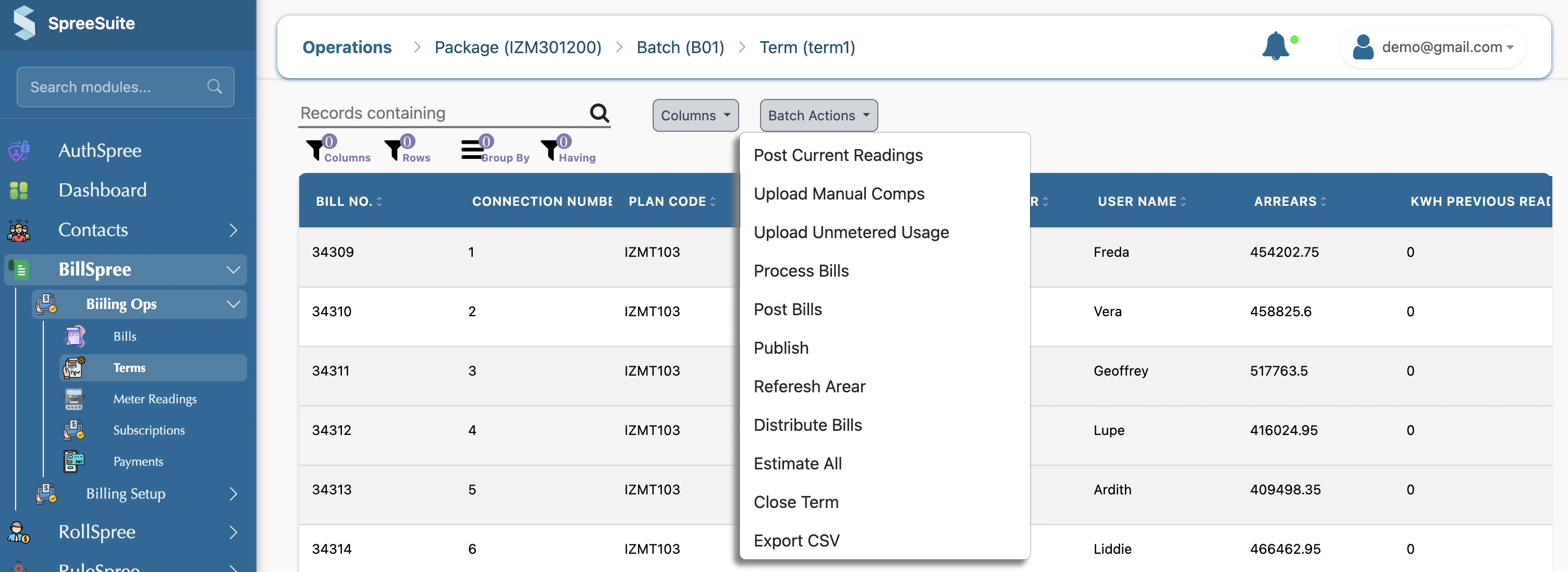
Navigate to **BillSpree > Billing Ops > Terms**. Find the active term and click on it to view the list of draft bills.
 ### Step 2: Open the Adjustment Modal
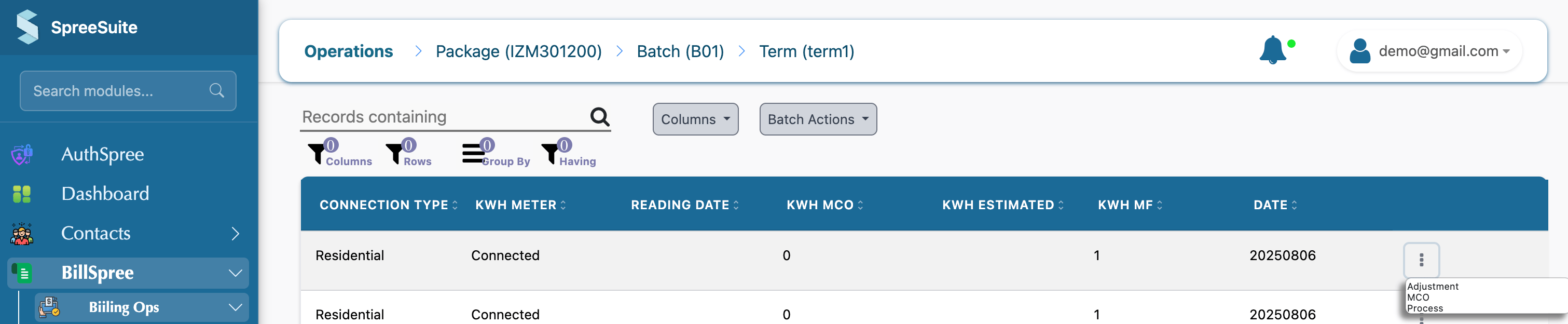
For any bill in **Draft** status, click the **three dots (⋮)** in the rightmost column. Select **Make Adjustment** from the menu.
### Step 2: Open the Adjustment Modal
For any bill in **Draft** status, click the **three dots (⋮)** in the rightmost column. Select **Make Adjustment** from the menu.
 ### Step 3: Entering Data in the Adjustment Modal
The adjustment modal allows you to modify specific components tied to the subscription:
* **Manual Components**: Enter positive or negative values to add fees or apply credits (e.g., Support Credit, Special Discount).
* **Metered Readings**: Override the current meter reading if the automated upload was incorrect.
### Step 3: Entering Data in the Adjustment Modal
The adjustment modal allows you to modify specific components tied to the subscription:
* **Manual Components**: Enter positive or negative values to add fees or apply credits (e.g., Support Credit, Special Discount).
* **Metered Readings**: Override the current meter reading if the automated upload was incorrect.
 > \[!TIP] Always provide a reason in the **Remarks** field (if available) for audit tracking.
### Step 4: Saving and Recalculating (Process)
After clicking **Save**, the values are updated in the database, but the bill's total amount remains unchanged.
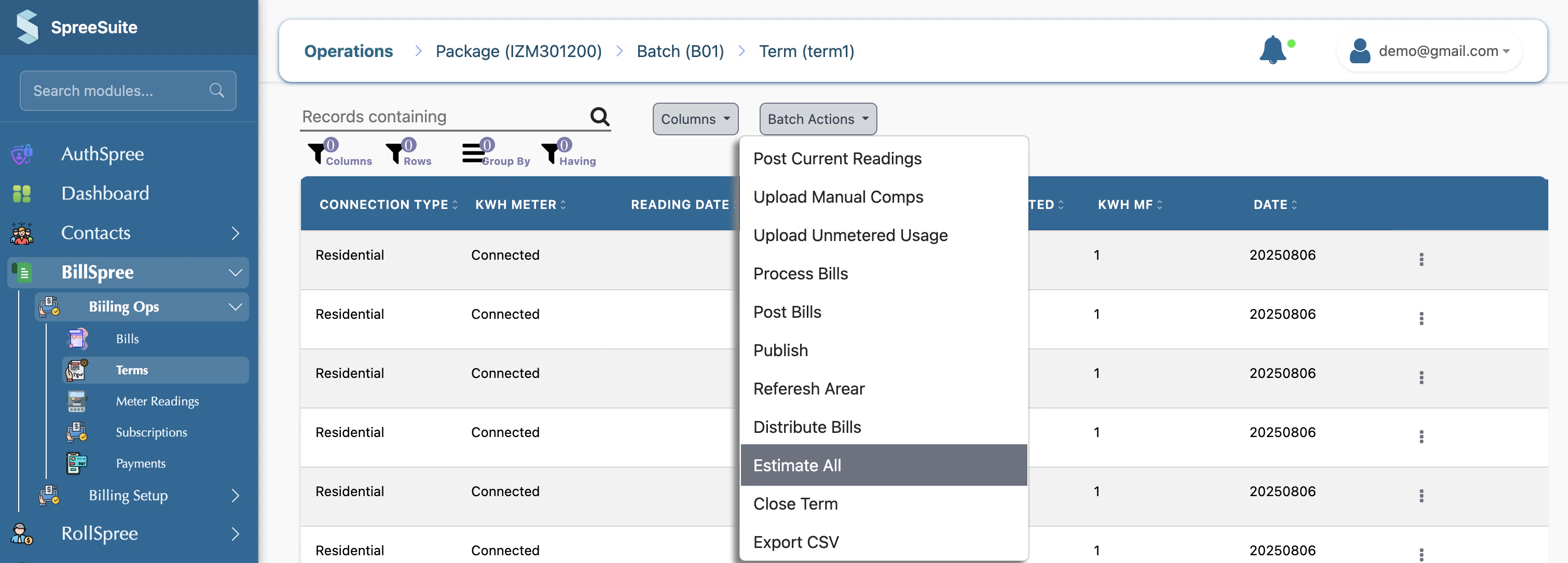
**This is the most important step:** You must **Process** the bill to recalculate charges from the pricing modules and update the final total.
1. Select the bill(s) you have adjusted.
2. Open the **Batch Actions** menu.
3. Select **Process Bills**.
> \[!TIP] Always provide a reason in the **Remarks** field (if available) for audit tracking.
### Step 4: Saving and Recalculating (Process)
After clicking **Save**, the values are updated in the database, but the bill's total amount remains unchanged.
**This is the most important step:** You must **Process** the bill to recalculate charges from the pricing modules and update the final total.
1. Select the bill(s) you have adjusted.
2. Open the **Batch Actions** menu.
3. Select **Process Bills**.
 ### Step 5: Verification and Posting
Verify that the **Total Amount** now reflects your adjustments. Once satisfied, select the bills and choose **Post Bills** from the batch actions to finalize them.
***
## 3. Comparison of Actions
| Action | Result | Reversible? |
| :---------- | :--------------------------------------- | :--------------------------- |
| **Save** | Updates inputs but NOT the total amount. | Yes |
| **Process** | Recalculates total based on new inputs. | Yes (Re-adjust & Re-process) |
| **Post** | Locks the bill and generates an Invoice. | No (Requires Credit Note) |
***
## 4. Common Troubleshooting
* **Adjustment button is missing:** The bill is likely already 'Posted' or 'Paid'. Adjustments are only allowed on 'Draft' or 'Processed 'records, not on 'Posted'.
* **Amounts didn't update after Save:** You missed the **Process** step. Run **Process Bills** to see the new totals.
* **Negative values not saving:** Check if the component configuration allows negative values in **Billing Setup > Packages**.
## 1. The Workflow Overview
The adjustment process is a bridge between automated data collection and final invoice generation. It allows administrators to "override" or "add" values before they are finalized.
```mermaid theme={null}
graph TD
A[1. Configuration
### Step 5: Verification and Posting
Verify that the **Total Amount** now reflects your adjustments. Once satisfied, select the bills and choose **Post Bills** from the batch actions to finalize them.
***
## 3. Comparison of Actions
| Action | Result | Reversible? |
| :---------- | :--------------------------------------- | :--------------------------- |
| **Save** | Updates inputs but NOT the total amount. | Yes |
| **Process** | Recalculates total based on new inputs. | Yes (Re-adjust & Re-process) |
| **Post** | Locks the bill and generates an Invoice. | No (Requires Credit Note) |
***
## 4. Common Troubleshooting
* **Adjustment button is missing:** The bill is likely already 'Posted' or 'Paid'. Adjustments are only allowed on 'Draft' or 'Processed 'records, not on 'Posted'.
* **Amounts didn't update after Save:** You missed the **Process** step. Run **Process Bills** to see the new totals.
* **Negative values not saving:** Check if the component configuration allows negative values in **Billing Setup > Packages**.
## 1. The Workflow Overview
The adjustment process is a bridge between automated data collection and final invoice generation. It allows administrators to "override" or "add" values before they are finalized.
```mermaid theme={null}
graph TD
A[1. Configuration
Set Components to 'Manual'] --> B[2. Term Start
Create Billing Term & Drafts]
B --> C{3. Review Drafts}
C -->|Adjustment Needed| D[4. Make Adjustment
Enter Manual Values/Readings]
D --> E[5. Processing
Re-calculate with New Values]
E --> F{6. Verify}
F -->|Looks Good| G[7. Posting
Finalize & Lock Bill]
F -->|Need Fix| D
C -->|No Change| E
```
## 3. Summary of Terms
| Term | What it means |
| :------------------- | :------------------------------------------------------------------------- |
| **Configurable** | You decide which "lines" on the bill can be typed in manually. |
| **Manual Component** | A blank line on the bill for entering any dollar amount. |
| **Draft** | A "pencil version" of the bill that hasn't been sent yet. |
| **Adjustment** | Using the "Correction Pen" to fix a line on the draft. |
| **Processing** | Telling the system's calculator to update the total based on your changes. |
| **Posting** | "Printing the bill in ink" so it can no longer be changed. |
***
### For Example:
# BillSpree Adjustment & Billing Workflow
This guide provides a practical walkthrough of how **Packages**, **Plans**, and **Adjustments** work together using a real-world example.
***
## 1. Concept Definitions
| Term | Role in the System | Layman Definition |
| :-------------------- | :------------------- | :------------------------------------------------------------------------------- |
| **Package (Service)** | The "Bucket" | Defines **what** items can appear on a bill (e.g., Rent, Fees, Credits). |
| **Plan** | The "Price List" | Defines **the cost of** each item in the Package. |
| **Adjustment** | The "Correction Pen" | A manual override for specific components marked as **'Manual'** in the Package. |
***
## 2. Example Scenario: Fiber Internet Service
### Setup Configuration
* **Package**: `Fiber Home Plus`
* **Plan**: Monthly Rent = $50, Router = $5.
* **Adjustment Points**: We added a component called **"Support Credit"** and set its type to **Manual**.
### The Problem
A customer had 3 days of downtime. The support team promised a **\$15.00 credit**. We need to adjust their bill before it is sent.
### The Flow Diagram
```mermaid theme={null}
sequenceDiagram
participant A as Admin (Setup)
participant B as Billing Term (Drafts)
participant C as Adjustment Modal
participant D as Pricing Engine
A->>A: Configure 'Support Credit' as MANUAL
Note over B: June 2024 Term Starts
B->>B: Generate Alice's Draft ($55.00)
Admin->>C: Click 'Adjustment' for Alice
C->>C: Enter -15.00 in 'Support Credit'
C->>B: Save to Draft
Admin->>D: Click 'Process'
D->>B: Calculate: $55.00 - $15.00 = $40.00
Admin->>B: Click 'Post' (Finalize)
```