> ## Documentation Index
> Fetch the complete documentation index at: https://docs.techfootintl.com/llms.txt
> Use this file to discover all available pages before exploring further.
# Subscription
## What is Subscription
A subscription is a customer’s active service account for a utility (electricity, water, gas, etc.). It’s the record that links the customer to the service, tracks usage, and generates bills.
**Real-world example**
Think of a Netflix subscription:
* You sign up → you get a subscription
* You pay monthly → bills are generated
* You can cancel → subscription becomes inactive
* You can reactivate → subscription becomes active again
A subscription in this billing system works the same way, but for utilities like electricity, water, or gas.
***
## **Subscription Setup**
Setting up a subscription is the final step in the billing lifecycle. Follow this process to enroll a customer in a Plan variant.
**1. List of Subscriptions**
 **2. Navigate to Subscriptions**
To view your active and disconnected subscriptions, click on **Subscriptions** in the main sidebar. You can manage existing records or create a new one by clicking the **+ New** button.
**2. Navigate to Subscriptions**
To view your active and disconnected subscriptions, click on **Subscriptions** in the main sidebar. You can manage existing records or create a new one by clicking the **+ New** button.
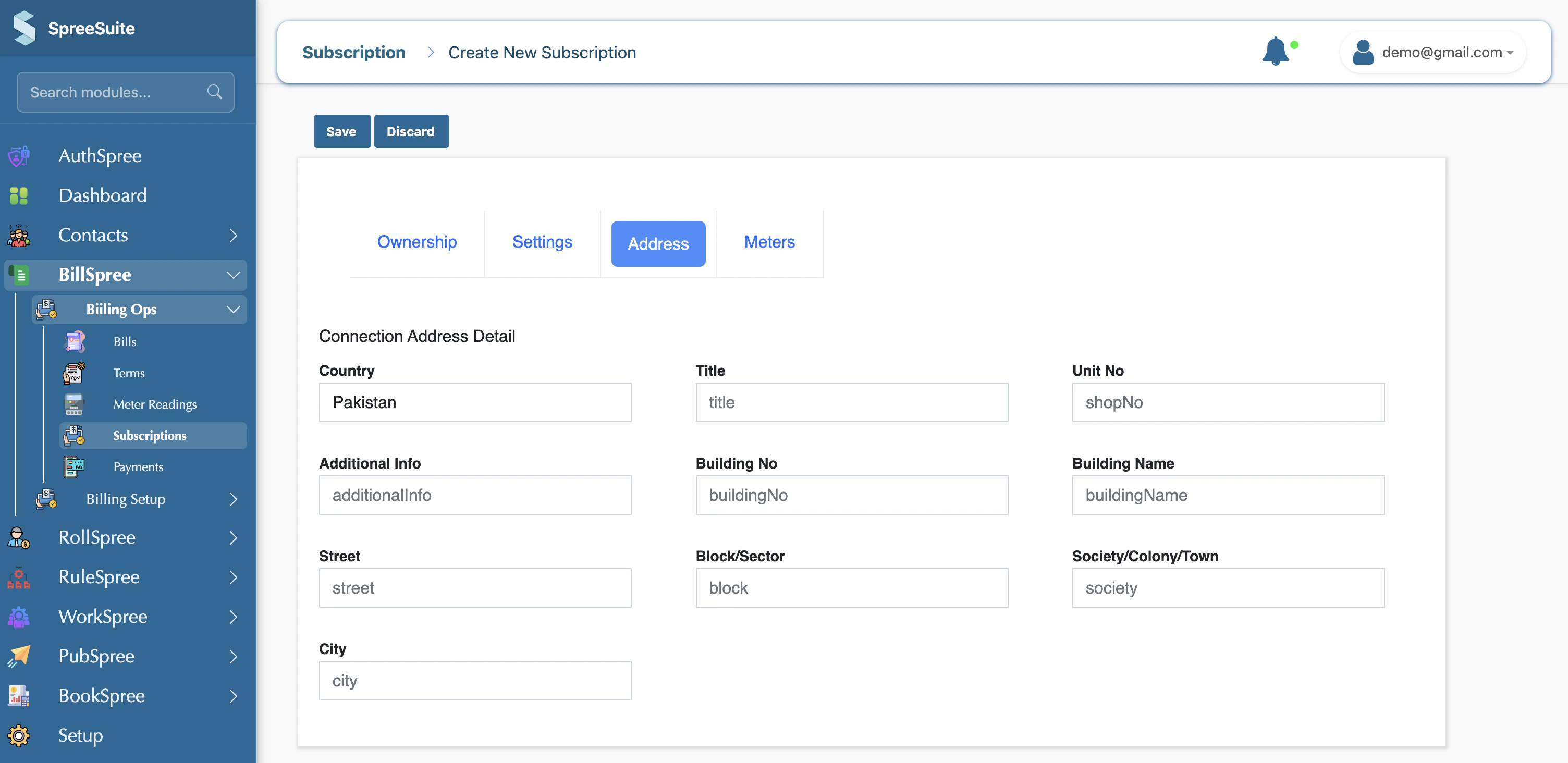 **a. Select Customer number here.**
In the **Customer Details** section, you must provide the unique identifier for the customer you want to subscribe.
* **Customer Number**: Enter the system-generated ID for the customer.
**a. Select Customer number here.**
In the **Customer Details** section, you must provide the unique identifier for the customer you want to subscribe.
* **Customer Number**: Enter the system-generated ID for the customer.
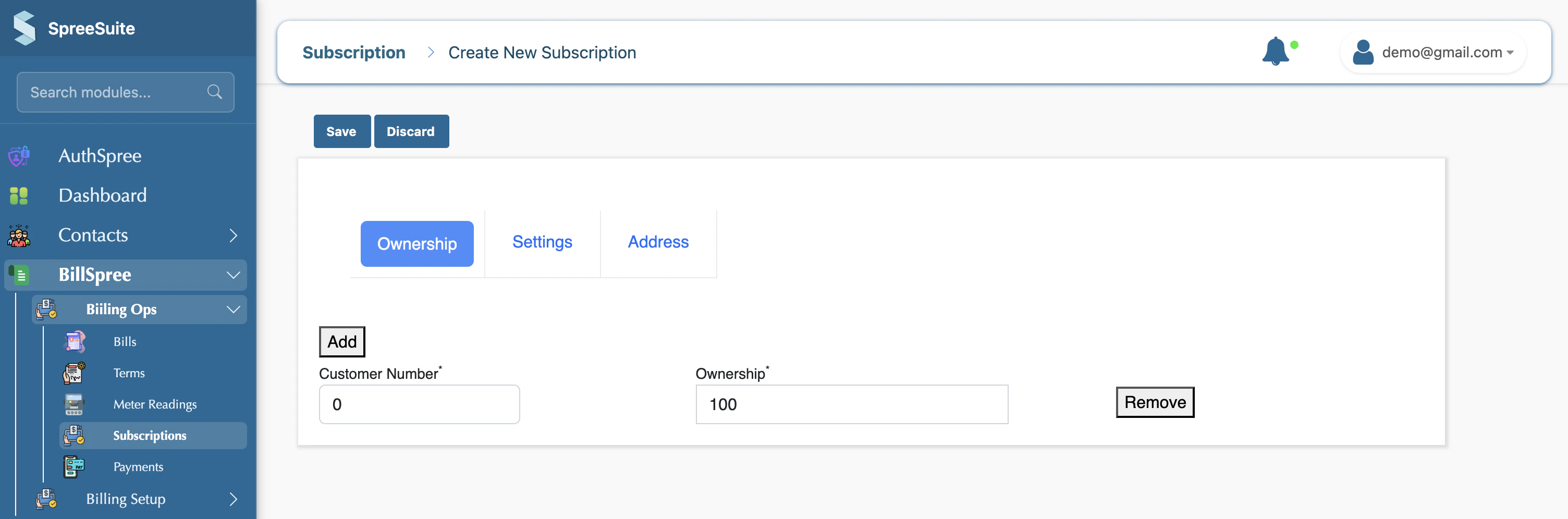 b. Select Pricing Template, Plan variant, and Batch in the settings tab.
Click the **Select Pricing Template** dropdown to choose from your defined Plan variants
b. Select Pricing Template, Plan variant, and Batch in the settings tab.
Click the **Select Pricing Template** dropdown to choose from your defined Plan variants
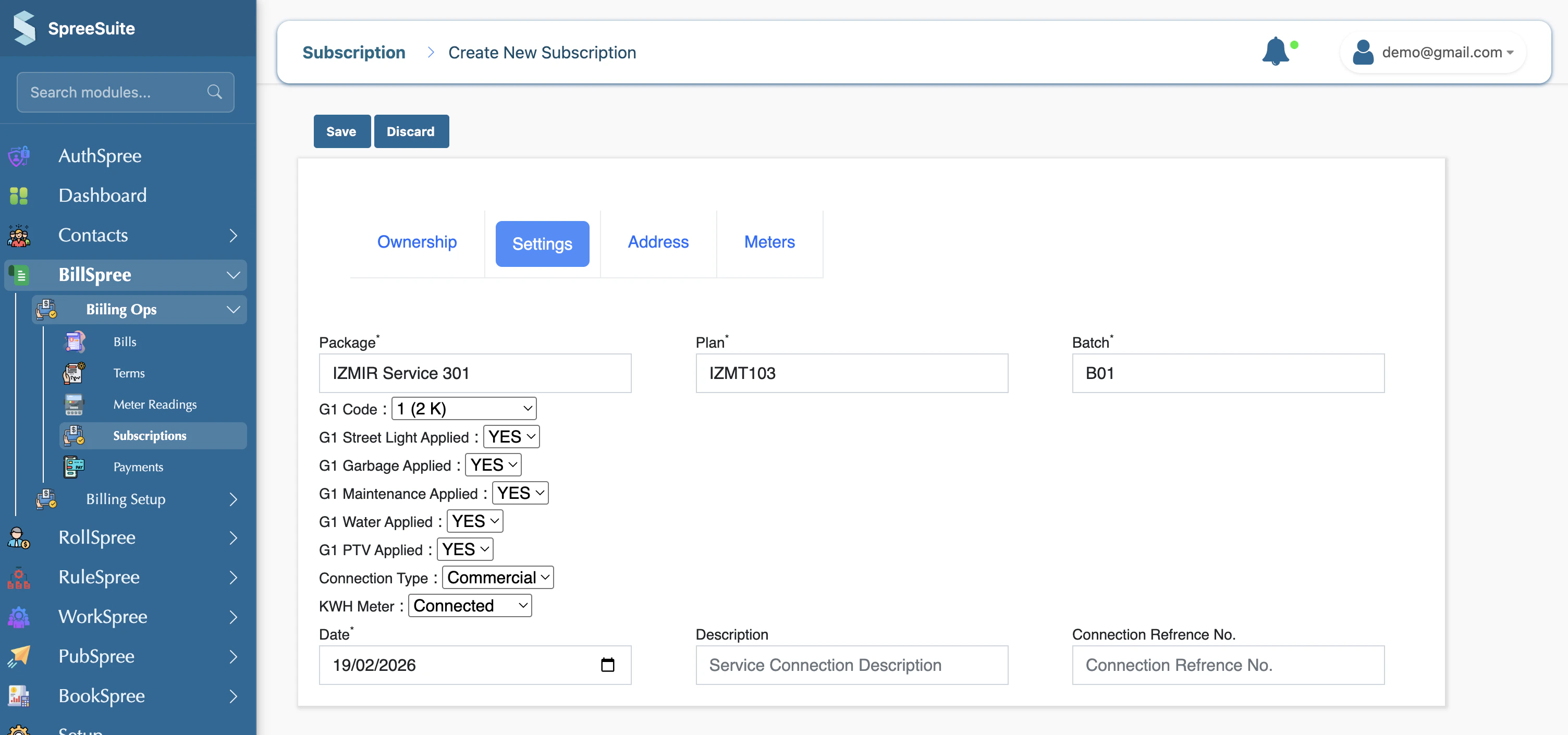 ### Address
c. Add Address
### Address
c. Add Address
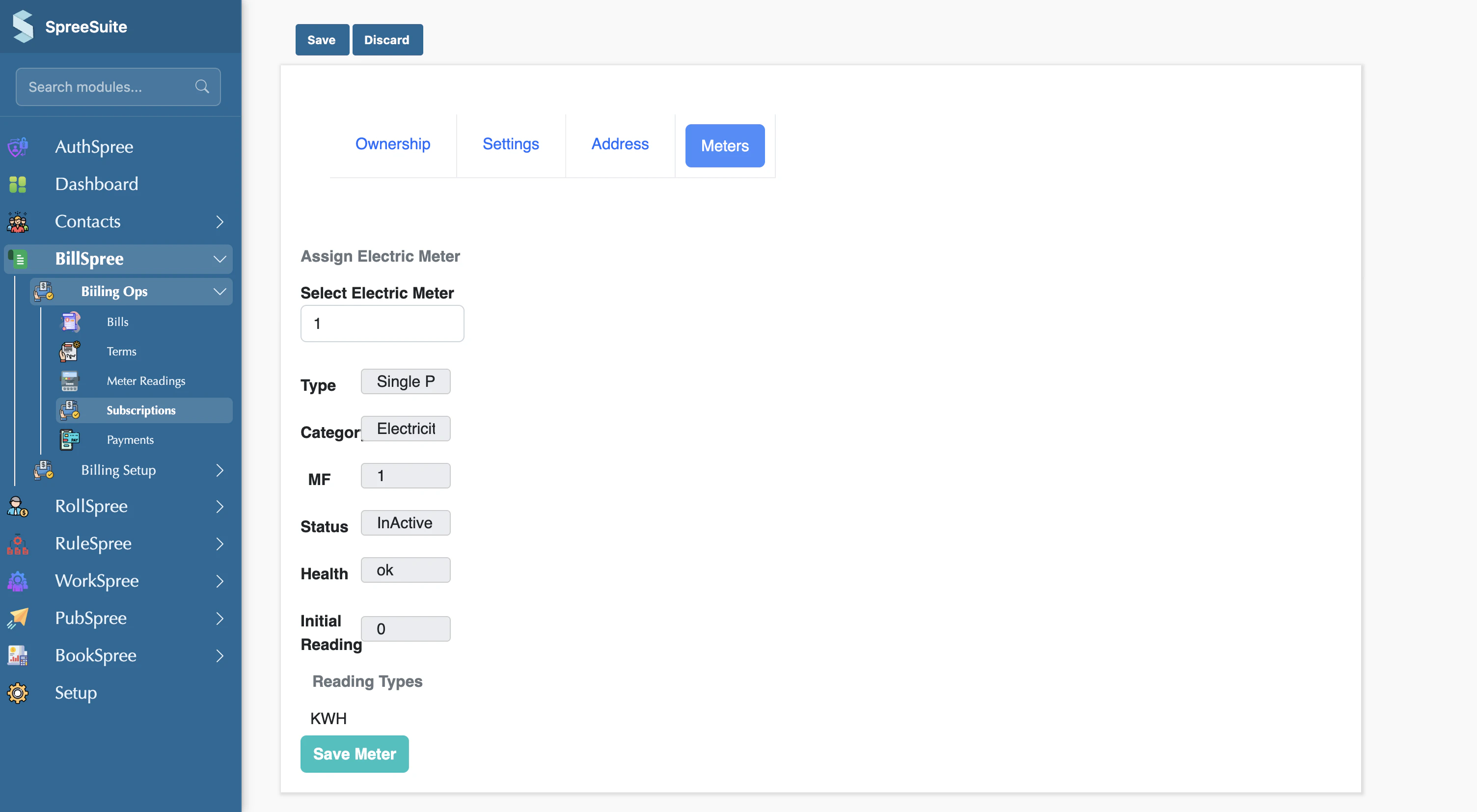
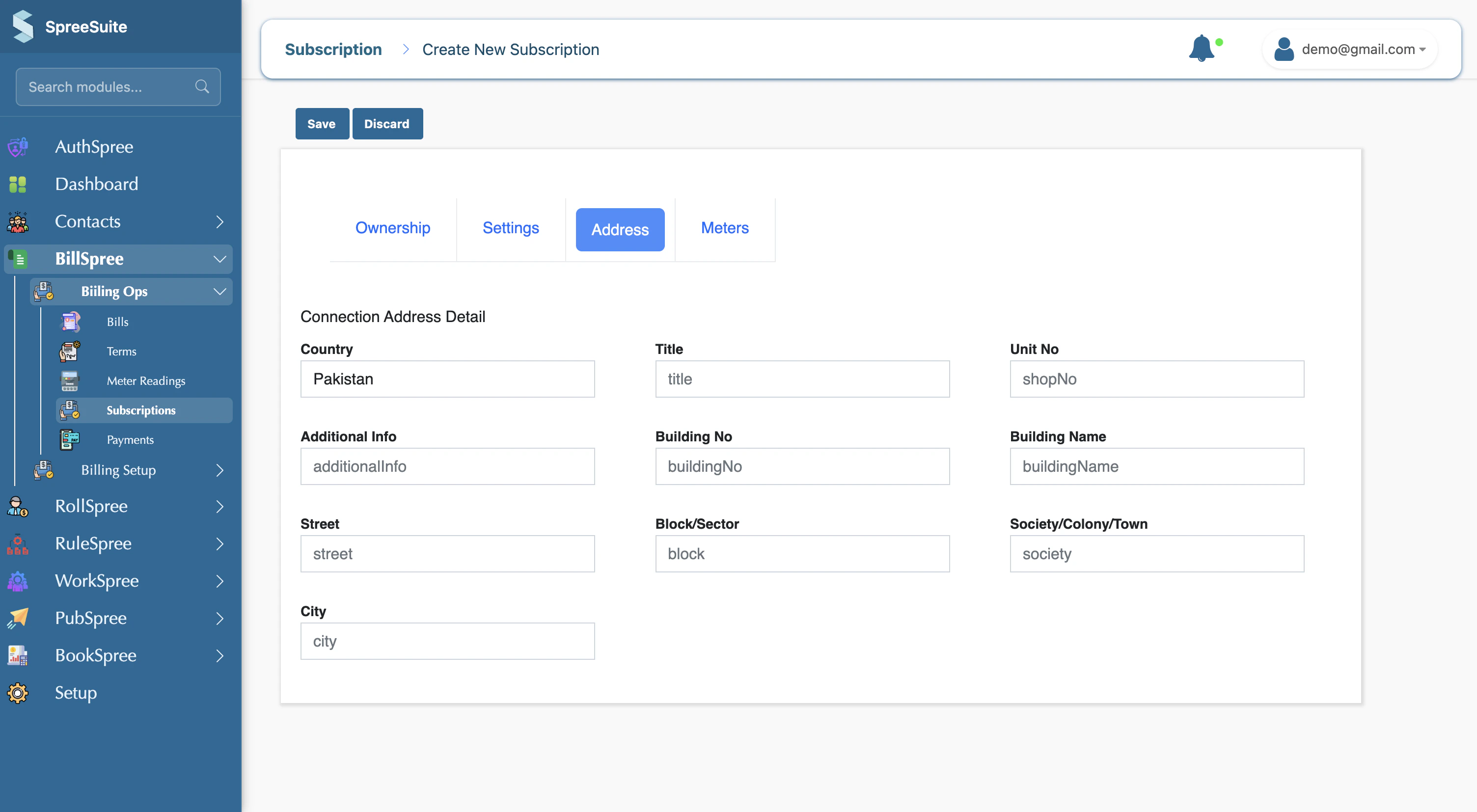 ### Meters
d. Attach Meters
### Meters
d. Attach Meters
 ## Other Scenarios
### Upload Bulk subscription
You can also upload a subscription file in bulk
1. Click on Import Bulk Data
2. Select Pricing Template
## Other Scenarios
### Upload Bulk subscription
You can also upload a subscription file in bulk
1. Click on Import Bulk Data
2. Select Pricing Template
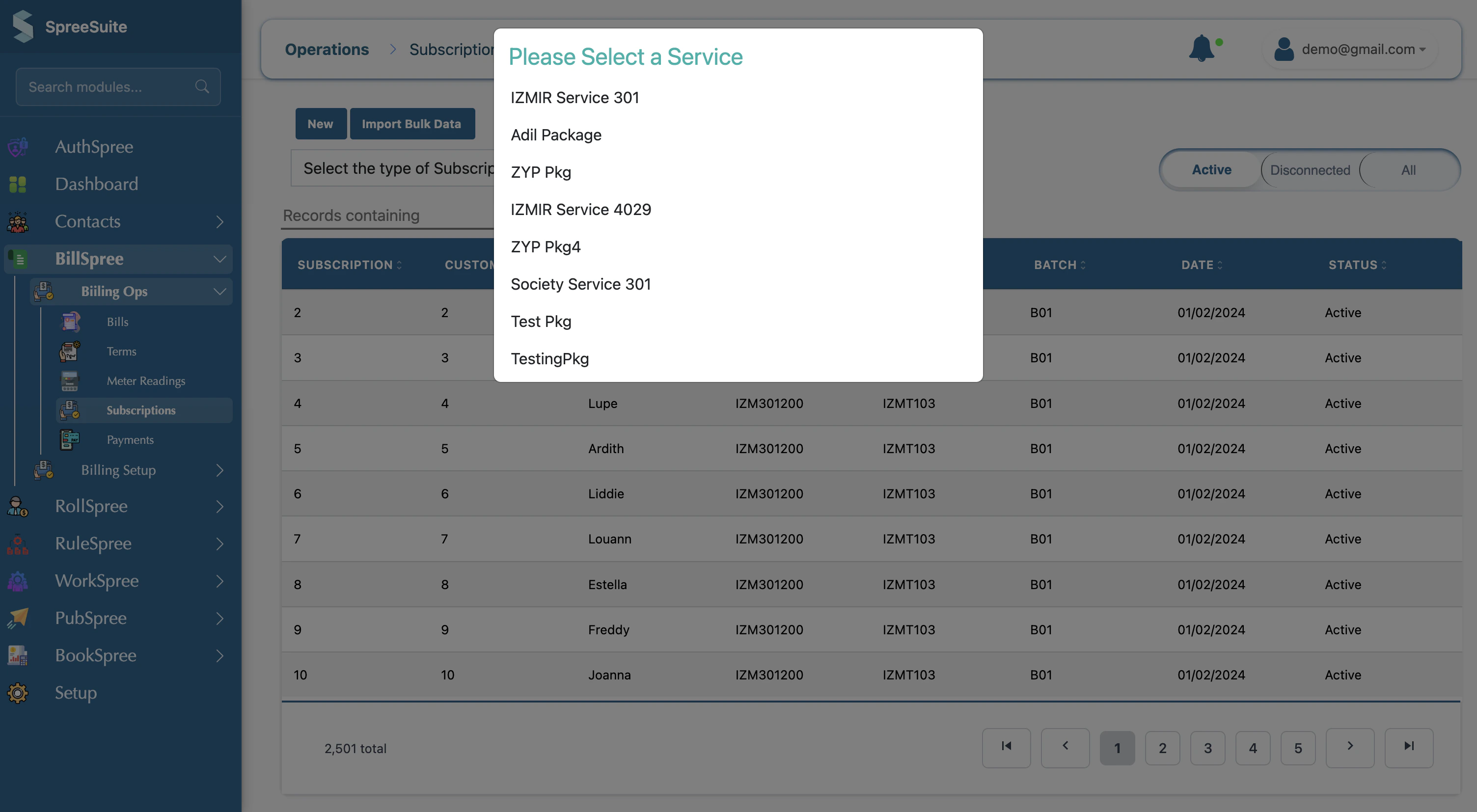 If you have a large number of subscribers to migrate, use the **Import Bulk Data** feature on the Subscriptions page to upload a CSV file
### RCO
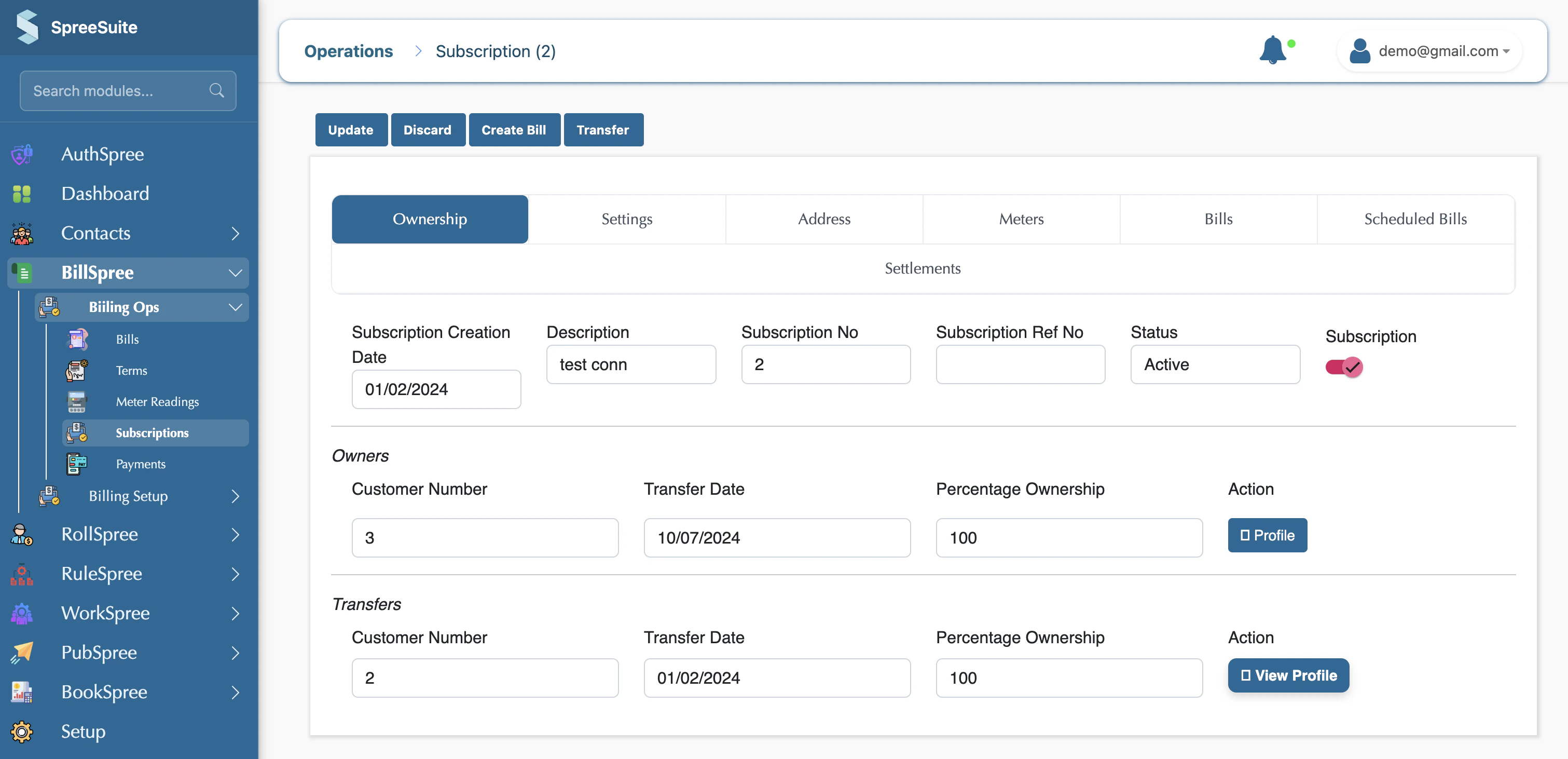
You can reactivate the subscription by toggling the button
If you have a large number of subscribers to migrate, use the **Import Bulk Data** feature on the Subscriptions page to upload a CSV file
### RCO
You can reactivate the subscription by toggling the button
 ### DCO
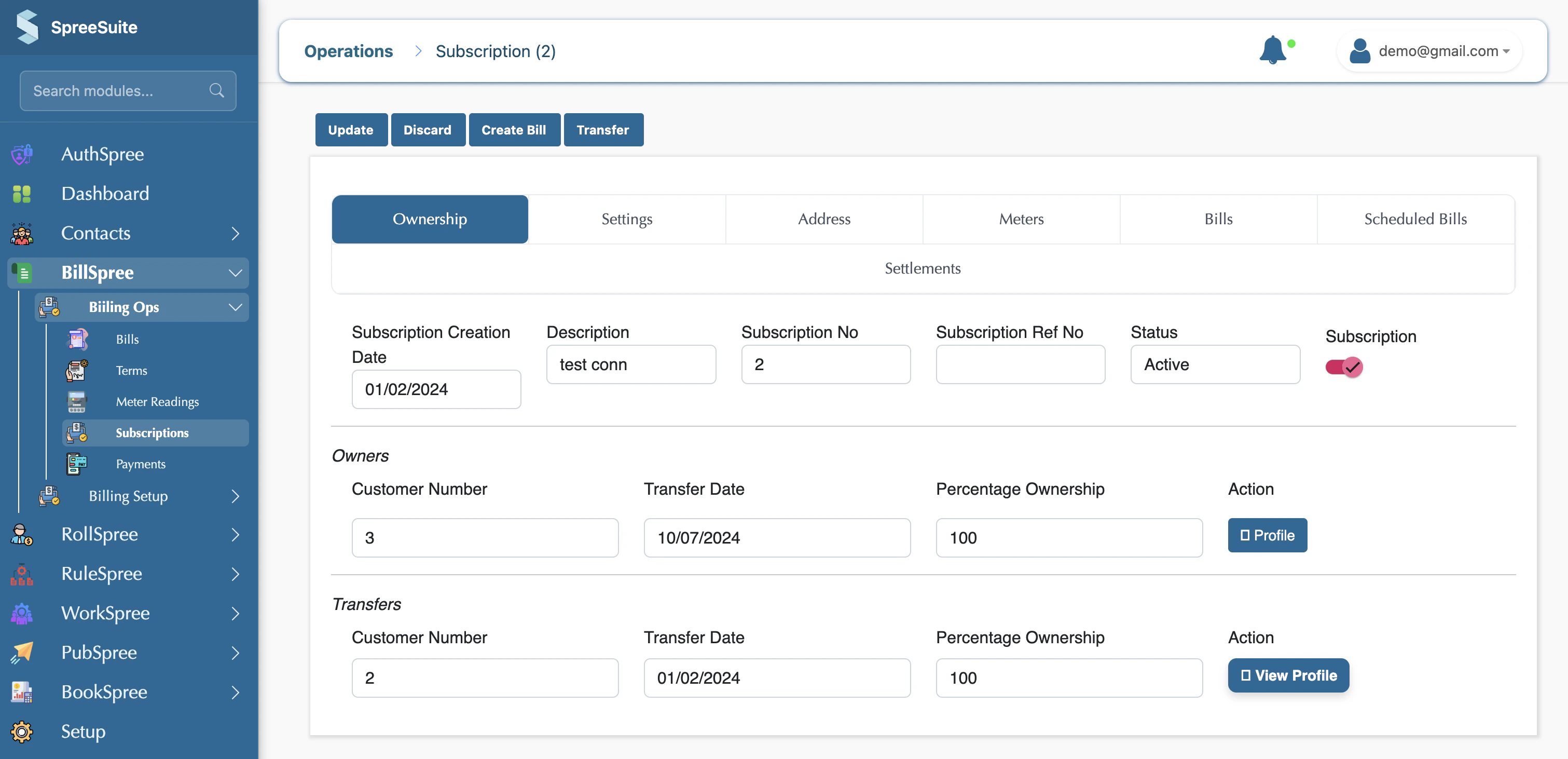
You can deactivate the subscription by toggling the button
### DCO
You can deactivate the subscription by toggling the button
 ### Move Term
In some cases, a billing **Term** may already be created before new subscriptions are added into the system. Any subscription created after the Term generation will not automatically become part of that existing Term.
To include the newly created subscription in an already generated Term, use the **Move Term** action available against the subscription record.
This allows you to manually attach the subscription to the existing billing Term without recreating the Term or repeating the billing process.
**Typical use case:**
* A monthly billing Term for July is already generated.
* A new customer subscription is created afterward.
* Since the subscription did not exist during Term creation, it is excluded from that Term.
* Click **Move Term** against the subscription to include it in the previously created Term.
### Move Term
In some cases, a billing **Term** may already be created before new subscriptions are added into the system. Any subscription created after the Term generation will not automatically become part of that existing Term.
To include the newly created subscription in an already generated Term, use the **Move Term** action available against the subscription record.
This allows you to manually attach the subscription to the existing billing Term without recreating the Term or repeating the billing process.
**Typical use case:**
* A monthly billing Term for July is already generated.
* A new customer subscription is created afterward.
* Since the subscription did not exist during Term creation, it is excluded from that Term.
* Click **Move Term** against the subscription to include it in the previously created Term.
 ## Billing account
A billing account means multiple subscriptions are combined into one single bill.
But if you want a separate bill for each subscription, then you will create a different billing account for each subscription. Then, the number of billing accounts will be equal to the number of bills generated.
Otherwise, by default, all subscriptions inside one billing account will generate only one combined bill.
## Billing account
A billing account means multiple subscriptions are combined into one single bill.
But if you want a separate bill for each subscription, then you will create a different billing account for each subscription. Then, the number of billing accounts will be equal to the number of bills generated.
Otherwise, by default, all subscriptions inside one billing account will generate only one combined bill.