> ## Documentation Index
> Fetch the complete documentation index at: https://docs.techfootintl.com/llms.txt
> Use this file to discover all available pages before exploring further.
# Create Term
Creating a term is the first step in the billing lifecycle. Before usage can be collected, bills can be calculated, or invoices can be generated, a term must be created.
A term represents a specific billing period and acts as the billing container for all activities performed during that period. Every usage record, charge, bill calculation, payment reconciliation, and published bill is associated with a term.
## Why Create a Term?
The billing system organizes all billing activities around terms.
Creating a term allows the system to:
* Define the billing period
* Determine which usage belongs to the billing cycle
* Track billing activities for a specific timeframe
* Generate bills for the selected period
* Monitor processing progress
* Group all related billing records together
Without an active term, billing activities cannot begin.
## When Should You Create a Term?
A new term should be created whenever a new billing cycle begins.
Examples:
### Monthly Billing
| Billing Period | Term |
| :------------- | :----------------- |
| January 2025 | January 2025 Term |
| February 2025 | February 2025 Term |
| March 2025 | March 2025 Term |
### Quarterly Billing
| Billing Period | Term |
| :------------- | :----------- |
| Q1 2025 | Q1 2025 Term |
| Q2 2025 | Q2 2025 Term |
| Q3 2025 | Q3 2025 Term |
### Weekly Billing
| Billing Period | Term |
| :------------- | :---------- |
| Week 1 | Week 1 Term |
| Week 2 | Week 2 Term |
| Week 3 | Week 3 Term |
## How to create Term:
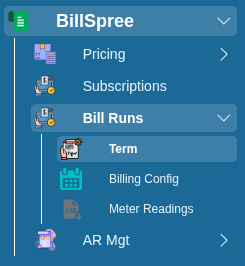
1. Go to **BillSpree** **→Bill Runs →Term**
 2. Click on **New**
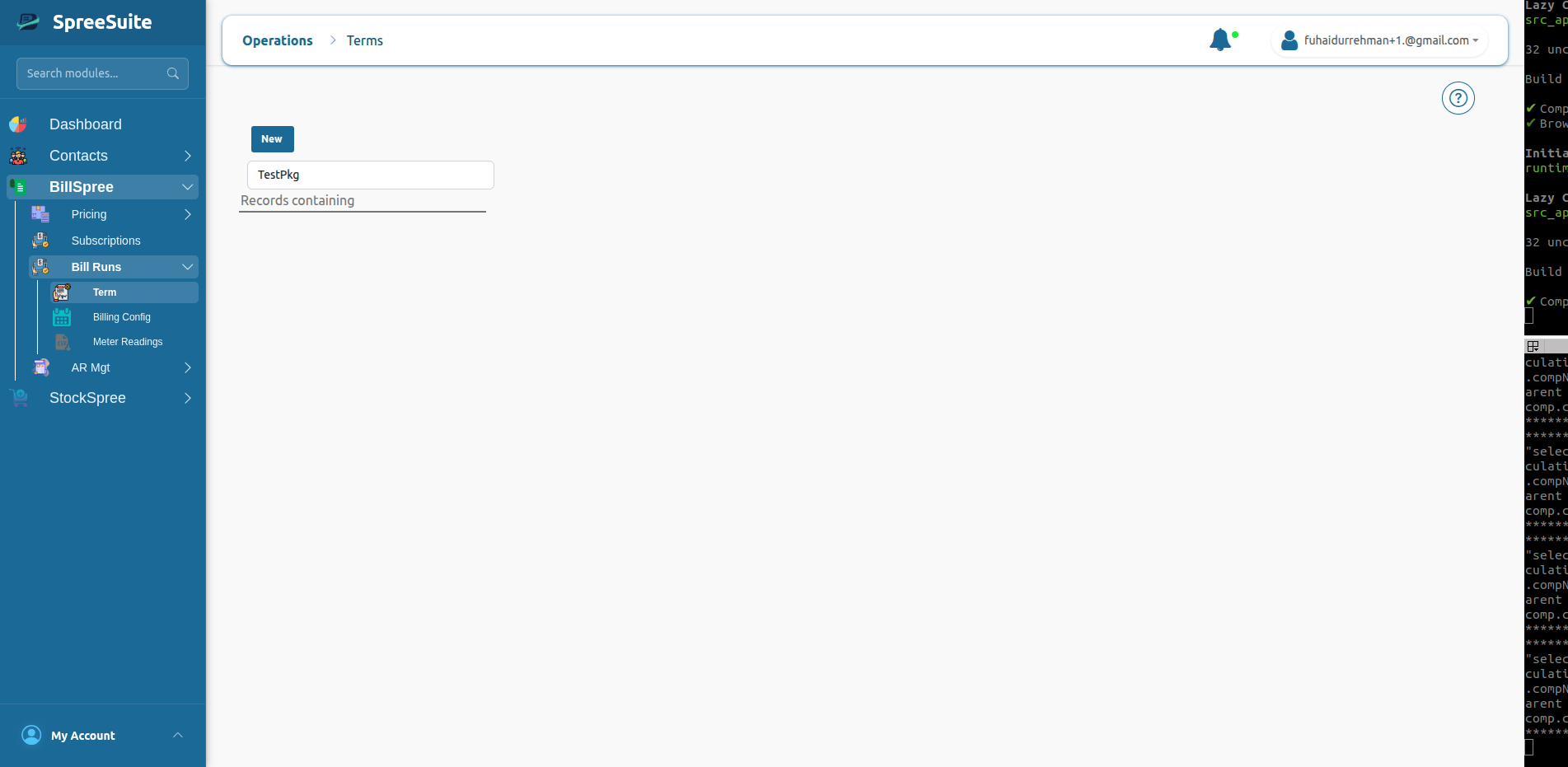 The term create pop will open there are two methods to create term.
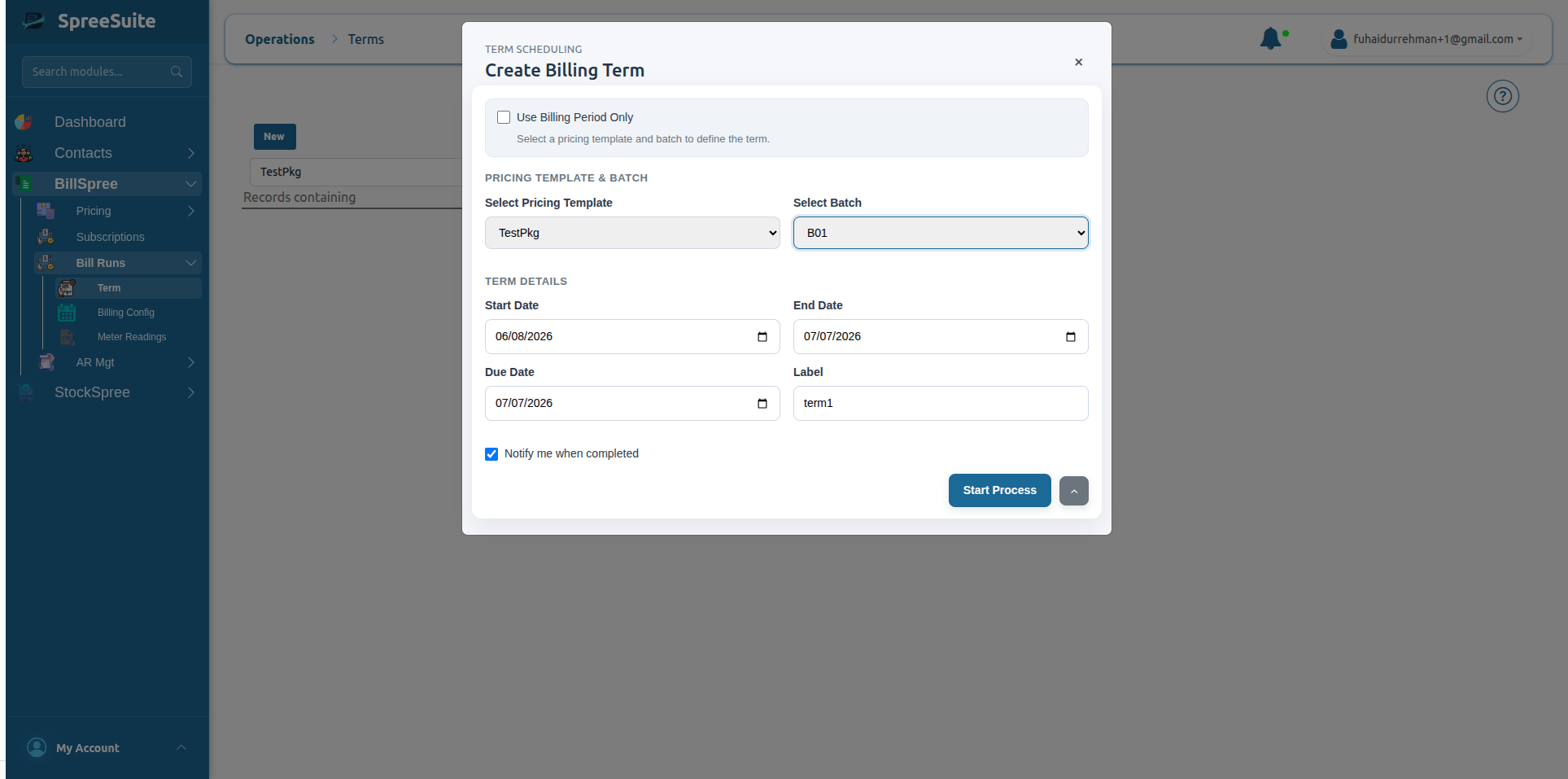 **a**-**Creating a Term Using a Pricing Template**
To create a term using a pricing template, ensure that the **"Use Billing Period only"** option is unchecked. Then, select or define the following required fields:
* **Pricing Template**
* **Batch**
* **Start Date** & **End Date**
* **Due Date**
* **Label**
This Flow will create Term for a specific Batch.
\
**b-Creating a Term with Billing Period Only**
To configure a term using only the billing period, ensure that the **"Use Billing Period only"** checkbox is selected. Then, provide the following details:
* **Billing Period**
* **Start Date** & **End Date**
* **Due Date**
* **Label**\\
**a**-**Creating a Term Using a Pricing Template**
To create a term using a pricing template, ensure that the **"Use Billing Period only"** option is unchecked. Then, select or define the following required fields:
* **Pricing Template**
* **Batch**
* **Start Date** & **End Date**
* **Due Date**
* **Label**
This Flow will create Term for a specific Batch.
\
**b-Creating a Term with Billing Period Only**
To configure a term using only the billing period, ensure that the **"Use Billing Period only"** checkbox is selected. Then, provide the following details:
* **Billing Period**
* **Start Date** & **End Date**
* **Due Date**
* **Label**\\
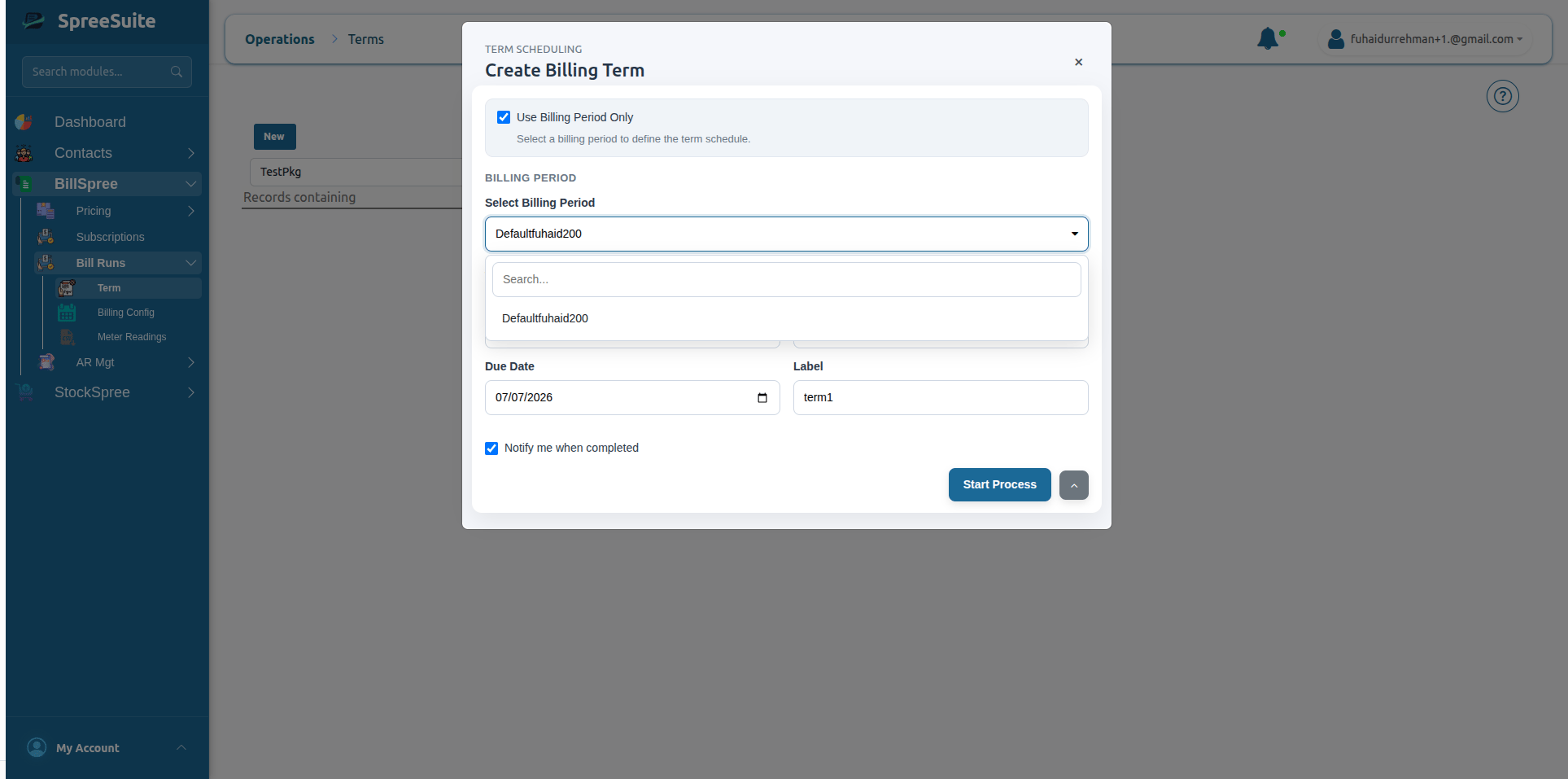 This Flow will create Term for all batches attached with same billing period
3. Click on **start Process.**
4. After Creating term Select Pricing Template new term for that template will appear.
This Flow will create Term for all batches attached with same billing period
3. Click on **start Process.**
4. After Creating term Select Pricing Template new term for that template will appear.
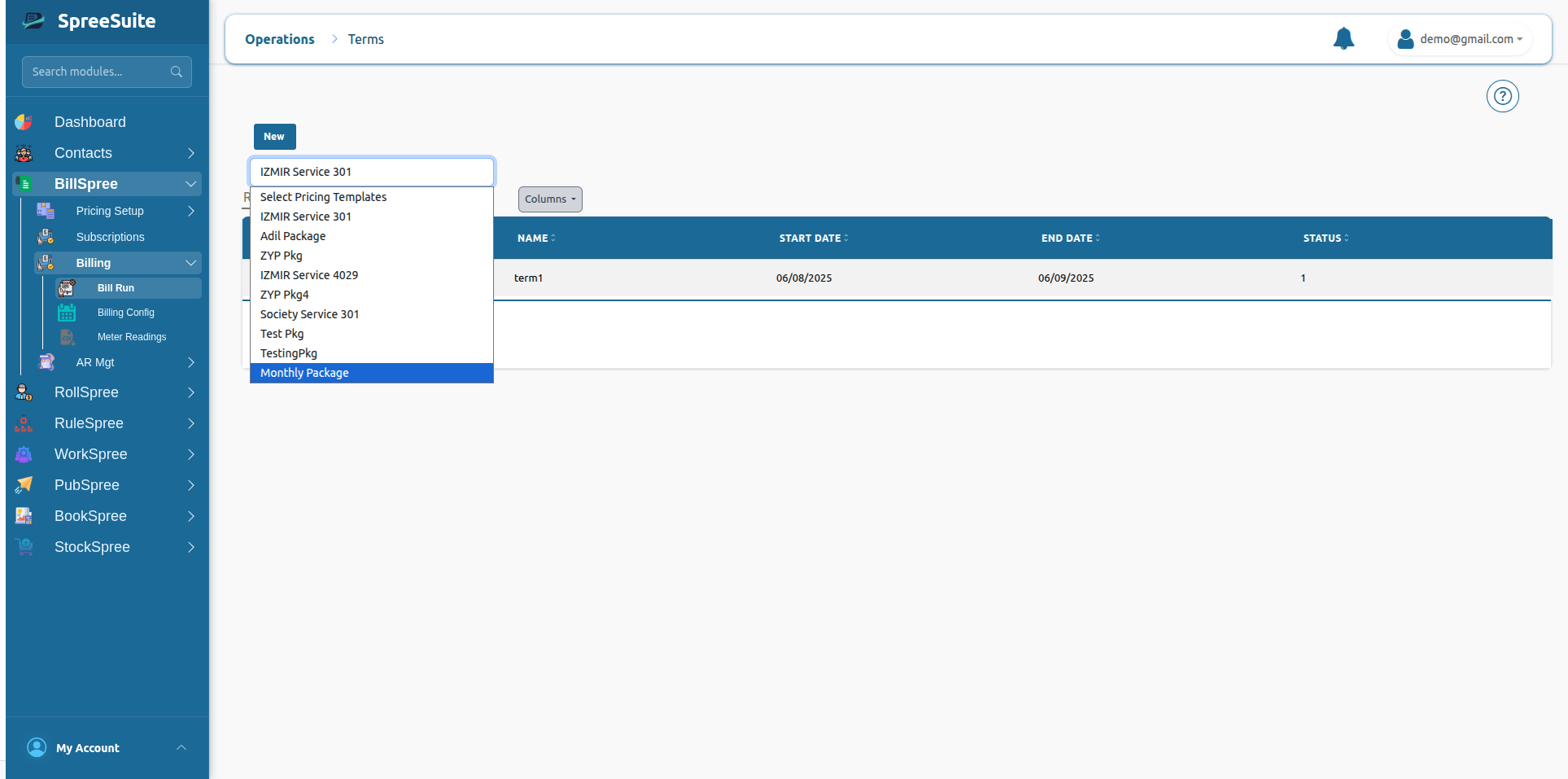 5. Click on Term Row all subscription will appear of particular pricing template.
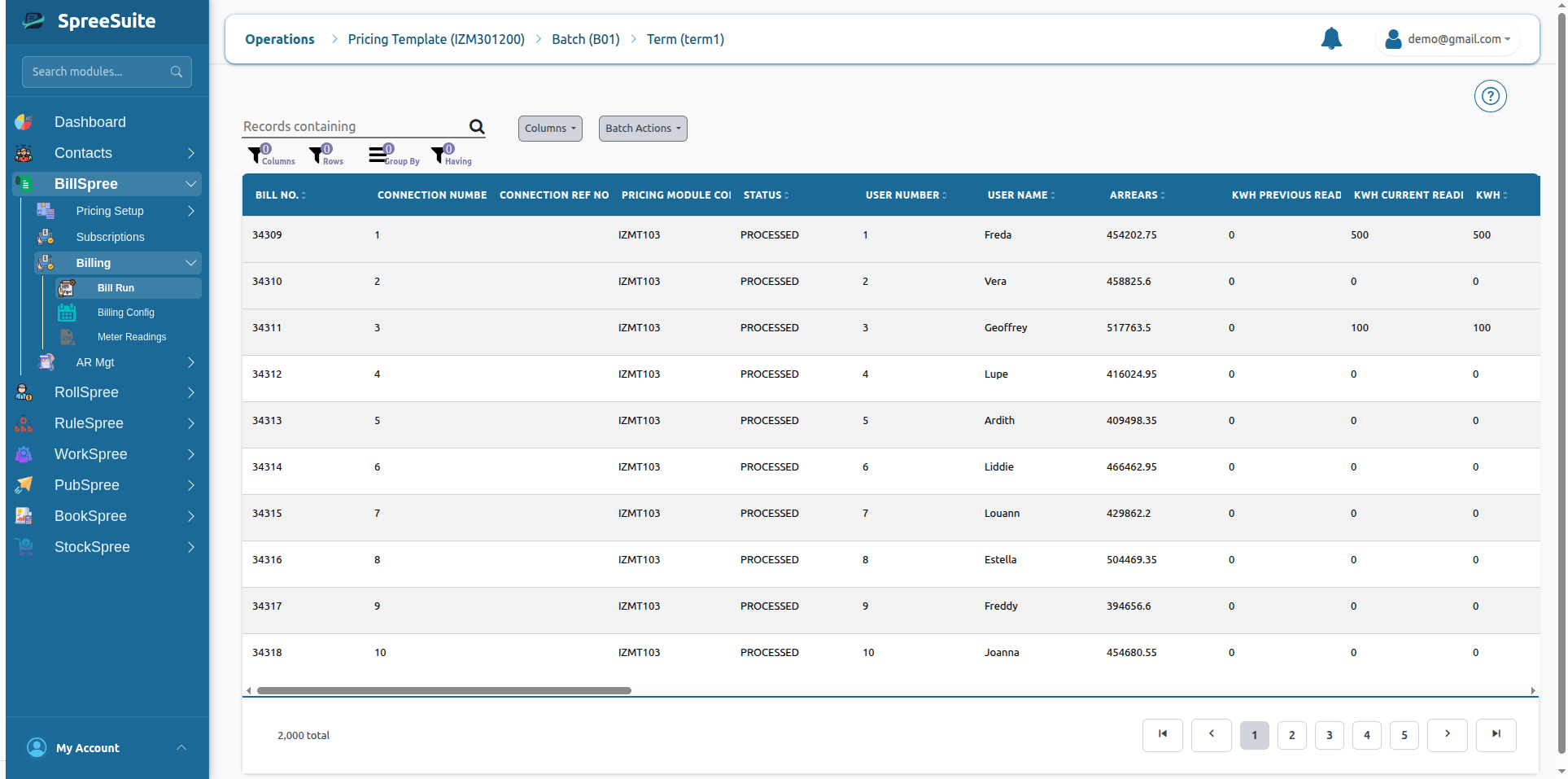 This term will contain all billing activities that occur between January 1 and January 31, 2025.
## What Happens After a Term is Created?
Once a term has been successfully created, it becomes the active billing period.
The system is now ready to begin collecting and processing billing data.
The next stages typically include:
1. Upload or capture usage data
2. Upload manual charges and adjustments
3. Estimate missing values if required
4. Process bills
5. Post bills
6. Publish bills
7. Distribute bills
8. Reconcile payments
9. Close the term
## Summary
Creating a term establishes the billing period that will be used to collect usage, calculate charges, generate bills, track payments, and manage the complete billing lifecycle.
This term will contain all billing activities that occur between January 1 and January 31, 2025.
## What Happens After a Term is Created?
Once a term has been successfully created, it becomes the active billing period.
The system is now ready to begin collecting and processing billing data.
The next stages typically include:
1. Upload or capture usage data
2. Upload manual charges and adjustments
3. Estimate missing values if required
4. Process bills
5. Post bills
6. Publish bills
7. Distribute bills
8. Reconcile payments
9. Close the term
## Summary
Creating a term establishes the billing period that will be used to collect usage, calculate charges, generate bills, track payments, and manage the complete billing lifecycle.